The Avatar Blocks widget in Feedspace arranges reviews in a structured block grid, placing each reviewer’s avatar alongside their testimonial for a clean, organised presentation. Because the layout relies on a full grid of consistently formatted blocks to look its best, any gaps caused by a thin or outdated review selection make the design feel incomplete and undermine the credibility the widget is meant to project.
The Automate Review Selection feature in the Select Reviews tab solves this by letting you define rules once. Feedspace then automatically fills every block in your grid with reviews that match your chosen criteria, such as a star rating threshold, a positive sentiment score, a specific review type, or a keyword. The result is an Avatar Blocks grid that stays complete and current, reflecting your latest, highest-quality social proof without any ongoing manual curation.
How to set up automation to auto-Select Reviews for your Avatar Blocks widget
Step 1: Open your Avatar Blocks widget
Log in to Feedspace and navigate to the Widgets section from the left sidebar under Share Reviews. Locate your existing Avatar Blocks widget in the list and click the Edit (pencil) icon on its card to open the editor. If you have not created one yet, click Create Widget, choose Avatar Blocks, and complete the initial setup before continuing.
Step 2: Go to the Select Reviews tab
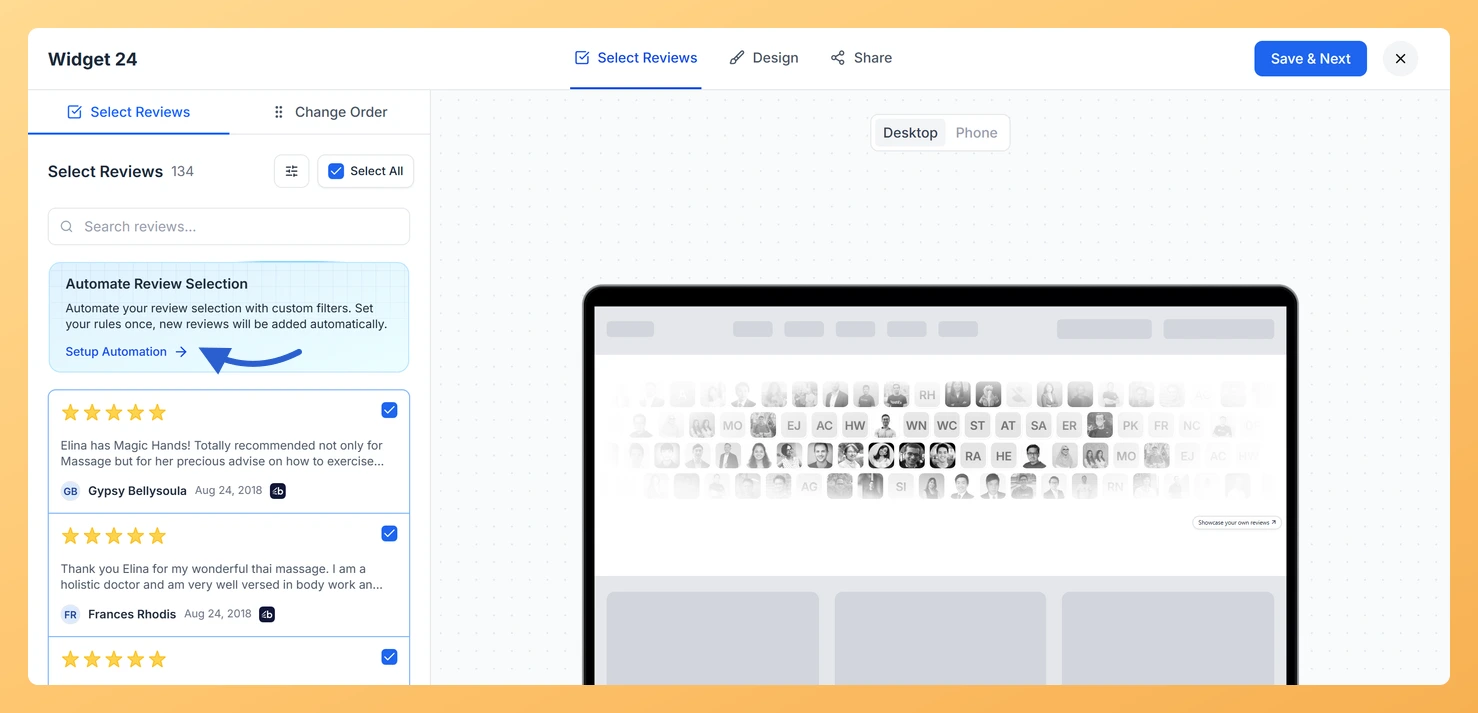
Inside the widget editor, click the Select Reviews tab. This tab is where you choose which reviews populate each block in the grid. You will see any manually selected reviews listed here, along with the option to add more or switch to automated selection.
Step 3: Open Setup Automation
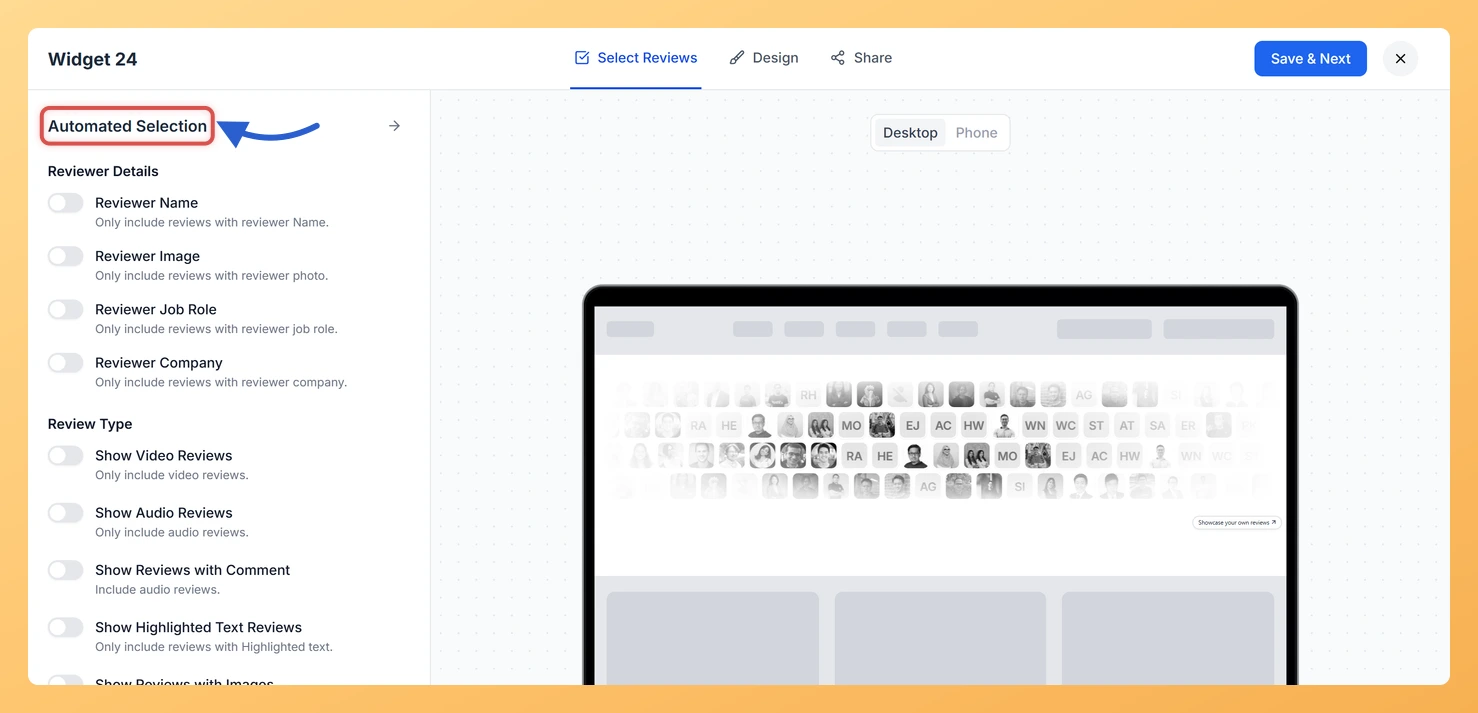
Inside the Select Reviews tab, find the Automate Review Selection card and click Setup Automation in it. This opens the automation configuration panel where you define the rules that determine which reviews are automatically included in your Avatar Blocks widget.
Step 4: Configure your automation rules
In the automation panel, set one or more rules to control which reviews qualify for your Avatar Blocks grid. The available rule types are:
Star Rating: Include only reviews that meet a minimum star threshold, for example four stars and above, so every block in the grid represents a genuinely positive experience.
Sentiment: Filter by positive, neutral, or negative sentiment to ensure the tone of every block aligns with the message you want to convey on that page.
Review Type: Restrict selection to specific formats, such as video, audio, text comments, highlighted text, images, or favorites, keeping the block layout visually consistent across the grid.
Keywords: Include reviews that mention particular words or phrases, surfacing the most on-topic testimonials to fill your blocks with relevant social proof.
You can combine multiple rules to narrow the selection precisely. For example, requiring a four-star rating AND a positive sentiment ensures only your strongest testimonials occupy each block in the grid.
Step 5: Save and activate the automation
Once you have configured your rules, click Save Selection to activate the automation. Feedspace will immediately apply the rules to your existing review library and populate the Avatar Blocks grid with all matching reviews. Going forward, any new review that meets your defined criteria will be added automatically, keeping every block filled with fresh, quality content without further manual effort.
Step 6: Save and embed your widget
After confirming the auto-selected reviews look right for your Avatar Blocks layout, click Save & Next and copy the embed code. Paste it into your website to publish the widget. From this point, the block grid will stay complete and up to date as new qualifying reviews arrive, with no additional action required from you.
What’s next
Add a keyword rule targeting a specific product or feature so every block in your Avatar Blocks grid highlights testimonials that are directly relevant to that page’s focus.
Combine the star rating and sentiment filters to ensure only your strongest reviews are selected, keeping the structured block layout looking polished and complete at all times.
Use the search and filter tools in the Select Reviews tab to preview which reviews your current automation rules are pulling in before embedding the grid on your site.
Embed the Avatar Blocks widget on a dedicated testimonials page or product landing page and let automation keep every block filled with fresh, high-quality social proof automatically.
Common questions
Will my existing reviews be pulled in by the rules?
No. The rules look forward only, so reviews that arrive after you save them and match your filters are added. Anything already in Feedspace stays put unless you tick it yourself on Select Reviews.
You might also find helpful
How Do I Select Reviews for My Avatar Blocks Widget in Feedspace?
Overview The Avatar Blocks widget displays your reviews in a structured block grid, placing each reviewer’s avatar alongside their testimonial for a clean, organised presentation. Because reviews are arranged in a grid, the number and selection of reviews you include directly affects how polished the layout looks. An uneven or...
How Do I Search and Filter Reviews for My Avatar Blocks Widget in Feedspace?
Overview The Avatar Blocks widget displays your reviews in a structured block grid where each block shows a reviewer avatar alongside their testimonial. Because the layout pairs a profile photo and name directly with the review text, the quality of individual reviews matters more here than in other widget types....
What is a Widget in Feedspace?
Overview In Feedspace, a widget is a customizable display tool that allows you to showcase your collected reviews, testimonials, or feedback directly on your website. With widgets, you can turn customer voices into social proof, helping you build trust and credibility with visitors. Instead of just collecting reviews, widgets let...