Feedspace Home Dashboard

How Do I Search and Filter Reviews for My Avatar Slider Widget in Feedspace?

Last updated on June 12, 2026

Overview

The Avatar Slider widget presents each review as a full slide with the reviewer’s avatar, name, and identity at the visual centre. Because the widget design draws the viewer’s eye directly to the person behind the testimonial, the reviews you choose matter more than in a compact text-only layout. A review without a recognisable name or a low star rating can undermine the trust the widget is designed to build.

The Select Reviews tab inside the Avatar Slider widget editor gives you a search input and a filter panel so you can quickly isolate exactly the reviews worth featuring. You can filter by review type, source platform, star rating, sentiment, and labels, and combine those filters with a keyword search to narrow your list to the strongest candidates before adding them to your widget.

This article walks you through every step of using that search and filter panel when building or editing an Avatar Slider widget in Feedspace.

How to Search and Filter Reviews for Your Avatar Slider Widget

Step 1: Open the Avatar Slider Widget Editor

Log in to your Feedspace account and navigate to the Widgets section from the left sidebar. Locate your Avatar Slider widget and click Edit, or click Create Widget and choose Avatar Slider to start a new one. The widget editor will open.

Step 2: Go to the Select Reviews Tab

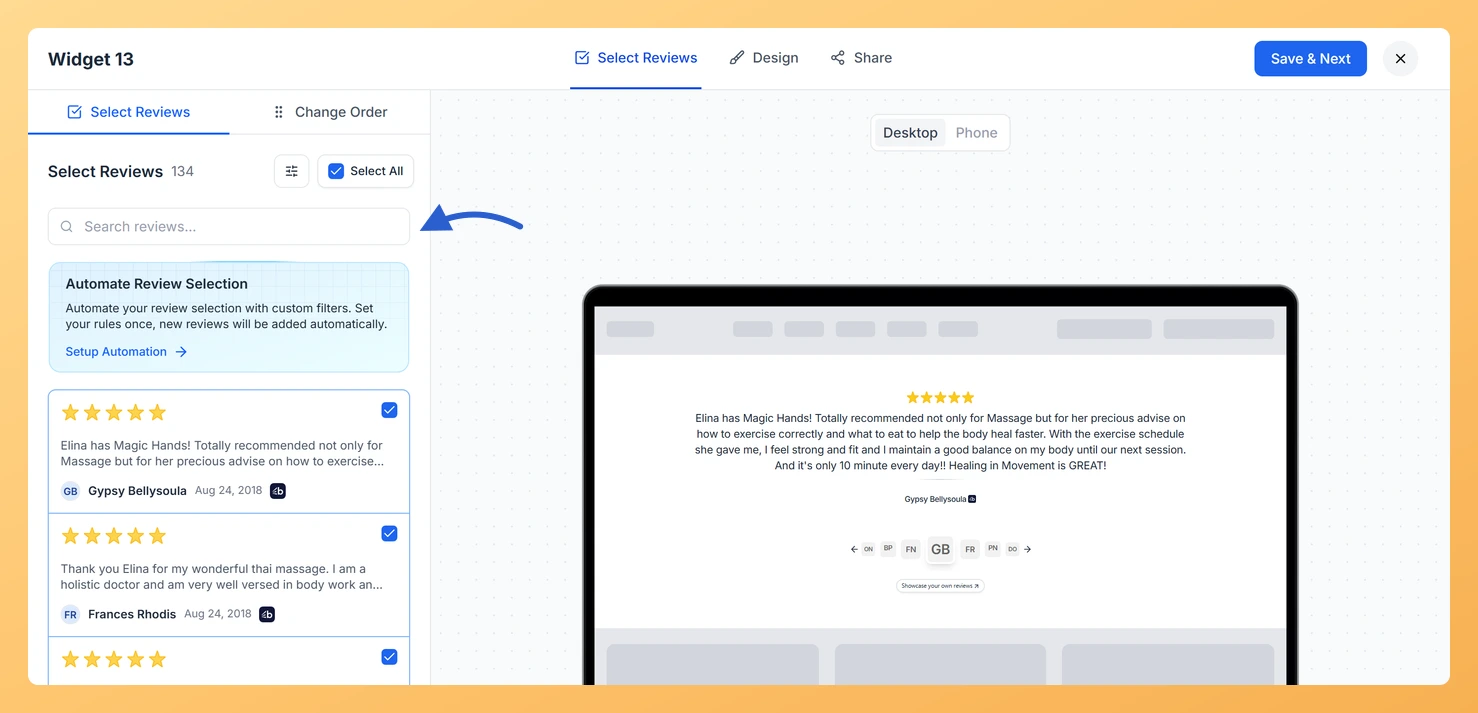
Inside the widget editor, click the Select Reviews tab. This tab lists all the reviews available in your Feedspace account and is where you search, filter, and pick which reviews appear in your Avatar Slider.

Step 3: Use the Search Input to Find Reviews by Keyword

At the top of the Select Reviews tab you will find a search input field. Type a keyword, a reviewer name, or a phrase from the review text into the field. The review list updates in real time to show only reviews that match your query. For the Avatar Slider, searching by a reviewer’s name is especially useful because the widget displays the reviewer’s identity prominently on every slide.

Step 4: Open the Filter Panel

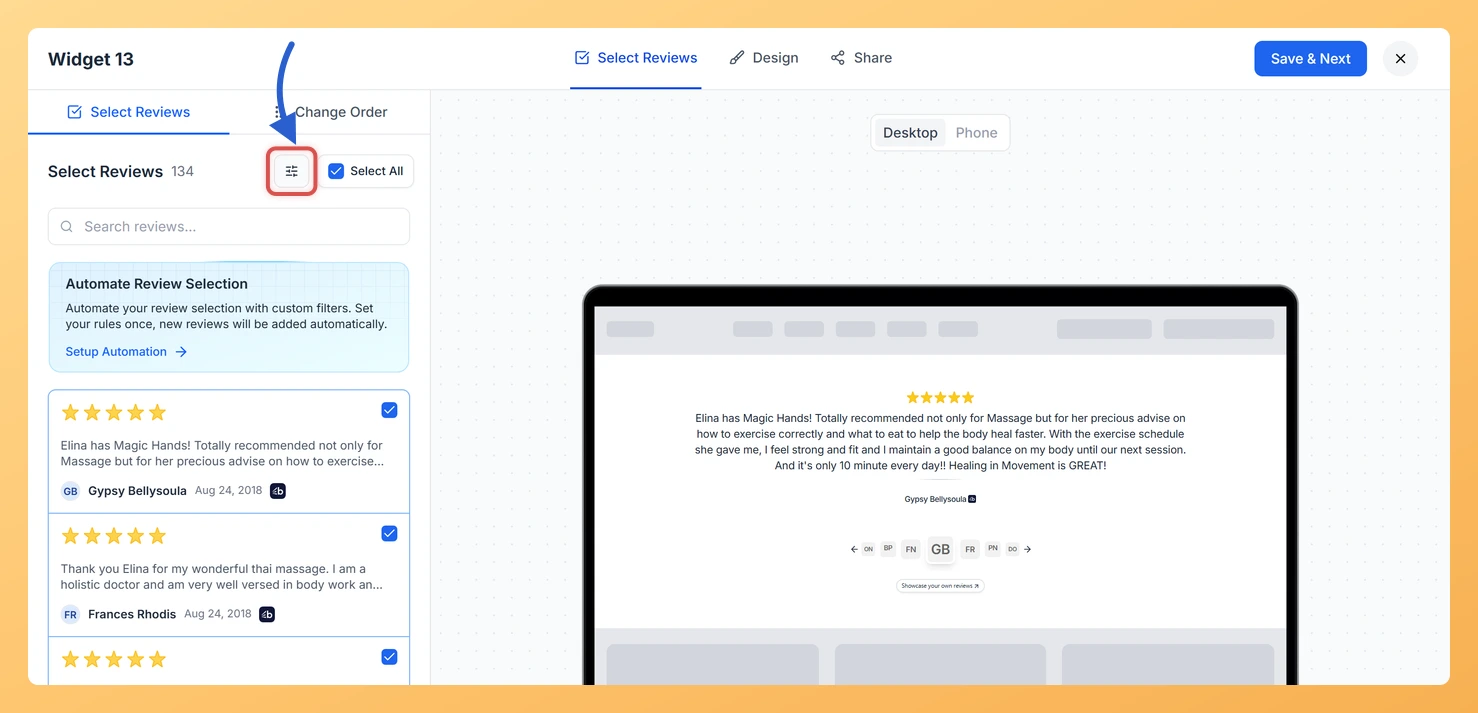
Click the Filter button or icon next to the search input to expand the filter panel. The panel reveals the available filter categories you can apply to your review list.

Step 5: Filter by Review Type

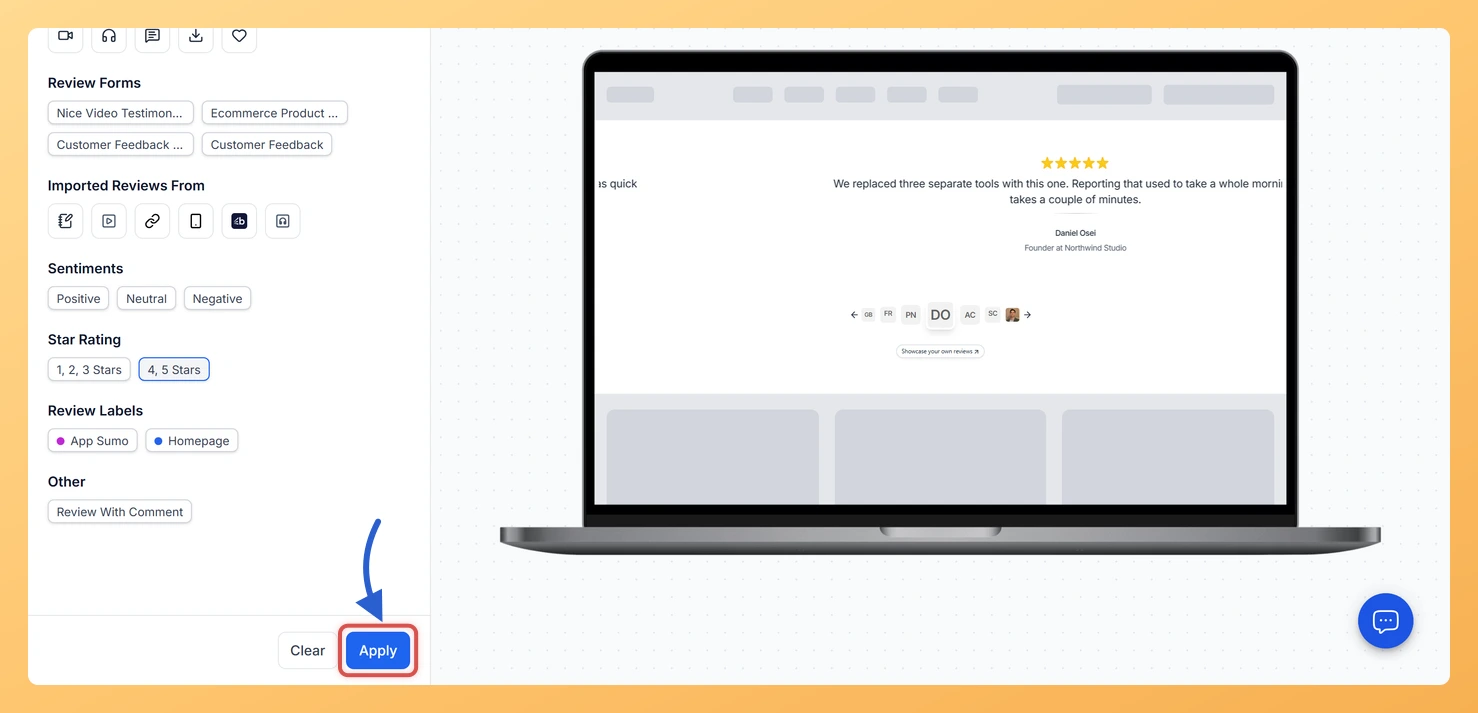
In the filter panel, select a Review Type to limit results to a specific format. Options typically include text reviews, video reviews, and audio reviews. For the Avatar Slider widget, text reviews with a clear reviewer name and photo tend to display best given the widget’s avatar-focused layout.

Step 6: Filter by Source Platform

Use the Source Platform filter to show only reviews collected from a particular platform, such as Google, Facebook, Trustpilot, or your Feedspace forms. If you want your Avatar Slider to reflect a specific channel, such as Google reviews only, selecting the platform here keeps the list focused.

Step 7: Filter by Star Rating

Select a minimum or specific Star Rating in the filter panel. Because the Avatar Slider places the reviewer front and centre, pairing a strong visual identity with a high star rating reinforces credibility on every slide. Filtering to four-star and five-star reviews is recommended when your goal is to build immediate social proof.

Step 8: Filter by Sentiment

Use the Sentiment filter to restrict results to reviews that have been classified as positive, neutral, or negative by Feedspace’s sentiment analysis. Choosing Positive sentiment alongside a high star rating gives you a tightly curated set of reviews that are both numerically and tonally strong, which suits the Avatar Slider’s prominent display of each reviewer.

Step 9: Filter by Labels

If you have tagged reviews with custom Labels in Feedspace, such as “featured”, “verified”, or a product name, you can filter by those labels here. Labels let you maintain a pre-approved pool of reviews for specific widgets, making it easy to repopulate your Avatar Slider with the right content as new reviews come in.

Step 10: Combine Filters and Review the Results

You can apply multiple filters at the same time alongside your keyword search. For example, you can search for a specific product name, filter by five-star rating, positive sentiment, and a “featured” label simultaneously. The review list will update to show only reviews that match all active criteria. Scan the filtered results and confirm that each review includes a reviewer name and avatar image before selecting it for your Avatar Slider widget.

Step 11: Clear Filters When Finished

Once you have selected the reviews you want to include, click Clear Filters or deselect each active filter to reset the panel. This lets you browse the full review list again if you need to make further adjustments without the filters applied.

What You Can Do Next

  • Select your filtered reviews and confirm your choices in the Select Reviews tab to add them to your Avatar Slider widget.
  • Use the automation settings on your Avatar Slider widget to automatically include new reviews that match your star rating and sentiment criteria as they arrive.
  • Customise the visual style of your Avatar Slider, including avatar size, slide transitions, and name display format, in the widget design settings.
  • Copy the embed code for your Avatar Slider widget and add it to your website or landing page to start showcasing your curated reviewer-focused testimonials.

You might also find helpful

How Do I Select Reviews for My Avatar Slider Widget in Feedspace?

Overview The Avatar Slider widget is designed to make each reviewer feel front and center. As it slides through testimonials, it gives prominent visual space to the reviewer’s avatar, name, and identity alongside their review text. Because the widget leads with who said it, the reviews you choose to include...

How Do I Use Automation to Auto-Select Reviews on My Avatar Slider Widget in Feedspace?

Overview The Avatar Slider widget is built around the reviewer as much as the review itself. Every slide puts the reviewer’s avatar, name, and identity front and centre alongside their testimonial, so the quality and completeness of each reviewer’s profile directly affects how persuasive the widget looks to visitors. Manually...

What is a Widget in Feedspace?

Overview In Feedspace, a widget is a customizable display tool that allows you to showcase your collected reviews, testimonials, or feedback directly on your website. With widgets, you can turn customer voices into social proof, helping you build trust and credibility with visitors. Instead of just collecting reviews, widgets let...