Overview
The Avatar Slider widget is built around the reviewer as much as the review itself. Every slide puts the reviewer’s avatar, name, and identity front and centre alongside their testimonial, so the quality and completeness of each reviewer’s profile directly affects how persuasive the widget looks to visitors. Manually curating that list every time a new review arrives takes time, and gaps can appear when strong new reviews go unnoticed.
The Setup Automation button in the Select Reviews tab solves this by letting you define a set of rules once. After that, any new review in your Feedspace account that matches your criteria, such as a minimum star rating, a positive sentiment classification, or the presence of a reviewer name and photo, is added to the Avatar Slider automatically. Your slider stays populated with credible, identity-rich reviews without any ongoing manual effort.
How to Set Up Automation for Your Avatar Slider Widget
Step 1: Open the Avatar Slider Widget Editor
Log in to your Feedspace account and navigate to the Widgets section from the left sidebar. Locate your Avatar Slider widget and click Edit to open the widget editor. If you have not yet created an Avatar Slider widget, click Create Widget, choose Avatar Slider as the widget type, and proceed to the editor.
Step 2: Go to the Select Reviews Tab
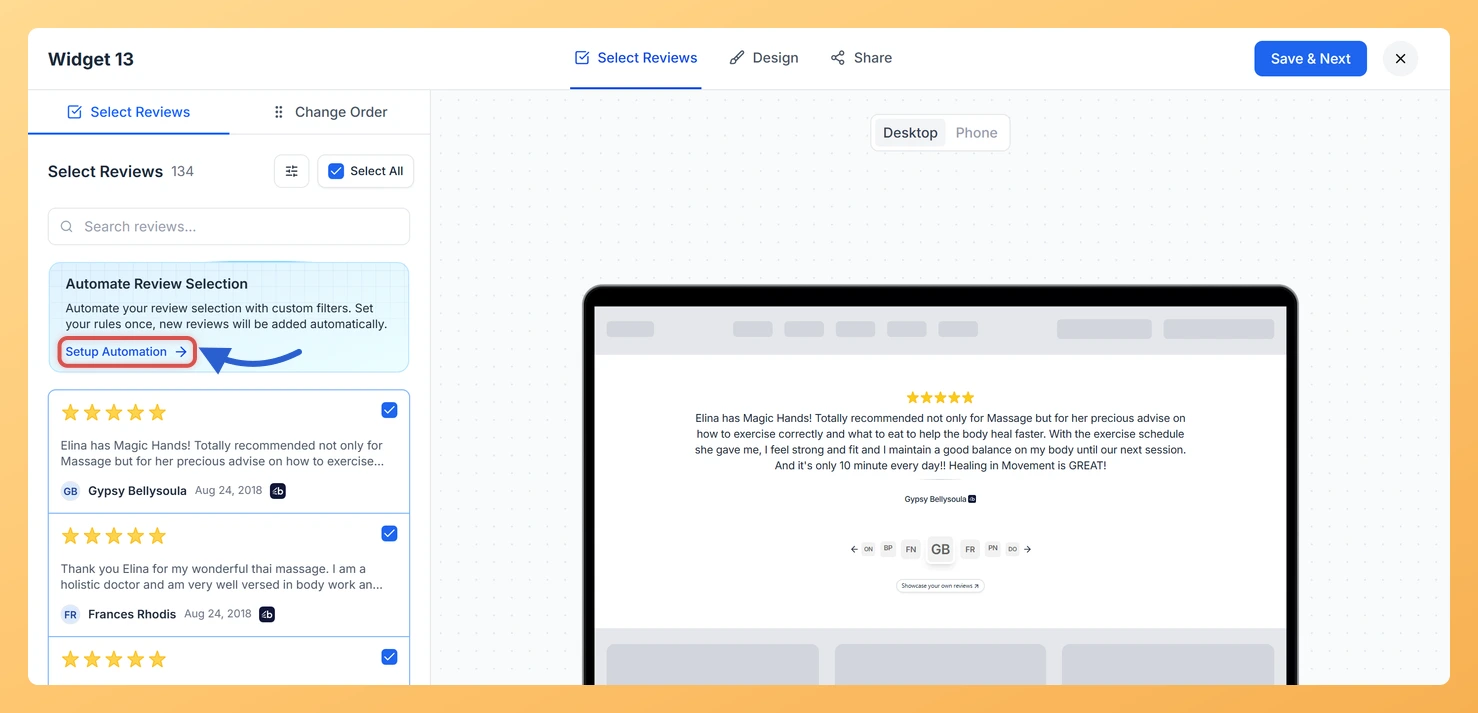
Inside the widget editor, click the Select Reviews tab at the top of the panel. This tab displays all reviews available in your Feedspace account. It is also where the Setup Automation button is located.
Step 3: Open the Automation Panel
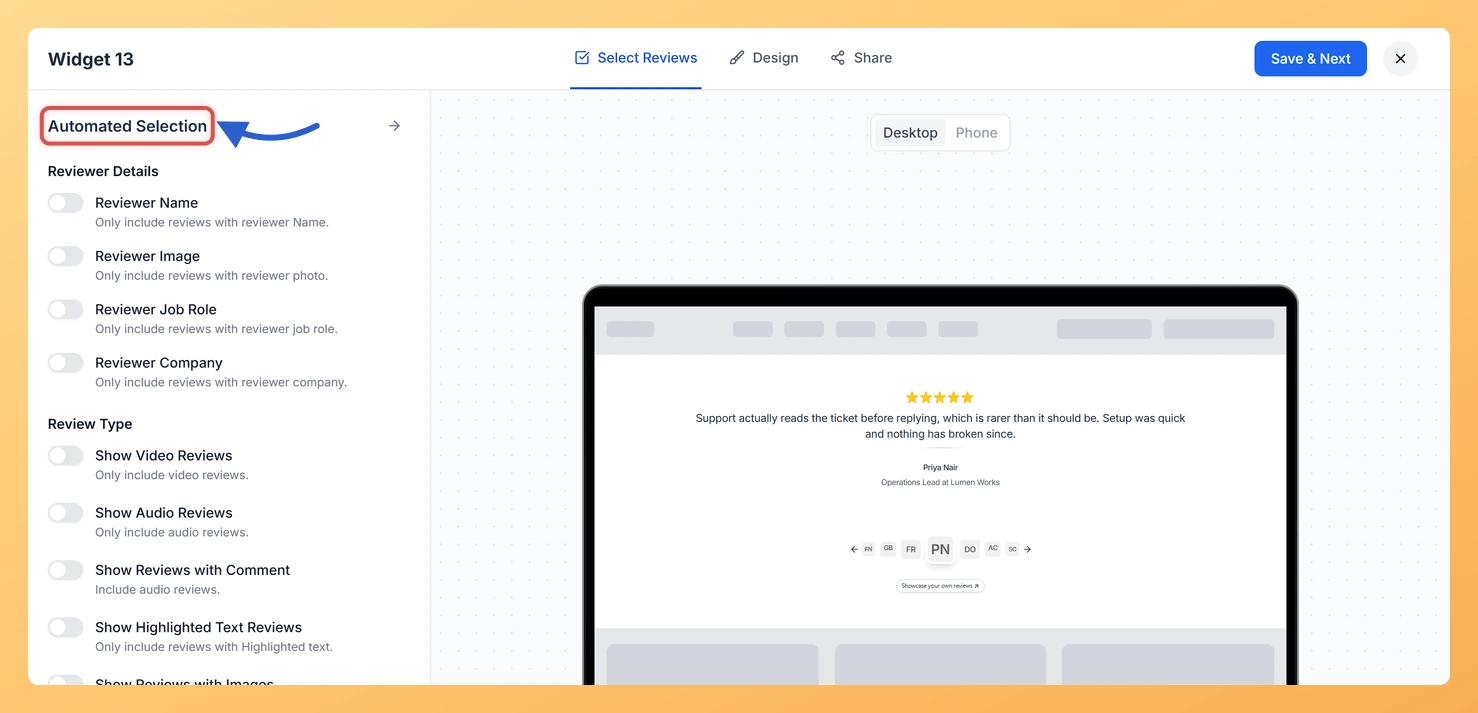
Click the Setup Automation button. The automation filter panel slides open on the right side of the screen. Toggle the automation switch to the on position to activate it. Once enabled, Feedspace will begin applying your rules to new reviews as they arrive.
Step 4: Set Reviewer Details Filters
Because the Avatar Slider highlights who said something just as much as what they said, the Reviewer Details filter is especially valuable here. Enable this filter to only include reviews where the reviewer has a name, a profile image, a job role, or a company. Combining name and profile image as required fields ensures every slide in your Avatar Slider has a complete and trustworthy visual identity.
Step 5: Configure Star Rating and Sentiment Filters
Select the star rating range you want to automatically include. Choose 4 to 5 stars to ensure only your strongest reviews surface in the slider. You can also apply a Review Sentiment filter and select Positive to add a second layer of quality control, so reviews that are numerically and tonally strong are the ones displayed alongside each reviewer’s avatar and name.
Step 6: Apply Review Type and Source Filters
Use the Review Type filter to restrict automation to specific formats such as text comments, video reviews, or audio reviews. If your Avatar Slider is designed to show a particular kind of testimonial, this filter keeps it consistent. You can also filter by Auto-Imported Sources or Imported Review Sources to pull only from platforms where reviewers tend to have complete public profiles, such as Google or Trustpilot.
Step 7: Add Keyword Rules
In the Keywords section, enter words that matching reviews must contain, or words that should exclude a review from being added automatically. For example, you could require reviews that mention a specific product name to appear in your slider, or exclude any review that contains a competitor’s name. Keyword rules work alongside all other filters, giving you precise control over the review content that gets surfaced in your Avatar Slider.
Step 8: Save Your Automation Rules
Once you have configured your filters, click Save in the automation panel to store the rules. Then click Save & Next in the widget editor header to apply the changes to your Avatar Slider widget. From this point forward, any new review that matches your criteria will be automatically added to the slider without any manual selection needed.
Resetting Automation
To clear your current automation setup, open the automation panel and click Reset. This removes all active filters. You can then toggle automation off entirely or reconfigure a fresh set of rules from scratch.
What You Can Do Next
- Review the reviews that automation has already added to your Avatar Slider in the Select Reviews tab, and manually deselect any that do not fit the identity-focused style of the widget.
- Combine automation with the search and filter tools in the Select Reviews tab to hand-pick standout reviewers alongside your automatically added reviews.
- Customise the visual appearance of your Avatar Slider, including avatar size, slide transition speed, and name display format, in the widget design settings.
- Copy the embed code for your Avatar Slider widget and add it to your website or landing page so visitors see a constantly refreshed carousel of your strongest, most credible testimonials.
You might also find helpful
How Do I Select Reviews for My Avatar Slider Widget in Feedspace?
Overview The Avatar Slider widget is designed to make each reviewer feel front and center. As it slides through testimonials, it gives prominent visual space to the reviewer’s avatar, name, and identity alongside their review text. Because the widget leads with who said it, the reviews you choose to include...
How Do I Search and Filter Reviews for My Avatar Slider Widget in Feedspace?
Overview The Avatar Slider widget presents each review as a full slide with the reviewer’s avatar, name, and identity at the visual centre. Because the widget design draws the viewer’s eye directly to the person behind the testimonial, the reviews you choose matter more than in a compact text-only layout....
What is a Widget in Feedspace?
Overview In Feedspace, a widget is a customizable display tool that allows you to showcase your collected reviews, testimonials, or feedback directly on your website. With widgets, you can turn customer voices into social proof, helping you build trust and credibility with visitors. Instead of just collecting reviews, widgets let...