The Carousel widget in Feedspace slides through your reviews in a continuous loop, showing one or a few cards at a time. Because visitors see each card for only a few seconds as it scrolls past, it matters more than ever that every review in the rotation is high quality and current. Manually updating the selection each time a new review arrives is time-consuming and easy to forget.
The Automate Review Selection feature solves this by letting you define a set of rules once. Any new review that matches those rules is automatically added to your Carousel, so the widget keeps rotating through the freshest, highest-rated testimonials without any manual action on your part.
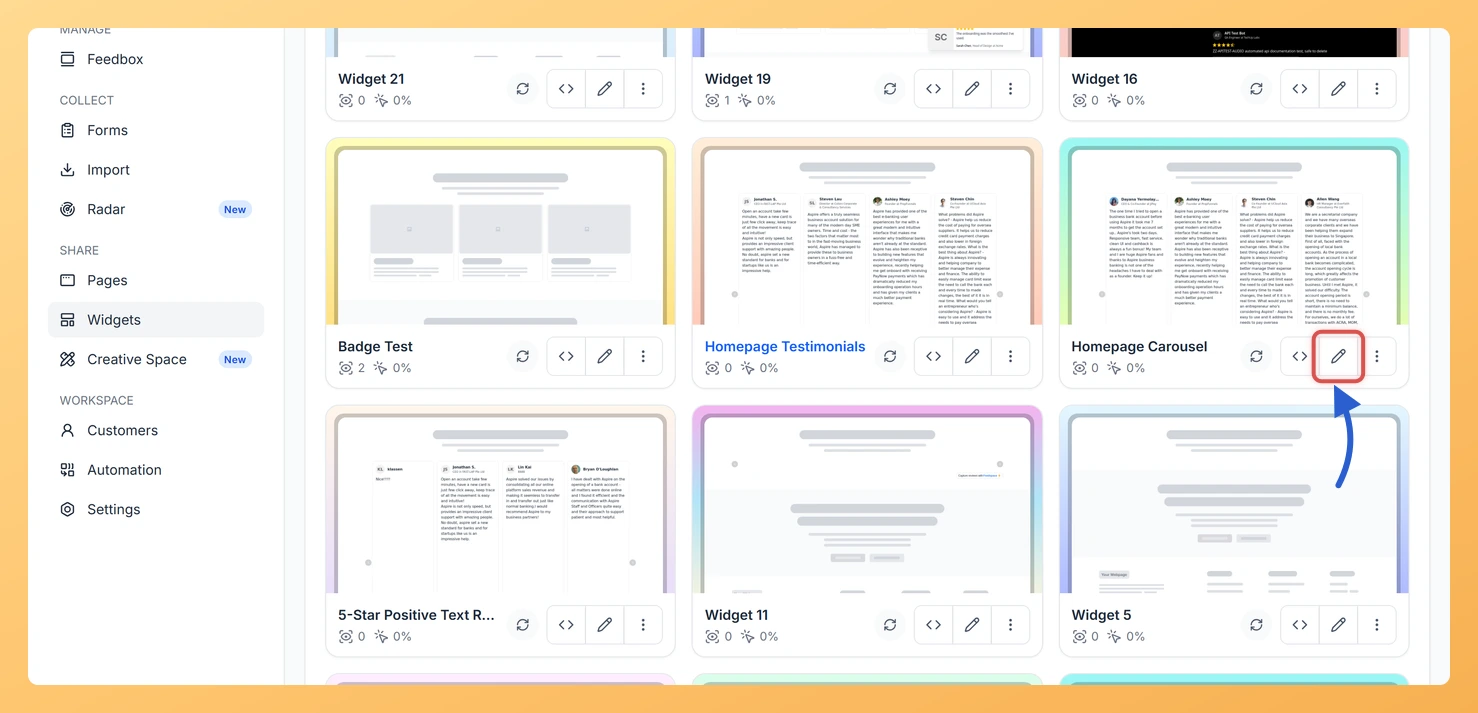
Locate your Carousel widget and click the pencil (edit) icon to open the editor.
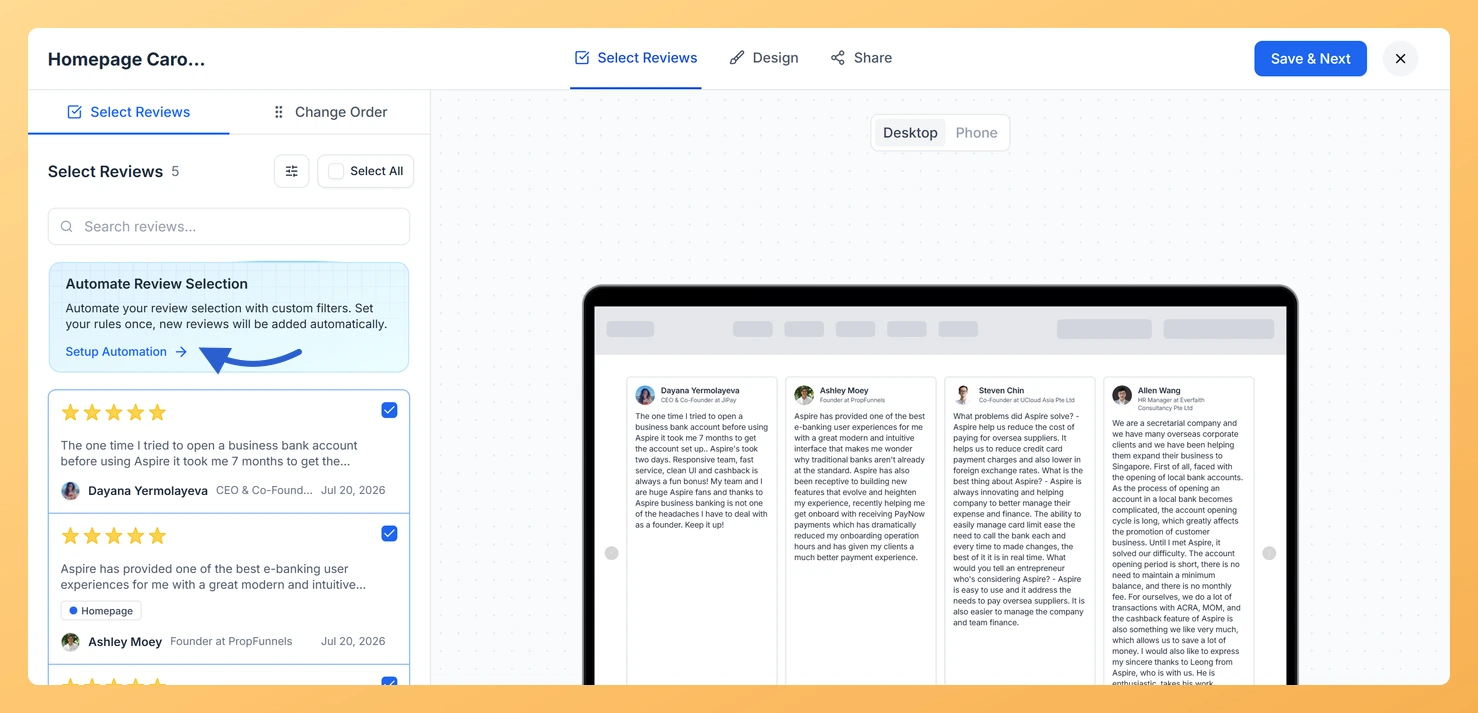
Go to the Select Reviews tab.
Step 2: Open Automated Selection
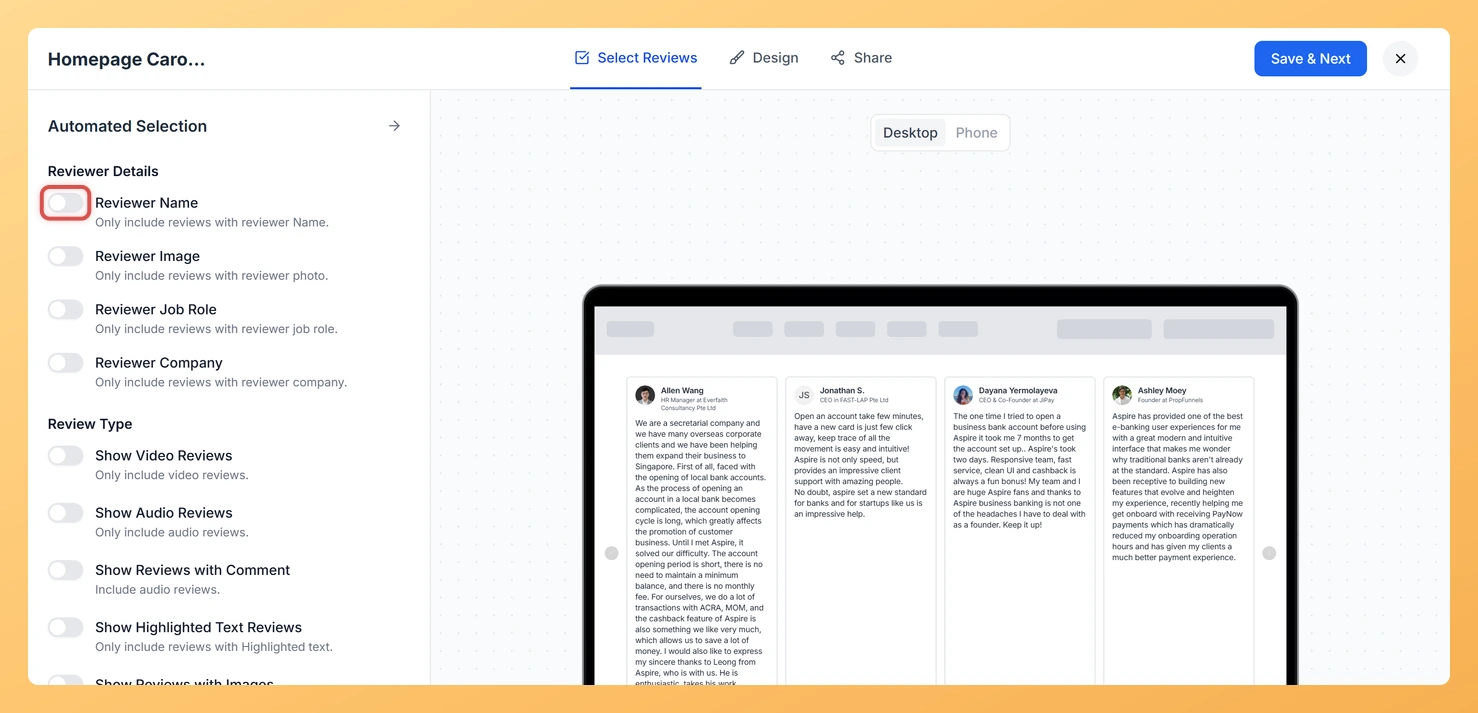
On the Select Reviews tab, find the Automate Review Selection card and click Setup Automation inside it. The panel that replaces the review list is headed Automated Selection.
Step 3: Choose your filters
Choose which reviews should automatically rotate through your Carousel. You can apply one filter or combine several for more precise control:
Star Ratings: Automatically include reviews rated 1 to 3 stars or 4 to 5 stars. For a Carousel, selecting 4 to 5 stars ensures only your strongest social proof slides into view.
Review Sentiment: Filter by positive, neutral, or negative sentiment to control the tone of what cycles through the widget.
Review Type: Limit the Carousel to specific formats such as video, audio, text comments, highlighted text, images, or favourites.
Keywords: Include reviews that contain specific words or exclude reviews with certain terms to keep messaging on topic.
Reviewer Details: Only include reviews where the reviewer has a name, profile image, job role, or company, so every card that appears in the Carousel looks credible and complete.
Review Forms: Pull reviews only from a specific form if you want the Carousel to focus on a particular product or campaign.
Auto-Imported Sources: Include reviews from platforms connected to your auto-import, so new reviews from those sources enter the Carousel automatically.
Imported Review Sources: Filter by manually imported review platforms to target a specific source.
Step 4: Save your rules
Click Save Selection in the automation panel to store your filter configuration. Then click Save & Next in the editor header to apply the changes to the Carousel widget. From this point, any review that matches your filters will be added to the carousel rotation automatically.
Resetting automation
To remove your rules, open Automated Selection again and click Reset. That clears every filter, leaving you free to define a fresh set.
What’s next
Adjust the Carousel autoplay speed in the Design tab so the rotation pace matches the number of reviews in your automated pool.
Combine the star rating filter with a keyword filter to surface reviews that are both highly rated and mention a specific feature or product name.
Create a second Carousel widget with a different automation rule set to target a separate audience or landing page.
Embed the Carousel widget on your homepage and let automation keep it fresh so returning visitors always see new testimonials in the loop.
Common questions
Will automation remove the reviews I picked by hand?
No. The summary at the bottom of the panel spells this out: only new reviews that match your filters are added. Anything you selected yourself stays in the widget.
You might also find helpful
How Do I Select Reviews for My Carousel Widget in Feedspace?
Overview The Carousel widget in Feedspace displays your reviews as a smooth, horizontally sliding loop, showing one or a few cards at a time and cycling through them continuously. Because the Carousel plays through reviews in sequence, the specific reviews you include have a direct impact on how engaging and...
How Do I Search and Filter Reviews for My Carousel Widget in Feedspace?
Overview The Carousel widget in Feedspace displays your reviews as a smooth, horizontally sliding loop, cycling through one or a few cards at a time. Because the Carousel presents each review as a standalone card in full view, the quality of what you include matters more here than in a...
What is a Widget in Feedspace?
Overview In Feedspace, a widget is a customizable display tool that allows you to showcase your collected reviews, testimonials, or feedback directly on your website. With widgets, you can turn customer voices into social proof, helping you build trust and credibility with visitors. Instead of just collecting reviews, widgets let...