Feedspace Home Dashboard

How Do I Search and Filter Reviews for My Company Logo Slider Widget in Feedspace?

Last updated on June 12, 2026

Overview

The Company Logo Slider widget displays a sliding row of company logos from your reviewers, building trust through recognisable brand names on your site. Because this widget only shows reviews where the reviewer has a company logo attached to their profile, not every review in your account will appear in the slider. Before you publish, you need to confirm exactly which reviews qualify.

The Select Reviews tab inside the Company Logo Slider widget editor gives you a search input and a filter panel to do this. You can search by reviewer name or company, then narrow results by review type, source platform, star rating, sentiment, and labels. This lets you quickly identify which reviews carry a company logo and decide which ones to include in your slider.

How to Search and Filter Reviews for Your Company Logo Slider Widget

Step 1: Open the Company Logo Slider Widget Editor

Log in to Feedspace and navigate to the Widgets section from the left sidebar. Open the Company Logo Slider widget you want to edit, or create a new one. Once the editor opens, click the Select Reviews tab at the top of the editor panel.

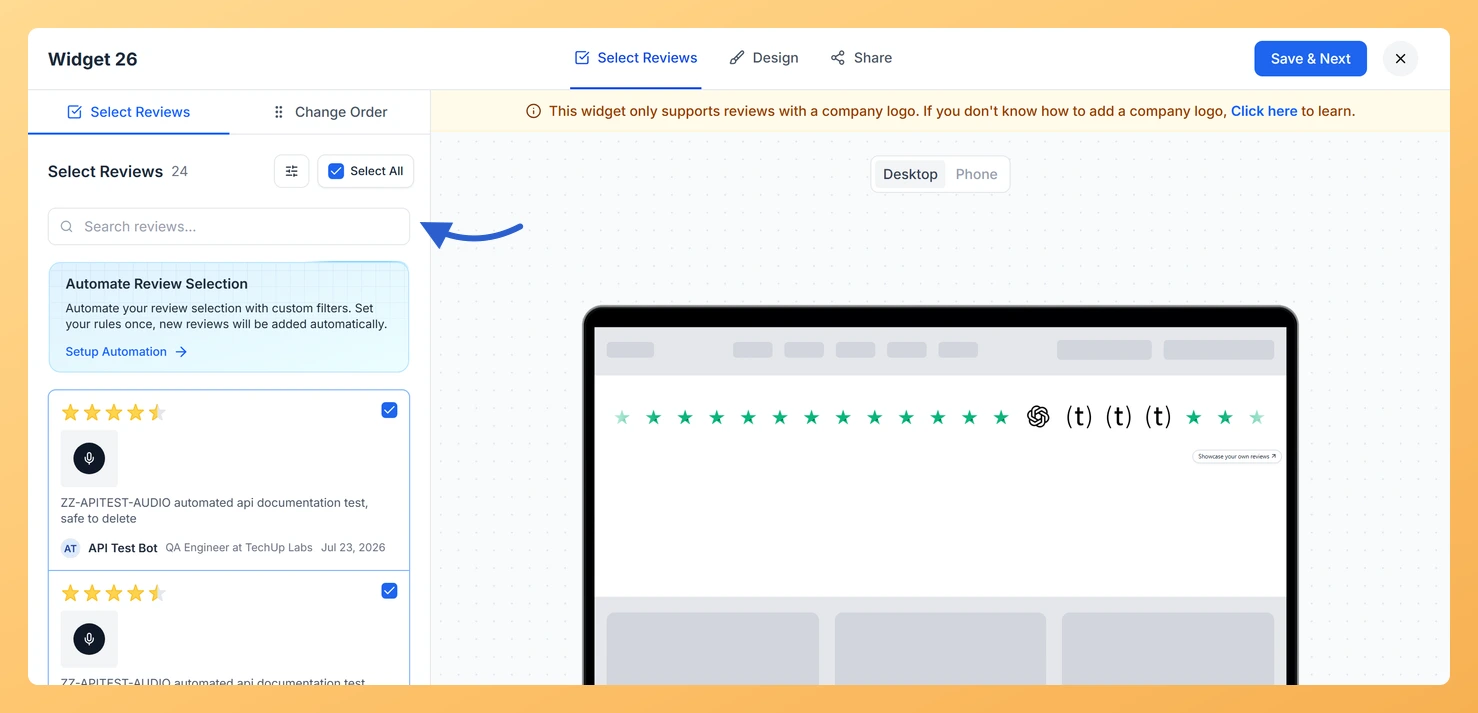
Step 2: Use the Search Input to Find Reviews by Name or Company

At the top of the Select Reviews tab you will find a search input field. Type a reviewer name, company name, or keyword into the field. The review list below updates instantly to show only matching results. Because the Company Logo Slider only displays reviews that have a company logo attached, using the search input to look up specific companies is a fast way to confirm whether a logo is available for a particular reviewer before adding them to the slider.

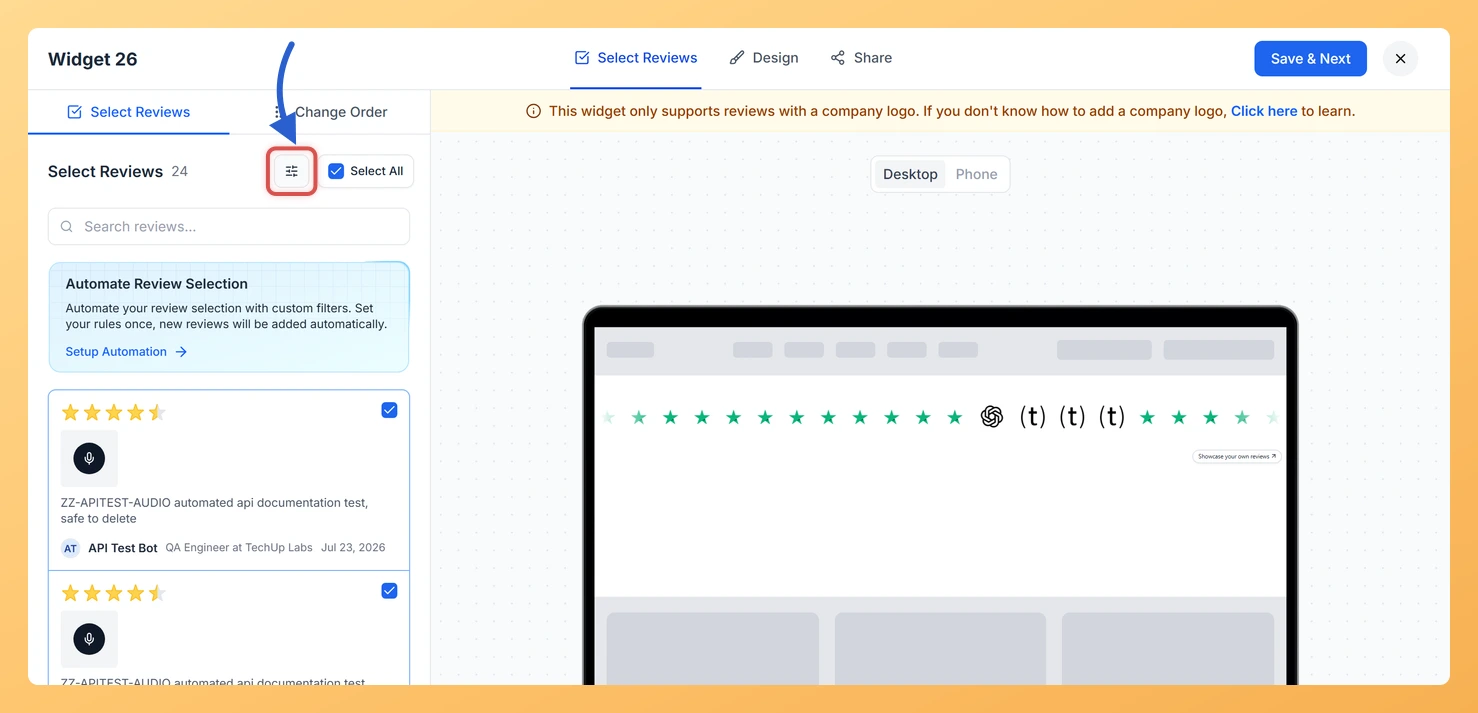
Step 3: Open the Filter Panel

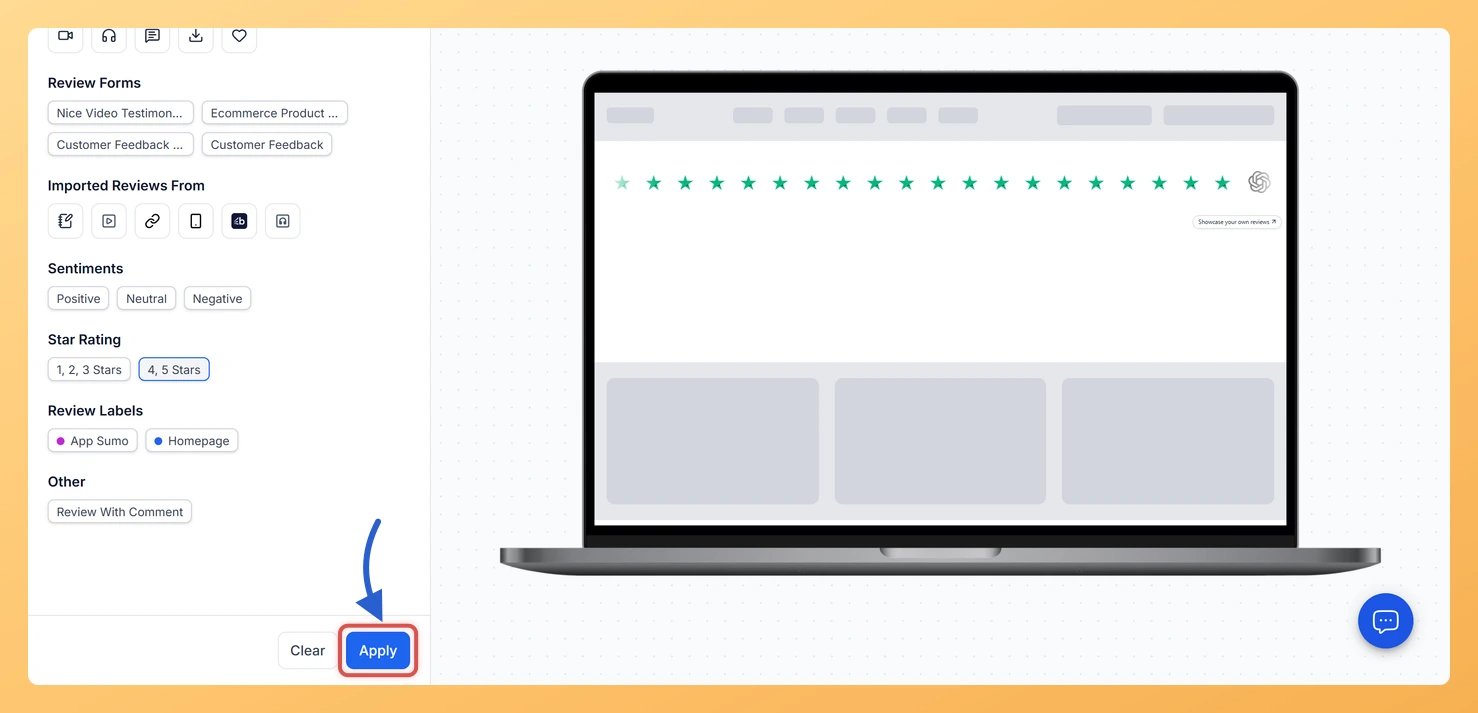
Click the Filter button or icon next to the search input to expand the filter panel. The panel exposes five filter categories you can apply individually or in combination to narrow down your review list.

Step 4: Filter by Review Type

In the filter panel, select a review type to limit results to a specific format, such as text reviews or video testimonials. This is useful when you want your Company Logo Slider to reflect only a certain kind of social proof, for example showing logos exclusively from customers who left detailed written reviews.

Step 5: Filter by Source Platform

Use the source platform filter to show only reviews collected from a particular platform, such as Google, Trustpilot, or a Feedspace form. If you want your Company Logo Slider to highlight logos from customers who reviewed you on a specific platform, this filter lets you find those reviews quickly and confirm whether their profiles include a company logo.

Step 6: Filter by Star Rating

Choose a star rating value in the filter panel to display only reviews that match that rating. For a Company Logo Slider, filtering to four or five stars ensures the logos you showcase on your site come from your most satisfied customers, reinforcing brand credibility alongside the visual trust signal of the logo row.

Step 7: Filter by Sentiment

Use the sentiment filter to surface reviews that have been classified as positive, neutral, or negative by Feedspace’s sentiment analysis. Selecting Positive here is a reliable way to ensure every company logo in your slider is associated with an enthusiastic review, giving site visitors a consistent and trustworthy impression.

Step 8: Filter by Labels

If you have applied custom labels to organise your reviews in Feedspace, use the labels filter to show only reviews tagged with a specific label. This is helpful when you maintain label groups such as “Enterprise Clients” or “Case Study” and want your Company Logo Slider to feature only logos from that curated segment.

Step 9: Confirm Logo Availability and Select Reviews

After applying your search terms and filters, review the results list. Each review that appears is a candidate for your slider. Remember: the Company Logo Slider only renders reviews where the reviewer profile includes a company logo. Check each result to confirm a logo is present before selecting it. Reviews without a company logo will not appear in the published slider even if you select them here. Once you are satisfied with your filtered list, select the reviews you want to include and save your widget.

What You Can Do Next

  • Select the filtered reviews you want to include and save your Company Logo Slider widget to update which logos appear in the slider.
  • Set up automation rules on your Company Logo Slider widget so newly collected reviews with company logos are added to the slider automatically without manual filtering.
  • Customise the appearance of your Company Logo Slider widget, such as slider speed and logo display size, to match your site’s branding.
  • Embed the Company Logo Slider widget on your website or landing page to display the curated row of company logos to your visitors.

You might also find helpful

How Do I Select Reviews for My Company Logo Slider Widget in Feedspace?

Overview The Company Logo Slider widget displays a sliding row of company logos drawn from your reviewers, helping visitors immediately recognise the brands that trust your product. Because this widget is logo-driven, Feedspace automatically filters the review list to show only reviews where the reviewer has a company logo attached....

How Do I Use Automation to Auto-Select Reviews on My Company Logo Slider Widget in Feedspace?

Overview The Company Logo Slider widget displays a sliding row of logos from your reviewers, helping visitors immediately recognise the brands that trust your product. Because the slider is built entirely around logos, every review it shows must have a company logo attached. Manually picking those reviews each time you...

What is a Widget in Feedspace?

Overview In Feedspace, a widget is a customizable display tool that allows you to showcase your collected reviews, testimonials, or feedback directly on your website. With widgets, you can turn customer voices into social proof, helping you build trust and credibility with visitors. Instead of just collecting reviews, widgets let...