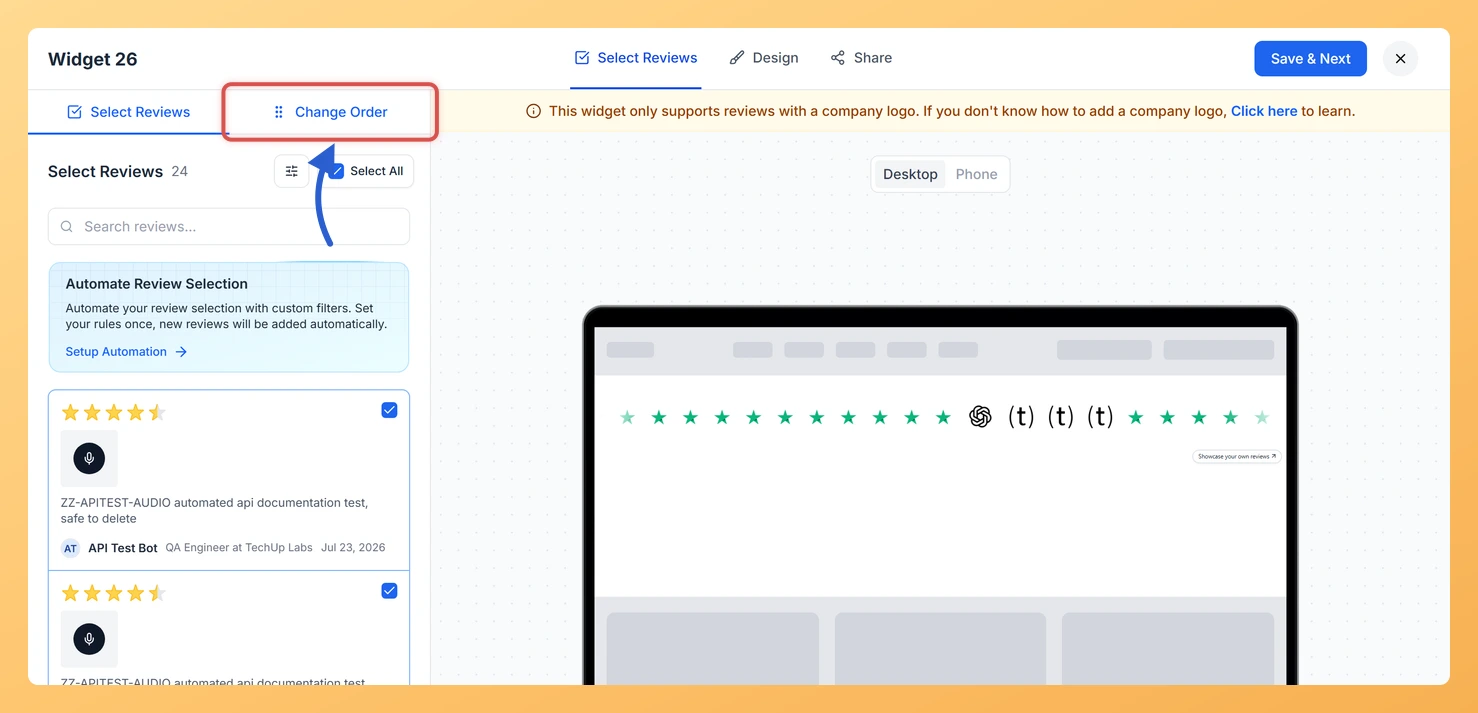
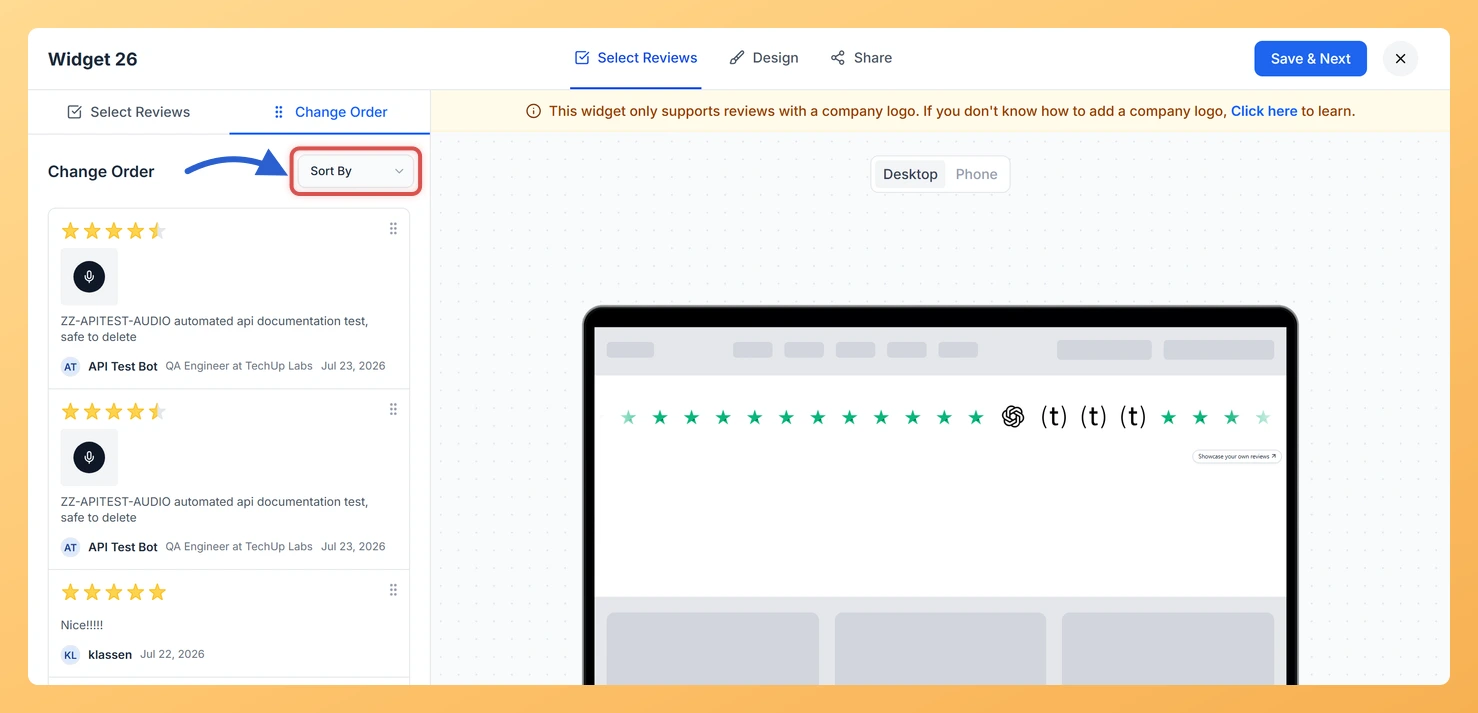
Each logo in a Company Logo Slider widget comes from one of your reviews, so the order of the reviews is the order of the logos. In Feedspace you set it on the Change Order sub-tab, by dragging reviews or by sorting them by date.
The first logos in the strip are the ones visitors see as the page loads. Putting your most recognisable customers there, the names your prospects will know, makes the strongest first impression.
Steps to change the order
Step 1: Open the widget editor
Go to Widgets in the sidebar and click the Edit (pencil) icon on your Company Logo Slider. The editor opens on Select Reviews.
Step 2: Click Change Order
At the top of the left-hand panel, click the Change Order sub-tab. It lists the reviews in your widget in their current order.
Step 3: Drag reviews into position
Hold the drag handle on a review and move it up or down. The review at the top of the list supplies the first logo in the strip.
Step 4: Or sort them by date
Open the Sort By dropdown next to the Change Order heading and pick Newest First or Oldest First. You can drag individual reviews afterwards to adjust.
No, and you don’t need one. Dragging a review and choosing a Sort By option both save straight away.
Why isn’t a customer’s review in the list?
This widget only supports reviews with a company logo, as the banner in the editor says. Add a company logo to that review’s reviewer details, then select it on the Select Reviews sub-tab.
You might also find helpful
How Do I Select Reviews for My Company Logo Slider Widget in Feedspace?
Overview Every logo in a Company Logo Slider widget comes from a review you select. In Feedspace you choose them on the Select Reviews tab, one at a time or all at once with Select All. This widget only supports reviews with a company logo. Choosing by hand lets you...
How to Create a Company Logo Slider Widget in Feedspace
Overview Feedspace’s Company Logo Slider widget displays your clients’ or partners’ logos in a smooth, continuously scrolling strip. It’s the ideal “as seen on” or “trusted by” social proof bar for your homepage or landing page: no review text needed, just recognizable brand logos. Step 1: Log in to Feedspace...
What is a Widget in Feedspace?
Overview In Feedspace, a widget is a customizable display tool that allows you to showcase your collected reviews, testimonials, or feedback directly on your website. With widgets, you can turn customer voices into social proof, helping you build trust and credibility with visitors. Instead of just collecting reviews, widgets let...