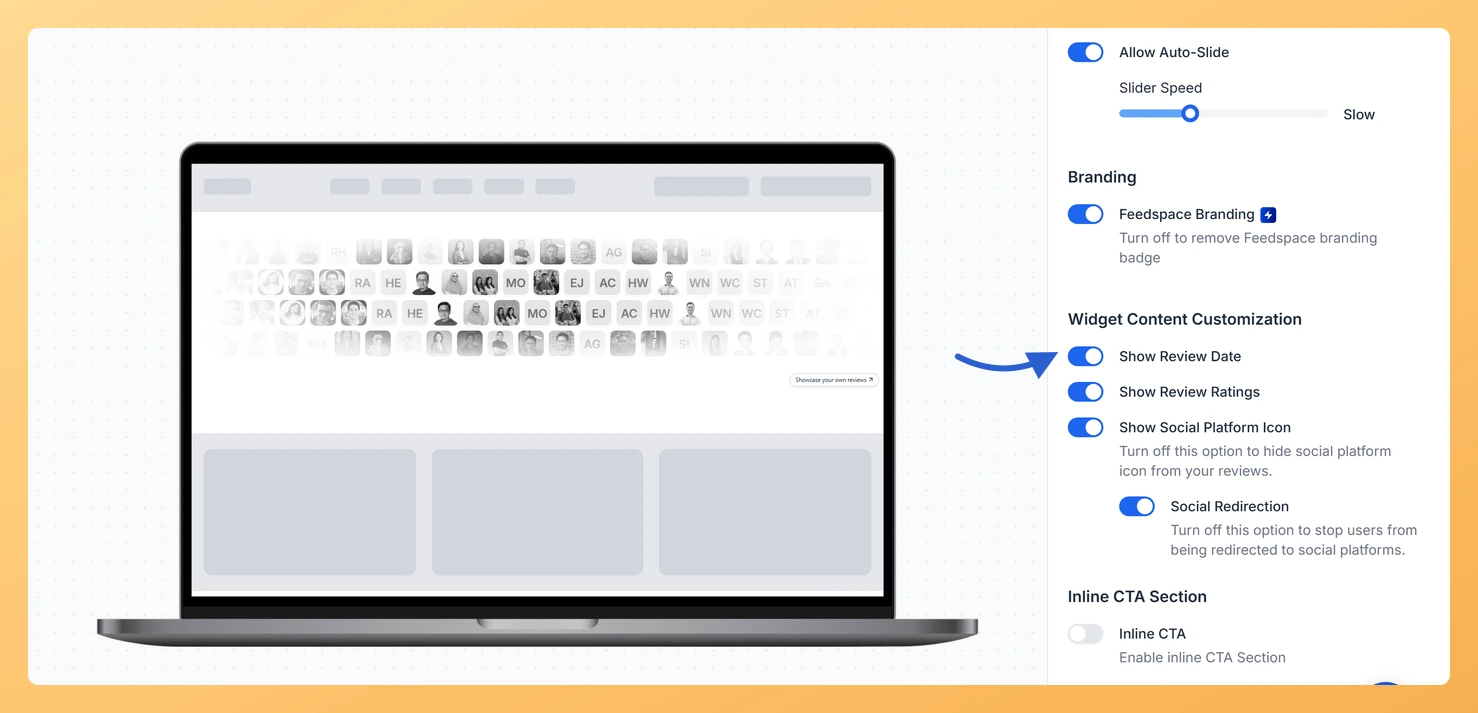
The Avatar Blocks widget presents your testimonials in a structured block grid, placing each reviewer’s avatar alongside their review text in a clean, side-by-side layout. Because each block is visually self-contained, visitors immediately focus on the individual reviewer and their words. Adding the review date to each block reinforces that focus by anchoring the testimonial in time, making the social proof feel current and authentic rather than static.
The Show Review Date toggle is found in the Widget Content Customization section of the Design tab. When enabled, the date the review was submitted or imported appears directly on each Avatar Blocks card. This is especially valuable for the Avatar Blocks layout because the compact grid format means visitors scan multiple reviews quickly, and a visible date on each card helps them assess recency at a glance without any extra interaction.
How to show the review date on your Avatar Blocks widget
Step 1: Open the Widgets section
Log in to your Feedspace account. In the left-hand navigation, click Widgets to open the list of all widgets you have created.
Step 2: Edit your Avatar Blocks widget
Select the Avatar Blocks widget you want to adjust and click the Edit (pencil) icon on its card. The editor opens on Select Reviews.
Step 3: Go to the Design tab
Inside the widget editor, click the Design tab at the top of the settings panel. This tab contains all visual and content customization options for your Avatar Blocks widget.
Step 4: Find the Widget Content Customization section
Scroll down within the Design tab until you reach the Widget Content Customization section. This section groups all the toggles that control which pieces of review content appear on each card in the grid.
Step 5: Enable the Show Review Date toggle
Find the Show Review Date toggle and switch it on. Once enabled, the date each review was submitted or imported will appear on its corresponding block in the Avatar Blocks grid. Your changes are saved automatically, and the live widget updates to reflect the new setting.
What’s next
Show or hide star ratings on each Avatar Blocks card to control how much review detail appears alongside the date.
Adjust the overall design of your Avatar Blocks widget, such as card colors and typography, to make the review date visually consistent with the rest of your layout.
Filter the reviews displayed in your Avatar Blocks widget to ensure only your most recent, high-quality testimonials appear with their dates visible.
Leave your site alone. An embedded Avatar Blocks widget reads its settings from Feedspace on each page load, so the change is live as soon as it is saved.
Common questions
Can I change how the date is written?
There is no format option. Show Review Date is a plain on or off choice, so the date either appears on the block or it does not.
You might also find helpful
How Do I Show or Hide Star Ratings on My Avatar Blocks Widget in Feedspace?
Overview The Avatar Blocks widget displays your reviews in a structured block grid where each cell shows a reviewer’s avatar alongside their testimonial text and name. Because each block is compact and visually balanced, the star rating is an important trust signal that sits directly on the review card, giving...
How to Create an Avatar Blocks Widget in Feedspace
Overview Feedspace’s Avatar Blocks widget displays your reviews in bold, grid-based cards where the reviewer’s profile picture takes centre stage. It’s a strong, visually balanced layout that works well on testimonial pages, pricing pages, and anywhere you want reviews to feel authentic and human. Step 1: Log in to Feedspace...
How Do I Customize the Design of My Widget in Feedspace?
Overview Feedspace widgets come with a powerful Design tab that lets you tailor every visual aspect of your widget. From card colors and fonts to dark mode and call-to-action buttons, you can fully customize the look to match your website’s brand without writing any code. How to Customize the Widget...