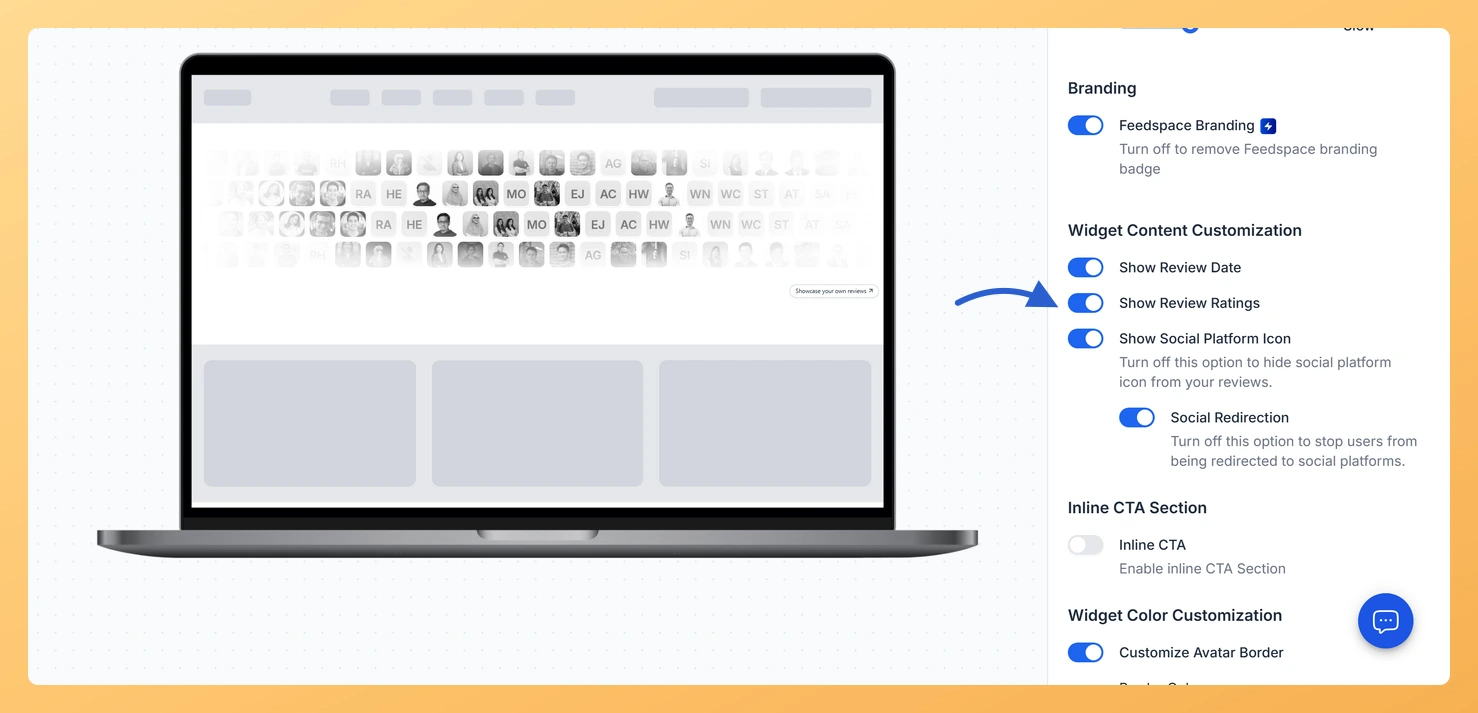
The Avatar Blocks widget displays your reviews in a structured block grid where each cell shows a reviewer’s avatar alongside their testimonial text and name. Because each block is compact and visually balanced, the star rating is an important trust signal that sits directly on the review card, giving visitors an instant sense of the reviewer’s satisfaction before they read the full text.
The Show Review Ratings toggle in the Widget Content Customization section controls whether star ratings appear on every card in that grid. Turning it on adds a star rating row to each block, reinforcing credibility at a glance. Turning it off produces a cleaner, text-focused layout that works well when you want the reviewer’s words to carry the full weight of the testimonial without a numeric score alongside it.
How to show or hide Star Ratings on your Avatar Blocks widget
Step 1: Open the Widgets section
Log in to your Feedspace account. In the left navigation, click Widgets to open your list of saved widgets.
Step 2: Edit your Avatar Blocks widget
Decide which Avatar Blocks widget you are adjusting, then click the Edit (pencil) icon on that card to open the editor.
Step 3: Go to the Design tab
Inside the widget editor, click the Design tab at the top of the settings panel. This tab contains all visual and content customization options for your Avatar Blocks widget.
Step 4: Find the Widget Content Customization section
Scroll down within the Design tab until you reach the Widget Content Customization section. This section groups all the toggles that control which elements appear on each review card in the grid.
Step 5: Toggle Show Review Ratings on or off
Locate the Show Review Ratings toggle within the Widget Content Customization section. Click the toggle to switch it on or off:
Toggle on: Star ratings appear on every review card in the Avatar Blocks grid, giving visitors an immediate visual indicator of each reviewer’s rating.
Toggle off: Star ratings are hidden from all review cards, leaving only the reviewer’s avatar, testimonial text, and name in each block.
Step 6: Save and preview your widget
After setting the toggle to your preferred state, click Save & Next to apply the change. Use the preview panel to confirm that the star ratings appear or are hidden as expected across all cards in the Avatar Blocks grid.
What’s next
Change the color of the star ratings on your Avatar Blocks widget to match your brand by visiting the star rating color setting in the Design tab.
Adjust other content elements on each review card, such as the reviewer name or date, using the additional toggles in the Widget Content Customization section.
Nothing needs doing on your website. The embedded widget is fetched from Feedspace on every page view, so the new look is already what visitors get.
Create a second Avatar Blocks widget with the opposite rating setting so you can A/B test which layout drives more engagement on your testimonials page.
Common questions
Does hiding the stars change the rating on the review?
No. The switch only decides whether this widget draws them. The rating stays on the review in your Feedbox, and any other widget or page showing that review is untouched.
You might also find helpful
How Do I Change the Star Rating Color on My Avatar Blocks Widget in Feedspace?
Overview The Avatar Blocks widget displays your reviewer testimonials in a structured block grid, placing each reviewer’s avatar alongside their name, star rating, and review text in a clean side-by-side layout. Because star ratings appear prominently inside each block card, their color has a strong visual impact on how the...
How to Create an Avatar Blocks Widget in Feedspace
Overview Feedspace’s Avatar Blocks widget displays your reviews in bold, grid-based cards where the reviewer’s profile picture takes centre stage. It’s a strong, visually balanced layout that works well on testimonial pages, pricing pages, and anywhere you want reviews to feel authentic and human. Step 1: Log in to Feedspace...
How Do I Customize the Design of My Widget in Feedspace?
Overview Feedspace widgets come with a powerful Design tab that lets you tailor every visual aspect of your widget. From card colors and fonts to dark mode and call-to-action buttons, you can fully customize the look to match your website’s brand without writing any code. How to Customize the Widget...