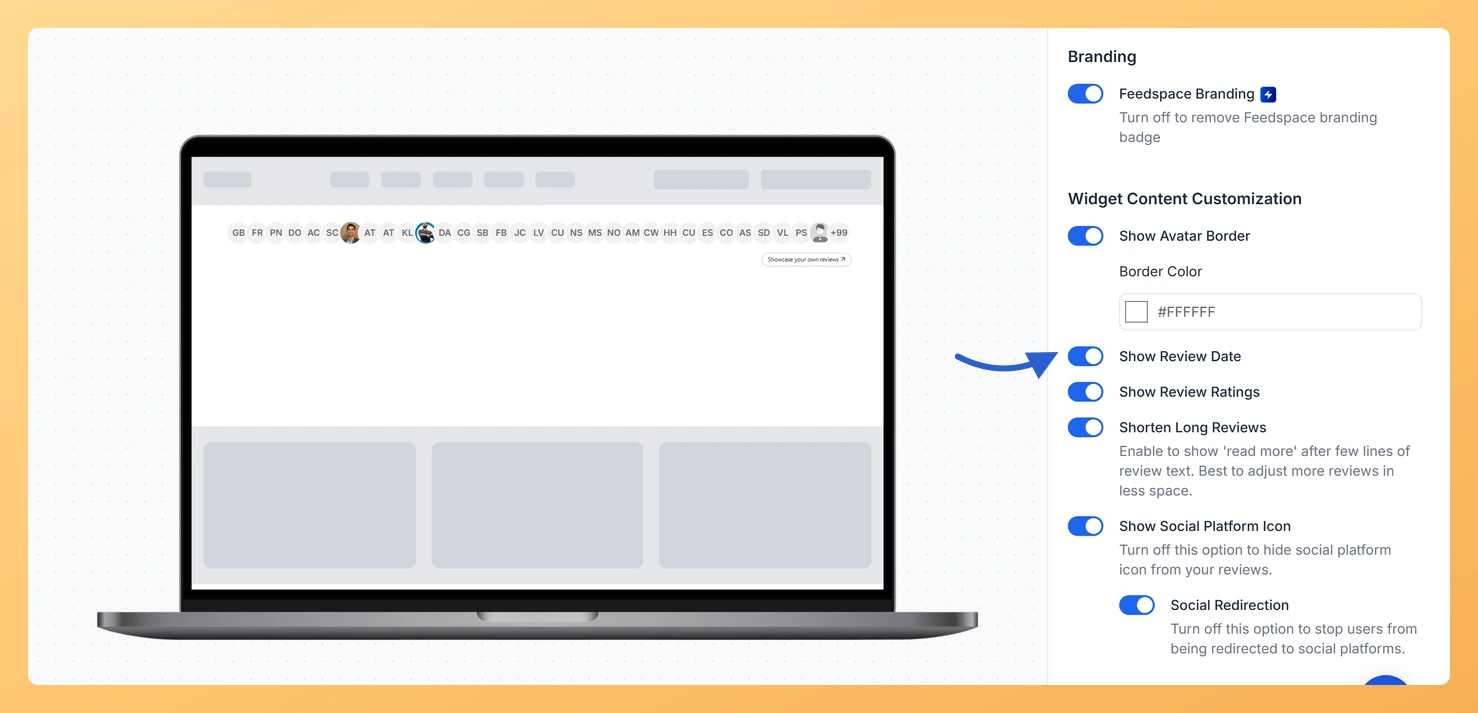
When a visitor clicks an avatar in your Avatar Group widget, Feedspace opens a card with that person’s review. The Show Review Date toggle decides whether the date the review was written appears at the bottom of that card.
Recent dates show visitors that people are still happy with you now. If your best reviews are a few years old, hiding the date keeps attention on what was said rather than when.
Steps to show the review date
Step 1: Open Widgets
Sign in and choose Widgets from the navigation on the left.
Step 2: Edit the Avatar Group
Select the Edit (pencil) icon on the Avatar Group’s card, open Design, and scroll to Widget Content Customization.
Step 3: Switch Show Review Date on or off
Click Show Review Date, just below the avatar border settings. On shows the date on each review card; off hides it. Click an avatar in the preview to check.
The date is shown on the review card, not in the avatar row. Click an avatar to open its card and the date appears at the bottom.
You might also find helpful
How Do I Show or Hide Star Ratings on My Avatar Group Widget in Feedspace?
Overview An Avatar Group widget in Feedspace can show stars in two places, each with its own toggle: The first is the one most people want: “five stars, trusted by our customers” next to a row of faces is a complete trust badge on its own, perfect under a hero...
How to Create an Avatar Group Widget in Feedspace
Overview The Avatar Group widget in Feedspace displays the profile pictures (avatars) of your reviewers in a sleek and minimal circular layout. It’s ideal for showing social proof in a subtle, space-saving format on your homepage, footer, or testimonial sections. How to Access Step 1 – Log in to Feedspace...
How Do I Customize the Design of My Widget in Feedspace?
Overview Feedspace widgets come with a powerful Design tab that lets you tailor every visual aspect of your widget. From card colors and fonts to dark mode and call-to-action buttons, you can fully customize the look to match your website’s brand without writing any code. How to Customize the Widget...