The Avatar Blocks widget displays your testimonials in a structured block grid, pairing each reviewer’s avatar with their name, star rating, and review text side by side in a clean, card-based layout. Because each card is compact and visually balanced, visitors can scan multiple reviews at a glance without being overwhelmed by content.
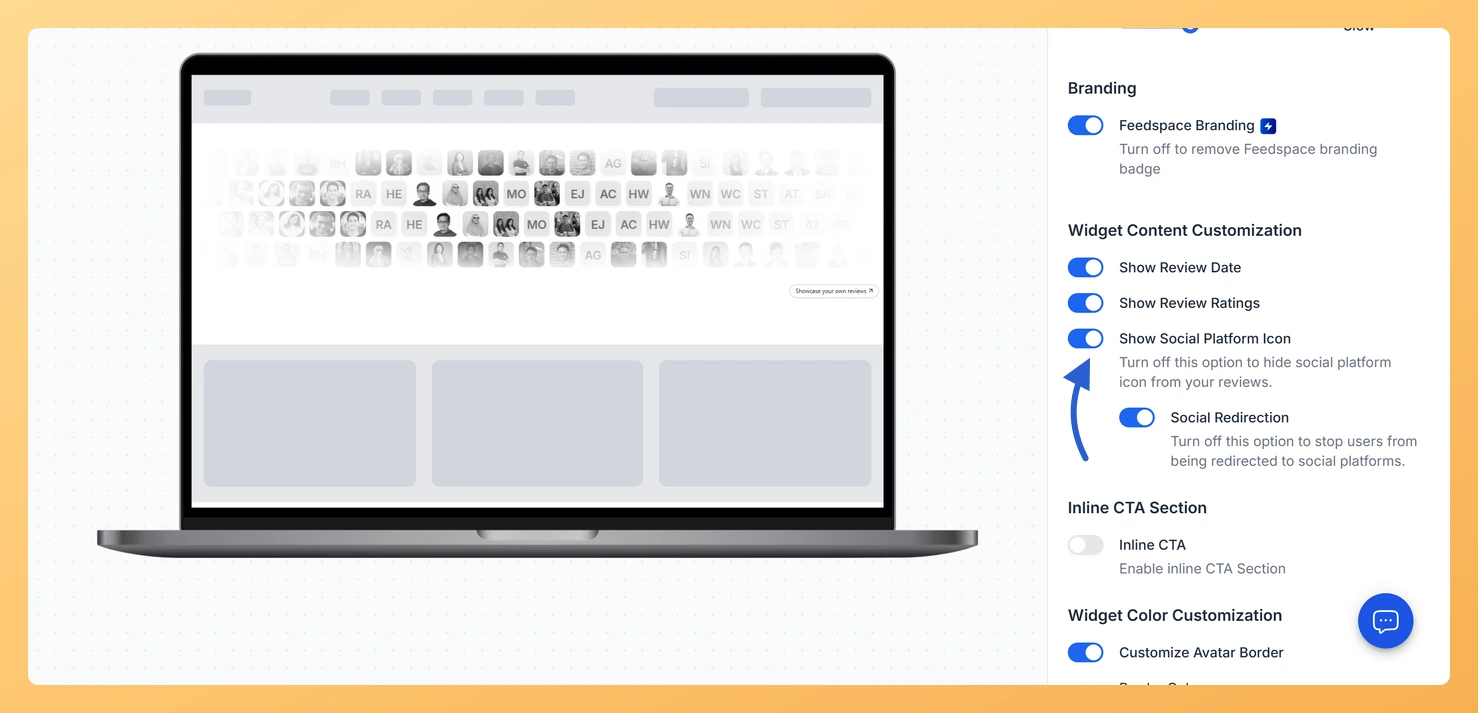
The Show Social Platform Icon toggle, found in the Widget Content Customization section, adds the logo of the platform each review came from, such as Google, Trustpilot, or Facebook, directly onto the corresponding card. This gives each block an instant visual signal of where the review originated, reinforcing credibility by tying the testimonial to a recognised third-party source. A nested Social Redirection toggle extends this further by making the icon clickable, so visitors can follow the link directly to the original review on that platform.
How to show the social platform icon on your Avatar Blocks widget
Step 1: Open the Widgets section
Log in to your Feedspace account. In the left-hand navigation, click Widgets to see a list of all the widgets you have created.
Step 2: Edit your Avatar Blocks widget
Choose the Avatar Blocks widget you are changing and click the Edit (pencil) icon on its card. The editor opens, where both the content and design settings live.
Step 3: Go to the Design tab
Inside the widget editor, click the Design tab at the top of the panel. This tab contains all the visual and layout customization options for your Avatar Blocks widget, including the content display toggles.
Step 4: Locate the Widget Content Customization section
Scroll down through the Design tab until you reach the Widget Content Customization section. This section groups all the toggles that control which elements appear on each review card in the grid.
Step 5: Enable the Show Social Platform Icon toggle
Find the Show Social Platform Icon toggle and turn it on. Once enabled, the logo of the source platform, for example the Google logo for a Google review, will appear on each card in your Avatar Blocks grid. Each card automatically displays the icon that matches its own review source, so mixed-source widgets show the correct logo on every block.
Step 6: Enable Social Redirection (optional)
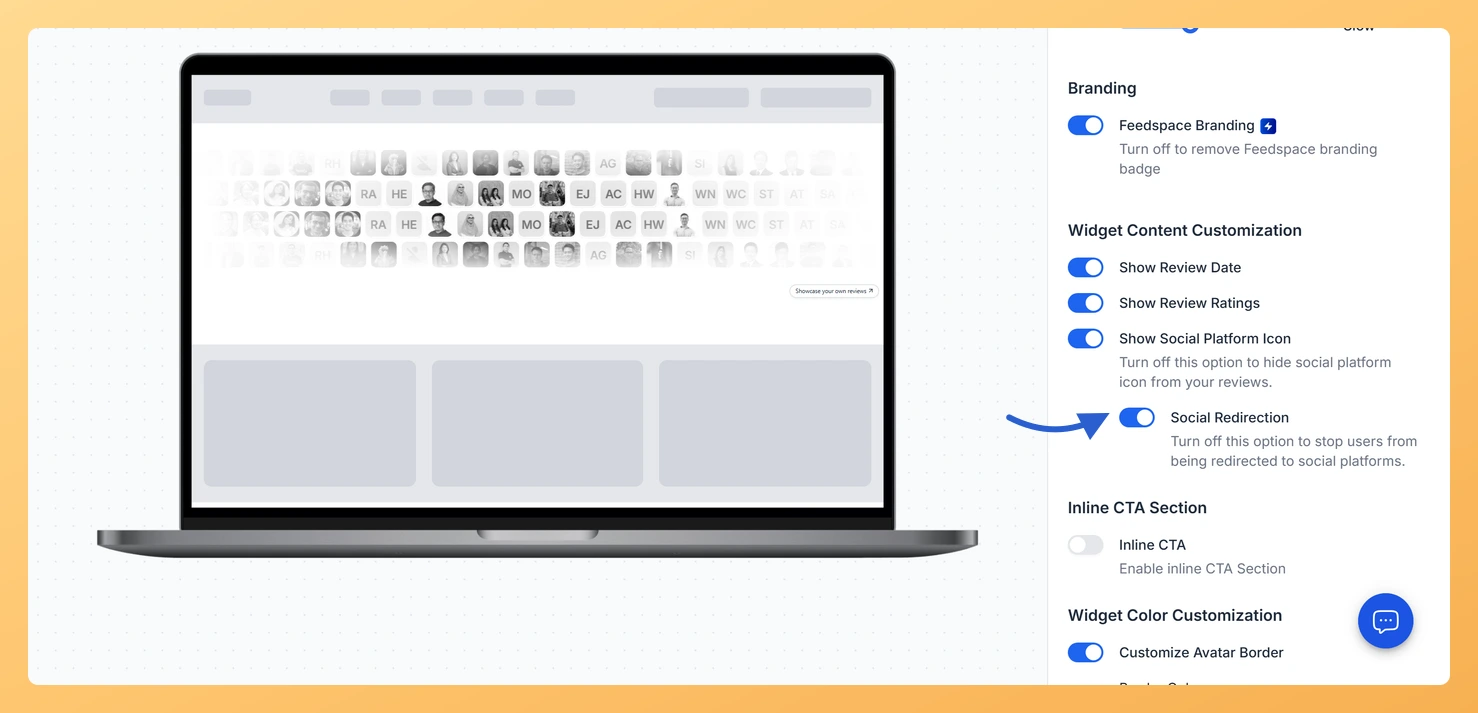
After turning on the Show Social Platform Icon toggle, a nested Social Redirection toggle will appear beneath it. Enable this toggle to make each platform icon a clickable link. When a visitor clicks the icon on a card, they are taken directly to the original review on that platform. This adds an extra layer of transparency and allows visitors to verify reviews independently. If you prefer the icons to be decorative only, leave Social Redirection turned off.
Step 7: Save your changes
Once you are satisfied with your settings, click Save & Next to apply the changes. Your Avatar Blocks widget will now display the social platform icon on each card. If the widget is already embedded on a page, the update takes effect immediately without needing to re-embed the code.
What’s next
Show or hide star ratings on each card to control how much review detail appears alongside the platform icon in your Avatar Blocks grid.
Adjust the overall design of your Avatar Blocks widget, including card spacing, colours, and font styles, to ensure the platform icons blend naturally with your page layout.
Filter which reviews appear in the Avatar Blocks widget so that only reviews with verified platform sources are shown, making the social icons more meaningful to visitors.
Your existing embed keeps working and shows the update, because the widget is served from Feedspace on each page view rather than baked into your site.
Common questions
What is the Social Redirection switch underneath it for?
It decides what happens when a visitor clicks the platform icon. Left on, the click opens the review on the platform it came from. Its hint reads “Turn off this option to stop users from being redirected to social platforms”, so switch it off if you would rather keep people on your page.
You might also find helpful
How Do I Show or Hide Star Ratings on My Avatar Blocks Widget in Feedspace?
Overview The Avatar Blocks widget displays your reviews in a structured block grid where each cell shows a reviewer’s avatar alongside their testimonial text and name. Because each block is compact and visually balanced, the star rating is an important trust signal that sits directly on the review card, giving...
How to Create an Avatar Blocks Widget in Feedspace
Overview Feedspace’s Avatar Blocks widget displays your reviews in bold, grid-based cards where the reviewer’s profile picture takes centre stage. It’s a strong, visually balanced layout that works well on testimonial pages, pricing pages, and anywhere you want reviews to feel authentic and human. Step 1: Log in to Feedspace...
How Do I Customize the Design of My Widget in Feedspace?
Overview Feedspace widgets come with a powerful Design tab that lets you tailor every visual aspect of your widget. From card colors and fonts to dark mode and call-to-action buttons, you can fully customize the look to match your website’s brand without writing any code. How to Customize the Widget...