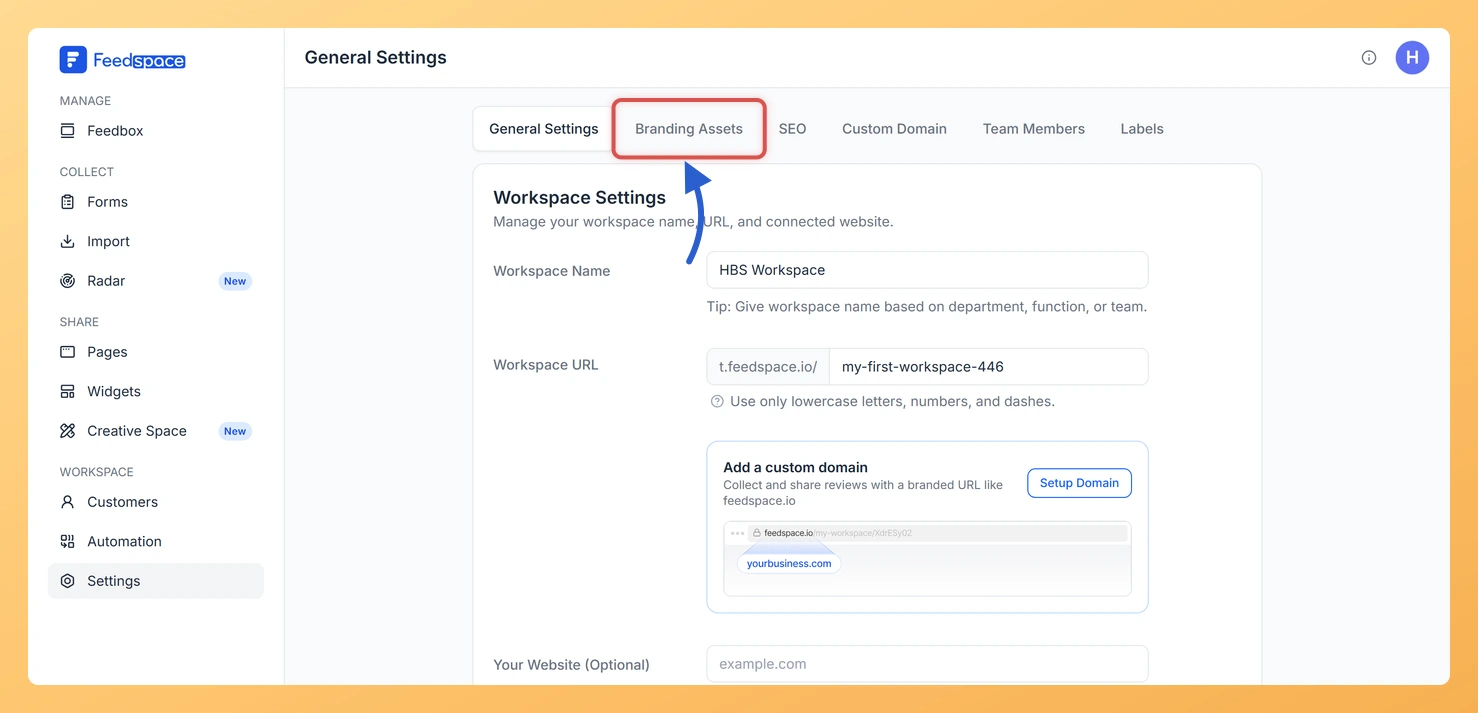
Feedspace has two distinct settings areas: your personal account settings (profile, notifications, billing, and plan) and your workspace settings (workspace name, branding, domain, team, and labels). Each is accessed from a different place in the dashboard.
Knowing which settings area to open saves time, for example, updating your profile photo is done from your personal account settings, while adding a team member is done from workspace settings.
How to access personal account settings
Personal account settings include your profile photo, display name, notification preferences, subscription, plan, and AI connectors.
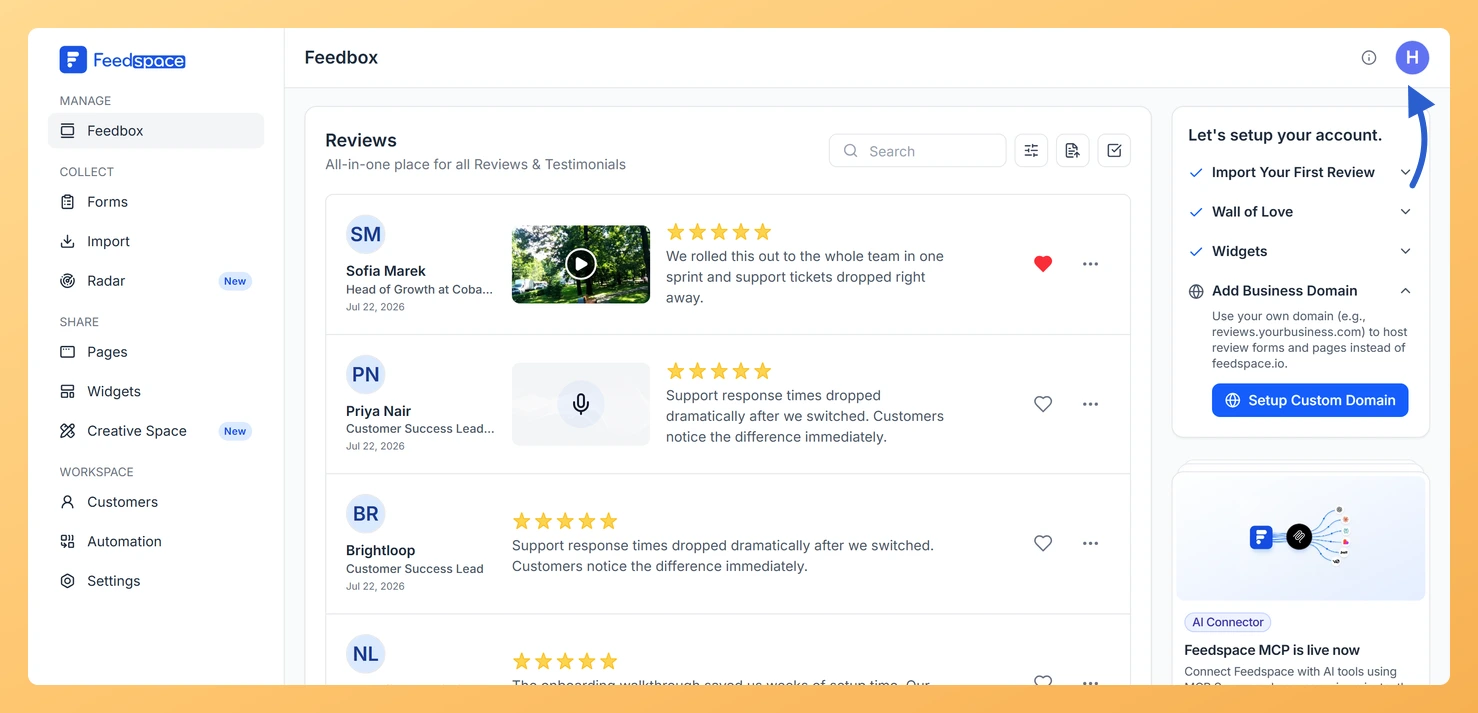
Click your profile avatar in the top-right corner of the header. A dropdown opens.
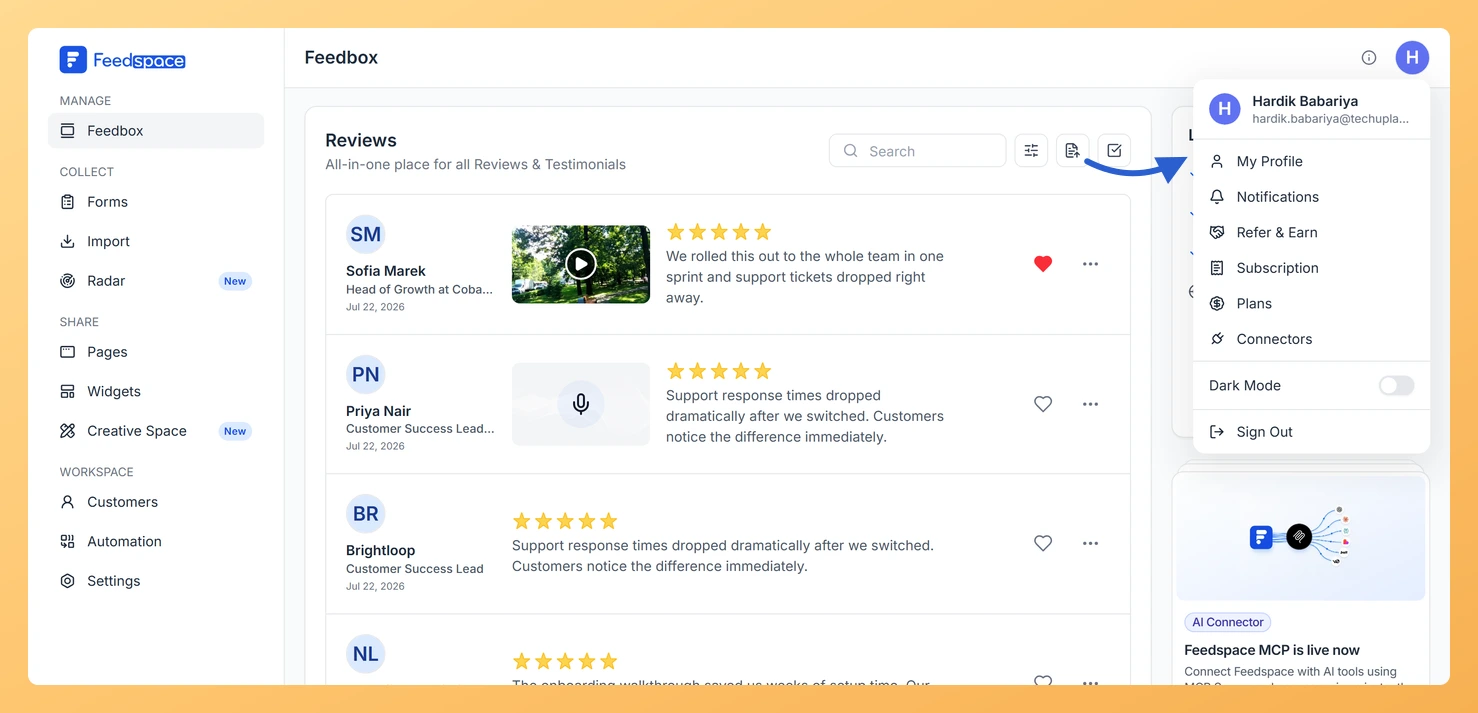
Step 3: Choose the area you want
Select the area you want to open:
My Profile: update your name, photo, role, and app theme.
Notifications: control which review notifications you receive by email.
Subscription: view your current plan, usage, and billing history.
Plans: compare plans and upgrade your subscription.
Connectors: connect Feedspace to AI tools like ChatGPT and Claude.
How to access workspace settings
Workspace settings control everything that applies to your entire workspace, including its name, branding, custom domain, SEO snippet, team members, and labels.
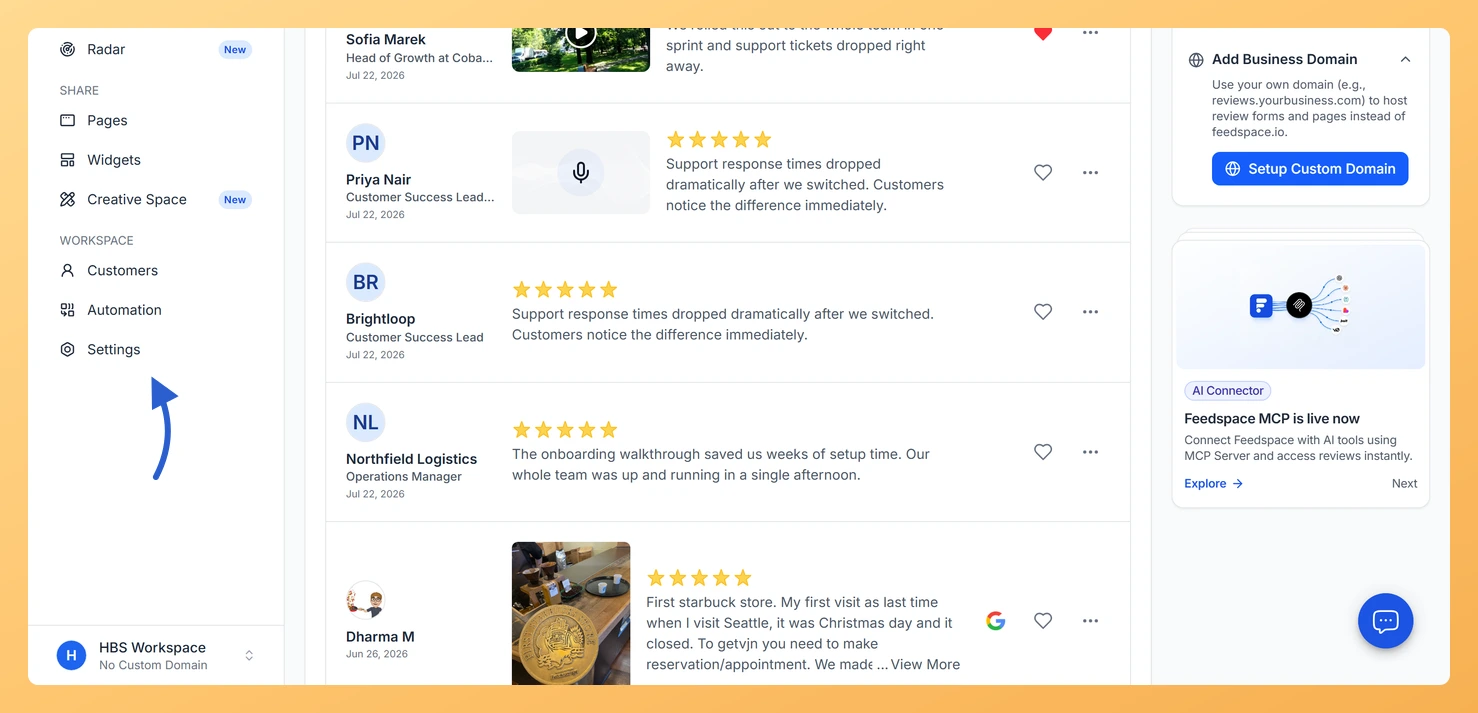
Step 1: Open Settings from the sidebar
In the left sidebar, under Workspace, click Settings.
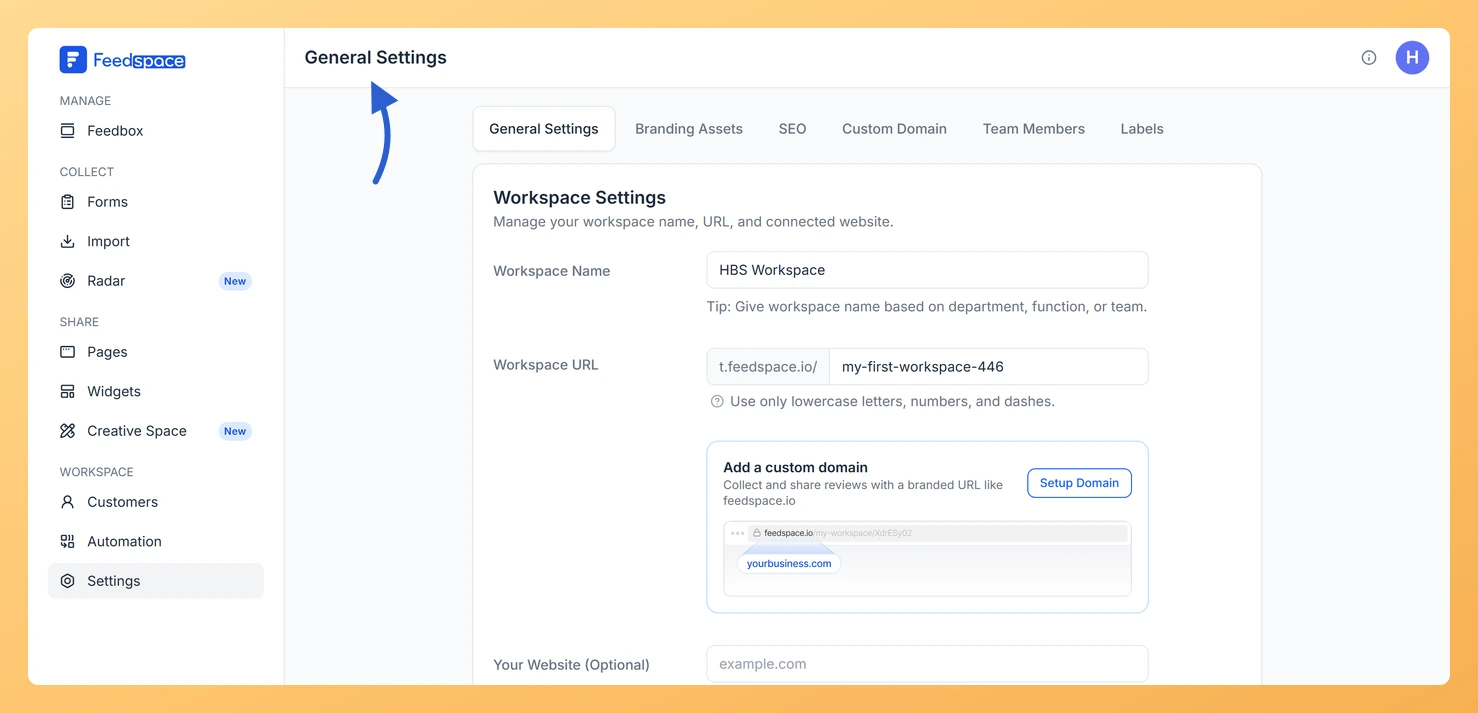
Step 2: Start on General Settings
You land on General Settings by default, where you can update the workspace name, slug, and website URL.
Step 3: Switch between settings areas
Use the tabs along the top of the settings page to switch between areas:
Branding Assets: upload your logo, favicon, brand colors, and font.
SEO: generate a star rating snippet to show your overall rating on your website.
Custom Domain: set up a custom domain for your review pages and forms.
Team Members: invite and manage team members with editor or viewer roles.
Labels: create and manage labels for organising reviews in Feedbox.
What’s next
Once you’re in the right settings area, make your changes and click Save to apply them. Workspace settings take effect immediately across all forms, pages, and widgets in that workspace.
Common questions
Which settings apply to all workspaces and which apply to just one?
Personal account settings (profile, notifications, theme, subscription) apply to your Feedspace account across all workspaces. Workspace settings (name, branding, domain, team) apply only to the workspace you currently have selected. Switch workspaces from the bottom of the sidebar to manage settings for a different workspace.
Who can access workspace settings?
Workspace owners and admins can access and change all workspace settings. Team members with the Editor role have limited access depending on the action. Viewers cannot change workspace settings.
Where do I find billing and plan settings?
Billing and plan information is in your personal account settings, not the workspace settings. Click your profile avatar, then select Subscription to view usage and billing history, or Plans to upgrade.
You might also find helpful
How to Update Your Profile in Feedspace
Overview Updating your profile on Feedspace ensures your information is accurate and personalized. Follow the steps below to manage your profile. Step 1: Go to My Account Once logged into your dashboard, click on your profile icon (top right corner) and select My Account from the menu. Step 2: Open...
How Do I Update My Workspace Name and URL in Feedspace?
Overview The General Settings page in Feedspace lets you update your workspace name, the URL slug used in all your form and page links, your connected website, and the language displayed in the Feedspace interface. Changes to the workspace name are safe at any time, but changing the workspace URL...
How Do I Set Brand Colors for My Feedspace Workspace?
Overview The Branding Assets tab in Feedspace lets you set six color values that apply across all your review forms, wall of love pages, and widgets. Setting your brand colors ensures a consistent and professional look that matches your website or product. How to access color settings Step 1: Open...