Updating your profile on Feedspace ensures your information is accurate and personalized. Follow the steps below to manage your profile.
Step 1: Go to My Account
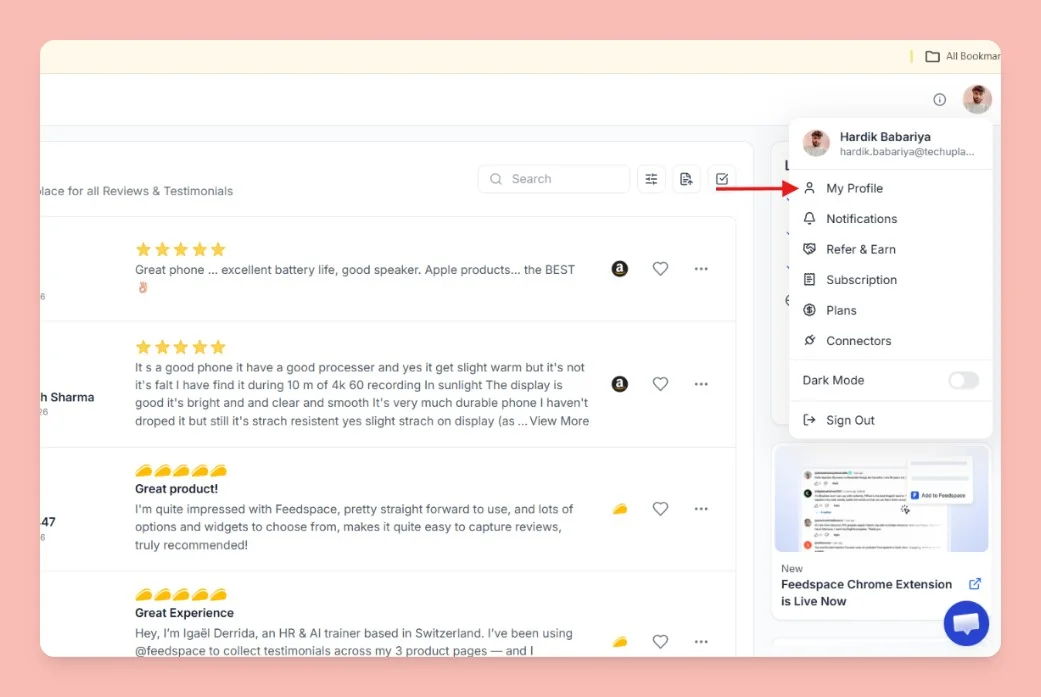
Once logged into your dashboard, click on your profile icon (top right corner) and select My Account from the menu.
Step 2: Open the My Profile section
Select My Profile to access your profile details.
Step 3: Update profile information
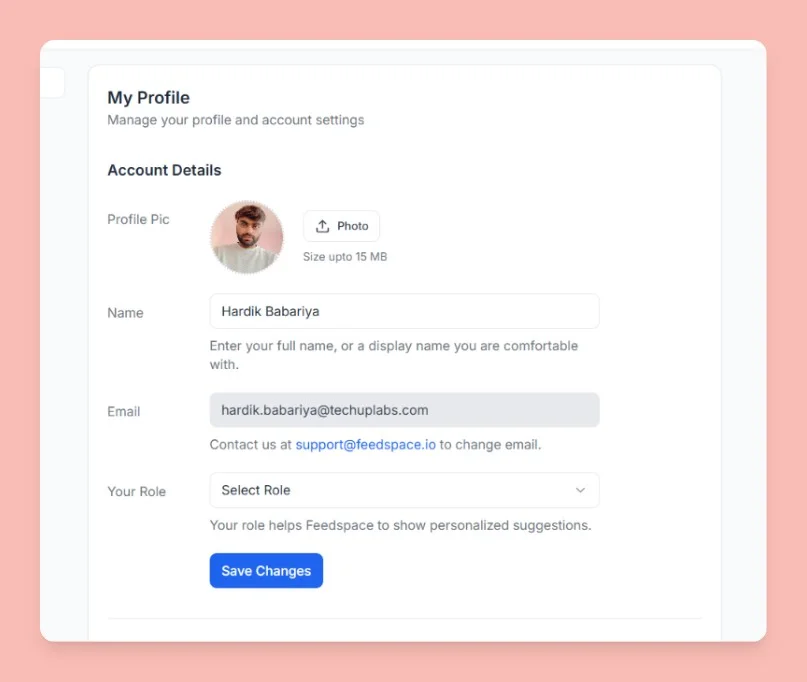
In the Account Details section, you can update the following:
Profile Picture: Click on Upload Photo to add or change your profile image (Max file size: 15 MB).
Name: Enter your full name or display name.
Email: Your registered email is shown here. To change it, contact Feedspace at support@feedspace.io.
Your Role: Use the dropdown to select your use case. This helps Feedspace tailor suggestions based on your role.
Step 4: Save Changes
After updating your details, click the Save Changes button to apply the updates.
Appearance
Scroll down past Account Details to find the Appearance section. Here you can switch between Light Mode and Dark Mode for the entire Feedspace interface. Click the theme you prefer and the change applies immediately. You do not need to click Save Changes for this — the theme updates on selection.
You can also toggle Dark Mode directly from the profile dropdown in the sidebar without opening My Account.
Security
The Security section contains a Log Out All Devices button. Use this to sign out of every active session on every device at once. A confirmation dialog appears before the action runs. After confirming, you are redirected to the sign-in page.
Use this if you think your account may have been accessed from an unrecognised device or browser.
Common questions
Why can I not change my email address?
The email field is disabled for security reasons. To request an email change, contact Feedspace at support@feedspace.io.
My profile photo did not update after saving
Refresh the page after saving. If the old photo still shows, check that the file is a supported image format (JPEG, PNG, WebP) and under 15 MB.
You might also find helpful
Learn More About Notification Settings in Feedspace
Accessing notification settings Log into Feedspace Sign in with your account credentials. Open the profile avatar menu Click your profile avatar at the top-right of the header to open the menu, then click Notifications. This opens the My Account modal on the Notifications tab. Notification preferences All notifications are sent...
How to Invite a Team Member to Feedspace
Overview Inviting team members to your Feedspace workspace lets other people help collect and manage your reviews. You send an invitation to their email address and choose what they are allowed to do once they are in. An agency taking on a new client is the usual case: the account...
How to Remove Team Members in Feedspace
Overview Feedspace makes it easy to collaborate by allowing you to invite team members to your workspace with different roles. You can also remove members when access is no longer needed. Removing Team Members Once revoked, the member will no longer have access. You can re-invite them later if needed....