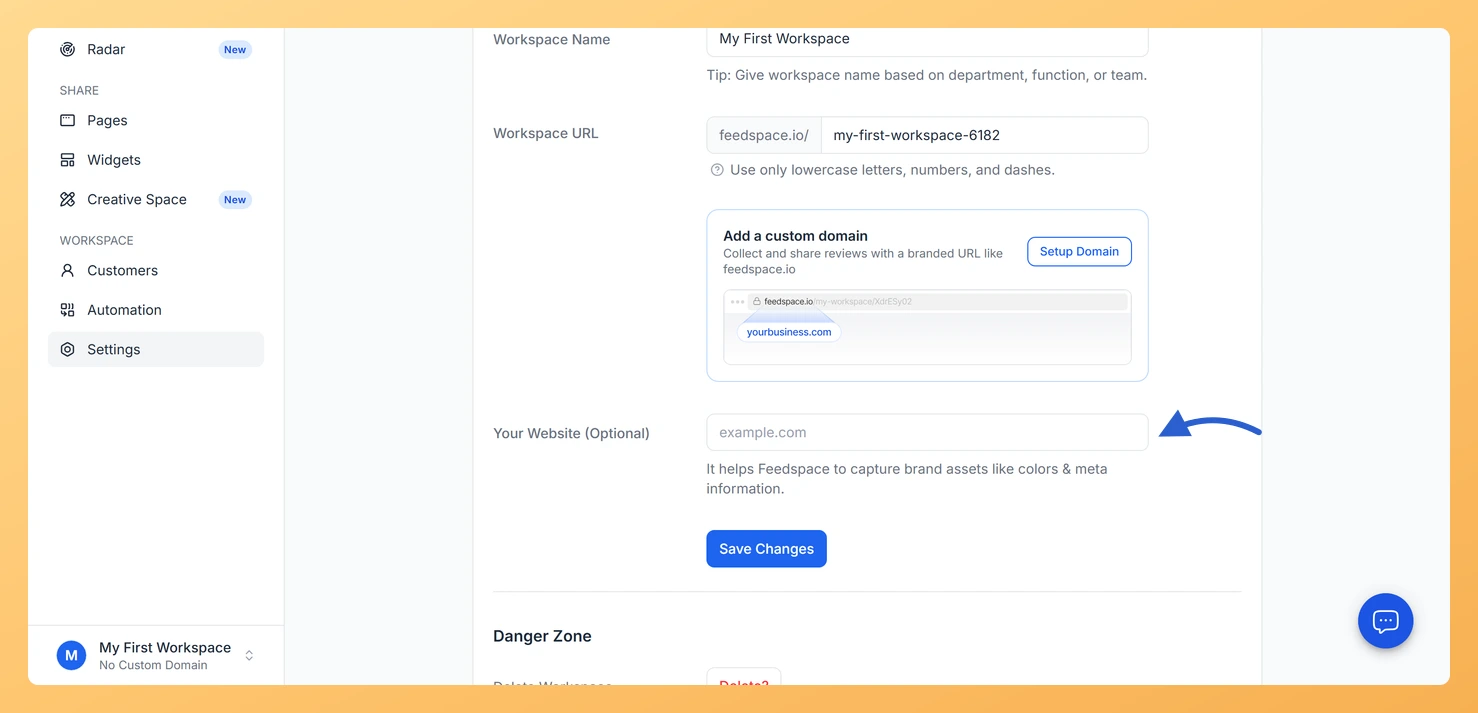
The General Settings page in Feedspace lets you update your workspace name, the URL slug used in all your form and page links, your connected website, and the language displayed in the Feedspace interface. Changes to the workspace name are safe at any time, but changing the workspace URL will break any existing links that use the old URL.
How to open General Settings
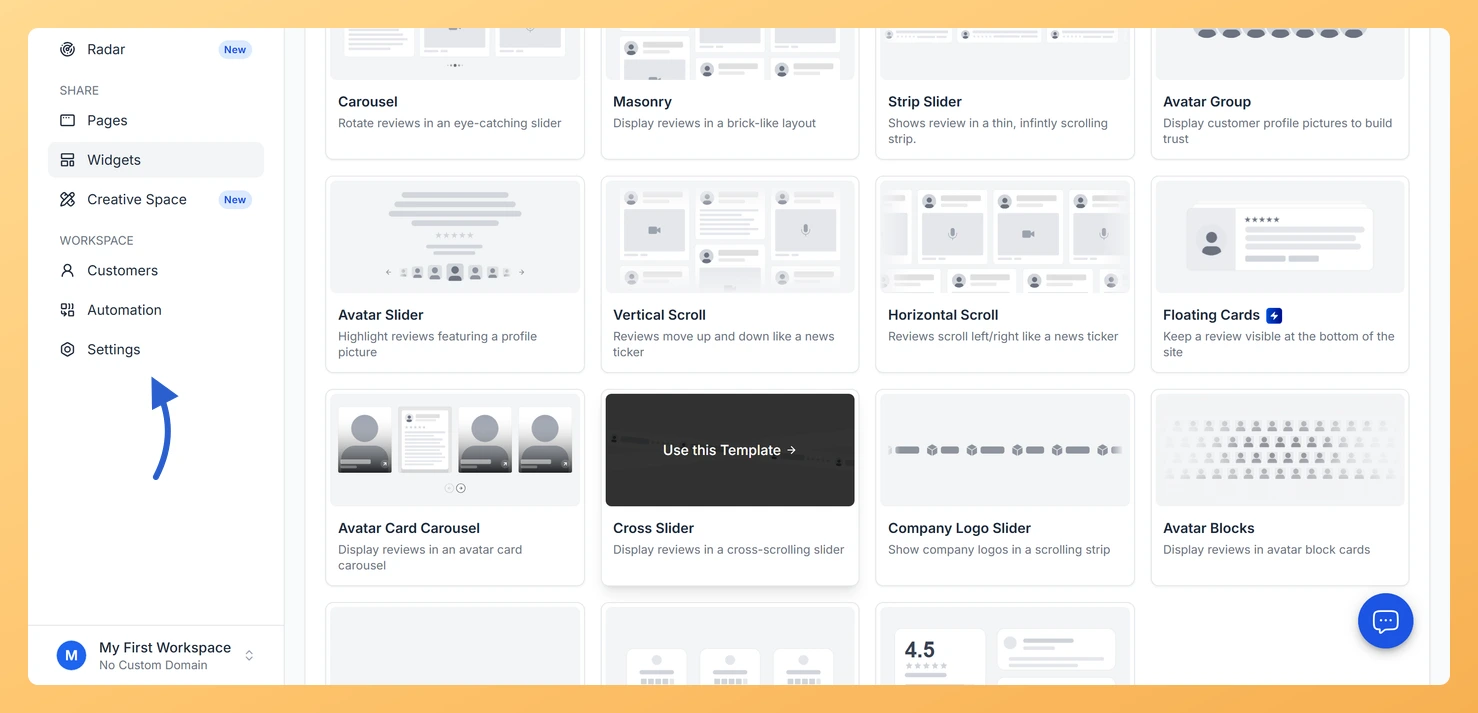
Step 1: Open Settings
In the left sidebar, click Settings under the Workspace section.
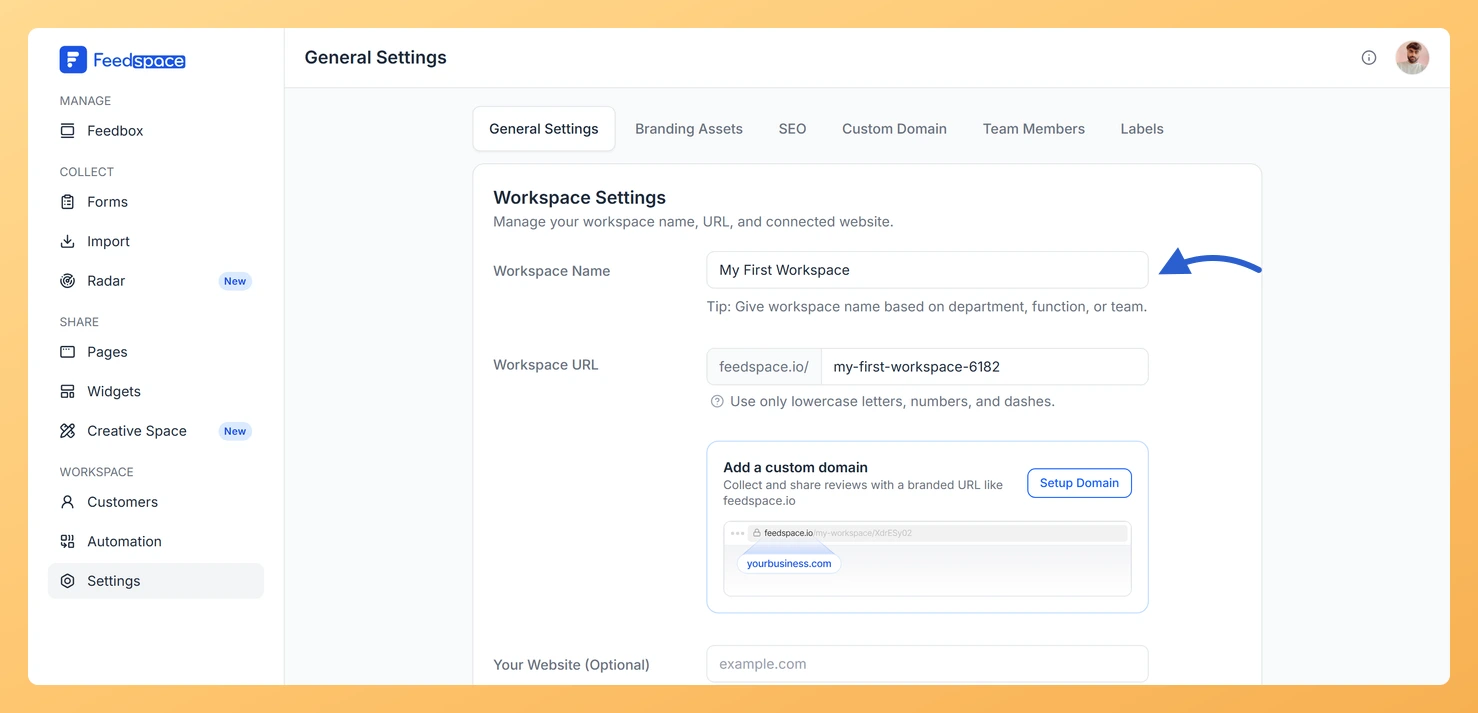
Step 2: Stay on the General Settings tab
You land on the General Settings tab by default.
How to update the workspace name
Step 1: Type the new name
In the Workspace Name field, type your new name. The maximum length is 128 characters.
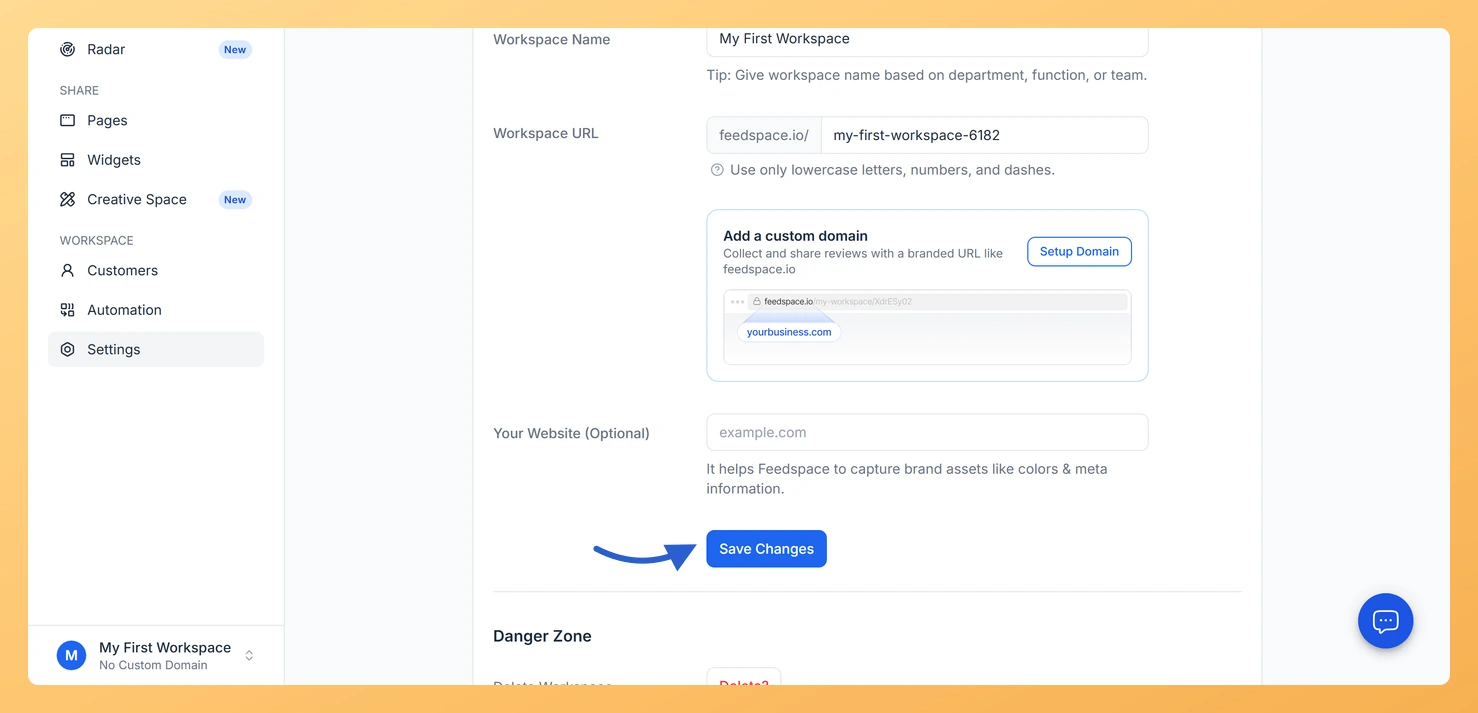
Step 2: Save your changes
Click Save Changes.
How to update the workspace URL
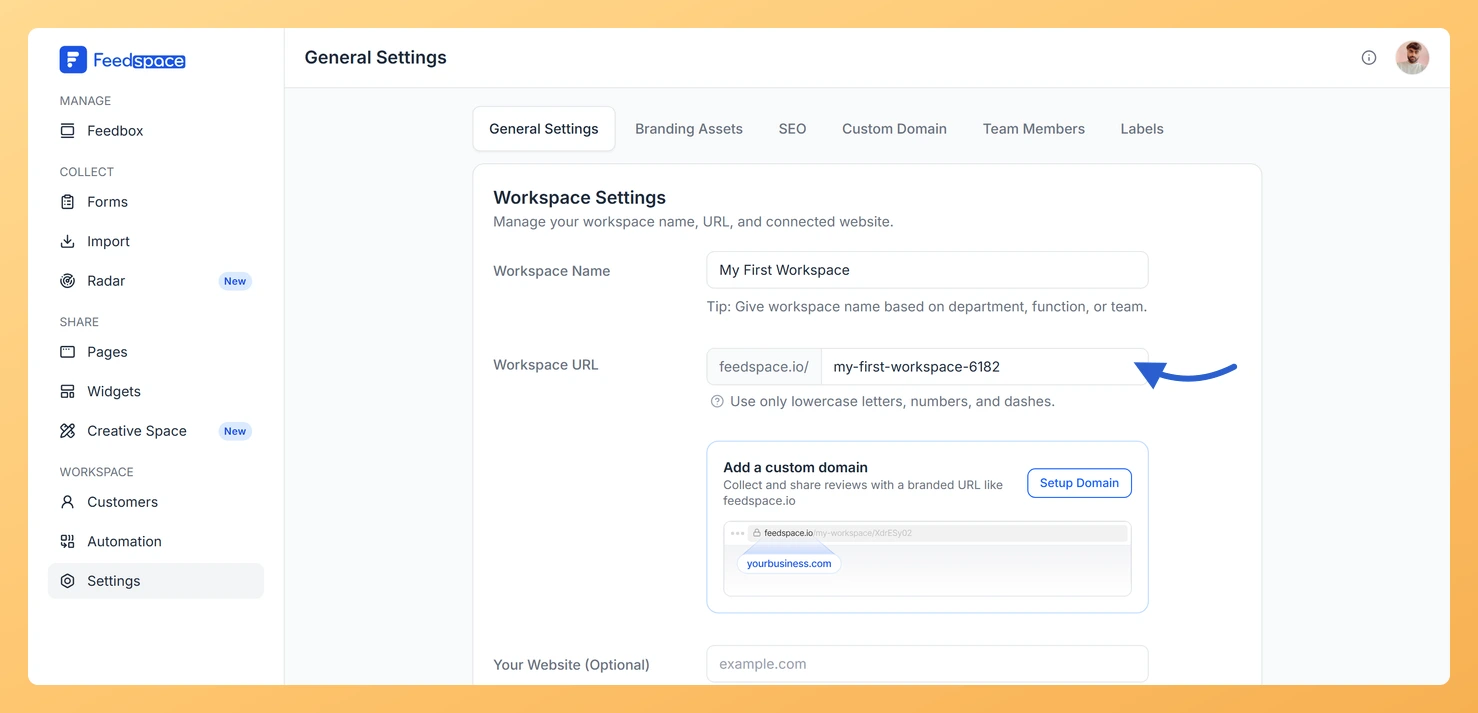
The Workspace URL field shows the slug used in all your review form links and wall of love pages. Changing it will break any existing URLs that use the old slug.
Step 1: Edit the Workspace URL field
Edit the Workspace URL field with your new slug.
Step 2: Save your changes
Click Save Changes.
Step 3: Review the affected links
A confirmation modal appears listing all affected forms and pages. Review the list carefully.
Step 4: Confirm the change
Click Update to confirm, or Cancel to go back.
How to update your website
Enter your website domain in the Your Website field (for example, example.com). Feedspace uses this to automatically fetch branding assets such as your brand colors and logo. Then click Save Changes.
How to change the app language
Select your preferred language from the App language dropdown. This changes the language of the Feedspace interface for your account. Click Save Changes to apply.
Common questions
Does changing the workspace name change the URL?
No. The workspace name and URL are separate fields. Changing the name does not automatically update the URL slug. You need to update them independently.
What happens to my forms and pages after a URL change?
Any links shared with customers or embedded on websites that use the old URL will stop working. You will need to update those links or embeds to use the new URL after the change.
What you can do next
If you updated the workspace URL, update any embedded review form links or wall of love page links on your website.
Go to the Branding Assets tab to customize your workspace logo, colors, and fonts.
You might also find helpful
What is Workspace in Feedspace?
Overview In Feedspace, a Workspace is a dedicated environment where all your review-related data and tools are organized. Think of it as a container that holds everything you need for managing testimonials and reviews in one place. A workspace typically includes: This structure helps you keep things organized and segregated,...
How Do I Create a New Workspace in Feedspace?
Overview Organize your content effectively by creating separate workspaces, whether by project, client, or campaign. Here’s how to set one up: Step 1: Log into Feedspace Visit Feedspace and sign in using your account credentials. Step 2: Open the workspace switcher In the sidebar footer, click the workspace switcher. It...
What Happens When I Change My Workspace URL in Feedspace?
What Changes When You Update the Workspace URL The workspace URL is the slug included in every review form link and wall of love page URL in your workspace. When you change it, all of those links update to use the new slug immediately. Any links or embeds that still...