The Branding Assets tab in Feedspace lets you set six color values that apply across all your review forms, wall of love pages, and widgets. Setting your brand colors ensures a consistent and professional look that matches your website or product.
How to access color settings
Step 1: Open Settings
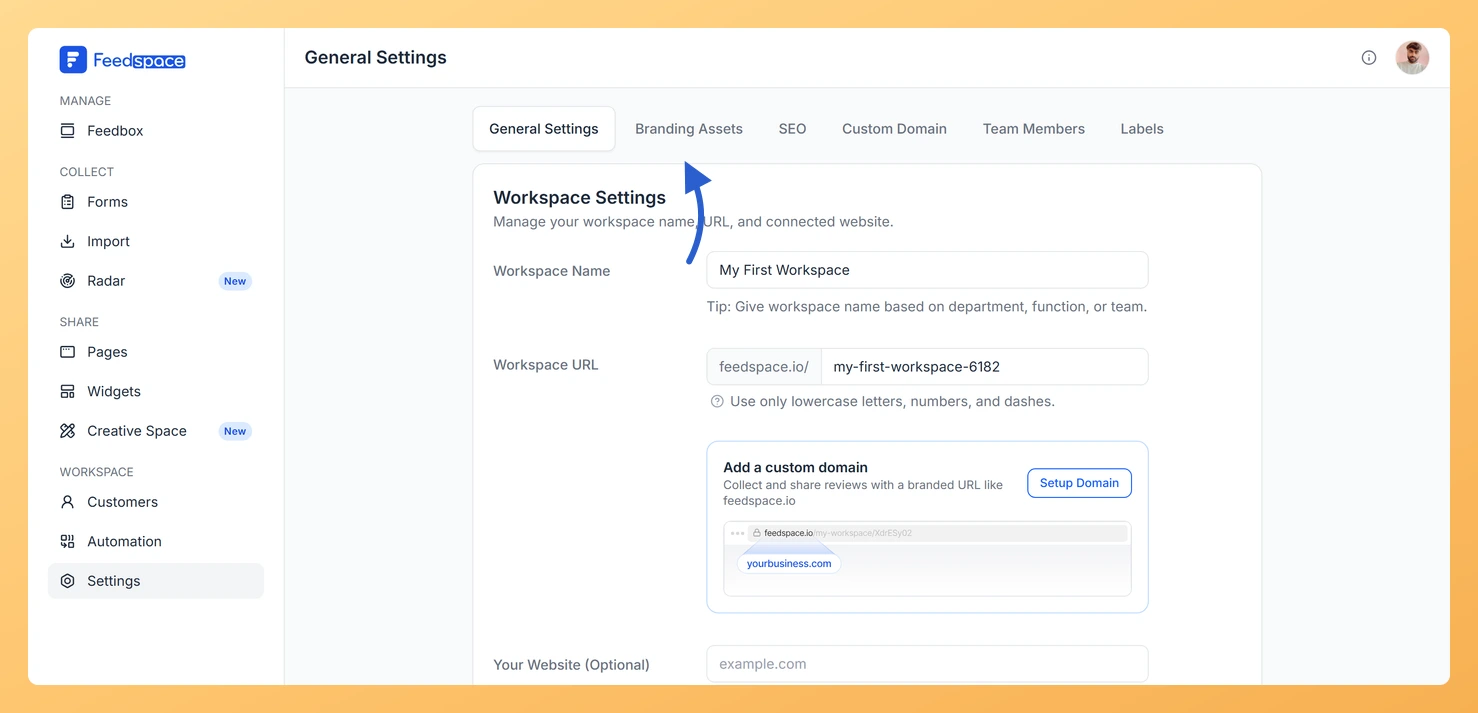
In the left sidebar, click Settings under the Workspace section.
Step 2: Open the Branding Assets tab
Click the Branding Assets tab.
Step 3: Scroll to the colour fields
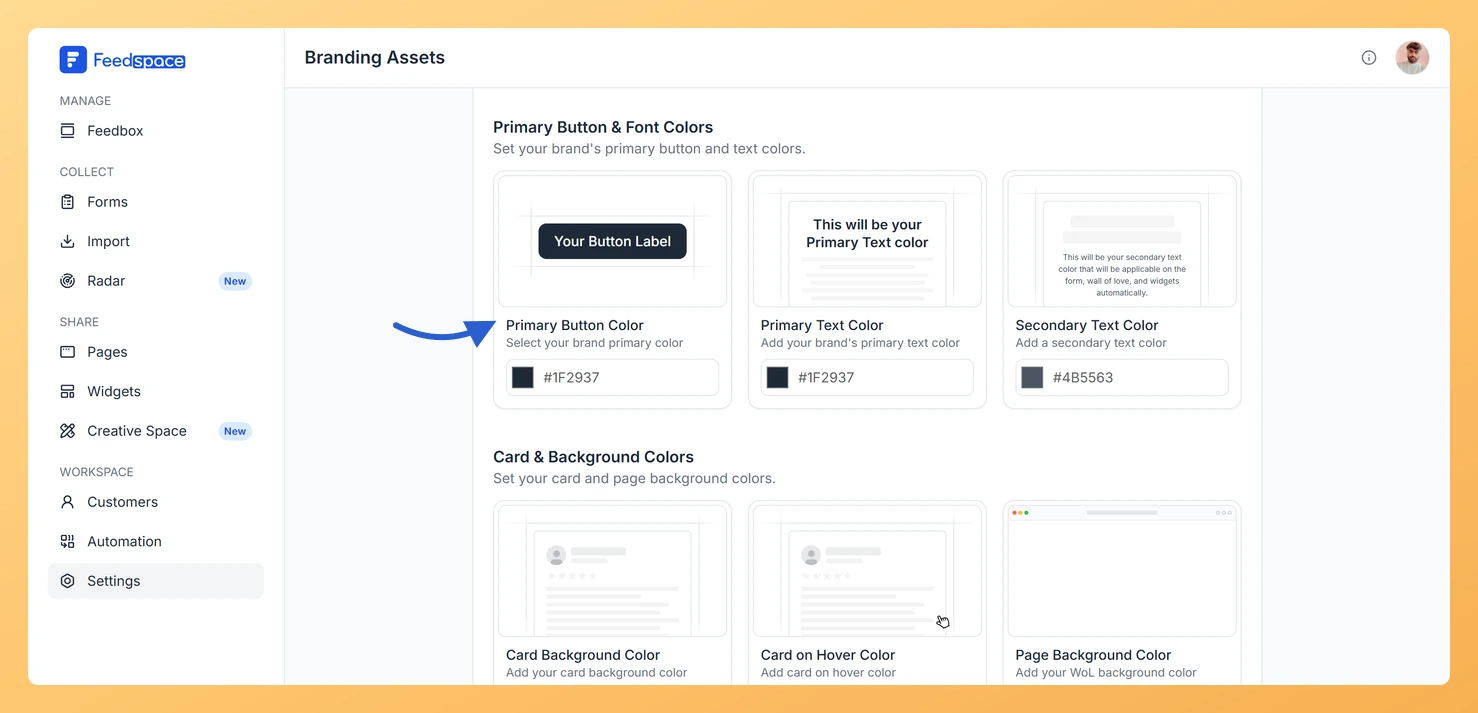
Scroll past the logo and favicon section to the color fields below.
Available color settings
Primary button and font colors
Primary Button Color: The background color of all primary action buttons on your forms and pages.
Primary Text Color: The main text color used on your forms, headings, and labels.
Secondary Text Color: A softer text color used for supporting text, descriptions, and helper copy across your forms and widgets.
Card and background colors
Card Background Color: The background color of individual review cards on your wall of love pages and widgets.
Card on Hover Color: The color review cards change to when a visitor moves their mouse over them.
Page Background Color: The overall background color of your wall of love pages.
How to set a color
Step 1: Click the colour you want to change
Click the color swatch or input field next to the color you want to change.
Step 2: Pick a colour or type a hex code
Use the color picker to choose a color, or type a hex code directly.
Step 3: Repeat for the other colours
Repeat for each color you want to set.
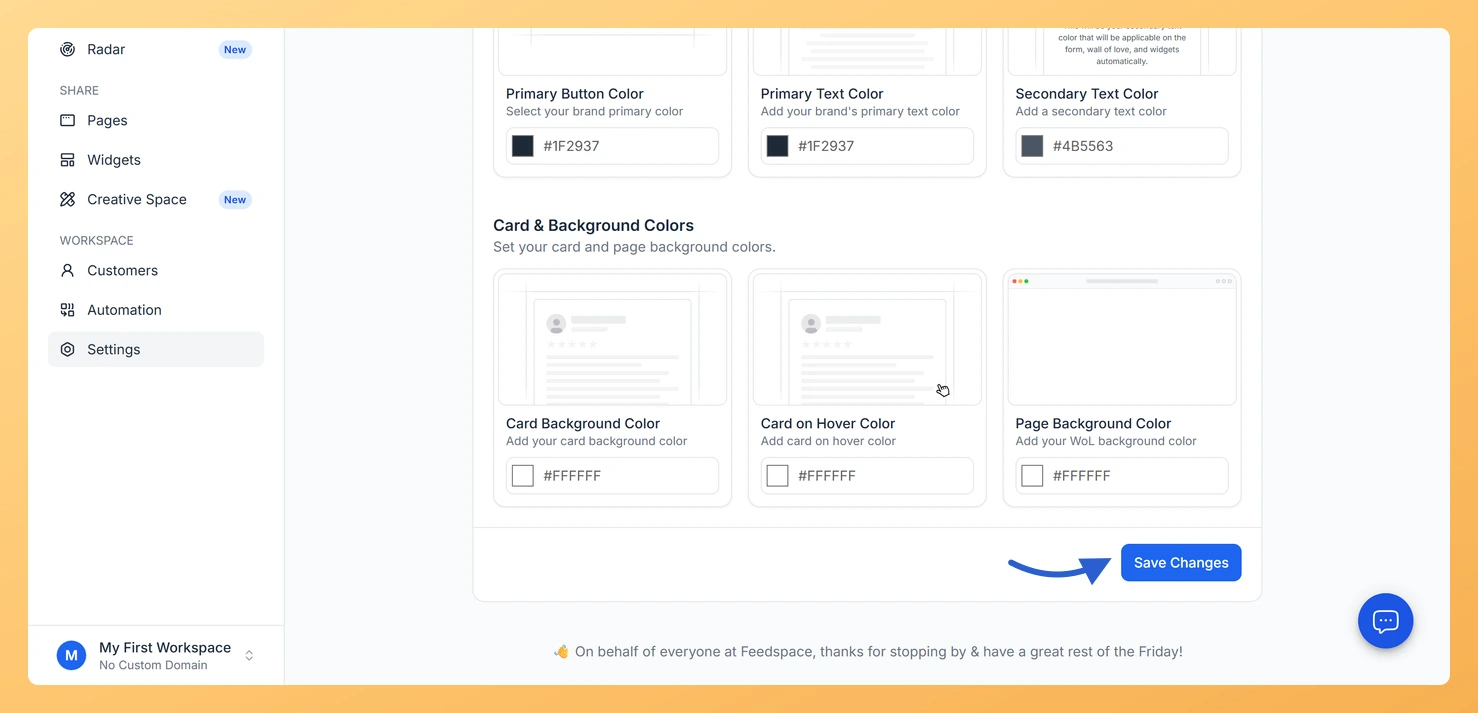
Step 4: Save your changes
Click Save Changes when you are done.
Fetch colors from your website
At the top of the Branding Assets tab, enter your website domain in the Website field and click Fetch Assets. Feedspace will attempt to automatically detect and fill in your brand colors from your website, saving you time. You can then adjust any values manually before saving.
Common questions
Do brand colors apply to all forms and pages automatically?
Yes. The colors you set in Branding Assets apply to all forms, wall of love pages, and widgets in the workspace by default. Individual forms or pages may allow you to override these settings locally, but the workspace-level colors are the default starting point.
My color changes are not showing
Make sure you clicked Save Changes before leaving the page. If you saved and the colors still look the same, try a hard refresh in your browser (Ctrl + Shift + R on Windows, Cmd + Shift + R on Mac) to clear cached styles.
What you can do next
Upload your brand logo and favicon to complete your workspace branding.
Choose a font in the Typography section to match your brand’s style.
You might also find helpful
How to Manage Branding Assets in Feedspace
Overview Feedspace lets you customise the look of your Wall of Love and widgets through Branding Assets in your workspace settings. You can upload your logo, set brand colours, and choose a font so every testimonial display matches your company’s visual identity. Steps to manage branding assets Step 1: Open...
How Do I Upload a Logo and Favicon in Feedspace?
Overview Uploading a brand logo and favicon in Feedspace adds your visual identity to all review forms, wall of love pages, and widgets in your workspace. The logo appears prominently on your forms and pages, while the favicon shows in the browser tab when visitors view your pages. Before you...
How Do I Create a New Workspace in Feedspace?
Overview Organize your content effectively by creating separate workspaces, whether by project, client, or campaign. Here’s how to set one up: Step 1: Log into Feedspace Visit Feedspace and sign in using your account credentials. Step 2: Open the workspace switcher In the sidebar footer, click the workspace switcher. It...