Every Feedspace plan comes with a set number of workspaces, so how many you can create depends on the plan you are on. When you reach that limit, an upgrade prompt appears instead of the create form. To get more workspace slots, upgrade to a plan that includes a higher workspace allowance.
Steps to add more workspaces
More workspaces come with a higher plan. You can reach the Plans tab from the Upgrade Plan button or the Get Workspace shortcut, and both open the same place.
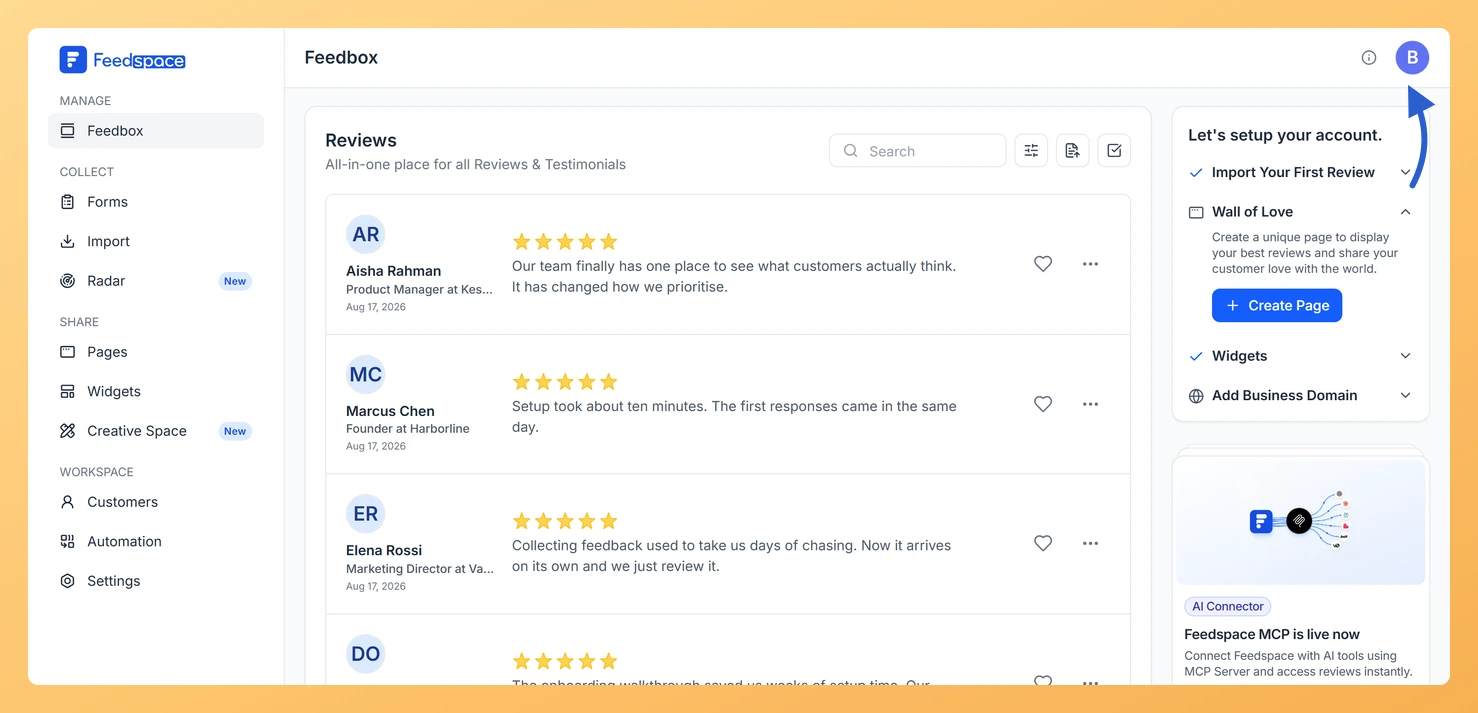
Step 1: Open your profile menu
Click the circular avatar button at the top-right of the header.
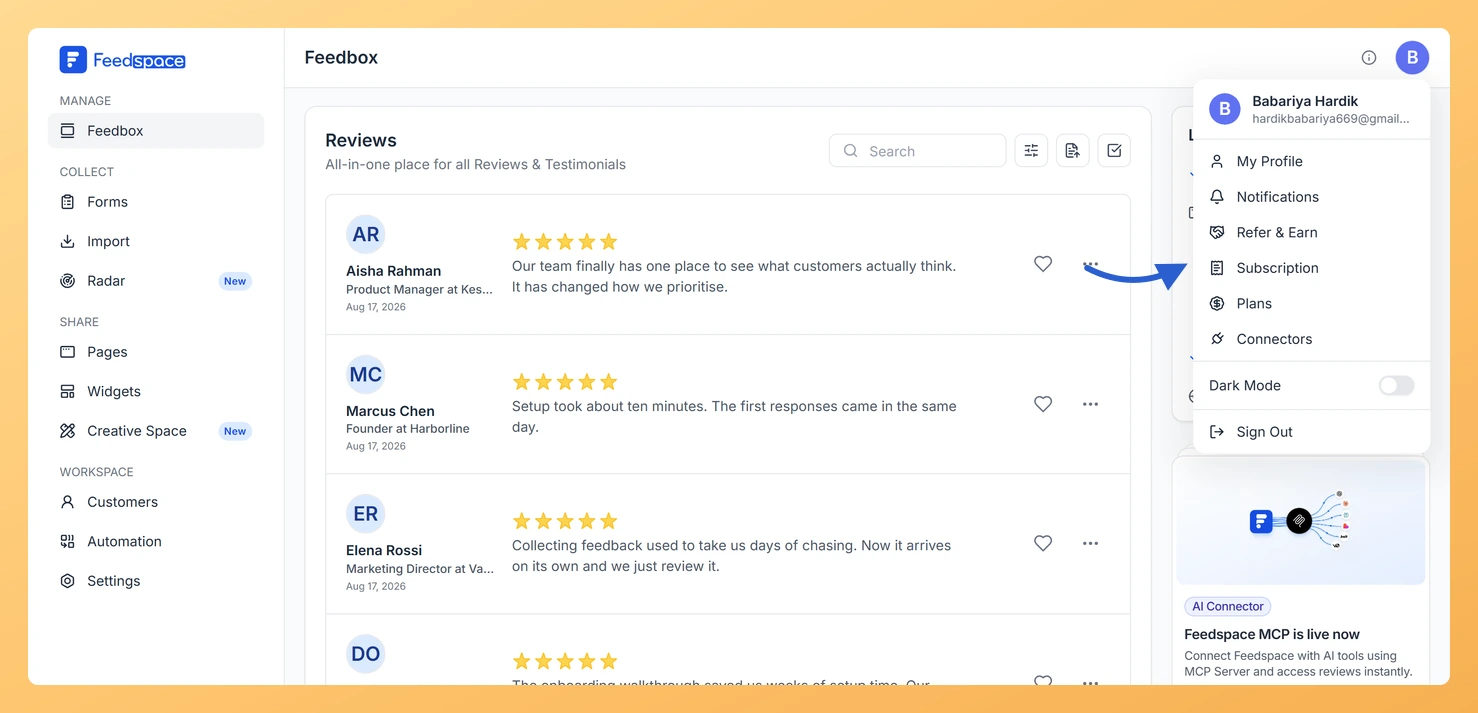
Step 2: Open Subscription
Click Subscription in the profile dropdown.
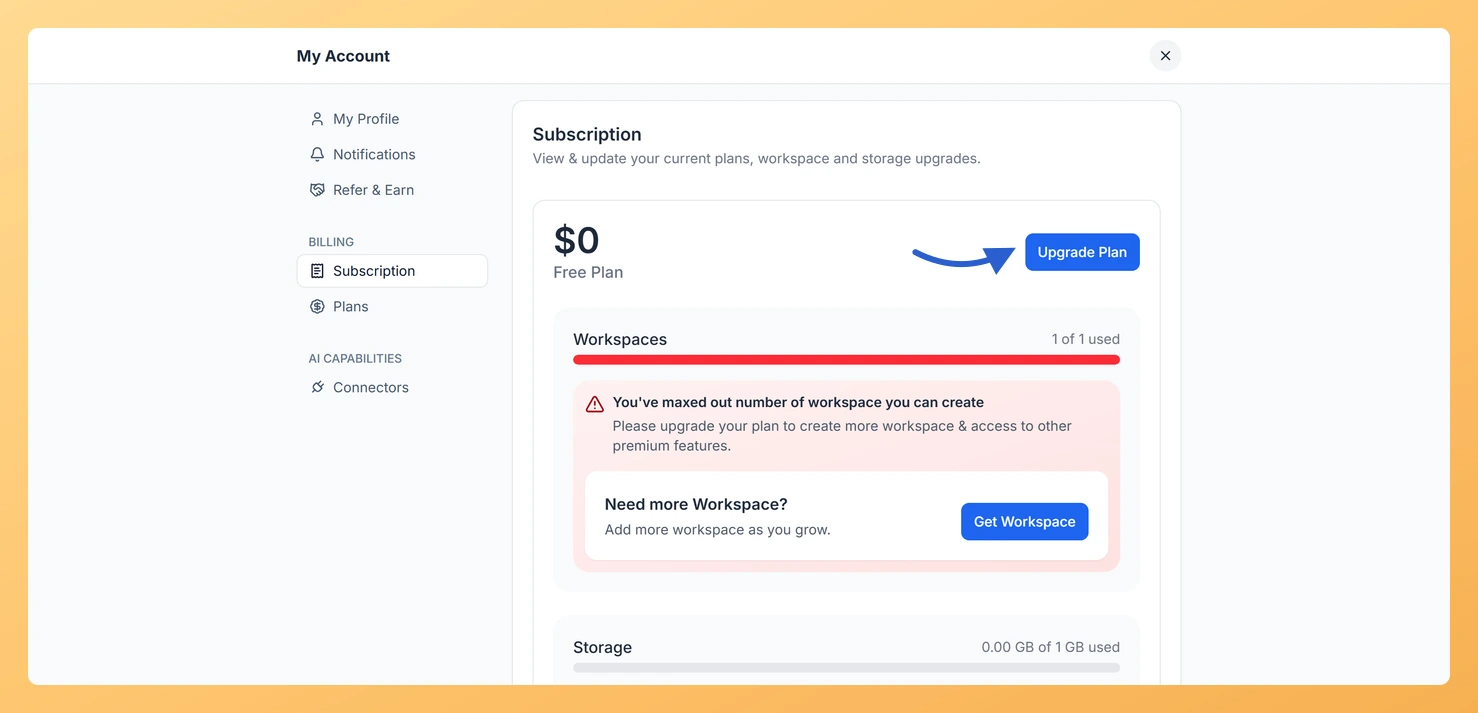
Step 3: Open the Plans tab
Click Upgrade Plan, or click Get Workspace in the workspace usage card. Either one opens the Plans tab.
Step 4: Choose a plan and upgrade
On the Plans tab, choose the plan that includes the number of workspaces you need. Click Upgrade on that plan card and complete the payment. Your new workspace allowance is available immediately after payment.
After your workspace allowance increases
Once you have an available workspace slot, you can create a new workspace right away.
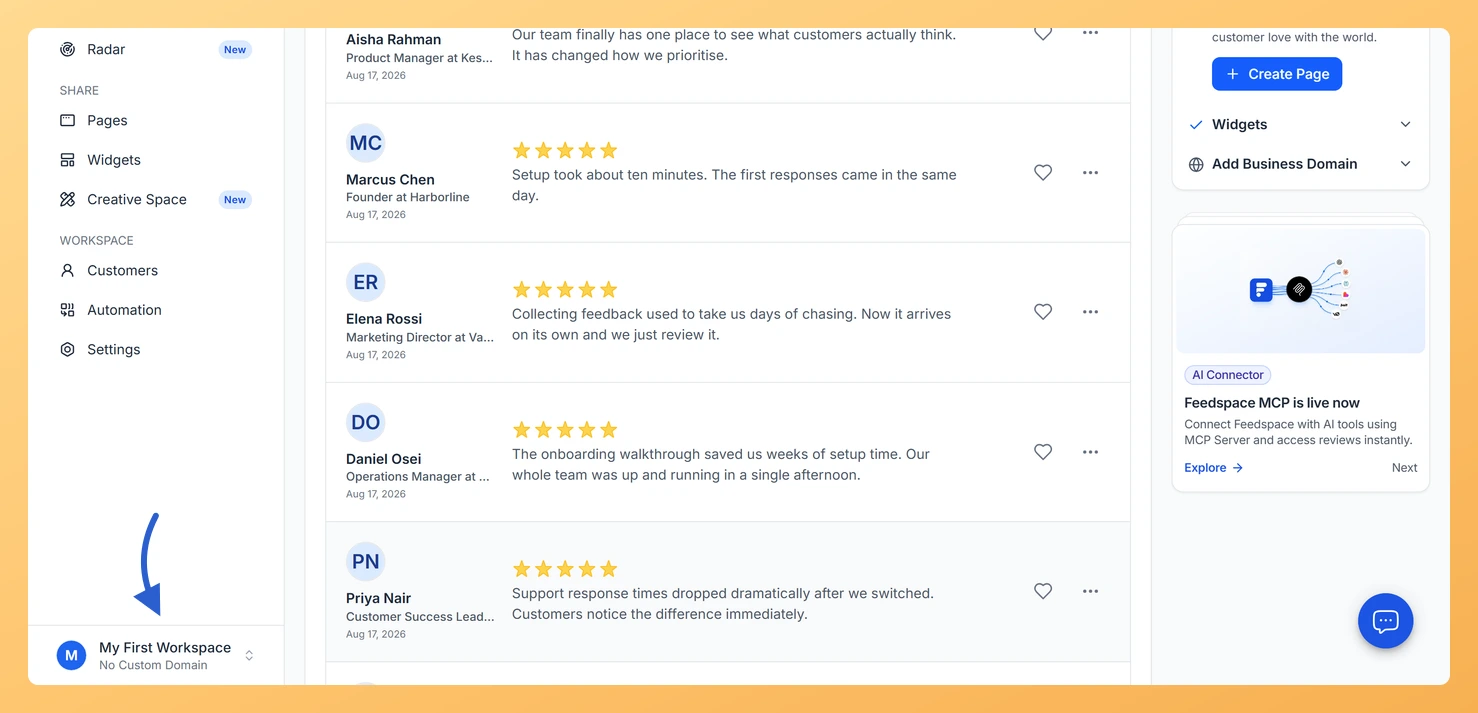
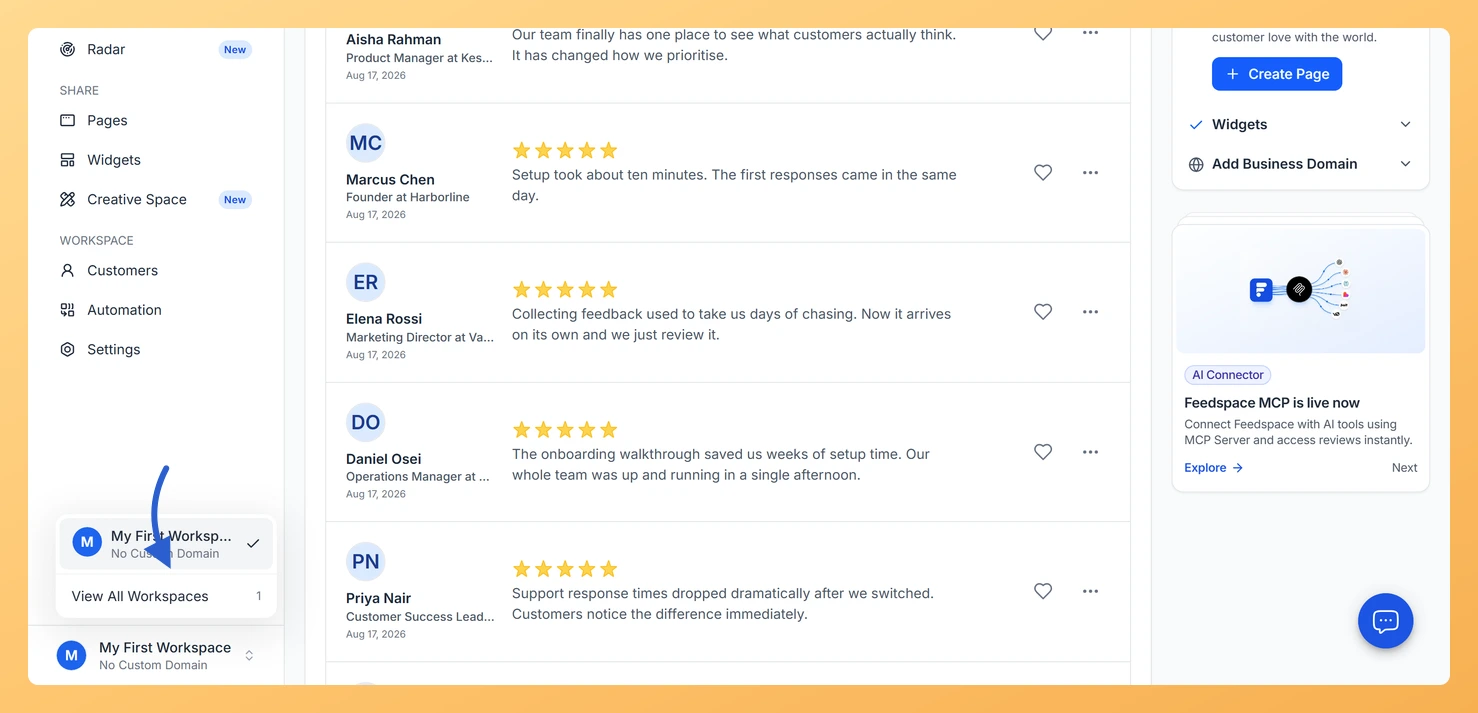
Step 1: Open the workspace switcher
Click the workspace switcher at the bottom of the left sidebar.
Step 2: Open all workspaces
Click View All Workspaces.
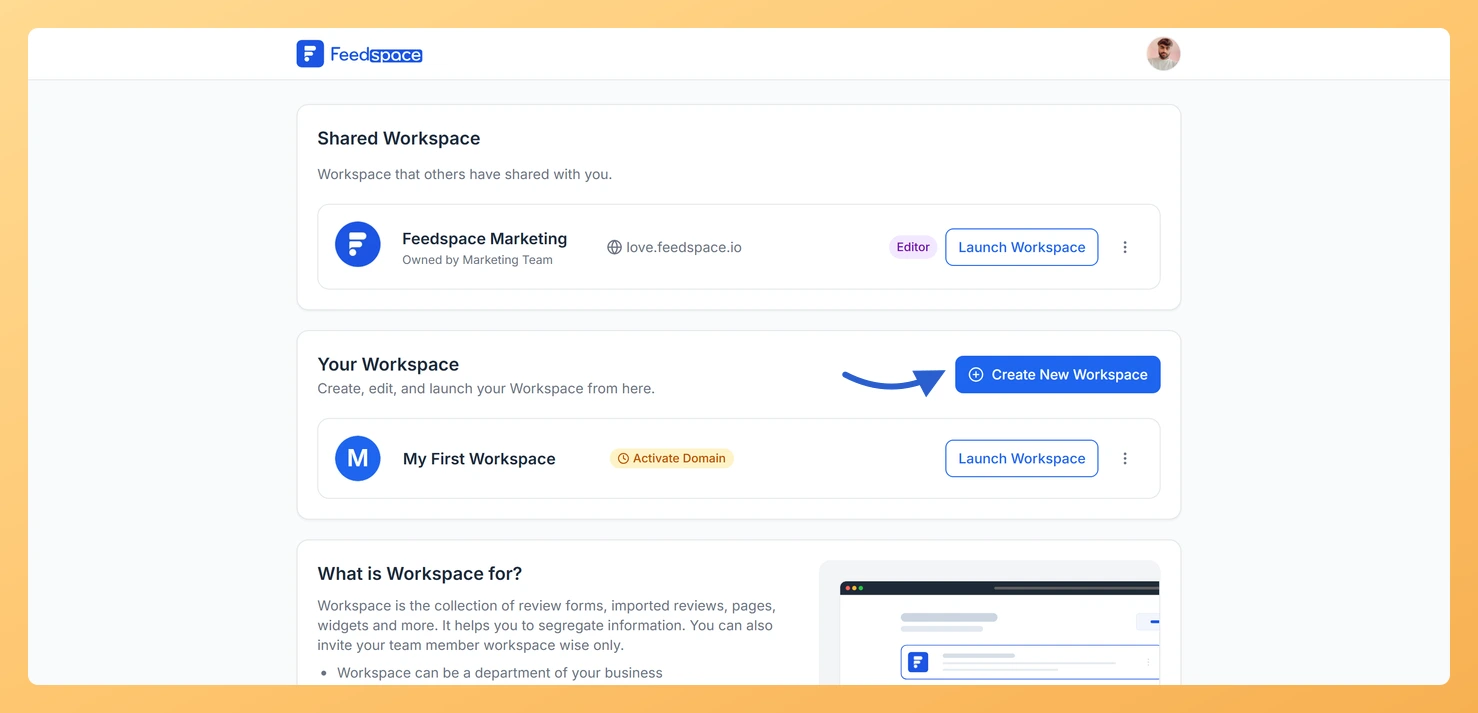
Step 3: Create the workspace
On the Workspaces page, click Create New Workspace. Enter a workspace name, optionally click Upload photo to add a logo, then click Create Workspace.
Common questions
Does the Get Workspace button add a workspace on its own?
No. Get Workspace in the workspace usage card is a shortcut that opens the Plans tab. You add more workspaces by choosing a plan with a higher allowance and clicking Upgrade, the same as the Upgrade Plan button.
Why don’t I see the Get Workspace button?
The Get Workspace shortcut appears in the workspace usage card on the Subscription tab when your plan has a workspace limit. If your plan already includes unlimited workspaces, it is not shown because no limit applies.
My workspace count still shows as maxed out after upgrading
Refresh the page after completing your upgrade. If the new allowance has not appeared after a few minutes, contact support at support@feedspace.io with your payment confirmation.
You might also find helpful
How Do I View My Subscription in Feedspace?
Overview The Subscription tab in your Feedspace account shows your current plan, billing amount, usage across your workspaces and storage, and your full invoice history. You can also manage your subscription or upgrade from this tab. How to open the Subscription tab Step 1: Open the account menu Click the...
What Happens When I Reach My Workspace Limit in Feedspace?
Overview Every Feedspace plan includes a set number of workspace slots. When you use all of those slots, Feedspace prevents you from creating any additional workspaces until you increase your limit. The message you will see When you have used every workspace slot included in your plan, Feedspace displays the...
How Do I Create a New Workspace in Feedspace?
Overview Organize your content effectively by creating separate workspaces, whether by project, client, or campaign. Here’s how to set one up: Step 1: Log into Feedspace Visit Feedspace and sign in using your account credentials. Step 2: Open the workspace switcher In the sidebar footer, click the workspace switcher. It...