The Your Website (Optional) field in General Settings lets you connect your business website to your Feedspace workspace. When you add your website URL, Feedspace can automatically fetch your brand colors and meta information, making branding setup faster and reducing manual configuration.
How to add your website URL
Step 1: Open workspace settings
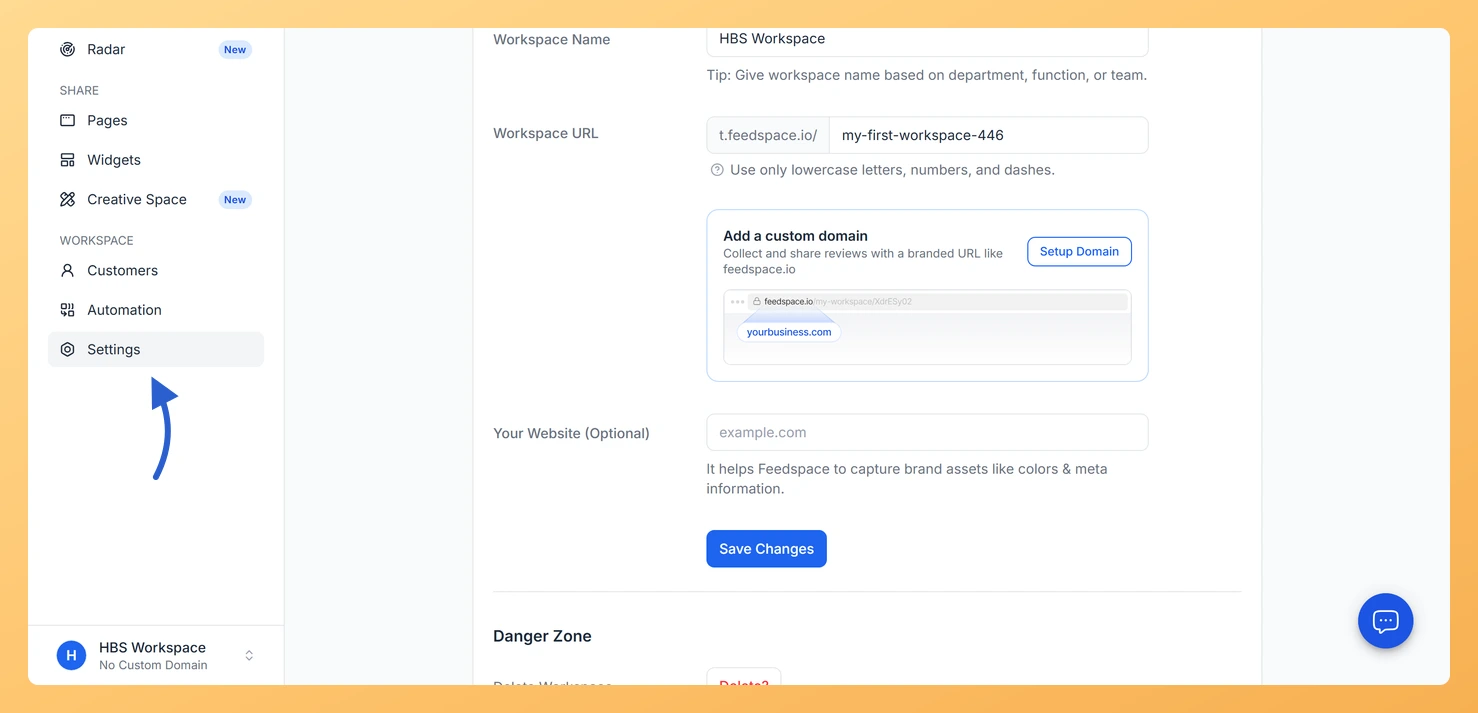
In the left sidebar, click Settings under the Workspace section. You land on the General Settings tab by default.
Step 2: Enter your website URL
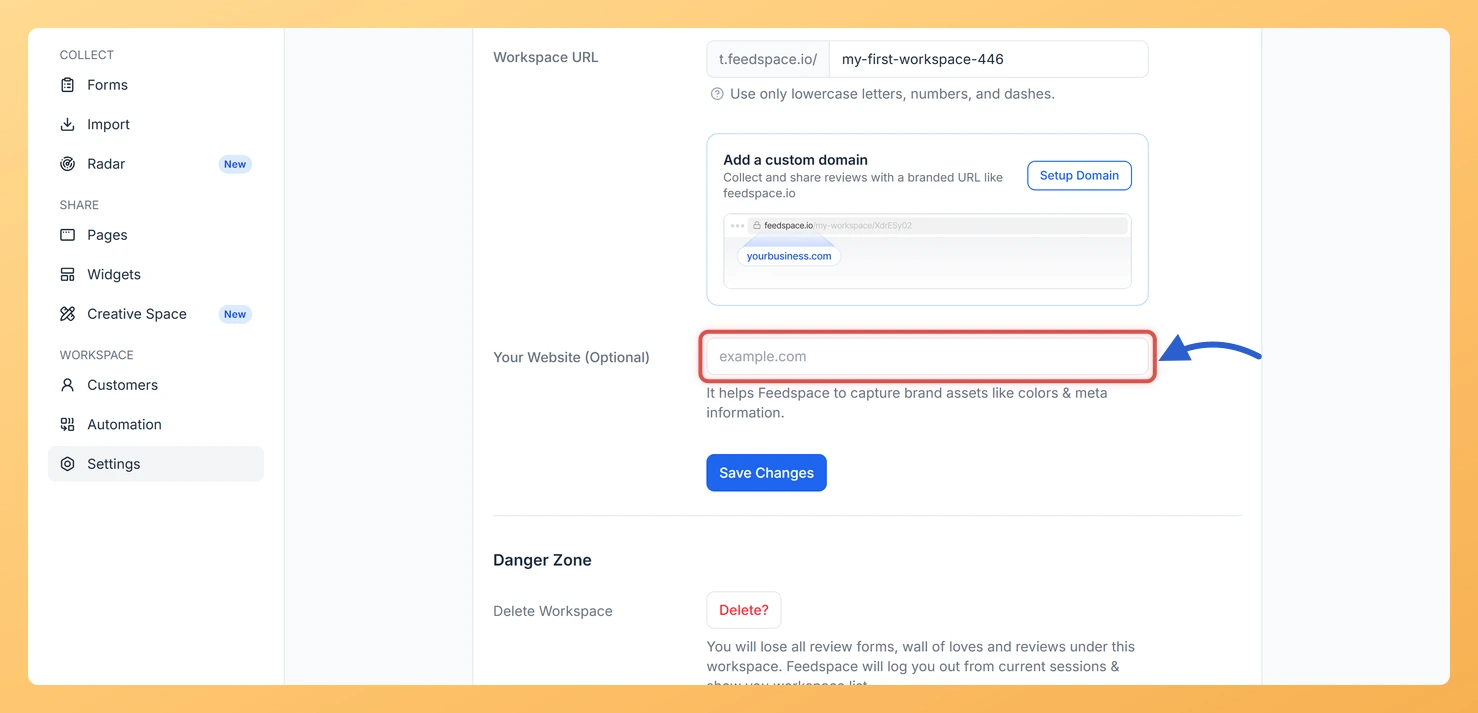
Scroll down to the Your Website (Optional) field and enter your full business website URL, for example https://yoursite.com.
Step 3: Save the change
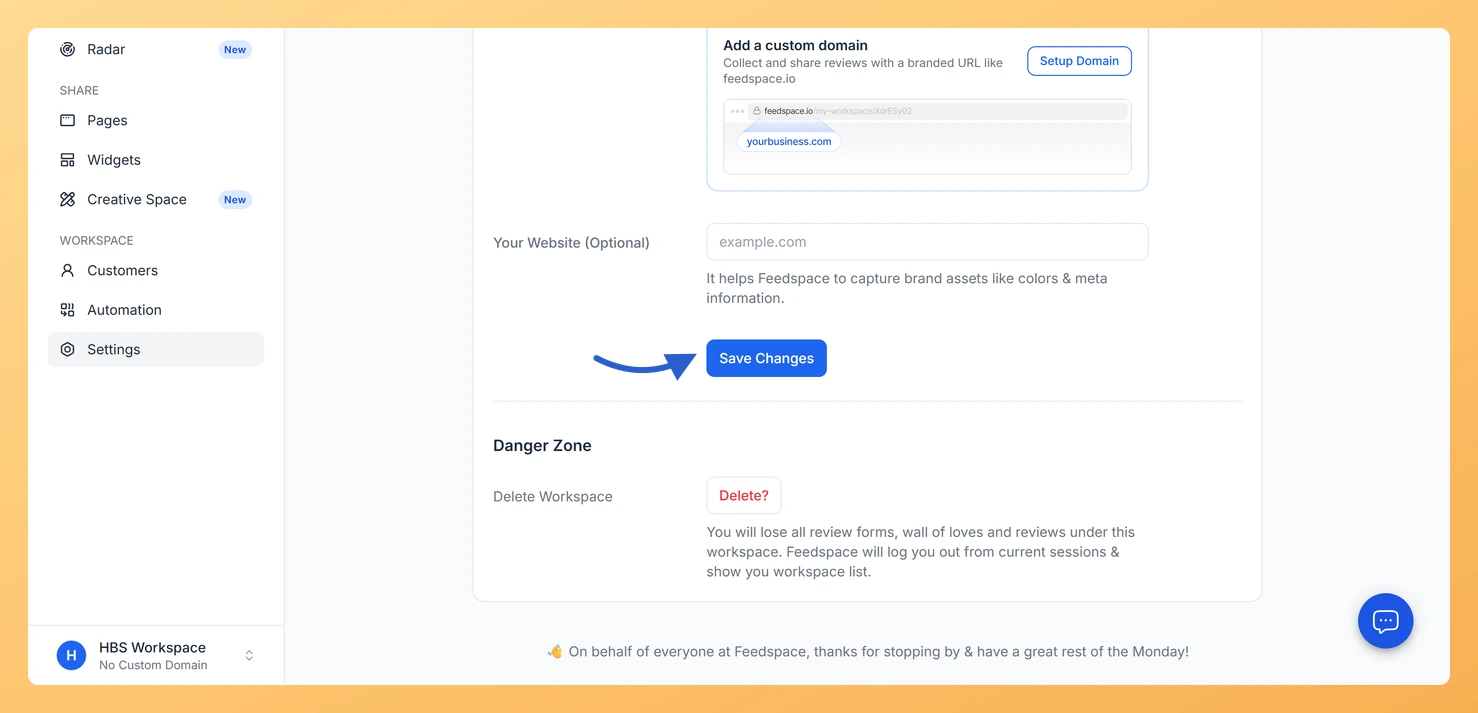
Click Save Changes.
Why add your website URL
Adding your website URL gives Feedspace the information it needs to automatically capture brand assets on your behalf. Specifically, Feedspace uses the URL to:
Suggest matching brand colors detected from your website.
Fetch meta information such as your site name and logo, so your branding fields can be pre-filled faster.
Speed up the overall branding setup so your review forms and pages look on-brand sooner.
Common questions
Is this the same as my Feedspace workspace URL?
No. The Your Website (Optional) field is for your own business website, for example https://yourcompany.com. It is separate from your Feedspace workspace URL, which is the URL slug used for your review forms and wall of love pages inside Feedspace.
Is this the same as my custom domain?
No. Your custom domain is a separate setting that lets you host your Feedspace pages under your own domain name. The website URL field is simply a reference to your business website, used by Feedspace to detect brand assets. You do not need a custom domain configured to use this field.
Is the website URL field required?
No, this field is optional. Your workspace will work fully without it. Adding it is recommended if you want Feedspace to suggest brand colors and assets automatically, saving you time during branding setup.
What you can do next
Go to the Branding Assets tab to review and apply any brand colors Feedspace detected from your website.
Upload your logo and favicon to complete your workspace branding.
You might also find helpful
How to Update Your Profile in Feedspace
Overview Updating your profile on Feedspace ensures your information is accurate and personalized. Follow the steps below to manage your profile. Step 1: Go to My Account Once logged into your dashboard, click on your profile icon (top right corner) and select My Account from the menu. Step 2: Open...
How to Manage Branding Assets in Feedspace
Overview Feedspace lets you customise the look of your Wall of Love and widgets through Branding Assets in your workspace settings. You can upload your logo, set brand colours, and choose a font so every testimonial display matches your company’s visual identity. Steps to manage branding assets Step 1: Open...
How Do I Update My Workspace Name and URL in Feedspace?
Overview The General Settings page in Feedspace lets you update your workspace name, the URL slug used in all your form and page links, your connected website, and the language displayed in the Feedspace interface. Changes to the workspace name are safe at any time, but changing the workspace URL...