
Feedspace Home Dashboard

How to Manage Branding Assets in Feedspace

Last updated on June 23, 2026

Overview

Feedspace lets you customise the look of your Wall of Love and widgets through Branding Assets in your workspace settings. You can upload your logo, set brand colours, and choose a font so every testimonial display matches your company’s visual identity.

Steps to manage branding assets

Step 1: Open Branding Assets

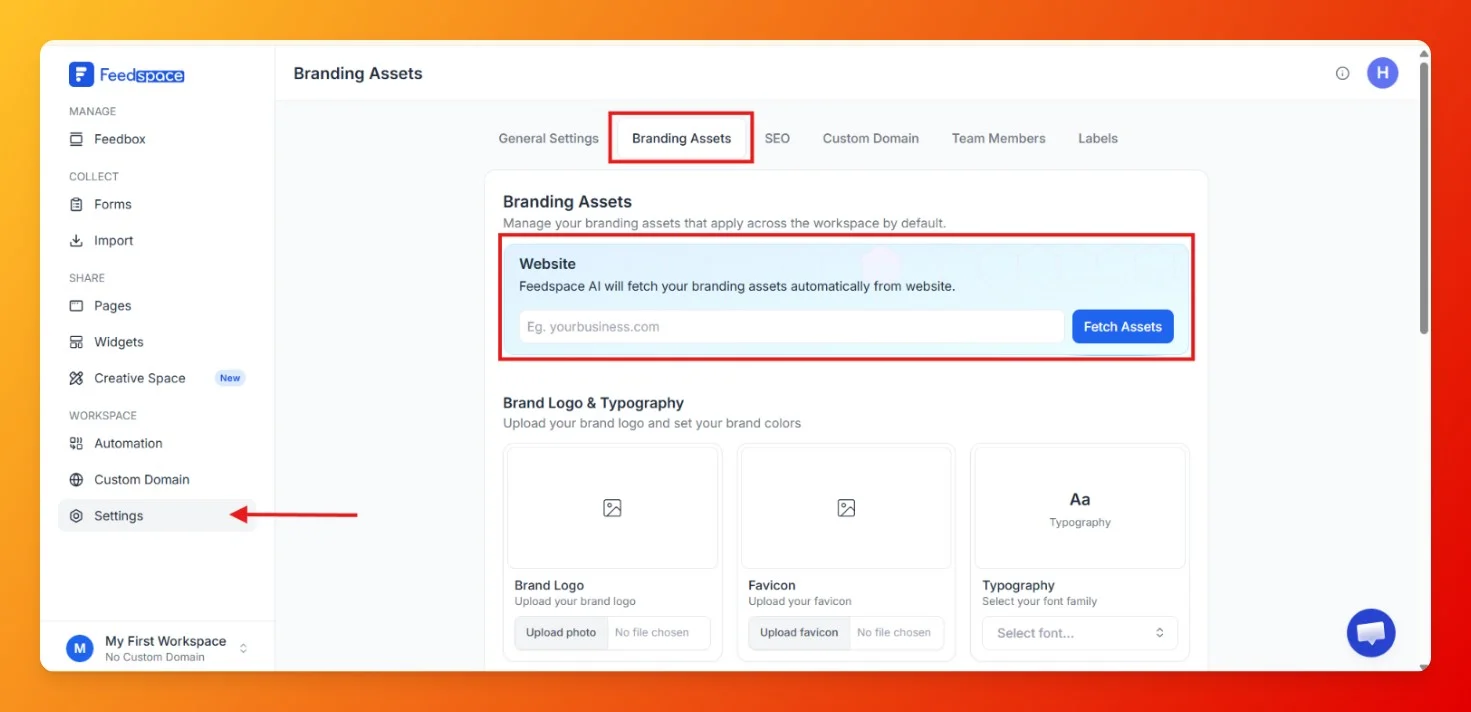
In the left sidebar, click Settings, then click the Branding Assets tab.

Step 2: Add your website

Enter your website URL and click Fetch Assets. Feedspace will automatically pull your brand colours and logo from your site.

Step 3: Customise branding settings manually

You can also configure each setting manually:

  • Logo: Upload your company logo (up to 15 MB). Displayed on your Wall of Love and widgets.
  • Favicon: Upload your favicon (up to 15 MB). Appears in browser tabs when visitors view your Wall of Love.
  • Typography: Choose a custom font family. The selected font applies across your Wall of Love and widgets.
  • Primary Button Color: Colour of action buttons such as Submit and View More.
  • Page Background Color: Background colour for your Wall of Love and widgets.
  • Primary Text Color: Main font colour for headings and important text.
  • Secondary Text Color: Used for subheadings and supporting text.
  • Card Background Color: Background colour of each review card.
  • Card On Hover Color: Colour effect when a visitor hovers over a review card.
Branding Assets settings in Feedspace

Step 4: Save your changes

Click Save. Your branding updates apply to your Wall of Love and widgets.

What’s next

  • Set up a custom domain so your Wall of Love and widgets appear under your own URL.
  • Open your Wall of Love to see your branding applied live.

You might also find helpful

How to Add a Custom Domain in Feedspace

Overview Adding your own custom domain to Feedspace helps reinforce your brand and may improve traffic. Below is a simple, step-by-step walkthrough to get your custom domain up and running. Before you start A custom domain is available on plans that include it. If your current plan does not, Feedspace...

How to Create a Wall of Love Page in Feedspace

Steps to Create a Page Log into Feedspace Sign in with your account credentials. Go to Pages From the left sidebar, click Pages. Create Page Click Create Page. This opens the creation screen with some reviews auto-selected in the space. Select Reviews Go to the Select Review page and choose...

How Do I Create a New Workspace in Feedspace?

Overview Organize your content effectively by creating separate workspaces, whether by project, client, or campaign. Here’s how to set one up: Step 1: Log into Feedspace Visit Feedspace and sign in using your account credentials. Step 2: Open the Workspaces page In the sidebar footer, click the workspace switcher, then...