The Stripe integration in Feedspace automatically imports customers from your Stripe account. When a payment is processed in Stripe, the customer is added to your Feedspace workspace so you can send them a review request email through your form automation.
Before you start
You need an active Stripe account with at least one customer record.
You need admin access to the Feedspace workspace.
Steps to connect Stripe
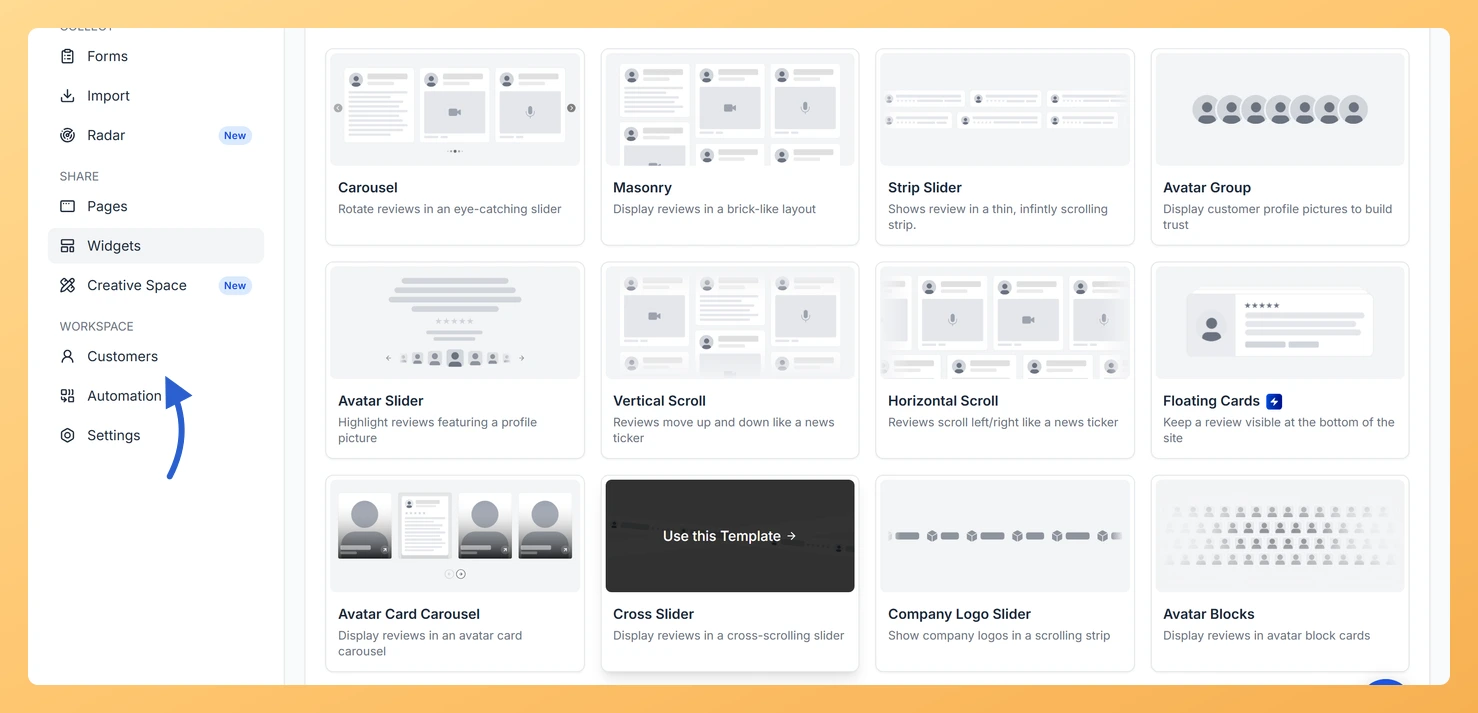
Step 1: Open the Customers page
In the left sidebar, click Customers under the Workspace section.
Step 2: Open the add customers modal
Click Add customers at the top right of the customer list.
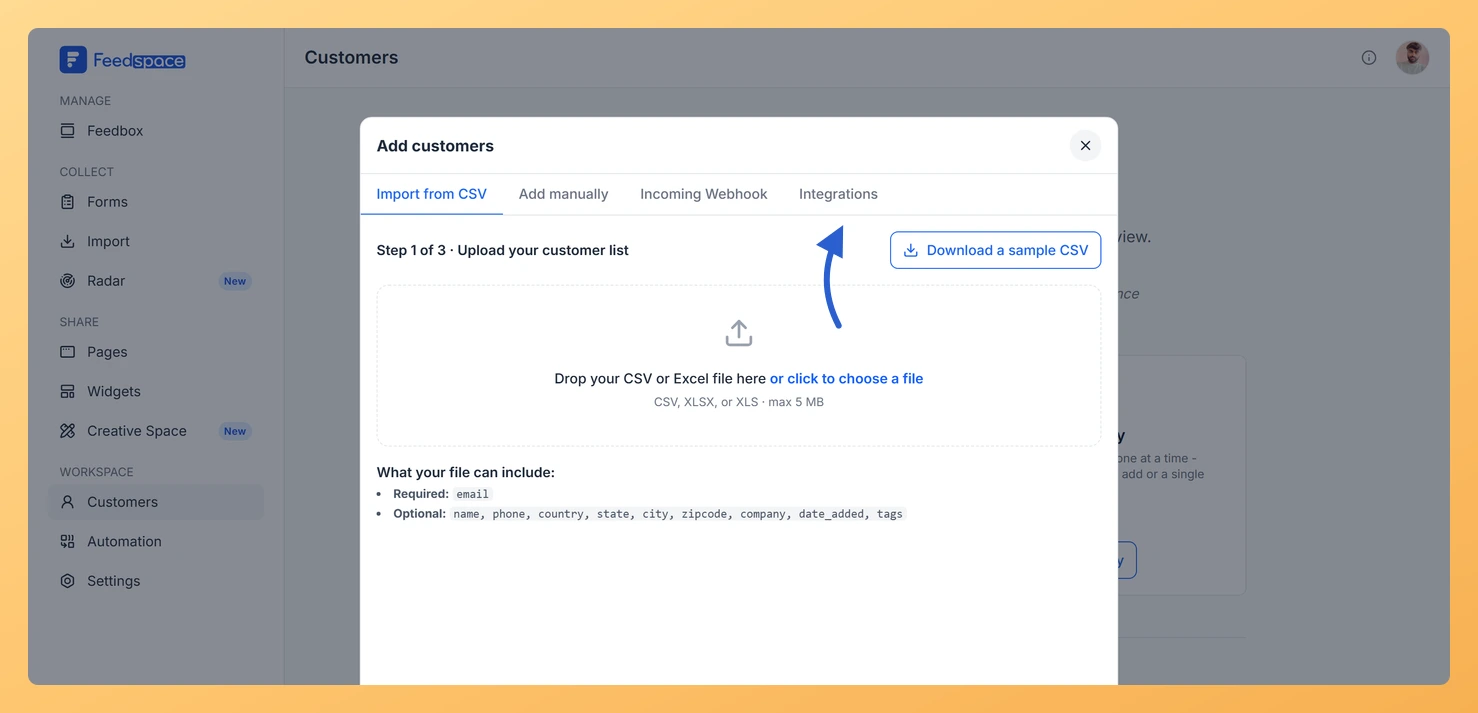
Step 3: Open the Integrations tab
In the modal, click the Integrations tab.
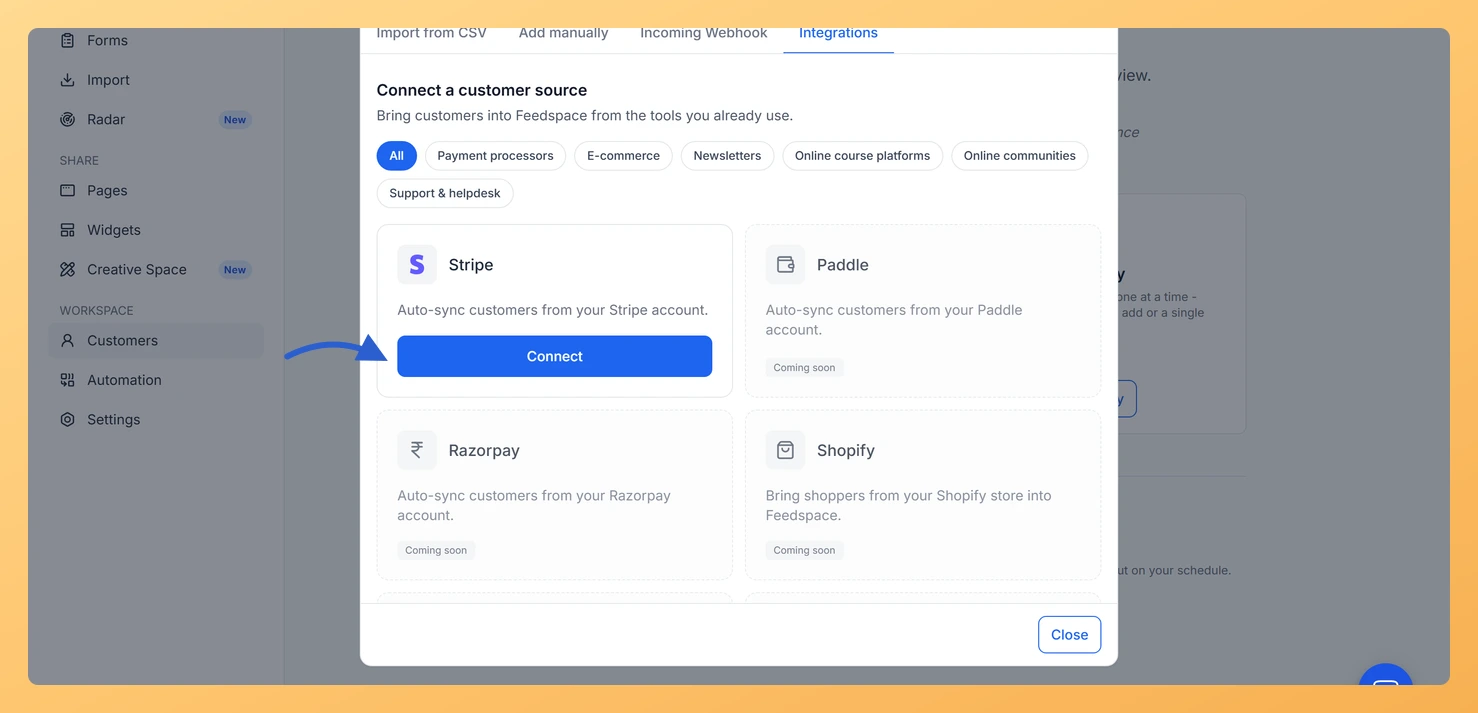
Step 4: Connect Stripe
Find the Stripe card and click Connect.
Step 5: Authorize in Stripe
Stripe opens in a new browser tab. Authorize Feedspace there to grant access to your Stripe account.
Step 6: Return to Feedspace
You are returned to Feedspace and a message confirms the connection. Feedspace begins importing your Stripe customers straight away.
Step 7: Wait for the sync
The card shows Importing while the sync runs, then switches to Connected on its own once it finishes. You do not need to refresh the page.
Managing your Stripe connection
Everything happens on the Stripe card itself, so there is no separate settings screen to open. Once connected, the card shows which Stripe account is linked, along with a status badge and one action.
Reconnect appears when the connection has stopped or ended. Use it to re-authorize, or to switch to a different Stripe account.
The disconnect icon on a connected card stops the sync. Existing imported customers remain in your list, and new Stripe customers are no longer added.
Disconnecting Stripe
Click the disconnect icon on the Stripe card. The card swaps its buttons for a short confirmation telling you that new customers will no longer sync from this Stripe account, and that the customers you have already imported will stay in Feedspace. Click Yes, disconnect to confirm, or Cancel to keep the connection. After disconnecting, the card returns to a state you can reconnect from.
Common questions
Will disconnecting Stripe delete my existing customers?
No. Disconnecting Stripe only stops new customers from being imported. Customers already in your Feedspace list remain there and are not deleted.
How often does Feedspace sync customers from Stripe?
Feedspace syncs customers from Stripe automatically when new payments are processed. You can also check the last sync time shown on the Stripe card in the Integrations tab.
Troubleshooting
Stripe shows “Importing…” for a long time
If you have a large number of Stripe customers, the initial import may take several minutes. Wait for the status to change to Connected. If it stays on Importing for more than 10 minutes, try clicking Reconnect to restart the sync.
I see a Reconnect button instead of Connect
This means the Stripe connection was previously set up but has been disconnected or expired. Click Reconnect to re-authorize and restore the sync.
What you can do next
Check the Customers list to confirm your Stripe customers have been imported.
Set up a form automation to automatically send review requests to new Stripe customers as they are added.
You might also find helpful
What Is the Customers Module in Feedspace?
Overview The Customers module in Feedspace is a workspace-wide contact list. It stores the people you want to reach with automated review request emails. You can add customers in four ways: manually, by uploading a CSV file, via an incoming webhook, or by connecting an integration such as Stripe. Once...
How Do I Add a Customer Manually in Feedspace?
Overview The Add manually option lets you add one customer at a time to your Feedspace workspace contact list. Use this when you want to add a specific person without uploading a file or connecting an integration. Before You Start Sign in to the workspace you want to add the...
What is Automation in Feedspace?
Overview Automation in Feedspace lets you connect your workspace with other tools and services. Using the Feedspace Automation Secret Key, API, and webhooks, you can send real-time notifications to apps like Slack, Telegram, WhatsApp, and Discord, back up testimonials to Google Drive or Dropbox, and push event data to any...