The Customers module in Feedspace is a workspace-wide contact list. It stores the people you want to reach with automated review request emails. You can add customers in four ways: manually, by uploading a CSV file, via an incoming webhook, or by connecting an integration such as Stripe.
Once customers are in your list, you can connect them to your form automation so Feedspace automatically sends review request emails on your behalf.
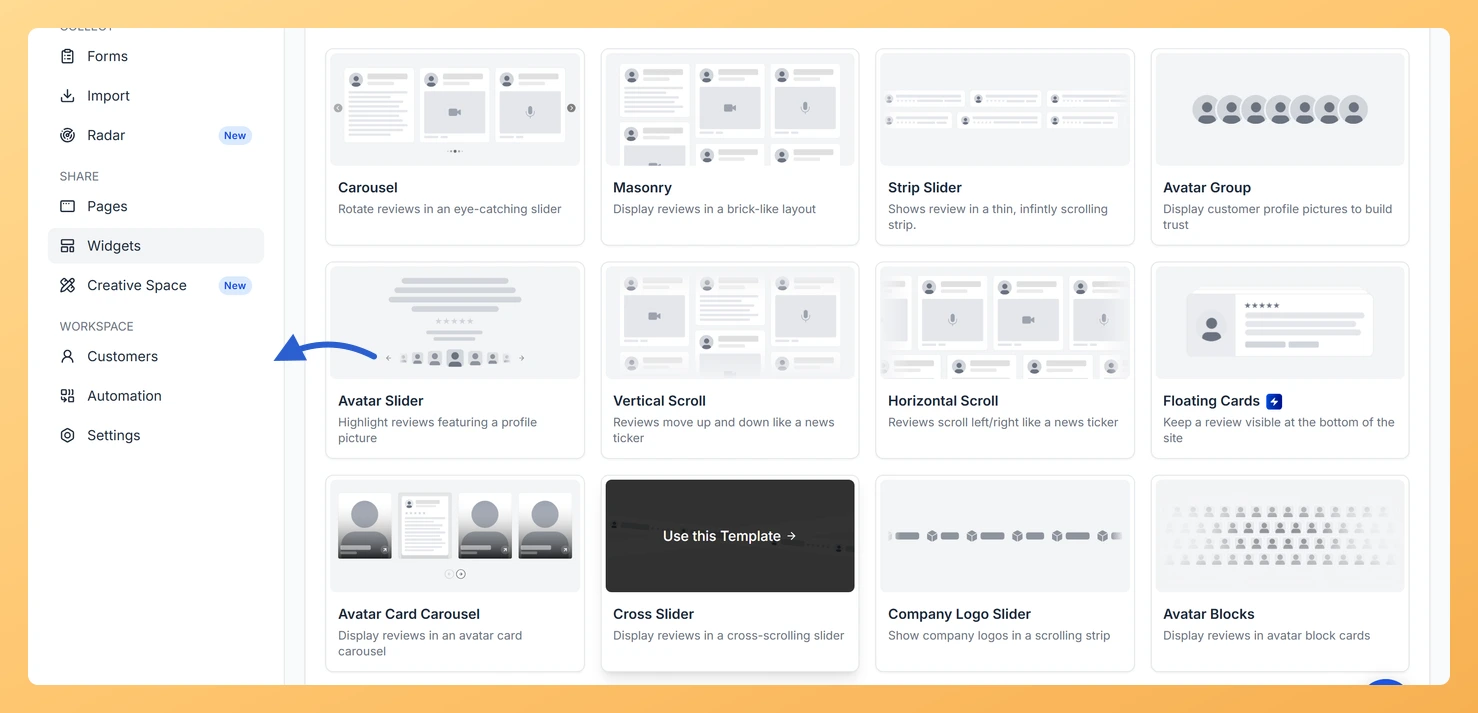
In the left sidebar, find the Workspace section near the bottom.
Step 3: Open Customers
Click Customers. The Customers page opens.
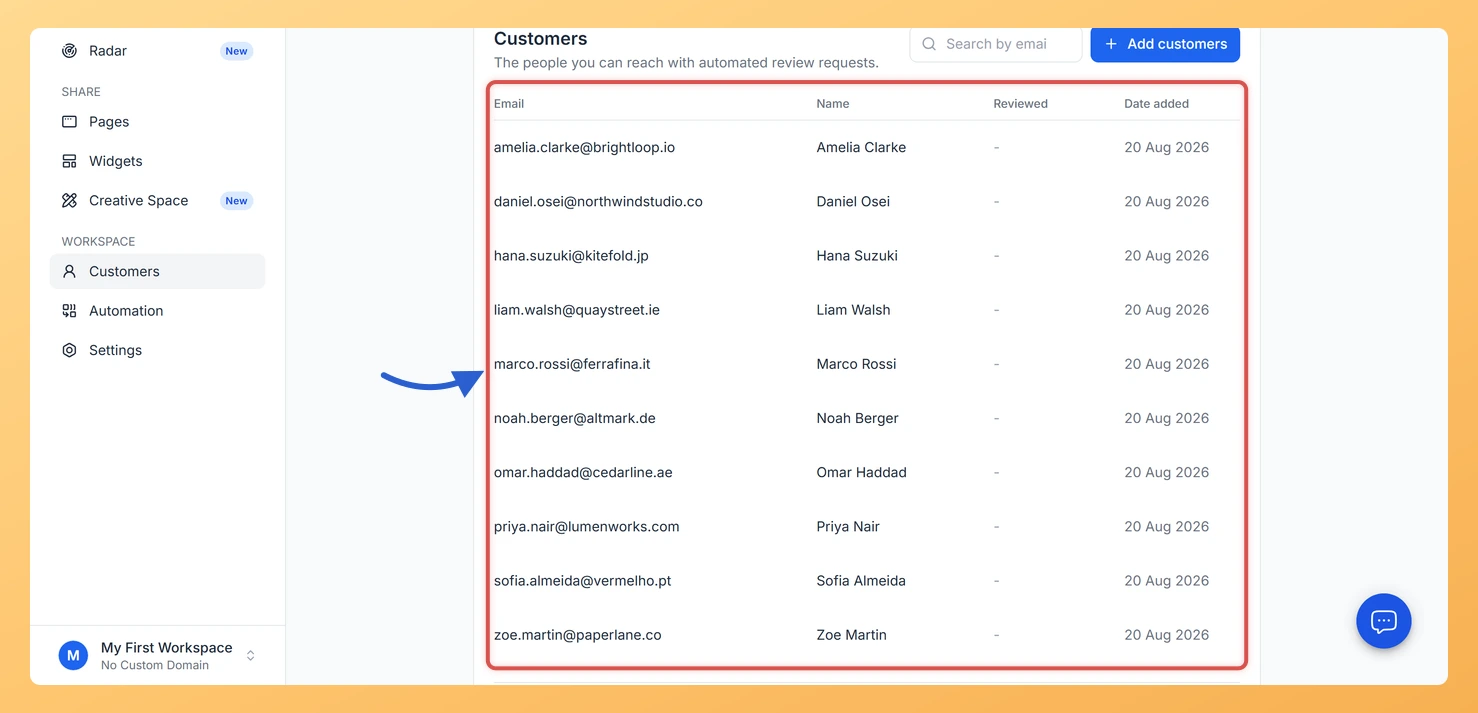
The Customers page shows your full contact list with columns for Email, Name, Reviewed, and Date added.
Ways to add customers
Add manually: Enter one customer at a time using the built-in form. Best for small lists or quick additions.
Import from CSV: Upload a CSV, XLSX, or XLS file to add many customers at once. Best for bulk imports.
Incoming Webhook: Send a POST request from your own system to add customers automatically when events occur.
Integrations: Connect platforms like Stripe to sync customers from existing payment or subscription data.
What the Customers list shows
Email: The customer’s email address, used as the unique identifier for each record.
Name: The customer’s full name, if provided.
Reviewed: Shows a Yes badge if the customer has submitted a review, and No if they have not.
Date added: When the customer was added to your workspace.
Common questions
Is the customer list shared across all my forms?
Yes. The Customers module is workspace-wide. All customers you add here are available for any form automation in that workspace.
Do customers receive emails automatically once added?
No. Adding a customer to the list does not send any emails. You need to set up and activate a form automation to begin sending review request emails.
What does the unsubscribe warning mean?
If one or more customers have unsubscribed, Feedspace shows a notice at the top of the page. Unsubscribed customers are excluded from all automated emails and cannot be re-enrolled.
What you can do next
Add your first customer by clicking the Add customers button.
Import a large list from a CSV file to get started quickly.
Go to a review form and set up automation to start sending review request emails to your customers.
You might also find helpful
How Do I Add a Customer Manually in Feedspace?
Overview The Add manually option lets you add one customer at a time to your Feedspace workspace contact list. Use this when you want to add a specific person without uploading a file or connecting an integration. Before You Start Sign in to the workspace you want to add the...
How Do I Import Customers from a CSV File in Feedspace?
Overview The CSV tab in Add Customers lets you add many customers to your Feedspace workspace at once by uploading a spreadsheet file. This is the fastest way to populate your customer list when you already have contact data in a file. This page imports customer contacts, the people you...
What is Automation in Feedspace?
Overview Automation in Feedspace lets you connect your workspace with other tools and services. Using the Feedspace Automation Secret Key, API, and webhooks, you can send real-time notifications to apps like Slack, Telegram, WhatsApp, and Discord, back up testimonials to Google Drive or Dropbox, and push event data to any...