Feedspace supports a dark interface theme in addition to the default light theme. You can switch between them in two places: the profile dropdown in the header or the Appearance section inside My Profile. Your preference is saved automatically and persists across sessions and browser refreshes.
Method 1: Toggle in the profile dropdown
Step 1: Open the account dropdown
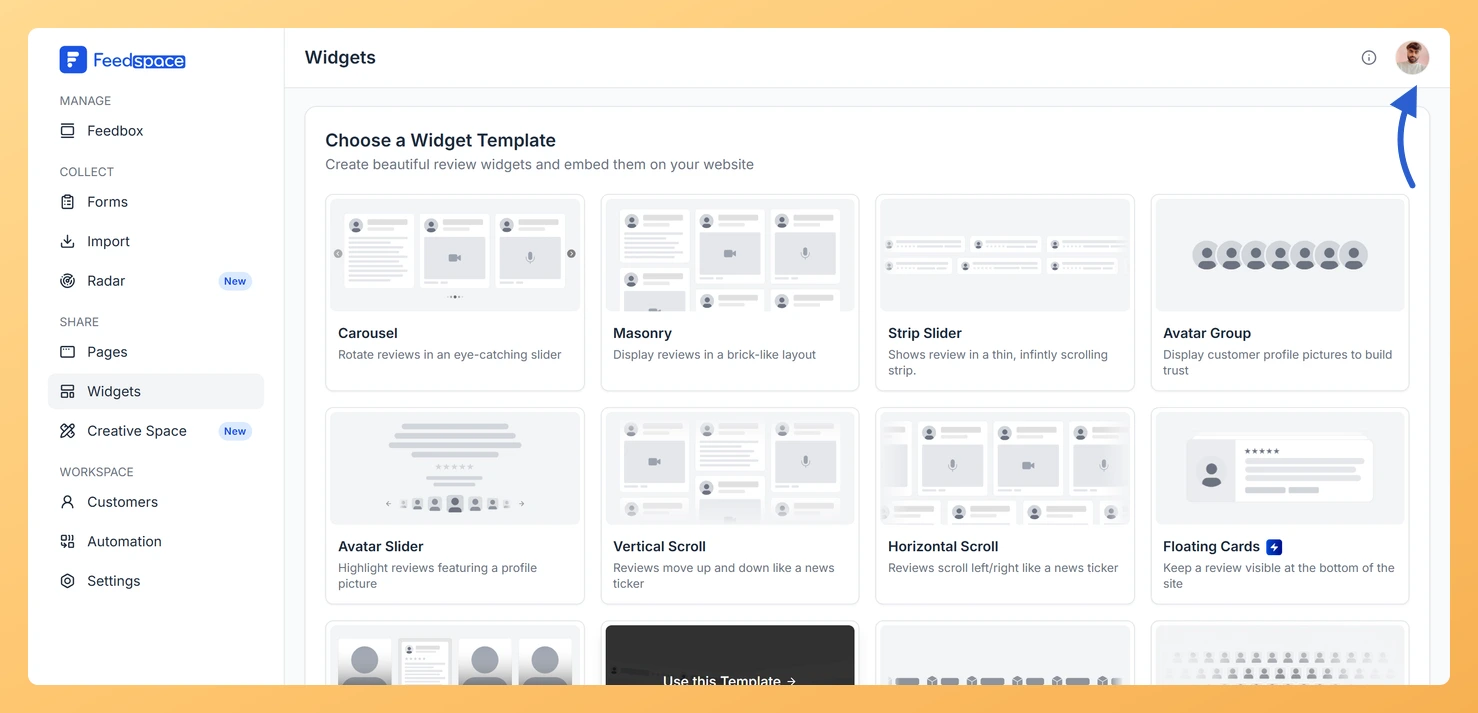
Click the avatar button at the top-right of the header to open the account dropdown.
Step 2: Switch the theme
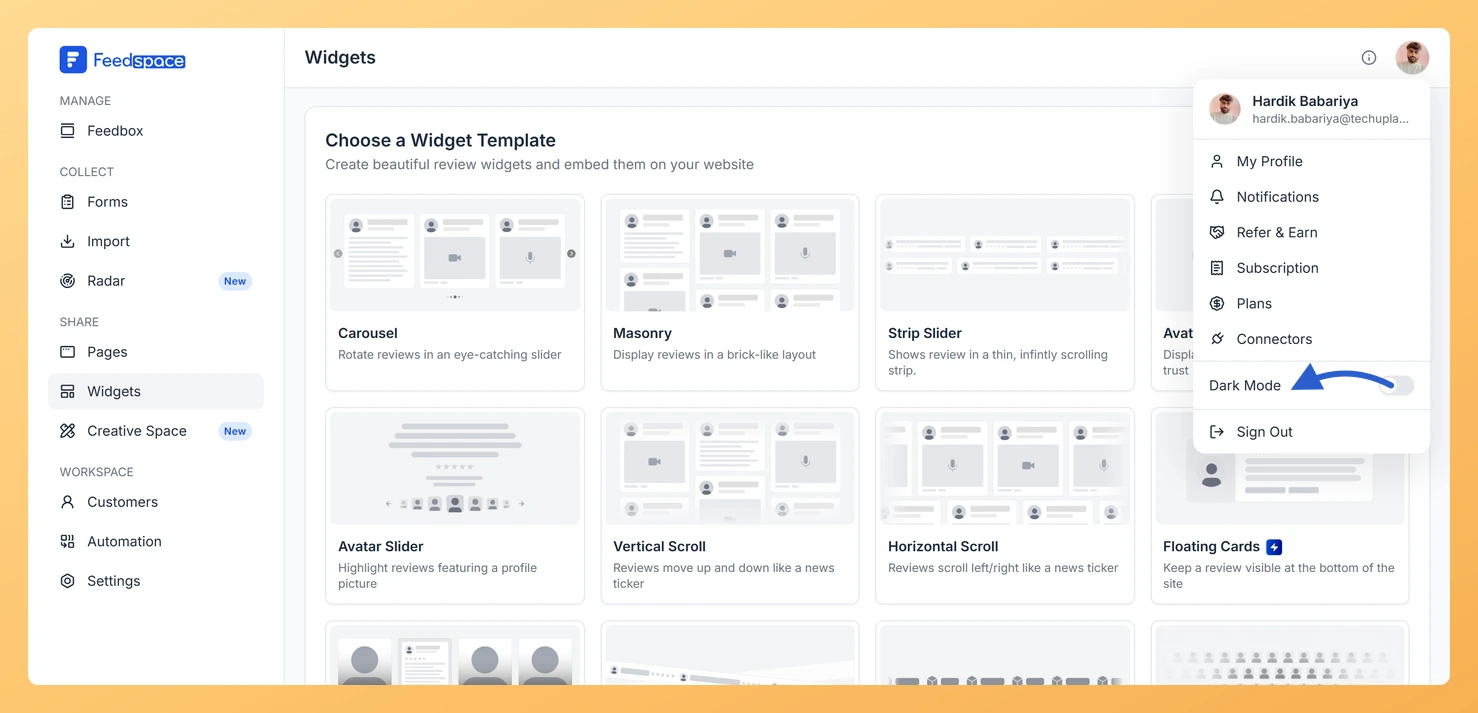
Find the Dark Mode row near the bottom of the dropdown. Click the toggle switch, or anywhere on the row, to switch the theme instantly.
This is the fastest way to toggle dark mode without navigating away from your current page.
Method 2: Appearance section in My Profile
Step 1: Open My Profile
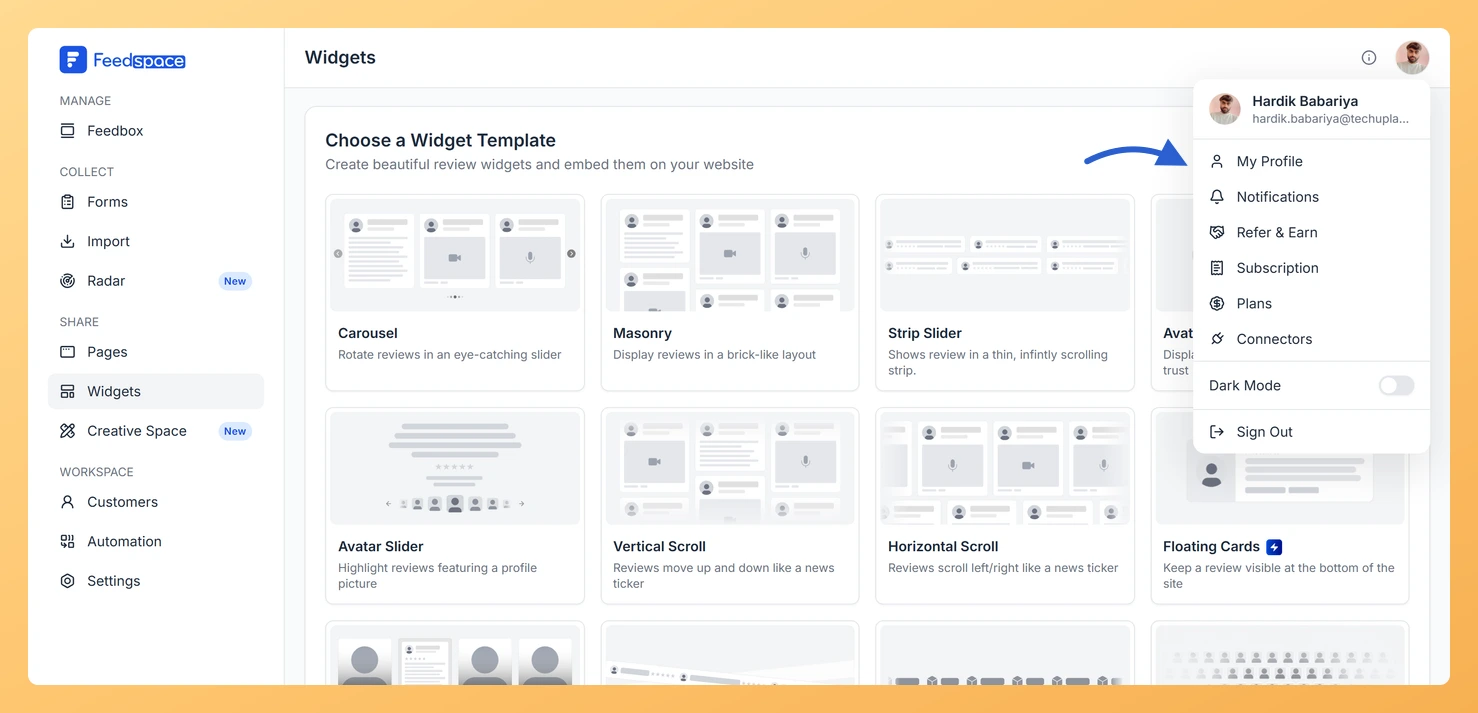
Click the avatar button at the top-right of the header, then click My Profile. The My Account panel opens on the profile tab.
Step 2: Pick a theme
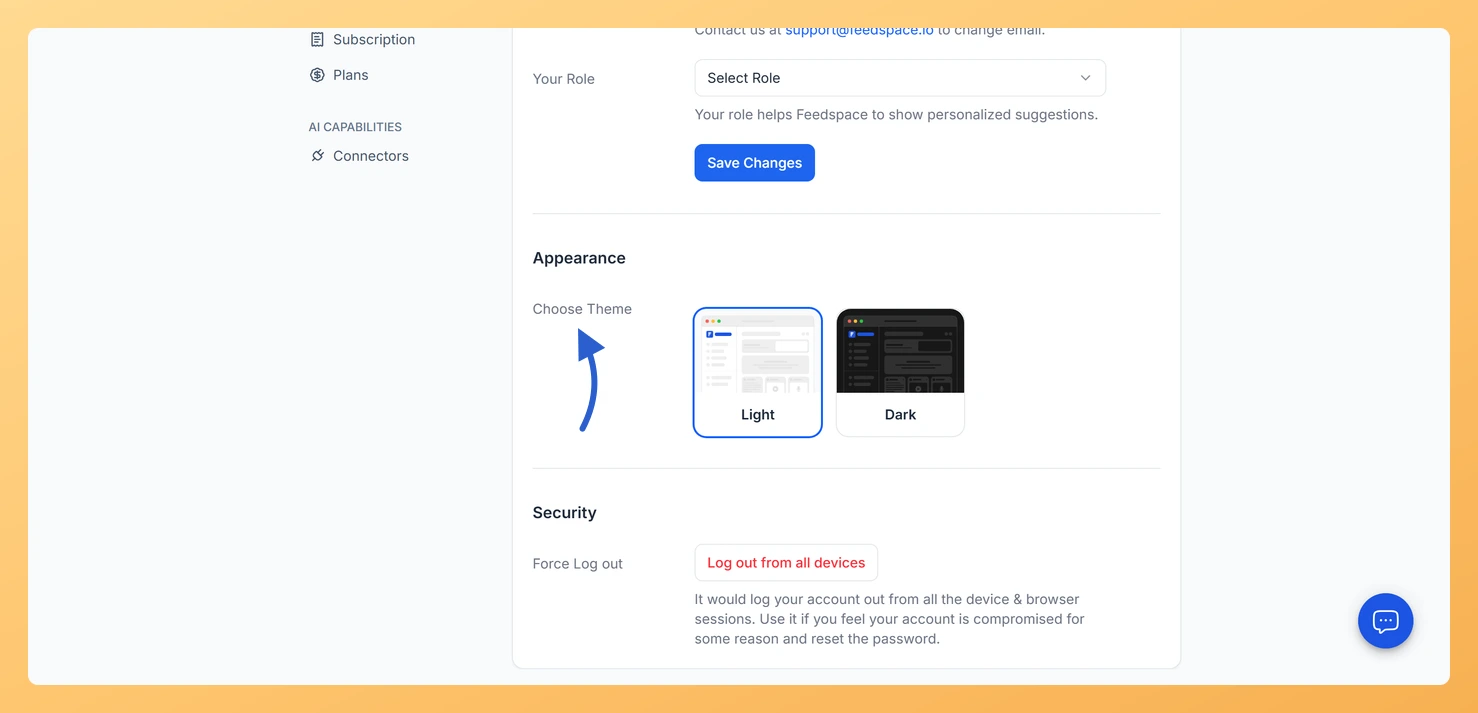
Scroll to the Appearance section. Under Choose Theme, click the Light or Dark card. The theme applies immediately, with no save needed.
Common questions
Does dark mode apply to the whole app or just one workspace?
Dark mode is an account-level preference and applies to the entire Feedspace interface across all workspaces. It does not affect the appearance of your public-facing review forms, wall of love pages, or widgets.
My dark mode preference resets every time I log in
Dark mode is saved to your browser’s local storage. If you clear browser data or log in from a different browser or device, the preference may reset to light mode. Set it again using either method described above.
You might also find helpful
How to Update Your Profile in Feedspace
Overview Updating your profile on Feedspace ensures your information is accurate and personalized. Follow the steps below to manage your profile. Step 1: Go to My Account Once logged into your dashboard, click on your profile icon (top right corner) and select My Account from the menu. Step 2: Open...
How Do I Switch Between Workspaces in Feedspace?
Overview If you have more than one workspace in Feedspace, you can switch between them at any time using the workspace switcher in the left sidebar. Each workspace is completely independent, with its own review forms, customers, team members, branding, and settings. How to switch workspaces The page reloads into...
Learn More About Notification Settings in Feedspace
Accessing notification settings Log into Feedspace Sign in with your account credentials. Open the profile avatar menu Click your profile avatar at the top-right of the header to open the menu, then click Notifications. This opens the My Account modal on the Notifications tab. Notification preferences All notifications are sent...