
Overview
The Customers module in Feedspace includes filter options that let you narrow your contact list by tag, status, source, or date added. Filters help you quickly find specific groups of customers, especially when your list grows large. You can also combine multiple filters at once to get a more precise result.
How to Open the Customers Filter Panel
- Log in to your Feedspace account.
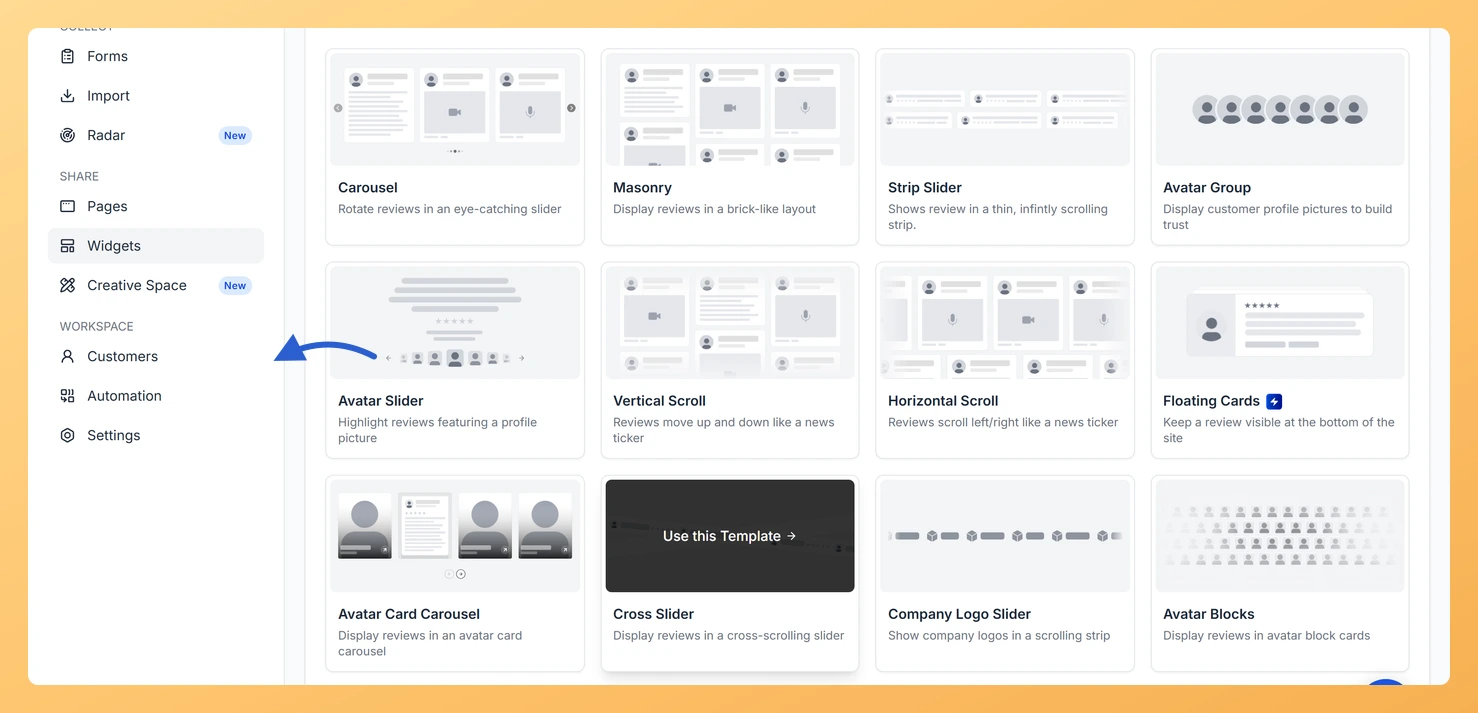
- In the left sidebar, click Customers under the Workspace section.
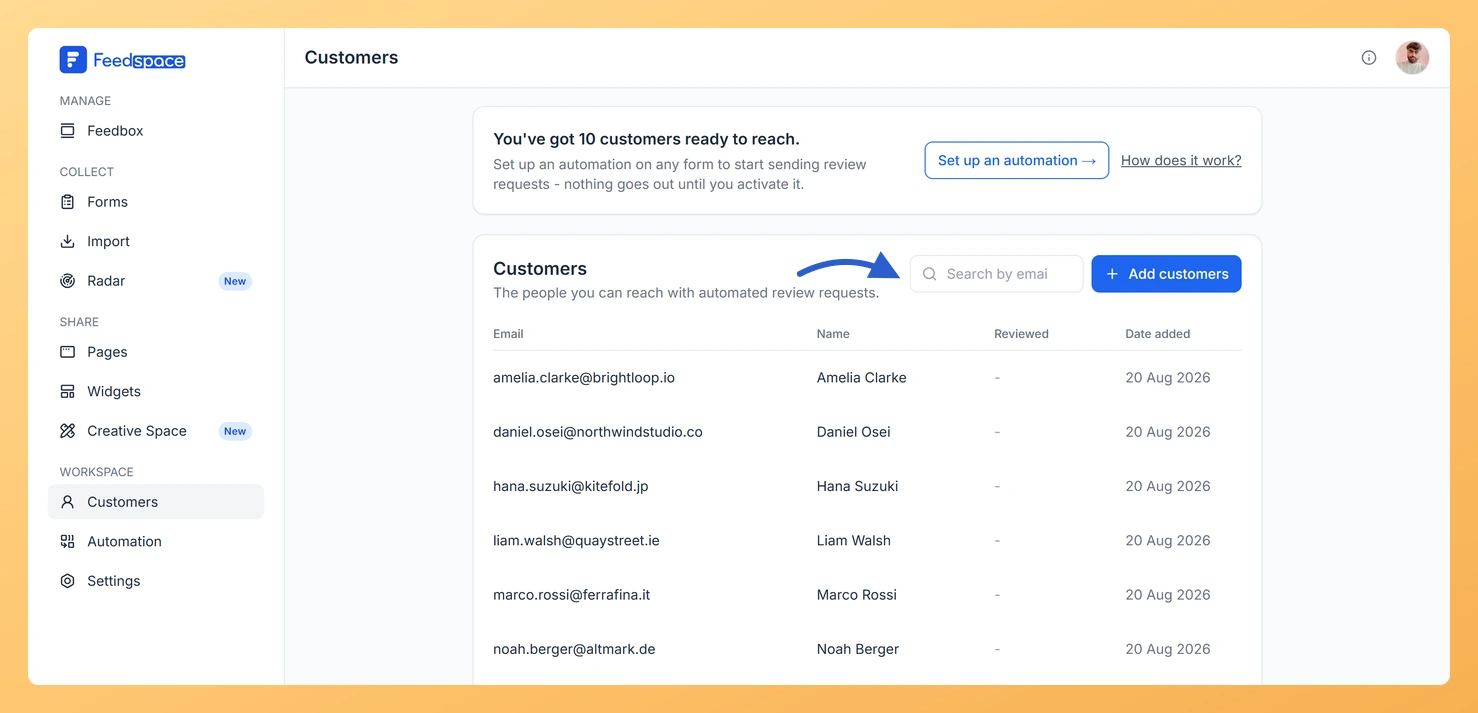
- Above the customer list, locate the filter controls. Click the Filter option to expand the filter panel.
Filter Options Available
You can filter your customer list using any combination of the following options:
Filter by Tag
Select one or more tags from the dropdown to show only customers who have those tags assigned. For example, selecting the “VIP” tag instantly shows all customers you have marked as high priority, making it easy to plan targeted outreach without scrolling through your full list.
Filter by Status
Choose between Active and Archived to view customers based on their current status. Active customers are included in automated review request emails. Archived customers are excluded from all automations.
Filter by Source
Filter customers based on how they were added to your workspace. Available source options include:
- Manually added: Customers entered one at a time using the Add manually form.
- CSV import: Customers uploaded from a CSV, XLSX, or XLS file.
- Incoming webhook: Customers added automatically via a POST request from your own system.
- Stripe: Customers synced from a connected Stripe account.
Filter by Date Added
Set a date range to display only customers added within that period. This is useful for reviewing recent imports or finding customers added during a specific campaign or time window.
How to Combine Multiple Filters
You can apply more than one filter at the same time. For example, you could filter by tag “Trial” and source “CSV import” together to see only imported trial customers. Each filter you add narrows the results further, so you can pinpoint exactly the group you need.
- Open the filter panel above the customer list.
- Select your first filter option, such as a tag.
- Select additional filter options as needed, such as status or source.
- The customer list updates automatically to show only customers that match all selected filters.
How to Clear Filters
To remove a filter and return to the full customer list, clear the selected filter option or click the Clear filters control. This resets the list to show all customers without any active filters applied.
Common Questions
Do filters affect the search bar?
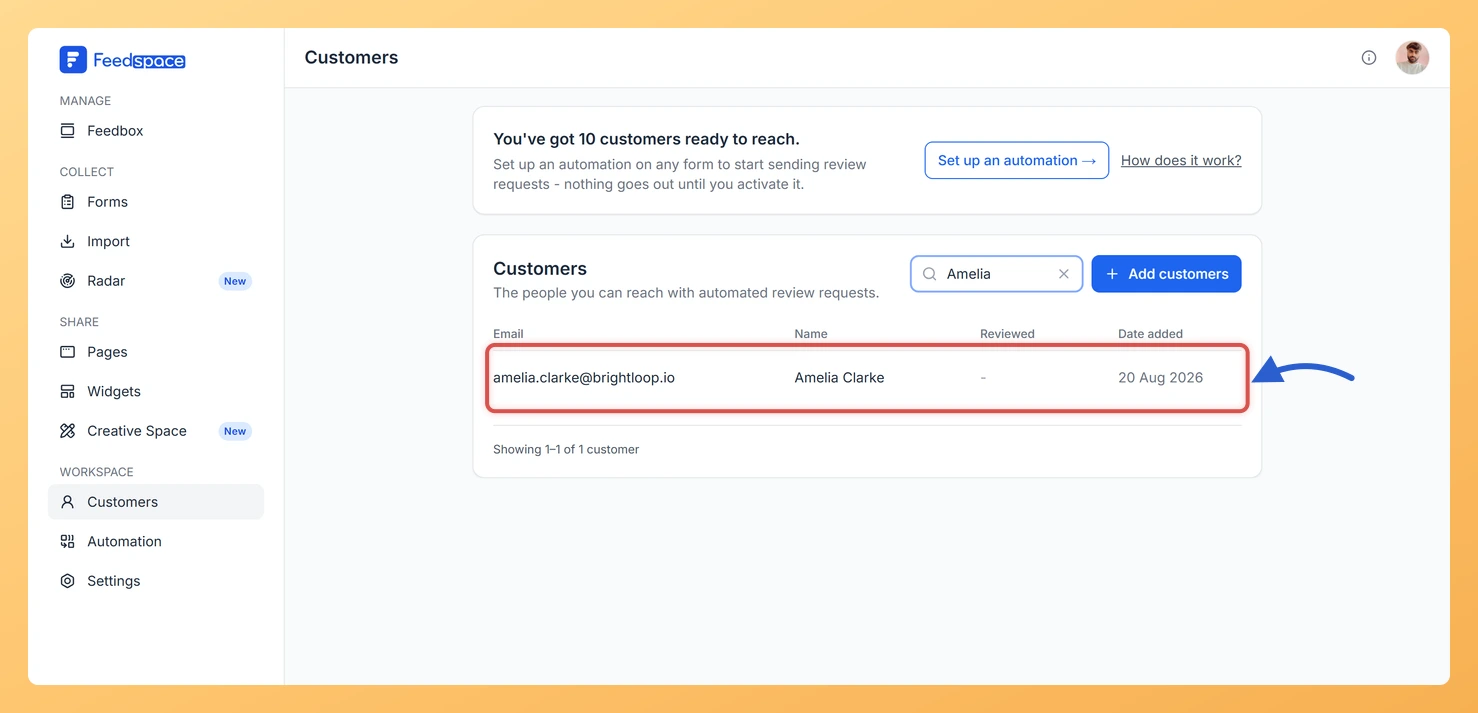
Filters and the search bar work together. If you have a filter active and then type in the search bar, the results will show only customers who match both the filter and the search term.
Can I filter by more than one tag at once?
Yes. You can select multiple tags in the tag filter. The list will show customers who have any of the selected tags assigned to them.
Do filters change my customer data?
No. Filters only change what is displayed on screen. They do not modify, delete, or archive any customer records. Your data remains unchanged when you apply or remove a filter.
What You Can Do Next
- Use the tag filter to find all customers tagged “VIP” or “Trial” and plan targeted review request campaigns.
- Filter by source to audit which customers came from a specific import or integration.
- Combine the date added filter with a tag to see newly added customers in a specific group.
You might also find helpful
What Is the Customers Module in Feedspace?
Overview The Customers module in Feedspace is a workspace-wide contact list. It stores the people you want to reach with automated review request emails. You can add customers in four ways: manually, by uploading a CSV file, via an incoming webhook, or by connecting an integration such as Stripe. Once...
How Do I Search for a Customer in Feedspace?
Overview The Customers module in Feedspace includes a search bar that lets you find any contact instantly. As you type, the list filters in real time across customer names, email addresses, phone numbers, company names, and tags, so you do not need to scroll through your full contact list to...
How Do I Use Customer Tags in Feedspace?
Overview Tags in Feedspace let you group customers into categories so you can filter and target them more precisely in your form automation. For example, you could tag customers as “enterprise”, “trial”, or “vip” and then set up an automation that only emails customers with a specific tag. How to...