The Customers module in Feedspace includes a search box that lets you find any contact quickly. As you type, the list narrows down across customer names, email addresses, and company names, so you do not need to scroll through your full contact list to locate someone.
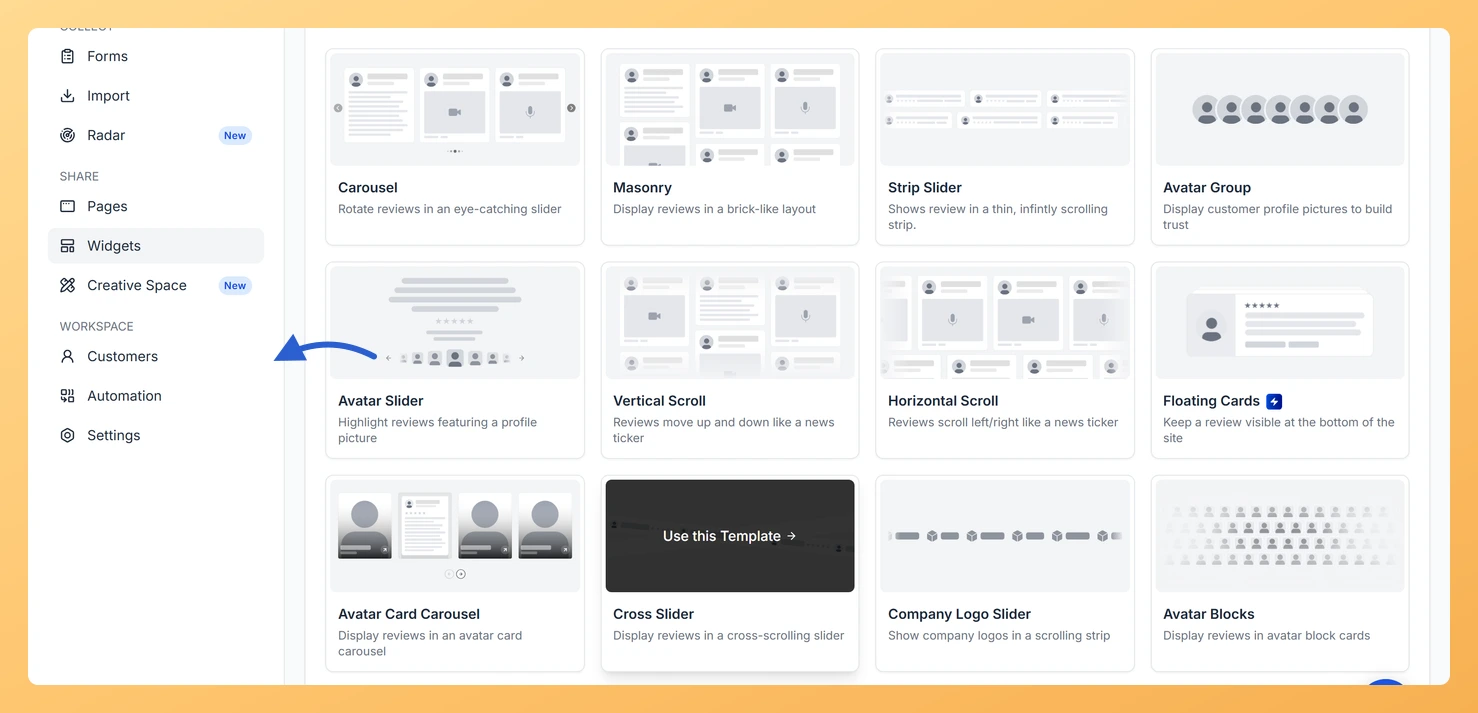
In the left sidebar, click Customers under the Workspace section.
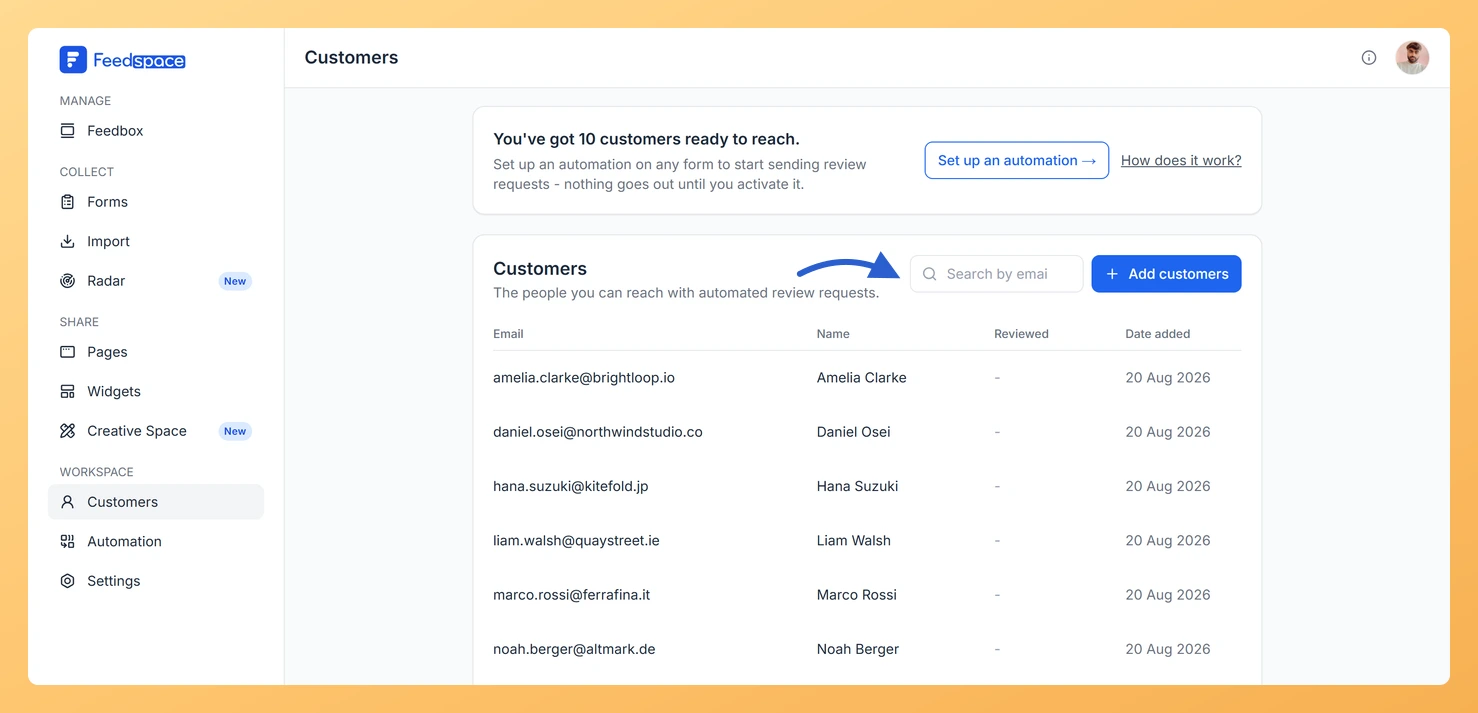
Step 3: Click the search box
Click the search box at the top right of the customer list, next to the Add customers button.
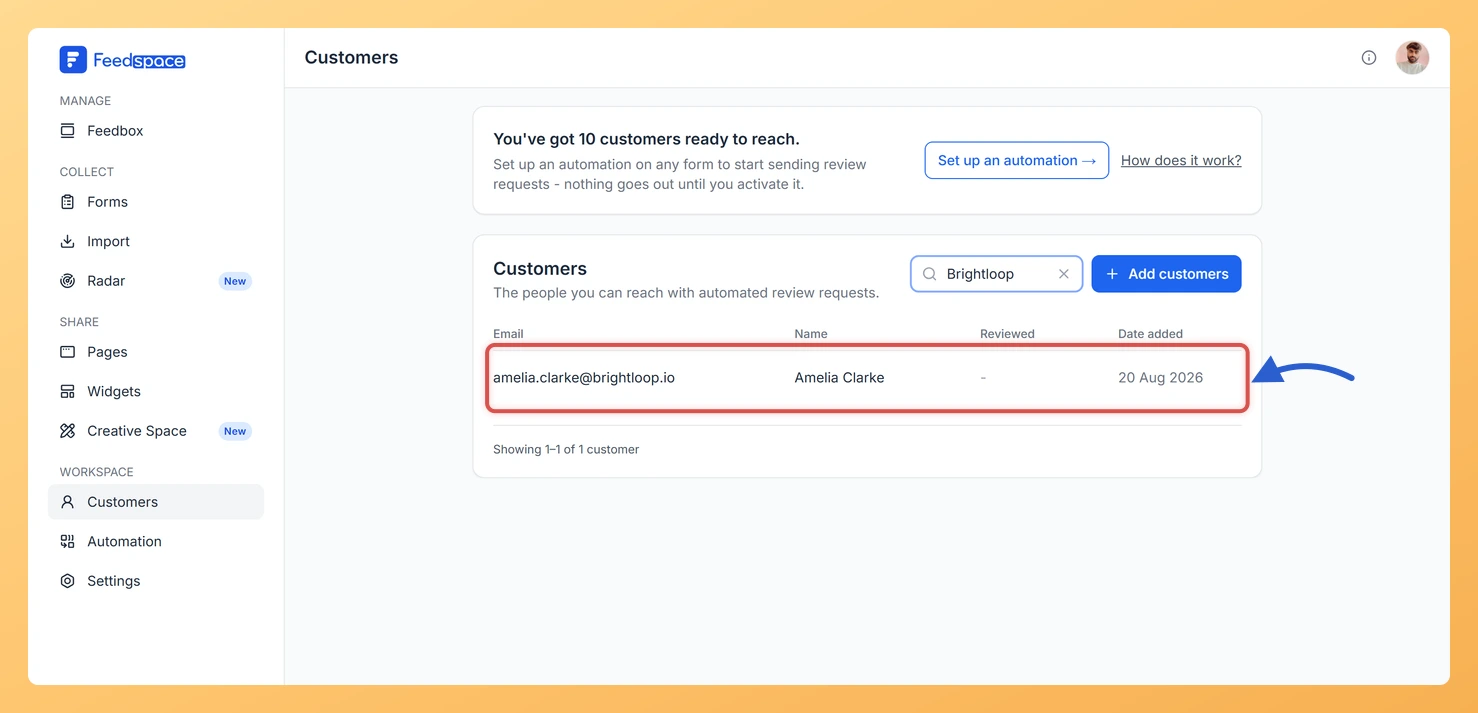
Step 4: Type what you are looking for
Type a name, email address, or company name. The list narrows down as you type.
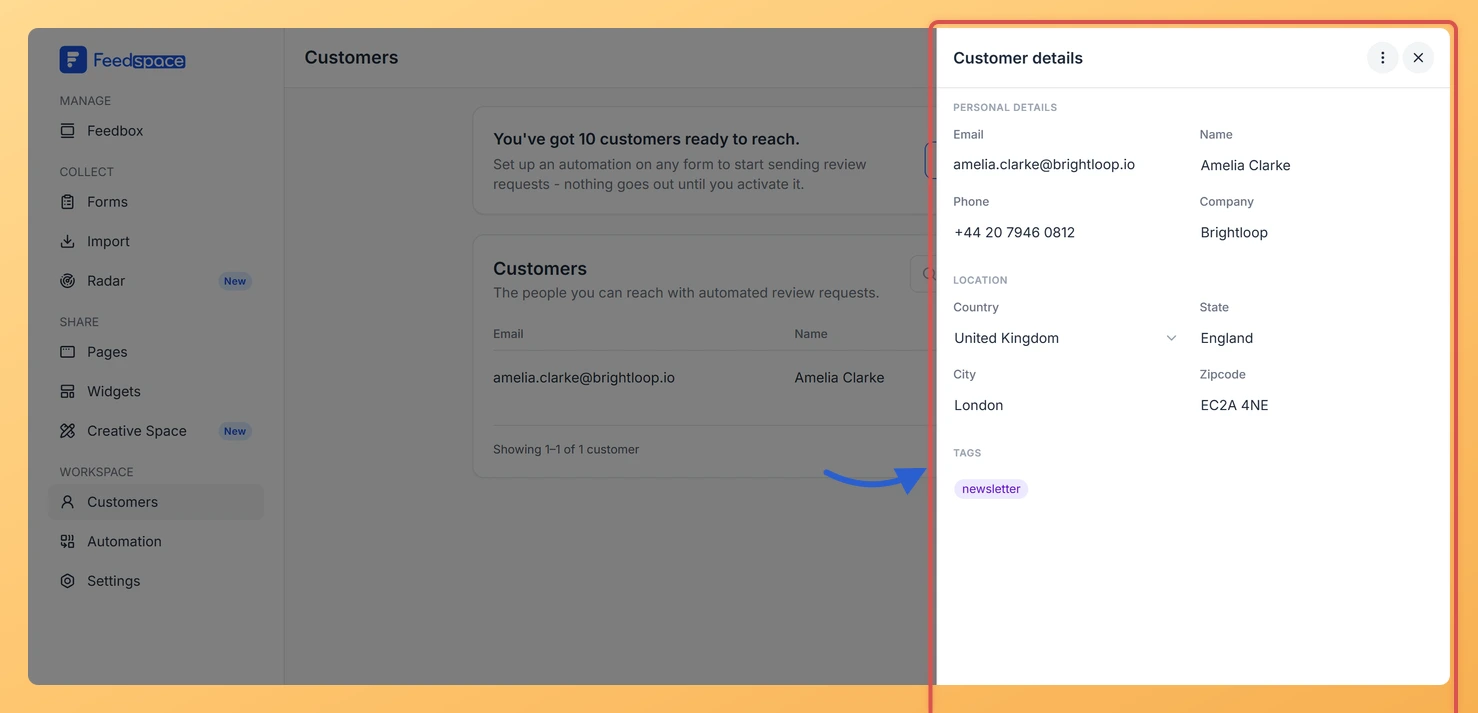
Step 5: Open the customer’s details
Click any customer row to open the Customer details panel on the right.
What you can search by
The search box matches results across the following customer fields:
Name: First name, last name, or full name.
Email address: Full or partial email.
Company name: The company saved on the customer’s record.
Tips for better search results
If a name search returns no results, try searching by email address instead. Email is the unique identifier for each customer record and is always present.
Check your spelling. A small typo in a name or domain can cause a record to appear missing when it is not.
Searching a company name brings up everyone from that company at once, which is handy when you remember the account but not the person.
To see your full list again, click the X inside the search box, or click Clear search if the no-results message is showing.
Common questions
Why does my search return no results?
The most likely causes are a spelling error in your search term, or searching by a detail that was left blank when the customer was added. Try the email address instead, since every customer record has one. If you still see nothing, the customer is not in this workspace, and archiving a customer removes their record for good, so an archived contact will not come back in search.
Why does searching a tag bring back nothing?
Search looks at names, email addresses, and company names only, so a tag name will not match anything even when your customers carry that tag. To see a customer’s tags, click their row and look at the Tags section of the Customer details panel.
What you can do next
Click a customer in the results to view and edit their full details.
Search a company name to pull up every contact you have at that company.
If the customer you are looking for is not in the list, add them manually or import them from a CSV file.
You might also find helpful
What Is the Customers Module in Feedspace?
Overview The Customers module in Feedspace is a workspace-wide contact list. It stores the people you want to reach with automated review request emails. You can add customers in four ways: manually, by uploading a CSV file, via an incoming webhook, or by connecting an integration such as Stripe. Once...
How Do I View and Edit Customer Details in Feedspace?
Overview You can open any customer’s record in Feedspace to view their full details, make edits, manage their tags, or archive them. The customer details panel slides in from the right when you click on a customer row. How to open a customer record Step 1: Open the Customers page...
How Do I Filter Customers in Feedspace?
Overview Customer list filtering is not currently available in Feedspace. The Customers page does not have filter controls at this time. You can use the search bar to find individual customers by name or email. How to find a customer Step 1: Open the Customers page In the left sidebar,...