The Manage subscription button in your Feedspace account opens the billing portal, where you can view and download past invoices, update your payment method, check your next billing date and renewal amount, and cancel or pause your subscription. All billing changes are handled through the portal in a new tab.
Steps to open the billing portal
Step 1: Open the account menu
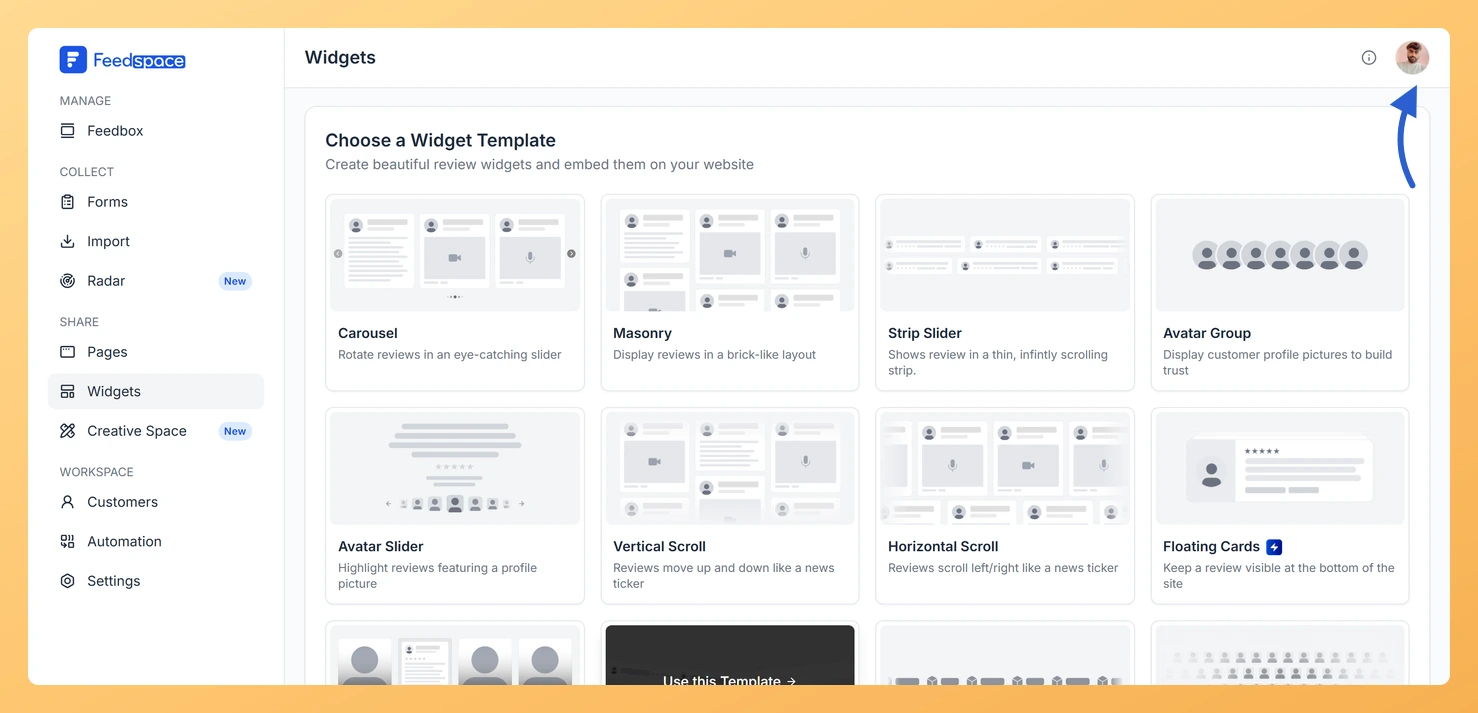
Click your profile avatar in the top right corner of any Feedspace page to open the account menu.
Step 2: Open the Subscription tab
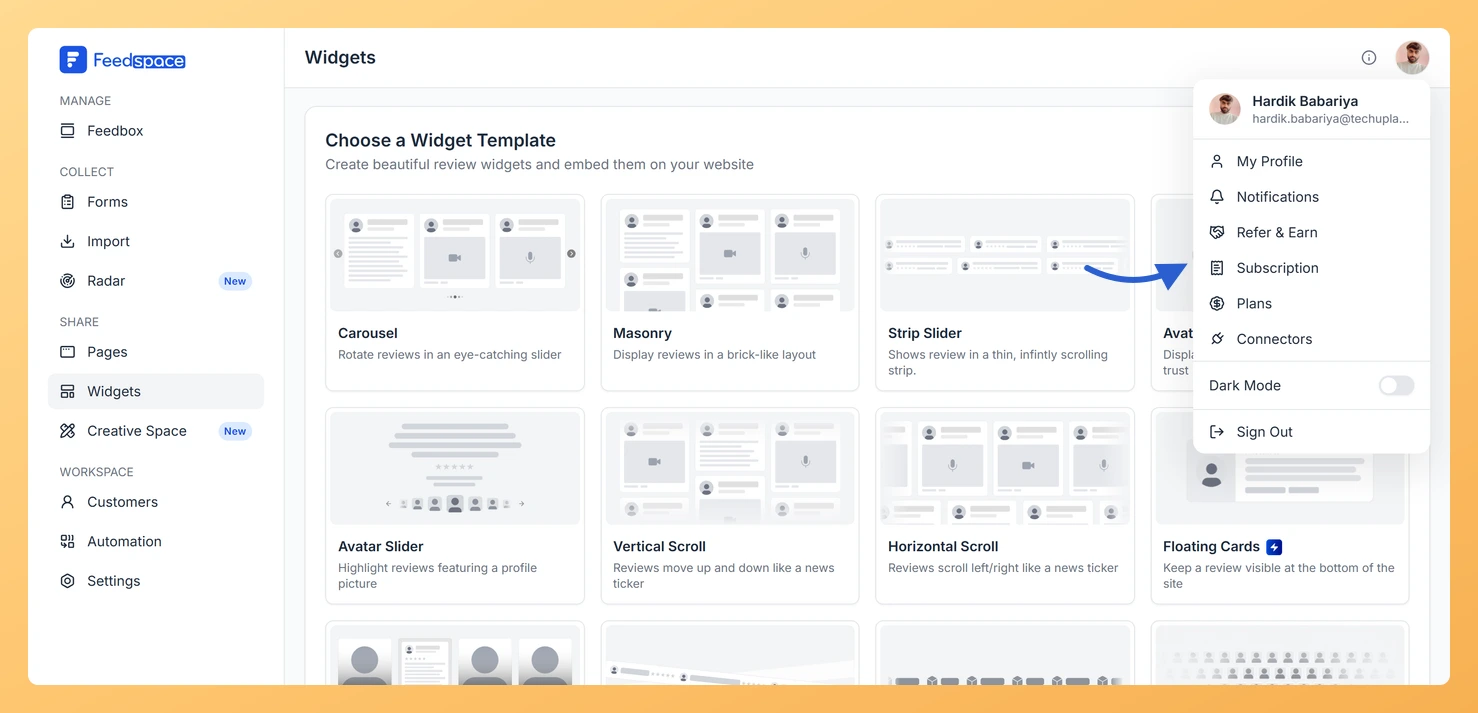
Choose Subscription from the menu. The My Account window opens on the Subscription tab.
Step 3: Click Manage subscription
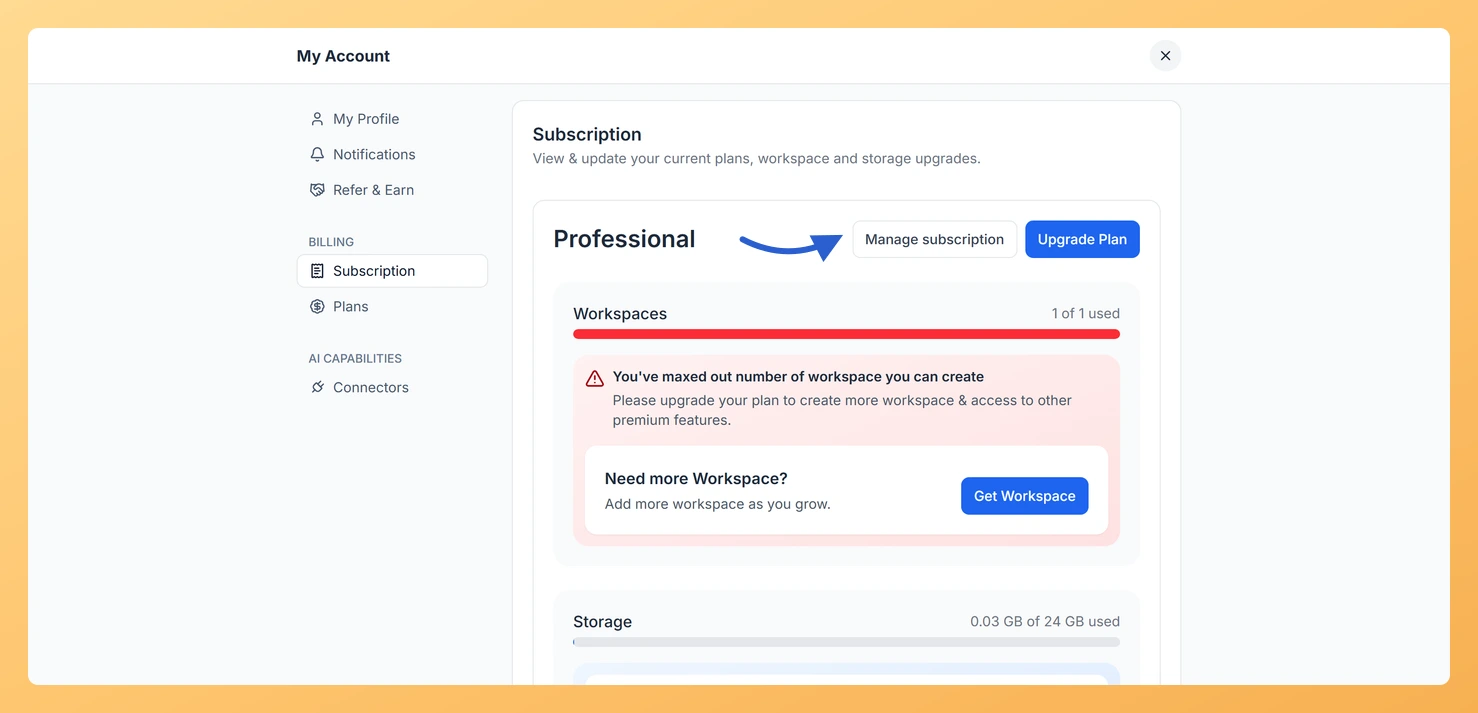
Click Manage subscription.
Step 4: Make your changes in the billing portal
The billing portal opens in a new tab. Make your changes there and confirm when prompted.
What you can do in the billing portal
View and download invoices
The billing portal lists all past payments with their dates, amounts, and status. You can download any invoice or receipt as a PDF for your records.
Update your payment method
You can add or replace a credit card or other supported payment method directly in the portal. Changes to your payment method take effect immediately and apply to the next billing cycle.
View your next billing date and renewal amount
The portal shows your upcoming renewal date and the exact amount that will be charged. Use this to plan ahead before your next billing cycle.
Cancel or pause your subscription
You can cancel or pause your subscription from the portal. Cancellations take effect at the end of your current billing period, so you keep full access until that date. Pausing, where available, lets you resume your plan later without losing your account data.
Important notes
Payment method updates take effect immediately.
Cancellations take effect at the end of the current billing period. Your account stays fully active until then.
The Manage subscription button is only available for monthly and yearly paid plans. It does not appear for AppSumo lifetime plans or the Free plan.
Common questions
Will my payment method update right away?
Yes. Any payment method change you save in the billing portal takes effect immediately and will be used for your next renewal charge.
When does my access end after I cancel?
Your paid access continues until the end of the billing period you have already paid for. After that date, your account moves to the Free plan with reduced limits, but your data is not deleted.
What you can do next
Download a past invoice from the billing portal for accounting or tax purposes.
Update your credit card before your next renewal to avoid failed payments.
If you want to move to a different plan, use the Upgrade Plan option on the Subscription tab instead of going through the billing portal.
You might also find helpful
How Do I View My Subscription in Feedspace?
Overview The Subscription tab in your Feedspace account shows your current plan, billing amount, usage across your workspaces and storage, and your full invoice history. You can also manage your subscription or upgrade from this tab. How to open the Subscription tab Step 1: Open the account menu Click the...
How Do I Upgrade or Change My Plan in Feedspace?
Overview The Plans tab in Feedspace shows all available pricing tiers and lets you upgrade, downgrade, or switch your billing period. Your current plan is always highlighted so you can easily see what is included and what the next tier offers. How to open the Plans tab Step 1: Open...
How Do I Cancel My Feedspace Subscription?
Overview You can cancel your Feedspace subscription at any time from the Subscription tab in your account. The cancellation happens inside Feedspace: you see what changes on your account, choose a reason, and confirm. Your plan stays active until the end of your current billing period, and your account is...