Uploading a brand logo and favicon in Feedspace adds your visual identity to all review forms, wall of love pages, and widgets in your workspace. The logo appears prominently on your forms and pages, while the favicon shows in the browser tab when visitors view your pages.
Before you start
Prepare an image file for your logo (PNG or SVG works best for logos).
Prepare a square image for your favicon (16×16 or 32×32 pixels is recommended).
Both files must be image files.
How to upload your brand logo
Step 1: Open Settings
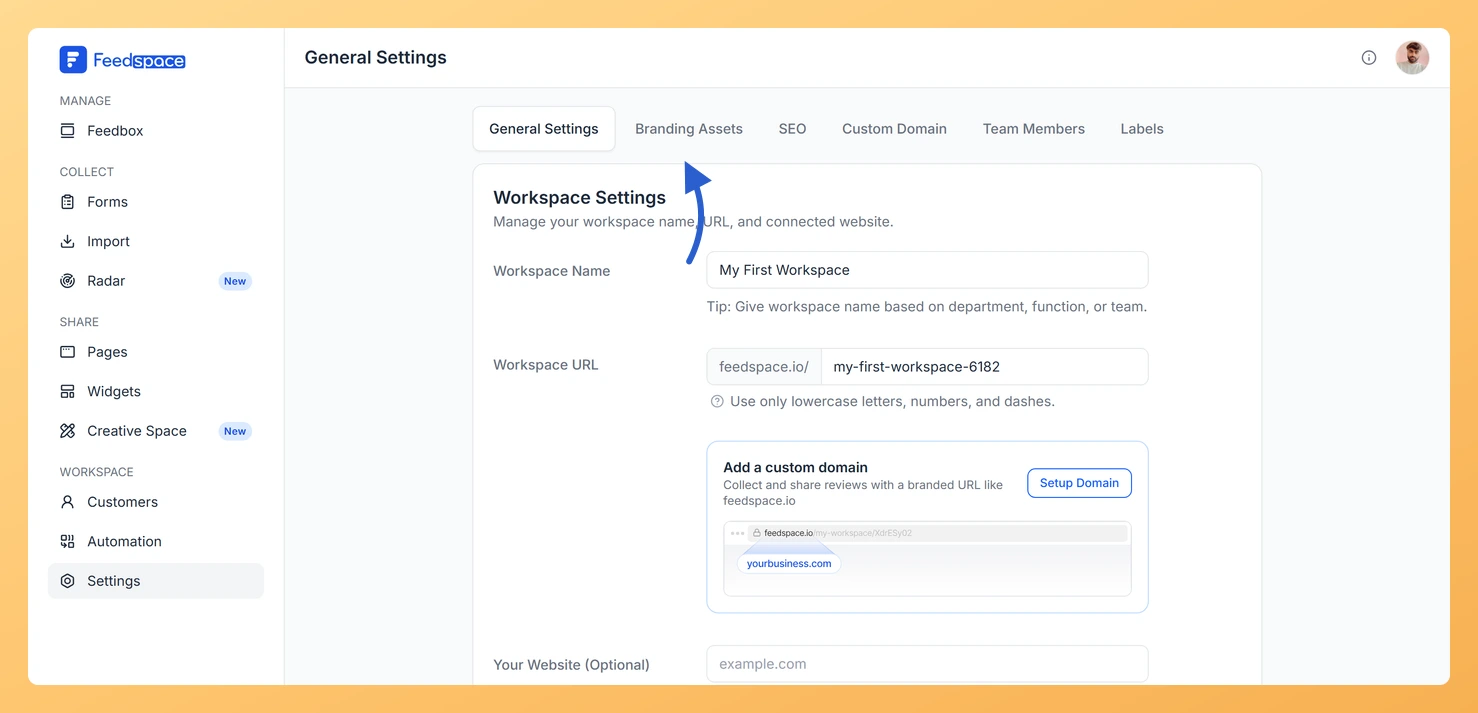
In the left sidebar, click Settings under the Workspace section.
Step 2: Open the Branding Assets tab
Click the Branding Assets tab.
Step 3: Find the Brand Logo card
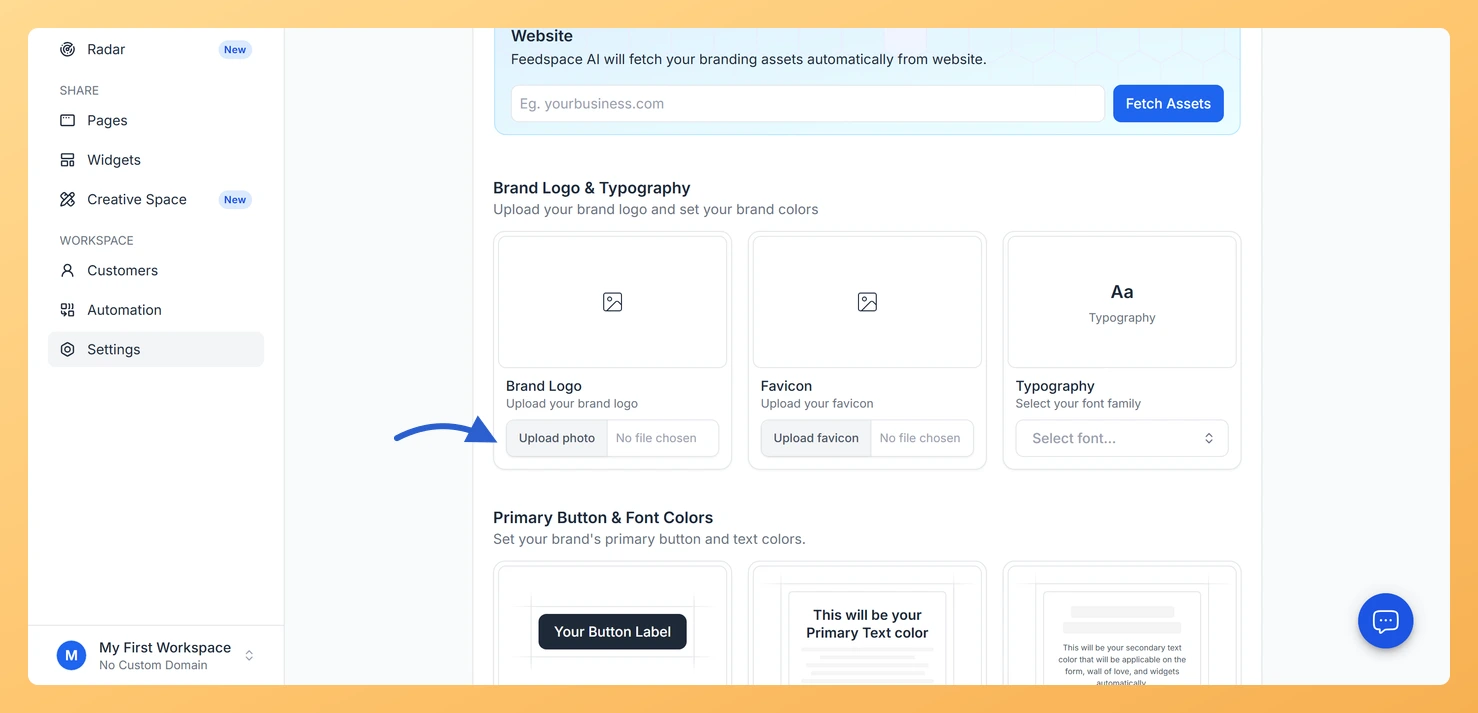
Scroll to the Brand Logo & Typography section.
Step 4: Click Upload photo
In the Brand Logo card, click Upload photo.
Step 5: Choose your logo file
Select your logo file from your device.
Step 6: Save your changes
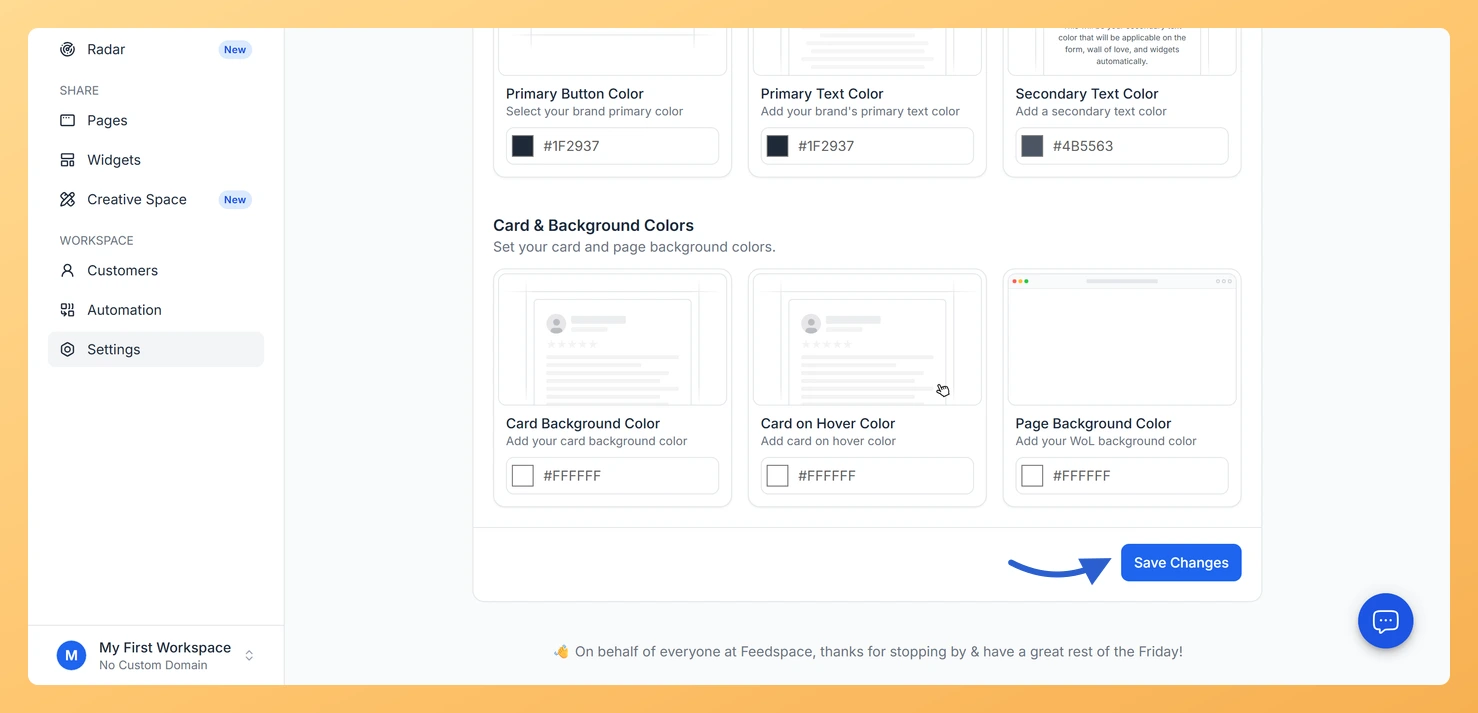
Click Save Changes in the bar at the bottom of the page.
Once saved, the logo appears on all review forms and wall of love pages in your workspace. To replace the logo later, click Change photo. To remove it entirely, click Remove uploaded image.
How to upload your favicon
Step 1: Scroll to the Favicon card
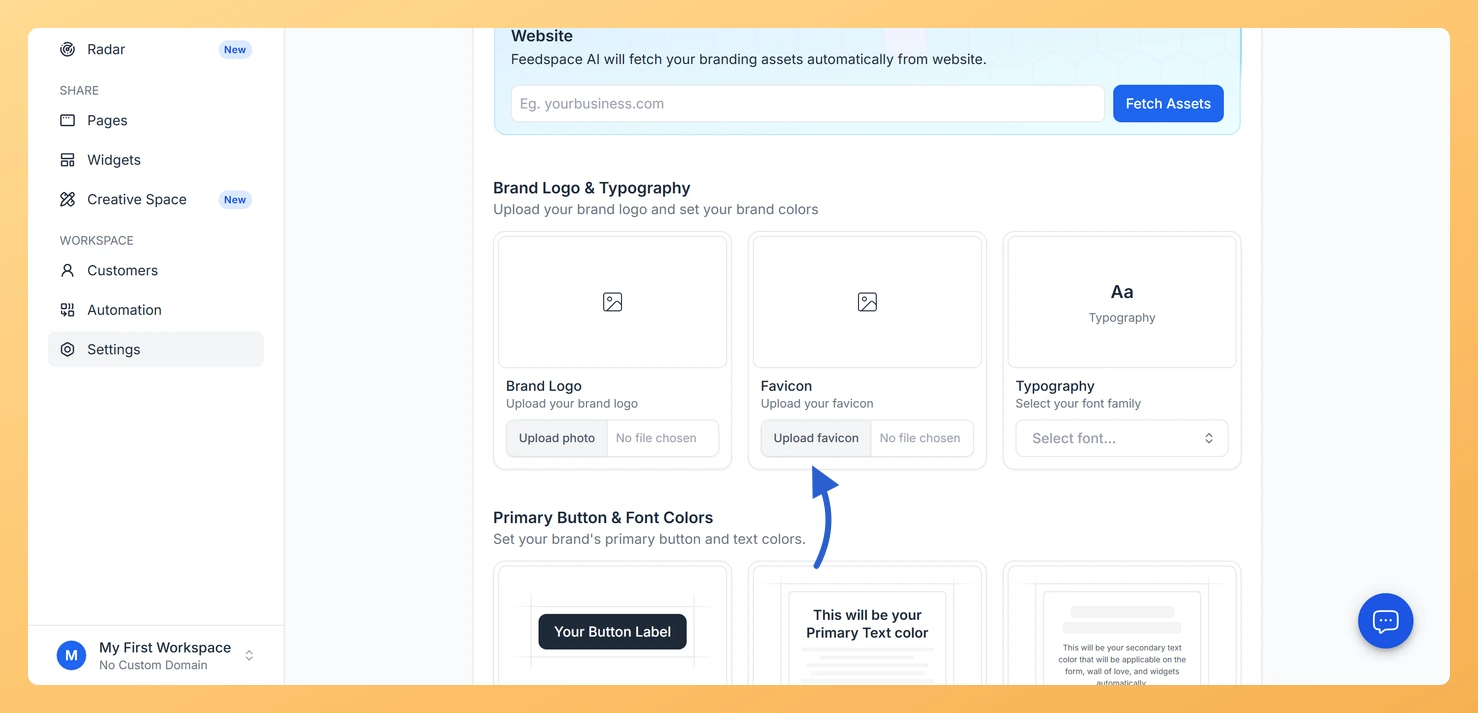
On the Branding Assets tab, scroll to the Favicon section.
Step 2: Click Upload favicon
In the Favicon card, click Upload favicon.
Step 3: Choose your favicon file
Select your favicon file. It must be an image file.
Step 4: Save your changes
Click Save Changes.
The favicon shows in the browser tab when visitors open your wall of love pages or review forms on your custom domain. To replace it, click Change favicon.
Troubleshooting
My logo is not appearing on the review form
Make sure you clicked Save Changes after uploading. If you saved but the logo still does not appear, try refreshing the page. It may take a moment for the new image to propagate across all your forms and pages.
My file is being rejected
Only image files are accepted. Check that your file is a JPG, PNG, SVG, or similar image format. PDFs, Word documents, and other non-image files will be rejected.
Common questions
Where does the logo I upload actually show up?
Branding Assets applies across the workspace by default, so the logo you set here is used on your review forms, your Wall of Love pages, and your widgets. It does not change the Feedspace logo in your own dashboard sidebar, which stays the same however you brand the workspace.
Do the logo and the favicon have to be the same image?
No. They are two separate cards on the Branding Assets tab and each takes its own file. The favicon is the small square icon a browser shows on the tab, so a square crop of your mark usually works better there than your full logo.
What you can do next
Set your brand colors to match your logo using the color fields on the Branding Assets tab.
Choose a font that matches your brand from the Typography section.
Use the website fetch feature to automatically pull brand assets from your website URL.
You might also find helpful
How to Manage Branding Assets in Feedspace
Overview Feedspace lets you customise the look of your Wall of Love and widgets through Branding Assets in your workspace settings. You can upload your logo, set brand colours, and choose a font so every testimonial display matches your company’s visual identity. Steps to manage branding assets Step 1: Open...
How Do I Set Brand Colors for My Feedspace Workspace?
Overview The Branding Assets tab in Feedspace lets you set six color values that apply across all your review forms, wall of love pages, and widgets. Setting your brand colors ensures a consistent and professional look that matches your website or product. How to access color settings Step 1: Open...
How Do I Create a New Workspace in Feedspace?
Overview Organize your content effectively by creating separate workspaces, whether by project, client, or campaign. Here’s how to set one up: Step 1: Log into Feedspace Visit Feedspace and sign in using your account credentials. Step 2: Open the workspace switcher In the sidebar footer, click the workspace switcher. It...