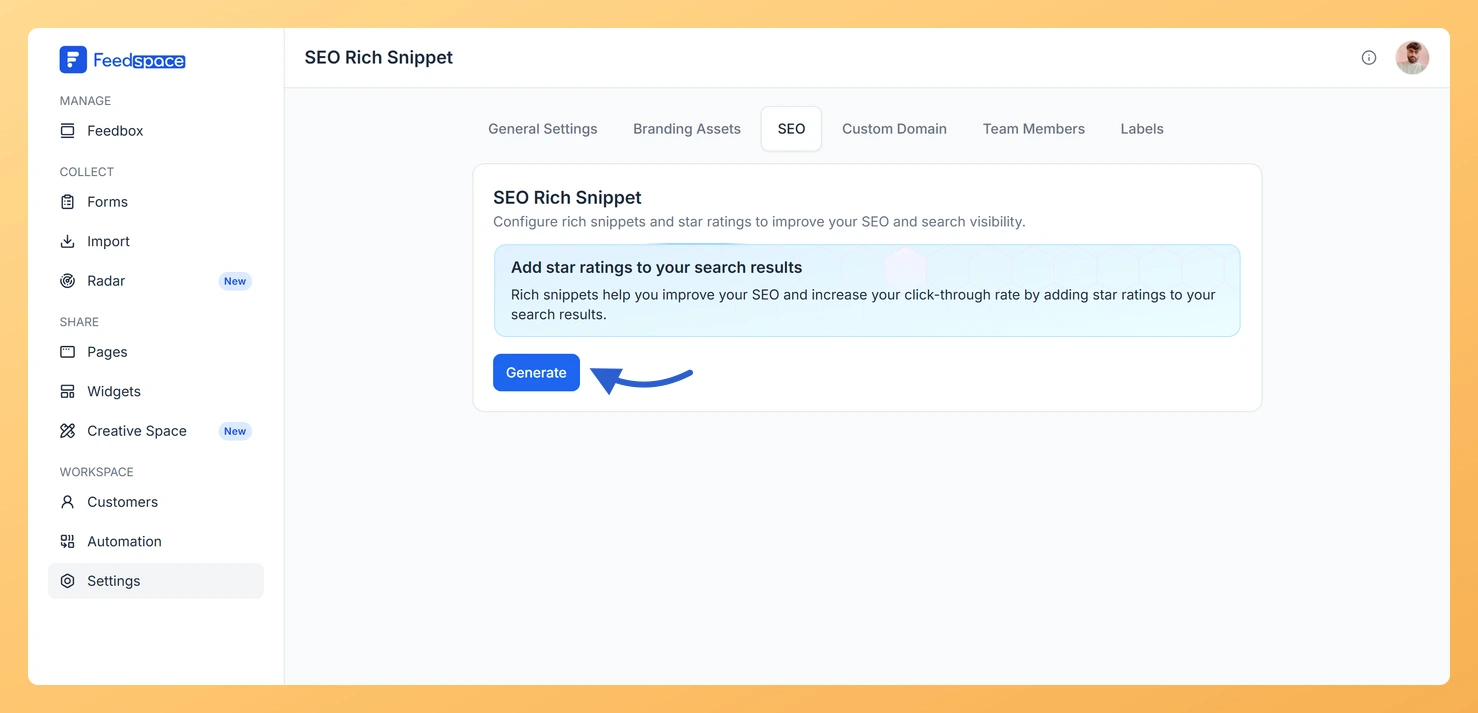
SEO rich snippets in Feedspace let you display star ratings directly in Google search results for your website. This improves your click-through rate by showing social proof in search listings without the visitor needing to visit your site first.
You add a small code snippet to your website that generates structured data (JSON-LD) automatically based on your Feedspace reviews.
How to access the SEO settings
Step 1: Open Settings
In the left sidebar, click Settings under the Workspace section.
Step 2: Open the SEO tab
Click the SEO tab.
Step 3: Generate your rich snippet
Click Generate to create your rich snippet configuration.
Setup instructions by framework
HTML or WordPress
Select the HTML/WordPress tab on the SEO page.
Copy the code block shown.
Paste it before the closing </head> tag on your website or in your WordPress theme’s header.
If you use the Feedspace WordPress plugin, copy your Widget ID from the SEO page and paste it into the plugin settings instead.
Framer
In Framer, create a custom component by going to Component and then Create From Code.
Replace the default code with the code block shown on the SEO page.
Drag the FS_WIDGET component from the Assets panel to your page.
Click Publish and then Update to apply.
Next.js
Copy the component code from the Next.js tab on the SEO page.
Add it as a component file in your project.
Import and use the component in any page where you want star ratings to appear in search results.
Angular
Add the HTML snippet from the SEO page to the component template where you want the widget.
Add the TypeScript code to your component class, implementing the AfterViewInit lifecycle hook and calling loadFeedspaceWidget() inside it.
Common questions
How long does it take for star ratings to appear in Google?
After you add the snippet to your website, Google needs to crawl and reindex your pages before the star ratings appear in search results. This can take days to several weeks. There is nothing more to configure on the Feedspace side once the code is in place.
The Generate button shows Try Again
If the configuration failed to generate, click Try Again. If the error persists, check that your workspace has at least one published review and try again.
What you can do next
Test your structured data using Google’s Rich Results Test tool after adding the snippet.
Set up a custom domain on the Custom Domain tab so your rich snippets are associated with your own domain.
You might also find helpful
What is Workspace in Feedspace?
Overview In Feedspace, a Workspace is a dedicated environment where all your review-related data and tools are organized. Think of it as a container that holds everything you need for managing testimonials and reviews in one place. A workspace typically includes: This structure helps you keep things organized and segregated,...
How to Manage Branding Assets in Feedspace
Overview Feedspace lets you customise the look of your Wall of Love and widgets through Branding Assets in your workspace settings. You can upload your logo, set brand colours, and choose a font so every testimonial display matches your company’s visual identity. Steps to manage branding assets Step 1: Open...
How Do I Create a New Workspace in Feedspace?
Overview Organize your content effectively by creating separate workspaces, whether by project, client, or campaign. Here’s how to set one up: Step 1: Log into Feedspace Visit Feedspace and sign in using your account credentials. Step 2: Open the workspace switcher In the sidebar footer, click the workspace switcher. It...