Unarchiving a customer is not currently available in Feedspace. Archiving a customer permanently removes them from your customer list and cannot be undone. If you need the customer back in your workspace, you can add them again manually.
How to re-add an archived customer
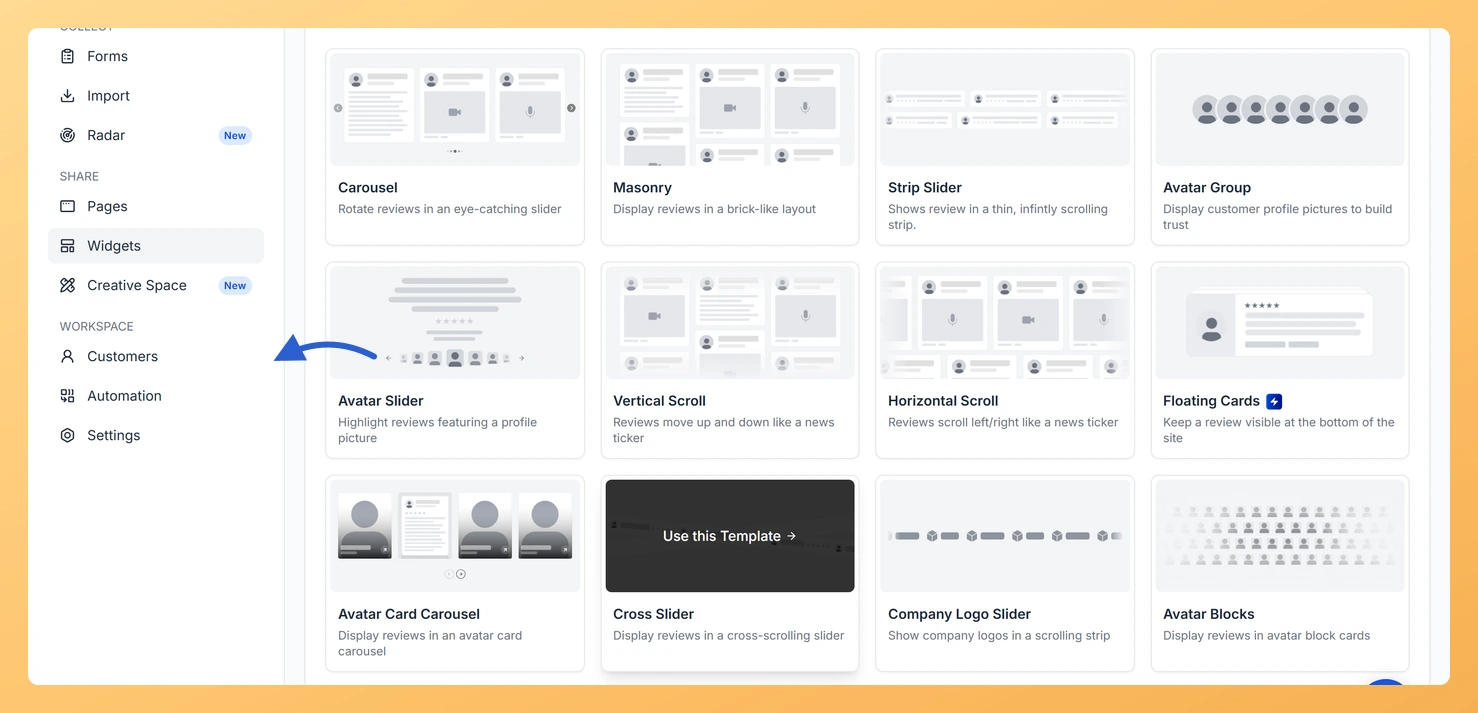
Step 1: Open the Customers page
In the left sidebar, click Customers under the Workspace section.
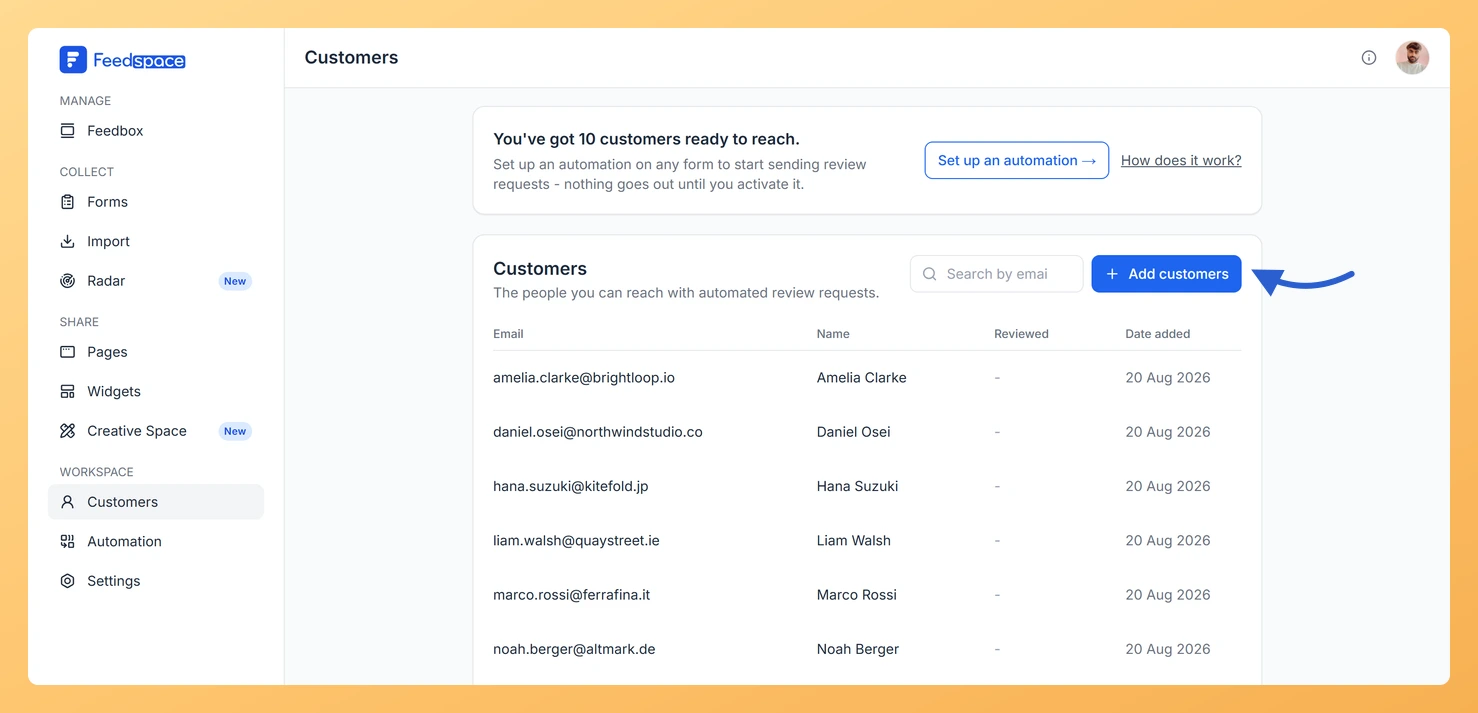
Step 2: Click Add customers
Click Add customers at the top right of the customer list.
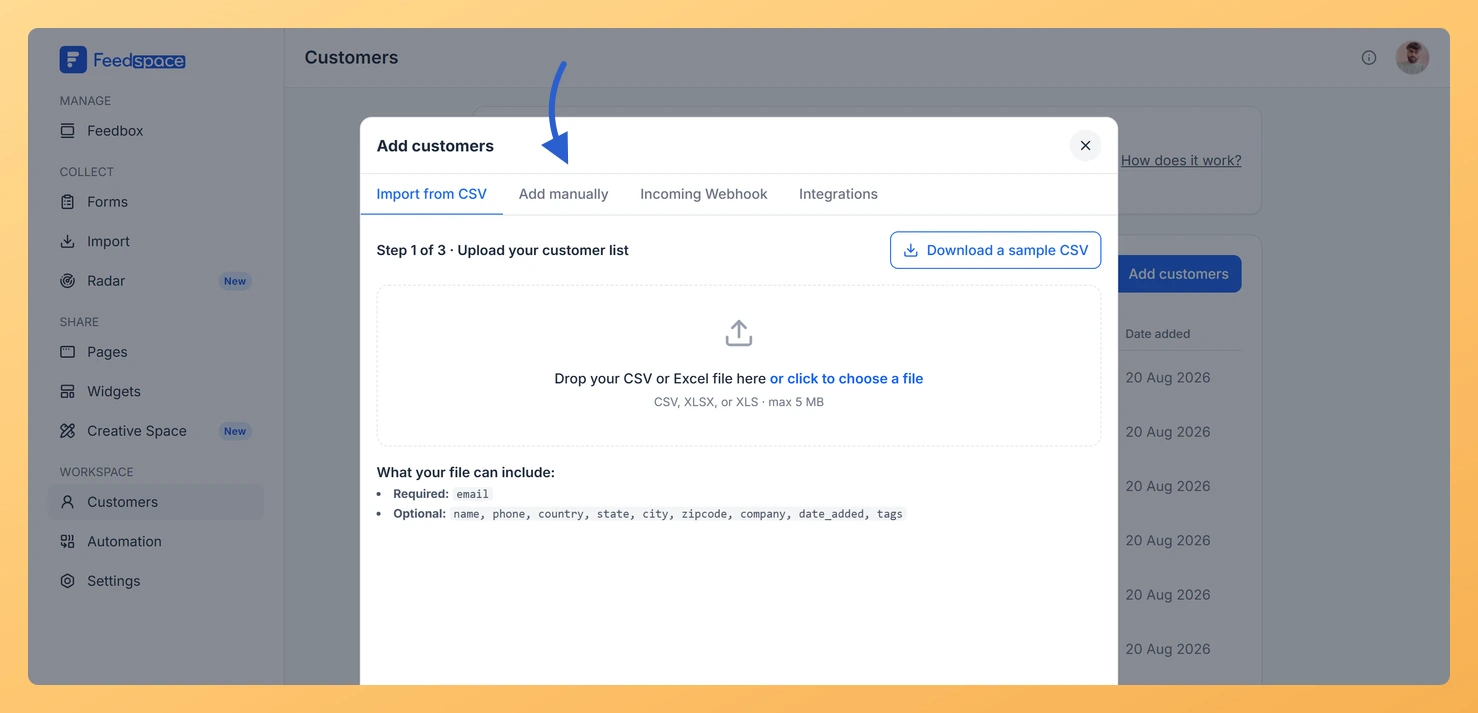
Step 3: Open the Add manually tab
Select the Add manually tab in the Add customers window that opens.
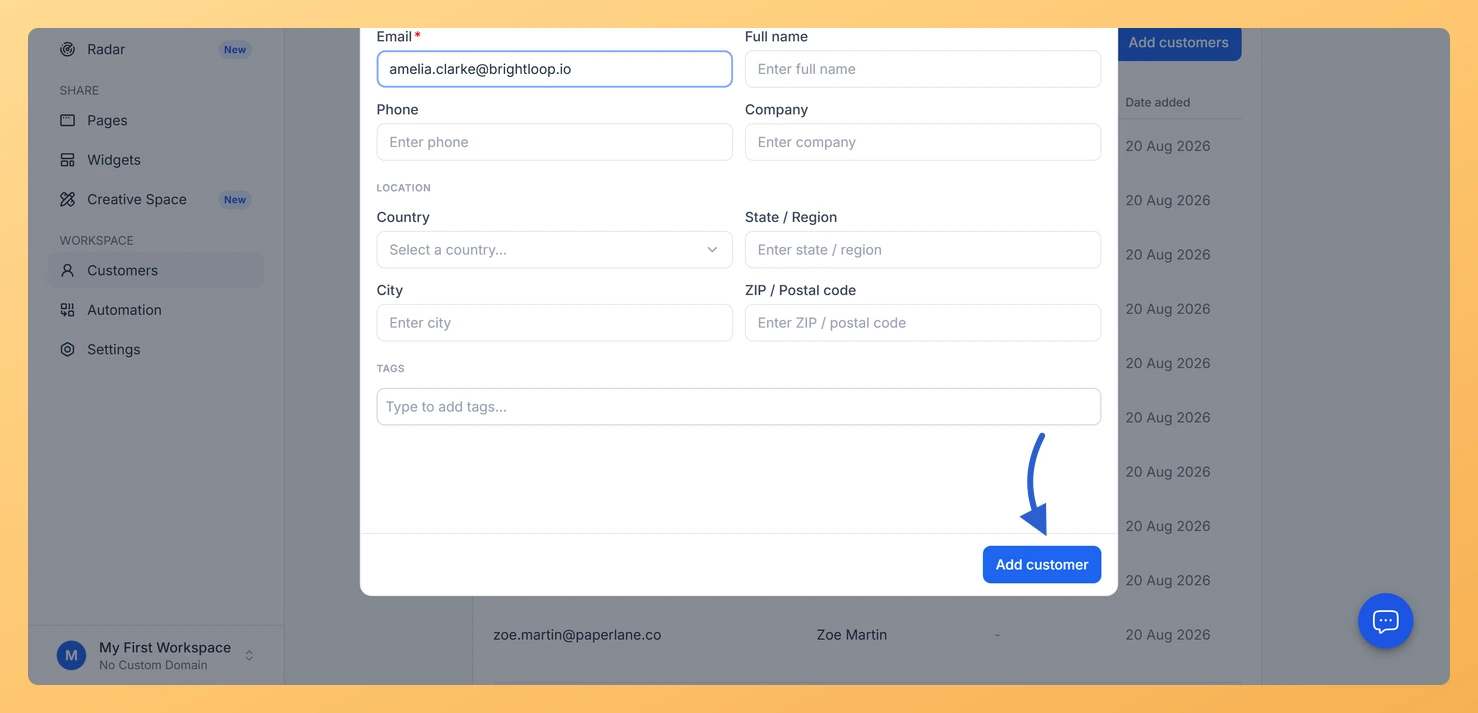
Step 4: Enter the details and save
Enter the customer’s email address and any other details, then click Add customer.
The customer is added back to your list as a new record and will be included in your active automation sequences.
Common questions
Will re-adding a customer restore their previous data?
No. Re-adding creates a new customer record. Any details previously saved (name, phone, company, tags) are not restored automatically. You can fill them in again on the Manual tab when adding the customer.
Will re-adding a customer restore their previous reviews?
Reviews submitted by the customer are stored separately in your Feedbox and are not affected by archiving or re-adding the contact record. They remain accessible regardless of the customer’s status in the Customers module.
What you can do next
Use the Add manually tab in the Add customers window to re-add the customer with their email address.
If you have a CSV file with the customer’s details, re-import it using the Import from CSV tab in the same window.
You might also find helpful
How Do I Archive a Customer in Feedspace?
Overview Archiving a customer in Feedspace permanently removes them from your customer list. The customer will no longer appear in your list or receive automated review request emails. This action cannot be undone. Steps to archive a customer Step 1: Open the Customers page In the left sidebar, click Customers...
What Happens When I Archive a Customer in Feedspace?
What Archiving Does When you archive a customer in Feedspace, they are removed from all active automation sequences across your workspace. No review request emails or automated messages will be sent to them after archiving. What Stays the Same What Changes When Should I Archive a Customer? Is Archiving the...
How Do I View and Edit Customer Details in Feedspace?
Overview You can open any customer’s record in Feedspace to view their full details, make edits, manage their tags, or archive them. The customer details panel slides in from the right when you click on a customer row. How to open a customer record Step 1: Open the Customers page...