The AI assistants with access section in your Feedspace account shows which AI tools (like ChatGPT, Claude, or others) currently have permission to reach your workspace data. You see when each assistant was granted access and which workspaces it can read.
This is useful when you want to check which AI platforms you connected previously, confirm access permissions before sharing sensitive reviews, or spot any assistant you no longer recognize.
Steps to view AI assistant access
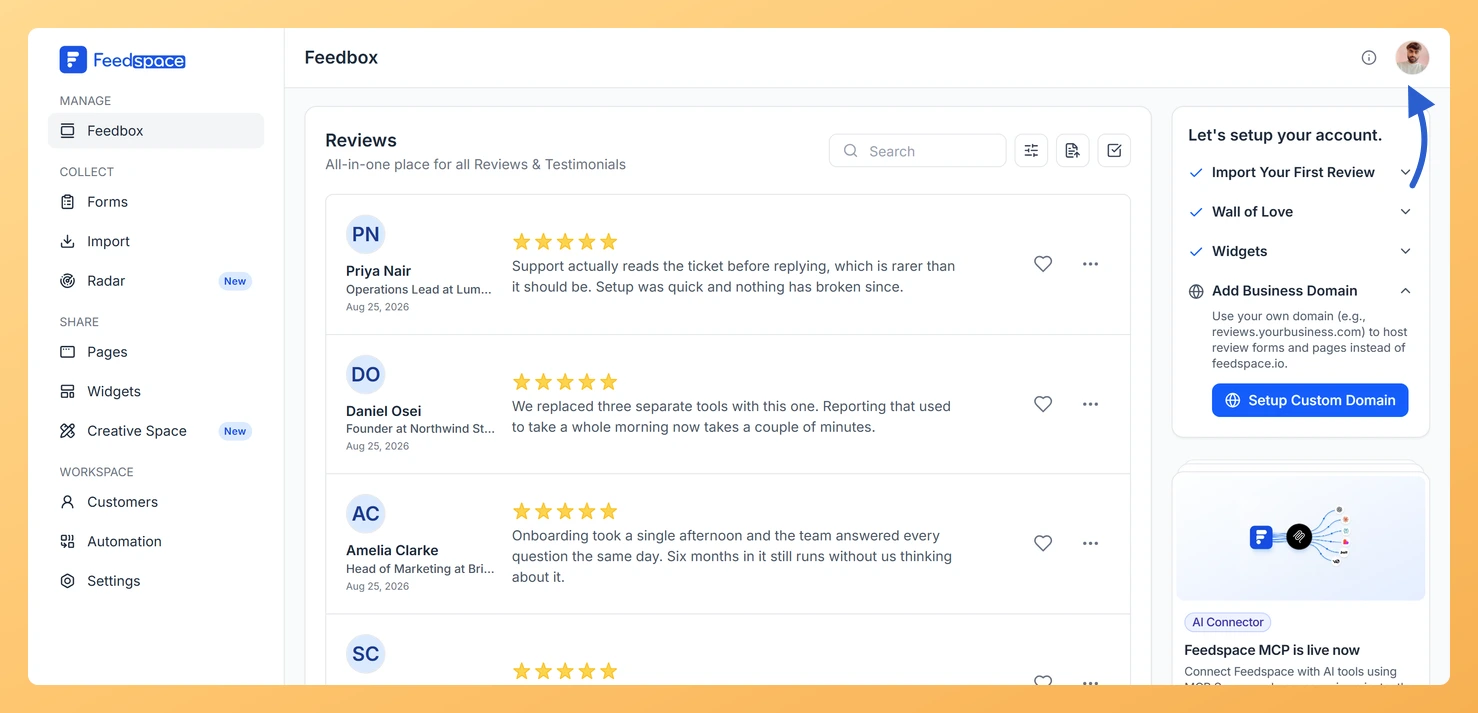
Step 1: Open your account menu
Click the circular avatar button at the top-right of the header.
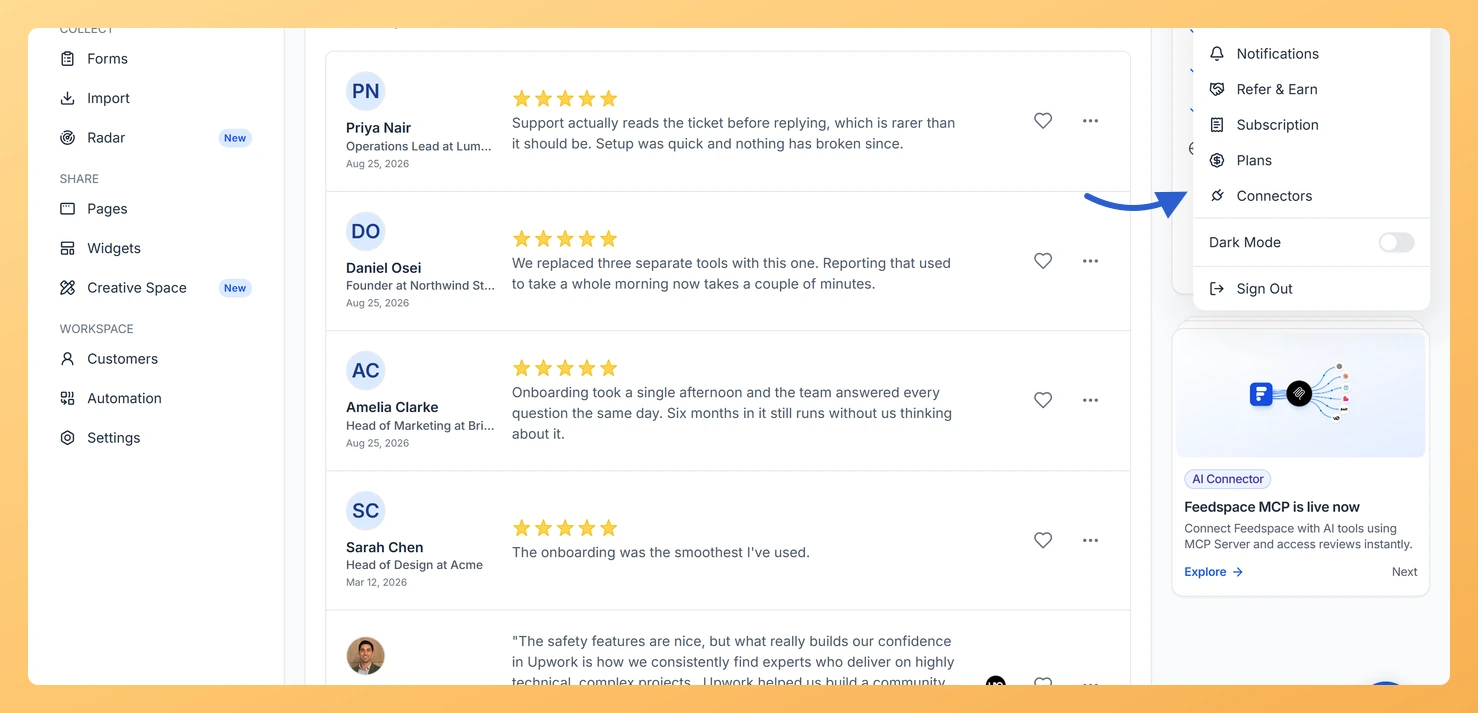
Step 2: Open the Connectors tab
In the dropdown menu, click Connectors. The My Account modal opens on the Connectors tab.
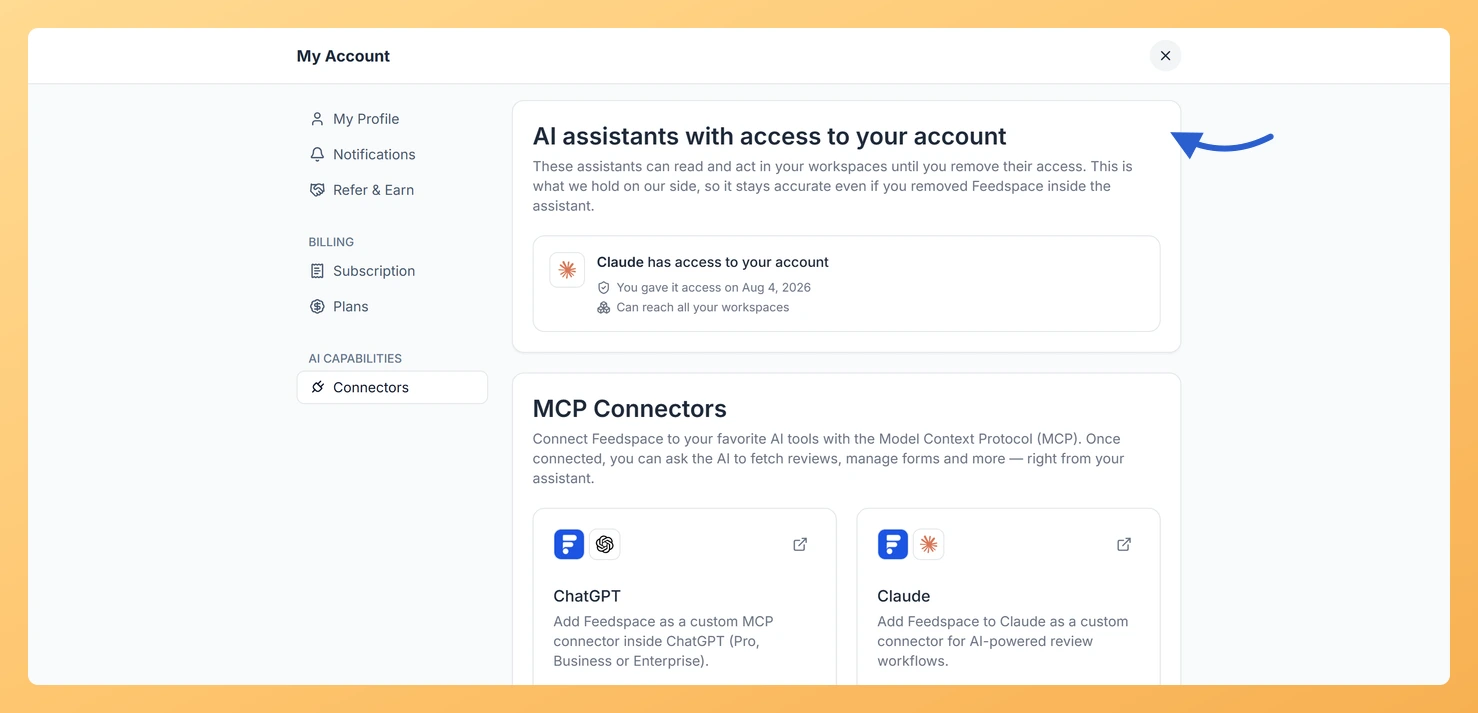
Step 3: View the access list
At the top of the Connectors tab, you see the AI assistants with access to your account section. Each row shows one assistant, its logo (or a question mark icon if the assistant is unrecognized), the access date, and which workspaces it can reach.
Tips
If an assistant shows “All workspaces”, it can read reviews from every workspace in your account. If it lists specific workspace names, access is limited to those.
An unrecognized assistant shows a question mark icon with the text “Unrecognised assistant has access to your account”. This happens when Feedspace cannot confirm which platform is connecting. Check the access date to see when it was added.
This section is informational only. To remove an assistant’s access, open that platform’s settings and disconnect Feedspace from there.
What’s next
If you want to connect a new AI assistant, scroll down to the MCP Connectors section on the same tab and click View Instruction on the platform you want to add. See how to connect ChatGPT or how to connect Claude for step-by-step guides.
Common questions
What does “has access to your account” mean?
It means that AI assistant can read your review data from Feedspace. The assistant can answer questions about your reviews, summarize feedback trends, or perform tasks you ask it to using your workspace content.
Why does an assistant show as “Unrecognised”?
Feedspace could not confirm which platform is connecting. This can happen with newer AI tools or custom MCP clients. Check the access date. If you do not recognize when or why it was added, you can disconnect it from that platform’s side.
Can I revoke access from within Feedspace?
You remove it from the assistant’s own settings, for example ChatGPT’s app settings or Claude’s connector settings, and disconnect Feedspace there.
You might also find helpful
How Do I Connect Feedspace to ChatGPT?
Overview Feedspace connects to ChatGPT using the Model Context Protocol (MCP). Once connected, you can ask ChatGPT to fetch your Feedspace reviews, pull specific testimonials, and list your review forms, all directly from the ChatGPT chat interface. Before you begin How to connect Feedspace to ChatGPT Step 1: Find the...
How Do I Connect Feedspace to Claude?
Overview Connecting Feedspace to Claude (by Anthropic) uses the Model Context Protocol (MCP). Once connected, Claude can access your Feedspace review data directly inside a conversation, letting you query testimonials, generate summaries, and identify themes across customer feedback without leaving Claude. Before you start Step 1: Copy the MCP URL...
How Do I Access Account Settings in Feedspace?
Feedspace has two distinct settings areas: your personal account settings (profile, notifications, billing, and plan) and your workspace settings (workspace name, branding, domain, team, and labels). Each is accessed from a different place in the dashboard. Knowing which settings area to open saves time, for example, updating your profile photo...