Adding your own custom domain to Feedspace helps reinforce your brand and may improve traffic. Below is a simple, step-by-step walkthrough to get your custom domain up and running.
Before you start
A custom domain is available on plans that include it. If your current plan does not, Feedspace shows an option to upgrade when you try to add or activate the domain. On AppSumo lifetime plans, a custom domain depends on your tier, and you can also add one as an add-on. See how to redeem and manage your Feedspace AppSumo plan.
Step 1: Log in to Feedspace
Go to Feedspace and log into your Feedspace account.
Step 2: Open the Domain settings
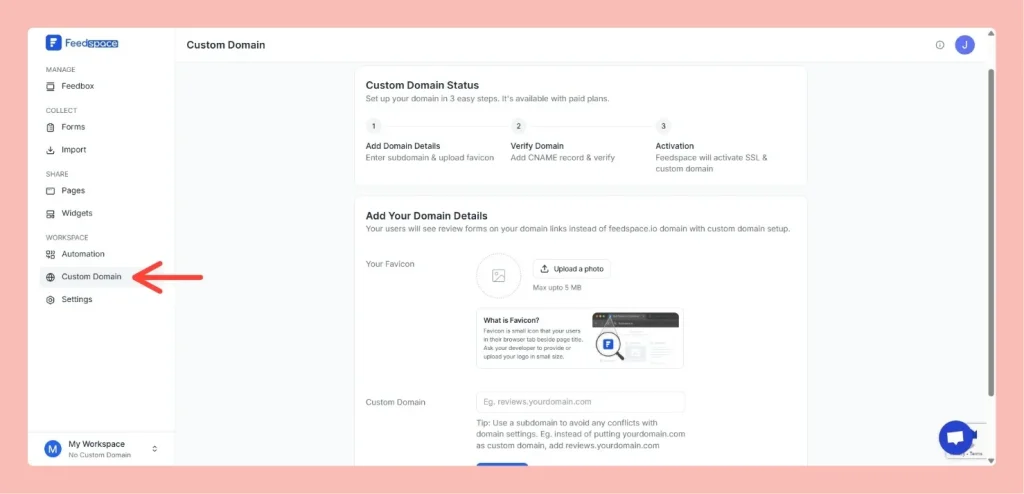
In the left sidebar, click Settings, then open the Domain section to begin the setup. The Domain page shows a three-step timeline: Add Details, Verify, and Activation.
Step 3: Enter your domain
In the Your domain field, type the subdomain you want (e.g., reviews.yourdomain.com).
You can optionally click Upload Favicon to add a favicon for the domain. The file must be an image under 5 MB.
Click Next Step to move to the verify step.
Step 4: Add the DNS CNAME record
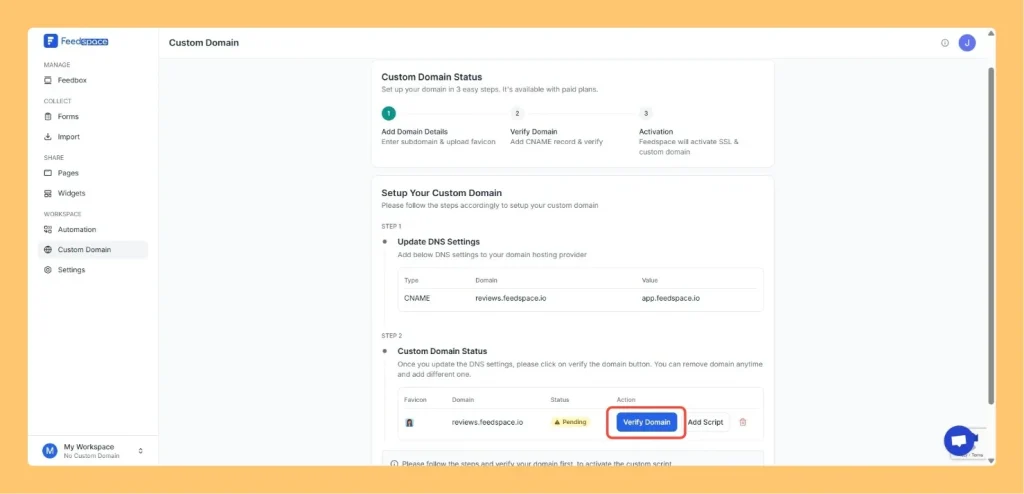
On the verify step, Feedspace shows a DNS record card with the Type set to CNAME, the host for your subdomain, and the Value set to app.feedspace.io. Click any field to copy it.
Log in to your domain registrar (where you bought your domain) and add the CNAME record to your DNS settings, pointing your subdomain to app.feedspace.io.
Step 5: Verify your domain
Return to Feedspace and click Verify Domain.
Once verified, the domain moves to the activation step and shows a status badge of Live, or Pending while activation finishes.
Step 6: Wait for DNS propagation
DNS changes can take anywhere from 24 to 48 hours to fully propagate.
If the activation is delayed, reach out to your domain registrar for assistance.
Changing or replacing your custom domain
To switch to a different domain, or to update a CNAME you changed at your registrar, remove the current domain first, then add the new one and verify it again. See how to remove a custom domain from Feedspace. After you change the record at your registrar, return to the Domain settings and click Verify Domain so Feedspace re-checks it.
A custom domain is available on plans that include it. If your plan does not, you’ll see an upgrade option when you add or activate the domain. On AppSumo plans, availability depends on your tier, and a custom domain add-on can be purchased.
Why does my domain show Pending instead of Live?
After you verify the CNAME, the domain moves to the activation step and shows Pending while it finishes, then Live once it is ready. DNS changes can take 24 to 48 hours to propagate. If it stays Pending well beyond that, see why is my custom domain page not loading in Feedspace.
Do I use my main domain or a subdomain?
Use a subdomain such as reviews.yourdomain.com and point it with a CNAME to app.feedspace.io. This keeps your main domain free for your own website.
Overview The Custom Domain feature in Feedspace lets you host your reviews and testimonials under your own branded domain. Your visitors see your domain name in the URL instead of feedspace.io. For example: This helps create a professional, branded experience for your customers and builds trust. Why use a custom...
How to Add a CNAME Record in GoDaddy
Overview With custom domain setup, you can display your review forms on your own branded domain instead of the default Feedspace link. This allows you to create a more professional and consistent user experience for your visitors. In this section, you’ll add a custom domain or subdomain (e.g., reviews.yourdomain.com). Using a subdomain...
How to Add a CNAME Record in Cloudflare
Overview With custom domain setup, you can display your review forms on your own branded domain instead of the default Feedspace link. This allows you to create a more professional and consistent user experience for your visitors. In this section, you’ll add a custom domain or subdomain (e.g., reviews.yourdomain.com). Using a subdomain...