
Feedspace Home Dashboard

How to Remove Team Members in Feedspace

Last updated on June 22, 2026

Overview

Feedspace makes it easy to collaborate by allowing you to invite team members to your workspace with different roles. You can also remove members when access is no longer needed.

Removing Team Members

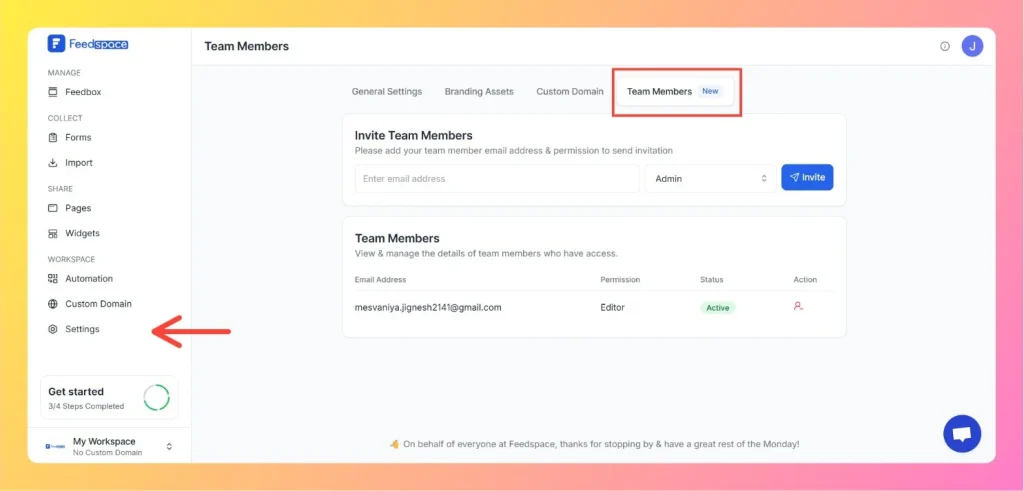
  1. Go to Settings in the left sidebar, then click the Team Members tab.
  2. Find the member you want to remove.
  3. Click the trash icon next to their name.
  4. Click Remove Member to confirm.

Once revoked, the member will no longer have access. You can re-invite them later if needed.

Click on Settings From Left Sidebar

With this feature, you can control who has access to your Feedspace workspace and assign the right permissions to keep your team organized.

You might also find helpful

How to Invite a Team Member to Feedspace

Inviting team members to your Feedspace workspace lets you collaborate with others on collecting and managing reviews. Follow the steps below to add new teammates and set their access level. Steps to invite a team member Step 1: Log in to Feedspace Log in to your Feedspace account using your...

How to signup on Feedspace?

Signing up for Feedspace is quick and straightforward. Just follow these steps. Step 1: Visit the Feedspace website Navigate to Feedspace using your web browser. Step 2: Go to the sign-up page Once on the home page, click on the “Sign Up for Free” button. Step 3: Create your account...

How to Update Your Profile in Feedspace

Overview Updating your profile on Feedspace ensures your information is accurate and personalized. Follow the steps below to manage your profile. Step 1: Go to My Account Once logged into your dashboard, click on your profile icon (top right corner) and select My Account from the menu. Step 2: Open...