The Auto-Added Review notification is an email alert in Feedspace that tells you whenever a review is automatically approved and added to a page or widget based on your automation filters. When you have set up rules that auto-approve reviews matching certain criteria, such as a minimum star rating or a keyword match, those reviews go live without manual moderation. This notification keeps you informed each time that happens.
The toggle is found in My Account under the Notifications tab and applies at the account level, covering all workspaces you have access to.
How it works
When automation filters are active in your workspace, Feedspace evaluates incoming reviews against your defined criteria. Any review that meets the criteria is automatically approved and published to the relevant page or widget. As soon as that happens, Feedspace sends a notification email to your account address so you know a new review is now live.
This is different from a standard new-review notification, which fires when a reviewer submits a response. The Auto-Added Review notification fires only when the automation layer acts on a review and publishes it without requiring your manual approval.
When to keep it on
Keep this notification enabled if you want to spot-check auto-published reviews for quality. Even well-tuned filters can occasionally approve content you would prefer to review first. Receiving an email for each auto-added review gives you a chance to catch anything unexpected and adjust your filters if needed.
When to turn it off
Turn this notification off if you fully trust your automation filters and do not need to monitor every addition. High-volume workspaces with many auto-approved reviews each day may find the emails noisy once the filters are well established.
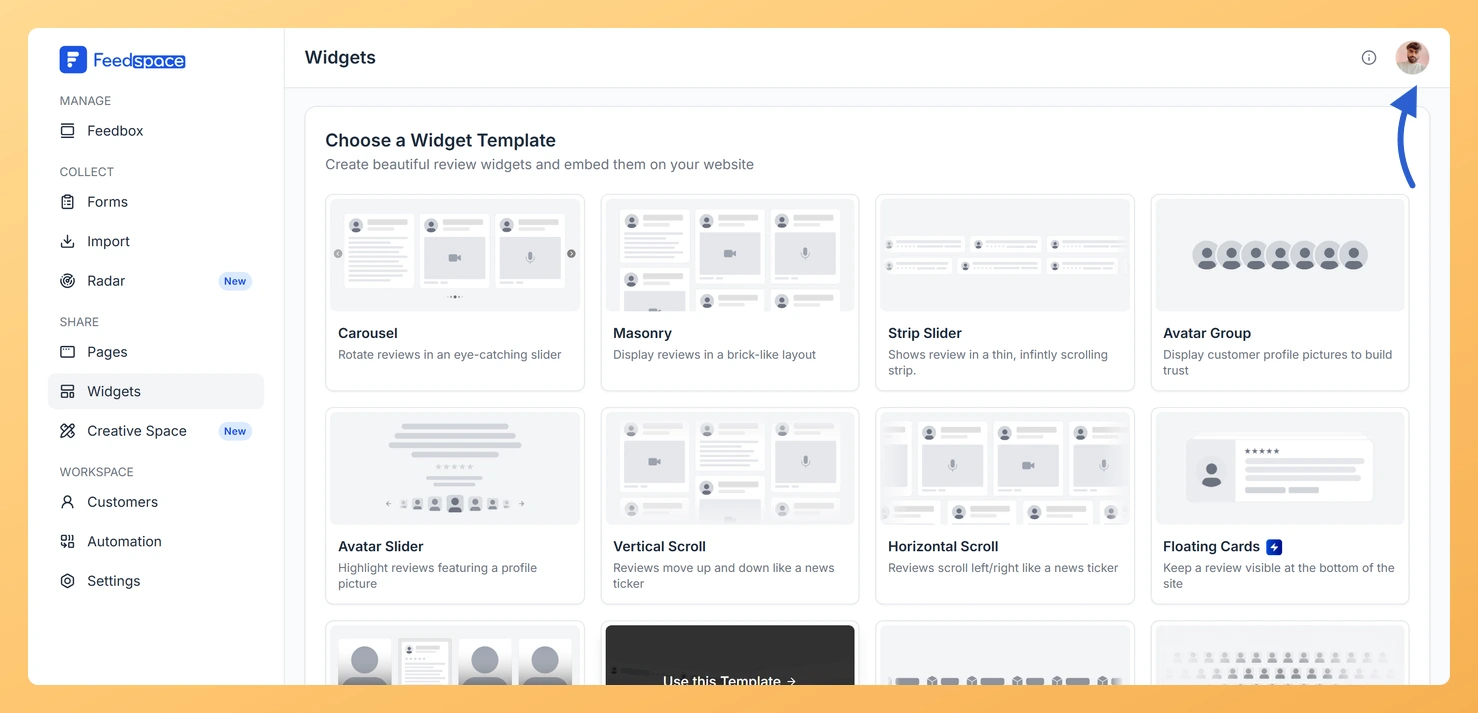
Click your profile avatar at the top right to open the account menu.
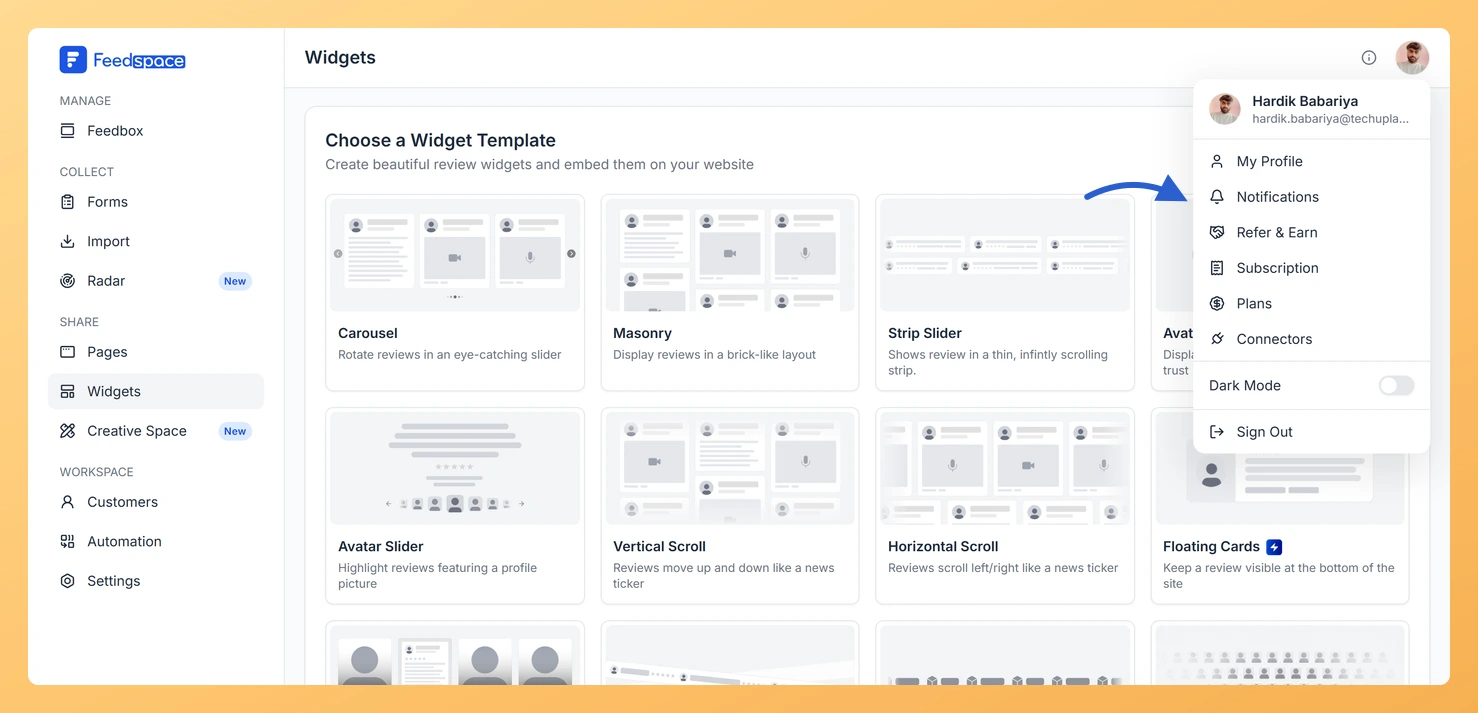
Step 3: Open the Notifications panel
Choose Notifications. Feedspace opens the My Account window with Notification Preferences displayed.
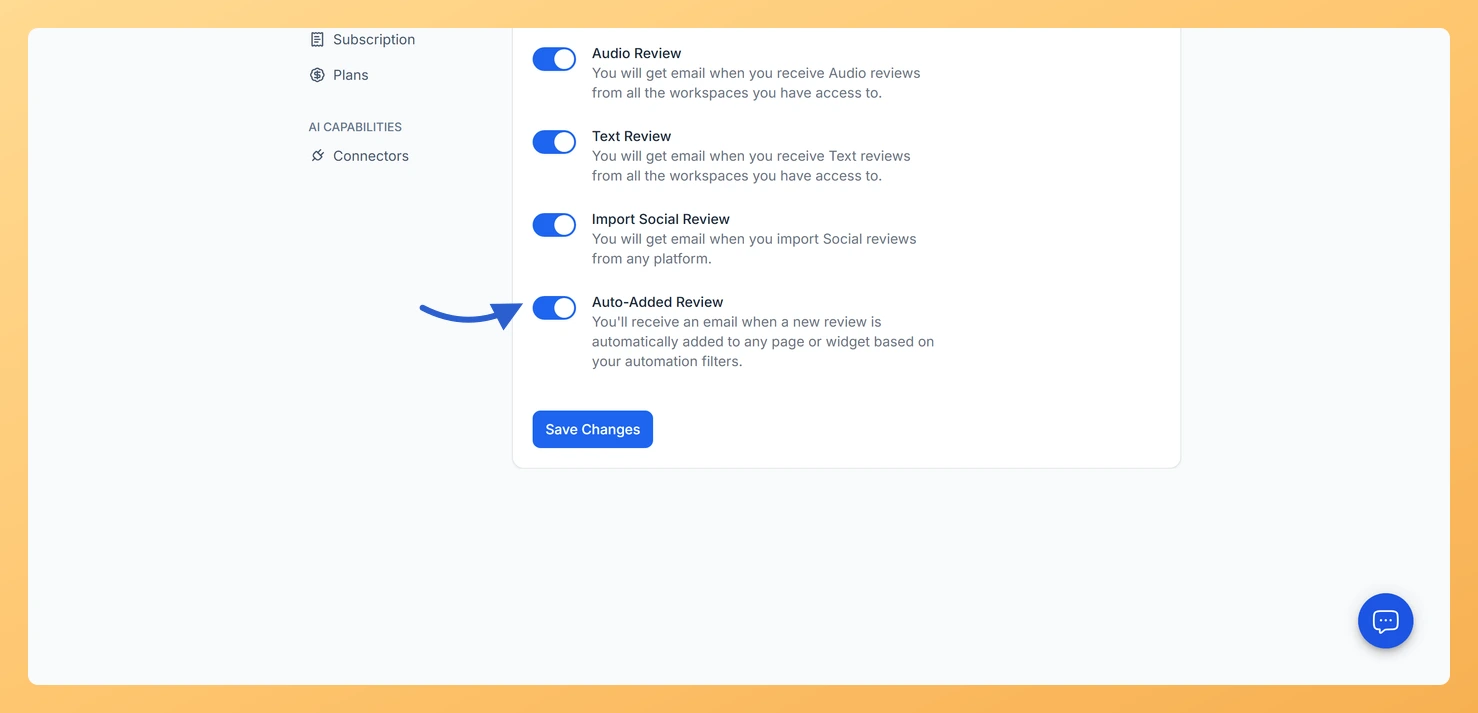
Step 4: Find the Auto-Added Review toggle
Locate the Auto-Added Review toggle, the last one in the list, and switch it on or off.
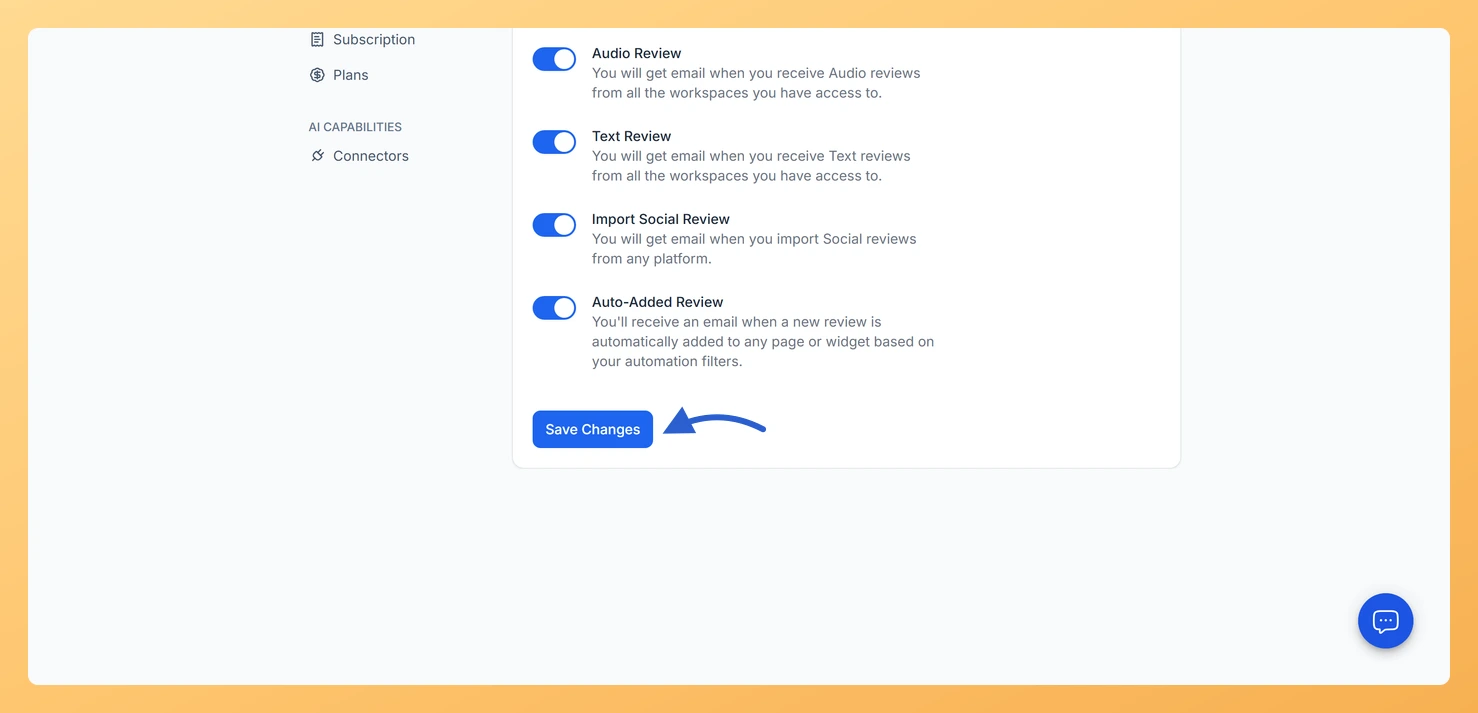
Step 5: Save your preference
Click Save Changes to apply the update.
The setting is saved to your account and takes effect across all workspaces immediately.
Common questions
Does this notification apply to all my workspaces?
Yes. The toggle is at the account level, so it covers every workspace you have access to, not just the one you are currently viewing.
What triggers the auto-add?
The auto-add is triggered by your automation filter rules. For example, if you have a rule that approves all reviews with four stars or more, every qualifying review is added automatically and, if the notification is on, you receive an email for each one.
I am not receiving auto-added review emails
Confirm the toggle is switched on and that you clicked Save Changes. Also check your spam or junk folder, as notification emails from Feedspace may be filtered there. If no reviews have been auto-added yet, no email will be sent until the first qualifying review comes in.
You might also find helpful
Learn More About Notification Settings in Feedspace
Accessing notification settings Log into Feedspace Sign in with your account credentials. Open the profile avatar menu Click your profile avatar at the top-right of the header to open the menu, then click Notifications. This opens the My Account modal on the Notifications tab. Notification preferences All notifications are sent...
What Is the Import Social Review Notification in Feedspace?
Overview The Import Social Review Notification is an account-level email alert in Feedspace. When this toggle is on, Feedspace sends you an email each time a social review is imported into any workspace you have access to. This covers reviews brought in from platforms such as Google, Facebook, Trustpilot, and...
What is Automation in Feedspace?
Overview Automation in Feedspace lets you connect your workspace with other tools and services. Using the Feedspace Automation Secret Key, API, and webhooks, you can send real-time notifications to apps like Slack, Telegram, WhatsApp, and Discord, back up testimonials to Google Drive or Dropbox, and push event data to any...