The CSV tab in Add Customers lets you add many customers to your Feedspace workspace at once by uploading a spreadsheet file. This is the fastest way to populate your customer list when you already have contact data in a file.
This page imports customer contacts, the people you will request reviews from. To bring in review content such as existing reviews or testimonials from a spreadsheet, use how to bulk import reviews in Feedspace instead.
Before you start
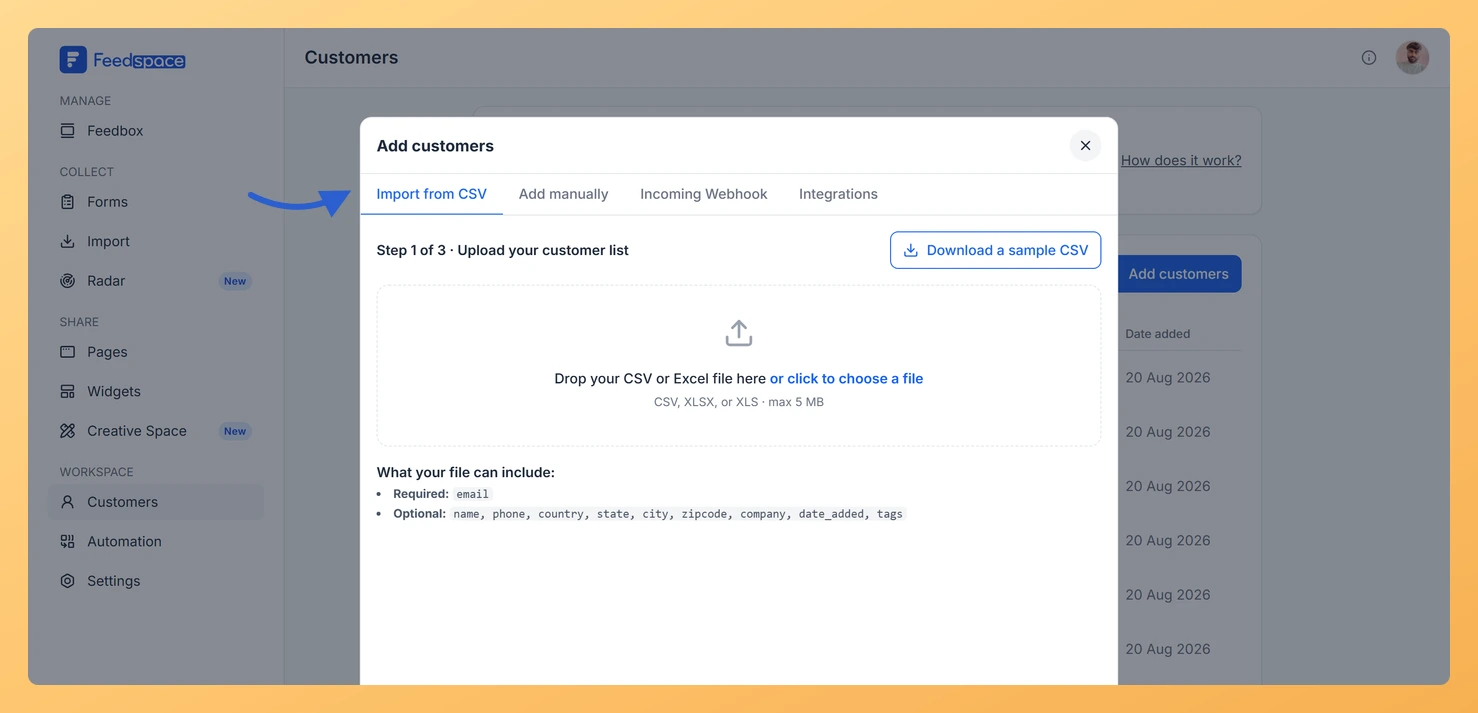
Prepare a CSV, XLSX, or XLS file. The maximum file size is 5 MB.
Make sure your file has at least one column named email. This is the only required column.
Optional columns you can include: name, phone, country, state, city, zipcode, company, date_added, tags.
Steps
Step 1: Upload your file
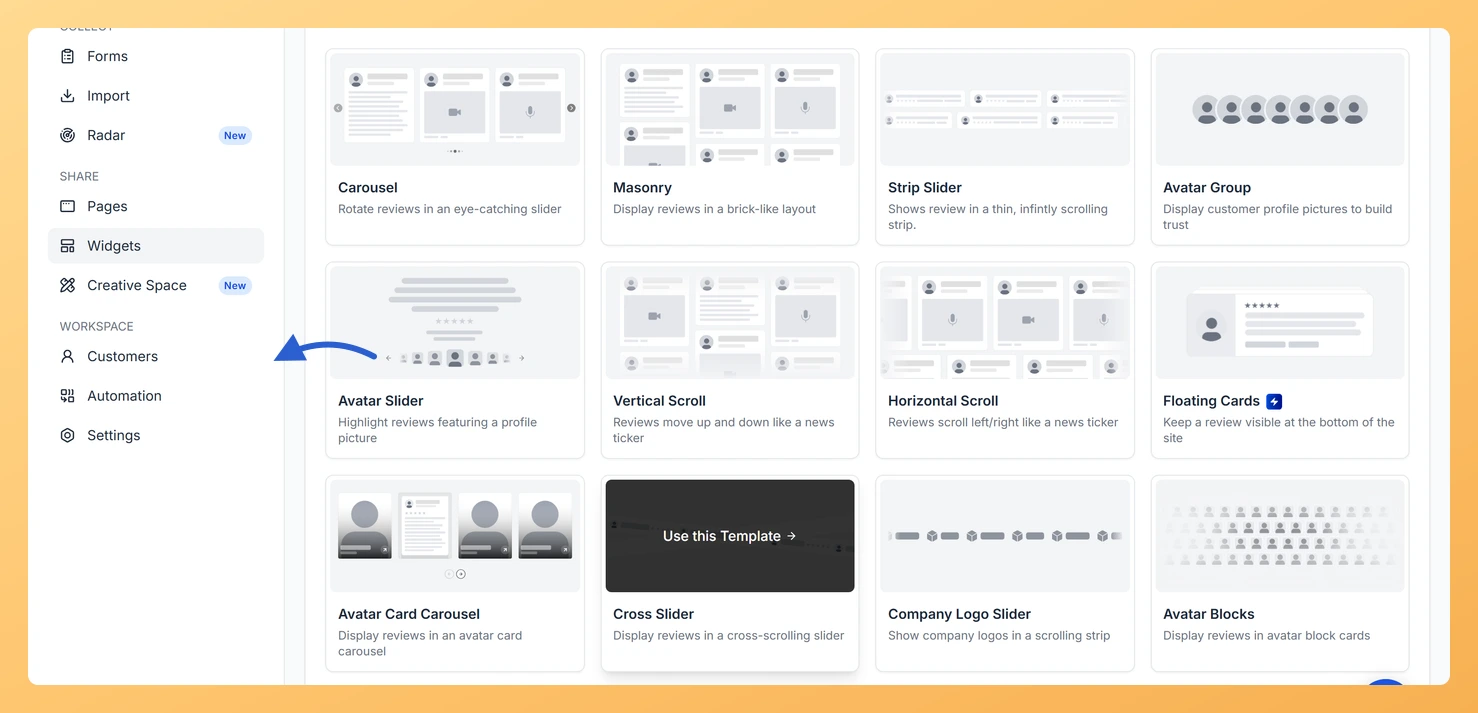
Step 1: Open the Customers page
In the left sidebar, click Customers under the Workspace section.
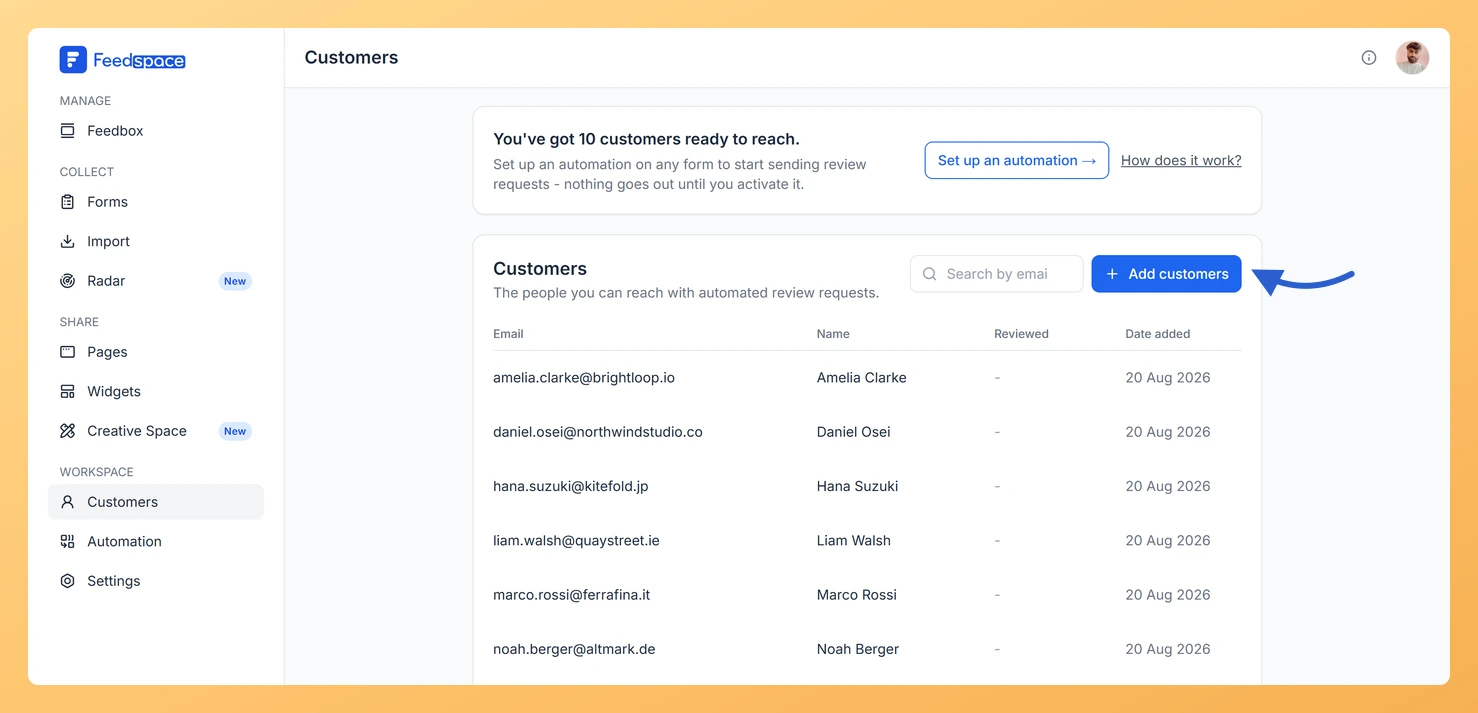
Step 2: Click Add customers
Click Add customers at the top right.
Step 3: Open the Import from CSV tab
In the modal, open the Import from CSV tab.
Step 4: Choose your file
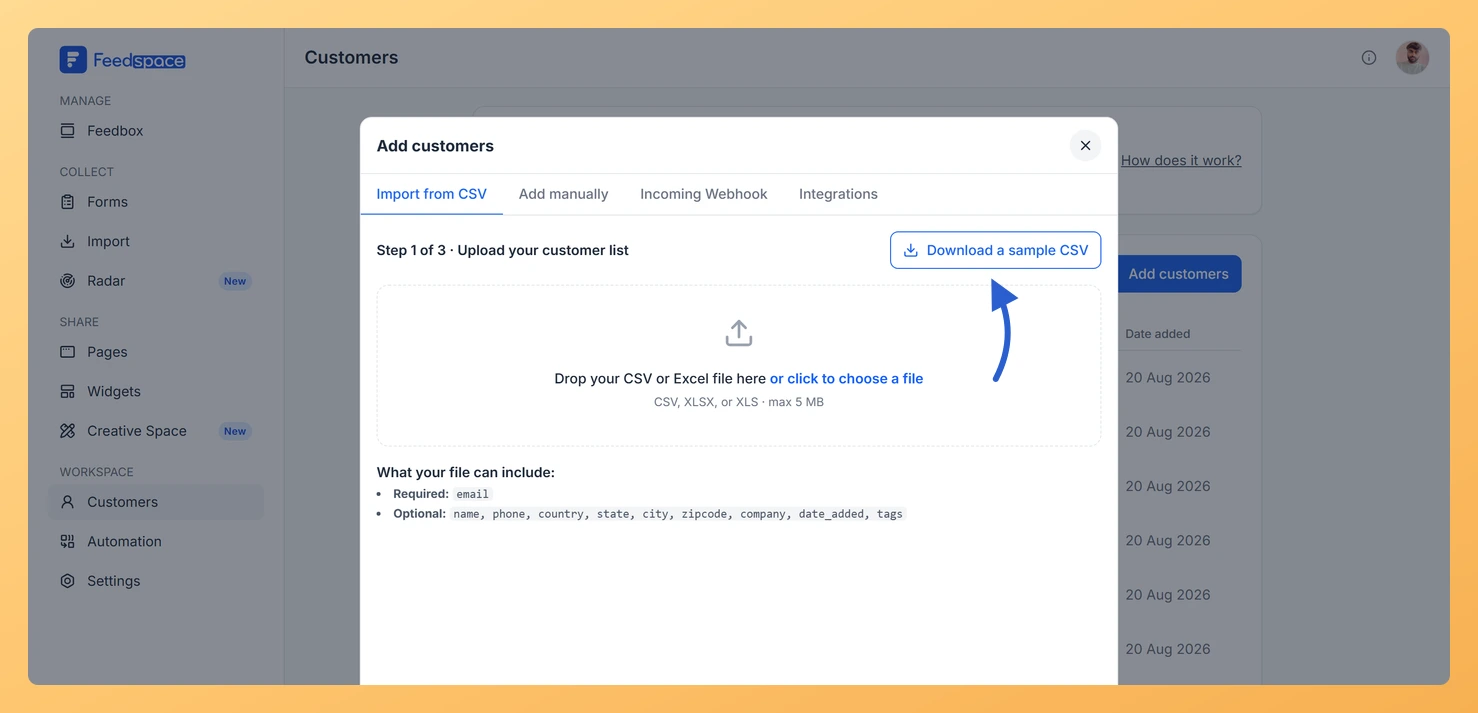
Drag and drop your file into the upload area, or click to browse and choose your file. You can click Download a sample CSV first to see the expected format.
Step 5: Continue to the preview
Click Continue.
Step 2: Review the detected columns
Feedspace shows a preview of the detected columns and the first few rows from your file. Check that the data looks correct, then click Continue.
Step 3: Confirm the import
The confirmation screen shows how many customers will be imported, with a note about any rows skipped for invalid emails. Click Import N customers to finish, where N is the count shown. After the import completes, you will see a summary showing how many records were added, updated, and skipped.
Common questions
What happens to rows with errors?
Rows with missing or invalid email addresses are skipped. After the import, you can expand the view skipped rows section on the result screen to see which rows were not imported and why.
What happens if an email in the file already exists?
Feedspace updates the existing record with the new data from the file instead of creating a duplicate. The import result summary shows these as “updated” records.
Can I import my reviews from a CSV here?
No. This importer adds customer contacts to your workspace. To import existing reviews or testimonials from a spreadsheet, follow how to bulk import reviews in Feedspace.
Troubleshooting
My file is not being accepted
Check that your file is a CSV, XLSX, or XLS format and is smaller than 5 MB. Files in other formats or above the size limit will be rejected.
All rows are being skipped
Check that your file has an email column. Capitalisation does not matter, so Email is recognised too, but the column has to be there and the addresses in it have to be valid. Rows with a missing or malformed address are the ones that get skipped.
What’s next
Search for a customer by name or email using the search bar at the top of the Customers page.
Click on any customer row to open their details and add tags.
Set up a form automation to start sending review request emails to your imported customers.
You might also find helpful
What Is the Customers Module in Feedspace?
Overview The Customers module in Feedspace is a workspace-wide contact list. It stores the people you want to reach with automated review request emails. You can add customers in four ways: manually, by uploading a CSV file, via an incoming webhook, or by connecting an integration such as Stripe. Once...
How Do I Add a Customer Manually in Feedspace?
Overview The Add manually option lets you add one customer at a time to your Feedspace workspace contact list. Use this when you want to add a specific person without uploading a file or connecting an integration. Before You Start Sign in to the workspace you want to add the...
What File Formats Does Feedspace Accept for Customer Import?
Accepted File Formats When importing customers into Feedspace, you can upload files in these formats: The maximum file size is 5 MB. Files larger than this will be rejected. Required and Optional Columns Your file must include at least the email column. All other columns are optional: Column names must...