
Feedspace Home Dashboard

How Do I Send Gift Up Gift Cards for Feedspace Testimonials with Zapier?

Last updated on September 29, 2026

Overview

You can link Feedspace to Gift Up with Zapier. Each time a customer submits a testimonial, Zapier passes their details to Gift Up so a gift card can go out to them from your own store.

This suits businesses that already sell their own gift cards through Gift Up, such as a café, salon, or online shop. Instead of a generic voucher, the reviewer gets credit to spend with you, which thanks them for their time and gives them a reason to come back.

Before you start

Automation is available on the Professional and Business plans in Feedspace. You also need a Zapier account and a Gift Up account.

Step 1: Get your Automation Secret Key

  1. Sign in to your Feedspace dashboard and click Automation in the left sidebar. The Automation tab opens.
  2. If you have never created a key, click Generate Automation Secret Key.
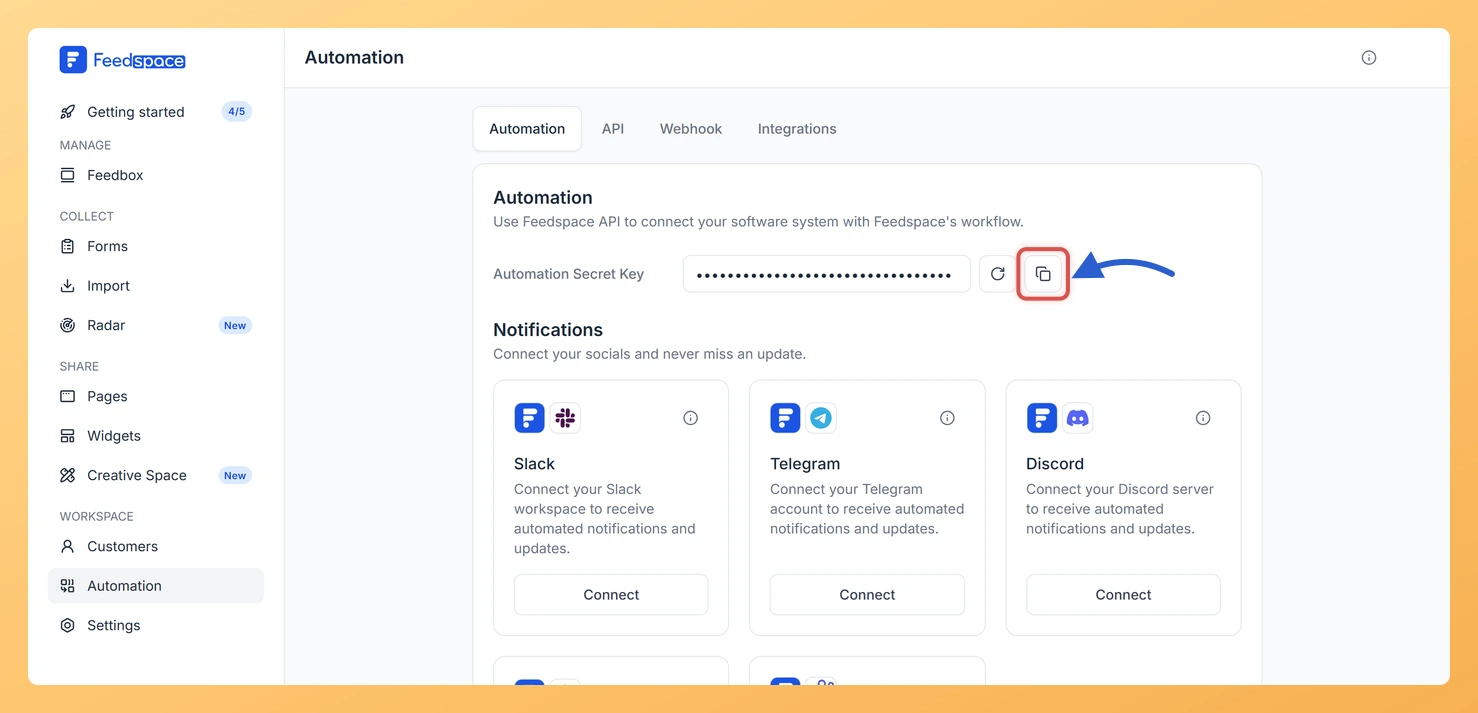
  3. Click the copy icon beside the Automation Secret Key field. Keep the key handy for the next step.
The copy button beside the masked Automation Secret Key on the Automation tab

Step 2: Start a Zap with Feedspace

  1. In Zapier, create a new Zap.
  2. Pick Feedspace as the trigger app and New Testimonial as the event.
  3. When Zapier asks you to connect Feedspace, paste the Automation Secret Key you copied.
  4. Test the trigger so Zapier loads a sample testimonial to work with.

Step 3: Send the gift card with Gift Up

  1. Add an action step and choose Gift Up as the app.
  2. Pick the Gift Up event that issues a gift card, then sign in to your Gift Up account when Zapier prompts you.
  3. Fill in the recipient details using the reviewer’s name and email from the sample testimonial, and set the gift card value you want to give.
  4. Test the action. If a field is unclear, check Gift Up’s own help pages for what it expects.

Step 4: Turn the Zap on

Once both tests pass, publish the Zap. Reviewers who submit a testimonial from now on receive a Gift Up gift card without you issuing one by hand.

What’s next

With rewards handled, you can let your team know about each new review too. See how to automate Slack notifications for Feedspace testimonials, or read what automation in Feedspace can do.

Common questions

Will customers who reviewed before I set this up get a gift card?

No. The Zap acts on testimonials that arrive after it is turned on, so earlier reviewers are not sent a gift card automatically.

What do I do if I regenerate my Automation Secret Key?

Copy the new key from the Automation tab and reconnect your Feedspace account in Zapier with it, so the Zap keeps using your current key.

You might also find helpful

What is Automation in Feedspace?

Overview Automation in Feedspace lets you connect your workspace with other tools and services. Using the Feedspace Automation Secret Key, API, and webhooks, you can send real-time notifications to apps like Slack, Telegram, WhatsApp, and Discord, back up testimonials to Google Drive or Dropbox, and push event data to any...

How Do I Automate Gift Sending with Giftogram via Zapier?

Overview Feedspace connects to Giftogram through Zapier, so a gift card can be sent automatically the moment a new testimonial is collected. You set up a Zap once, and from then on every new review can trigger a thank-you gift without anyone sending it by hand. This is useful when...

How Do I Automate Slack Notifications with Zapier?

Overview Feedspace integrates with Slack through Zapier, enabling you to send automated notifications directly to your Slack channels whenever a new testimonial is received. This ensures your team is instantly updated without manually checking Feedspace. Automation through Zapier is available on Professional and Business plans in Feedspace, and requires an...