
Feedspace Home Dashboard

How Do I Automate Microsoft Teams Notifications with Zapier?

Last updated on September 29, 2026

Overview

Feedspace can post to a Microsoft Teams channel through Zapier. Whenever a new testimonial comes in, Zapier sends its details to the channel you choose.

A common setup is a customer success or sales team that works in Teams all day. Posting each new testimonial to a shared channel means the people who earned the praise see it straight away, and anyone who spots a strong quote can flag it for the website or a sales deck.

Before you start

Automation needs a Feedspace Professional or Business plan. Have your Zapier account and a Microsoft account with access to the target Teams channel ready.

Step 1: Copy your Automation Secret Key

  1. In your Feedspace dashboard, open Automation from the left sidebar. You land on the Automation tab.
  2. No key yet? Click Generate Automation Secret Key to create one.
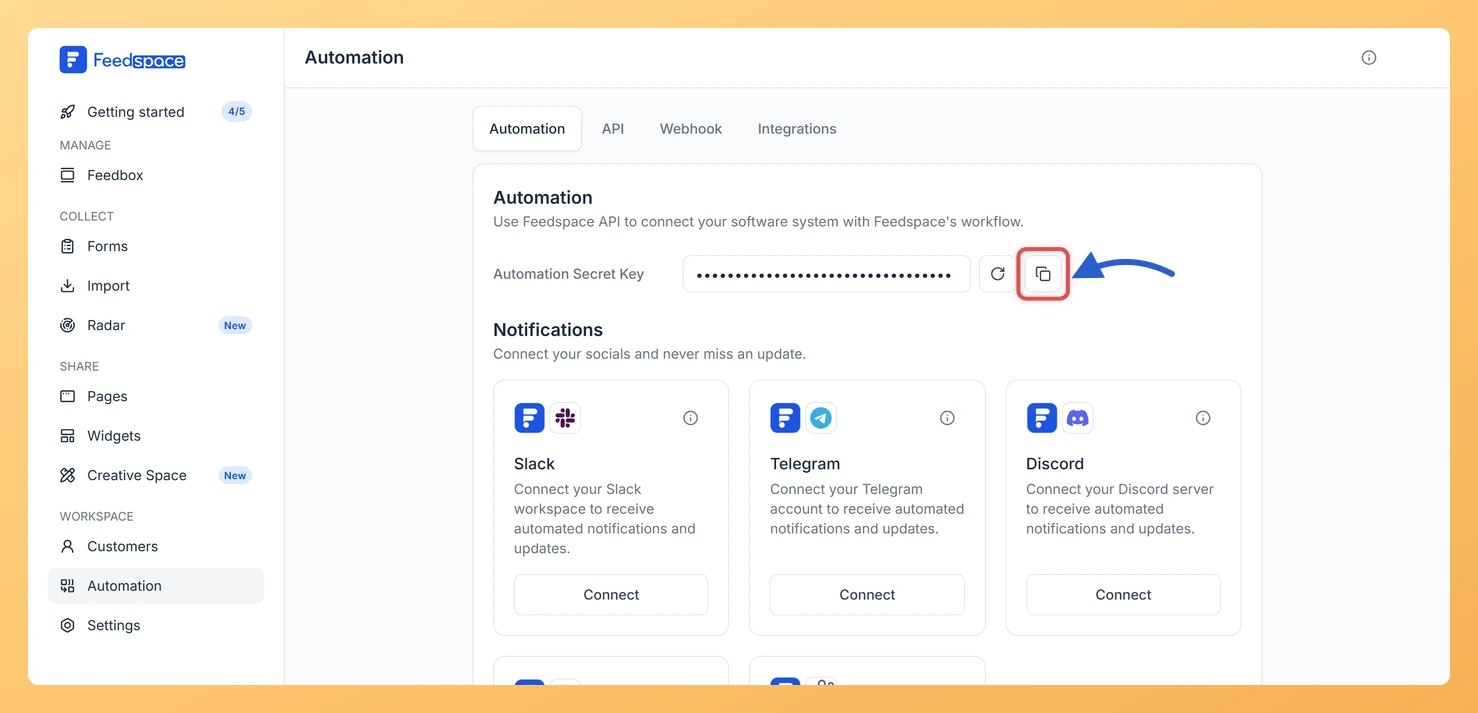
  3. Use the copy icon next to Automation Secret Key to copy it to your clipboard.
The copy button beside the masked Automation Secret Key on the Automation tab

Step 2: Set Feedspace as the trigger

  1. Create a new Zap in Zapier.
  2. Choose Feedspace as the trigger app and New Testimonial as the event.
  3. Connect your Feedspace account by pasting your Automation Secret Key when asked.
  4. Run the trigger test so Zapier pulls in a sample testimonial.

Step 3: Post the message to Teams

  1. Add an action step and choose Microsoft Teams as the app, with the event that sends a channel message.
  2. Sign in with your Microsoft account when Zapier prompts you, then pick the team and channel that should receive the posts.
  3. Write the message and insert the testimonial details you want to show, such as the reviewer’s name and their review text, from the sample testimonial.
  4. Test the action and check that the message appears in your Teams channel.

Step 4: Publish the Zap

Turn the Zap on. Each new testimonial collected in Feedspace now shows up in your Teams channel.

What’s next

Once your team is seeing new reviews, put the best ones on your site. See which Feedspace widget is best for your website, or explore what automation in Feedspace can do.

Common questions

Can I post new testimonials to more than one Teams channel?

Yes. Create a separate Zap for each channel, using the same Feedspace trigger and a different channel in the Teams action.

Will testimonials I collected before setting this up be posted?

No. Only testimonials that arrive after the Zap is turned on are sent to Teams.

You might also find helpful

What is Automation in Feedspace?

Overview Automation in Feedspace lets you connect your workspace with other tools and services. Using the Feedspace Automation Secret Key, API, and webhooks, you can send real-time notifications to apps like Slack, Telegram, WhatsApp, and Discord, back up testimonials to Google Drive or Dropbox, and push event data to any...

How Do I Automate Slack Notifications with Zapier?

Overview Feedspace integrates with Slack through Zapier, enabling you to send automated notifications directly to your Slack channels whenever a new testimonial is received. This ensures your team is instantly updated without manually checking Feedspace. Automation through Zapier is available on Professional and Business plans in Feedspace, and requires an...

How Do I Automate Discord Notifications with Zapier?

Overview Feedspace integrates with Discord through Zapier, letting you automatically send channel messages whenever new testimonials are received. This keeps your Discord community or team instantly updated without needing to check Feedspace manually. Automation through Zapier is available on Professional and Business plans in Feedspace, and requires an API key...