
Feedspace Home Dashboard

How Do I Save Feedspace Testimonials to Airtable with Zapier?

Last updated on September 29, 2026

Overview

New testimonials in Feedspace can be saved as records in an Airtable base using Zapier. Each testimonial becomes a new row in the table you pick.

Marketing teams often plan campaigns in Airtable. With testimonials landing there automatically, you can tag each one by product or theme, track which quotes have already been used in ads or emails, and pick fresh ones for the next launch.

Before you start

Automation is included in the Feedspace Professional and Business plans. You also need a Zapier account and an Airtable base with a table ready for your testimonials.

Step 1: Copy the key from Feedspace

  1. Go to your Feedspace dashboard and click Automation in the sidebar. The page opens on the Automation tab.
  2. Click Generate Automation Secret Key if this is your first time using automation.
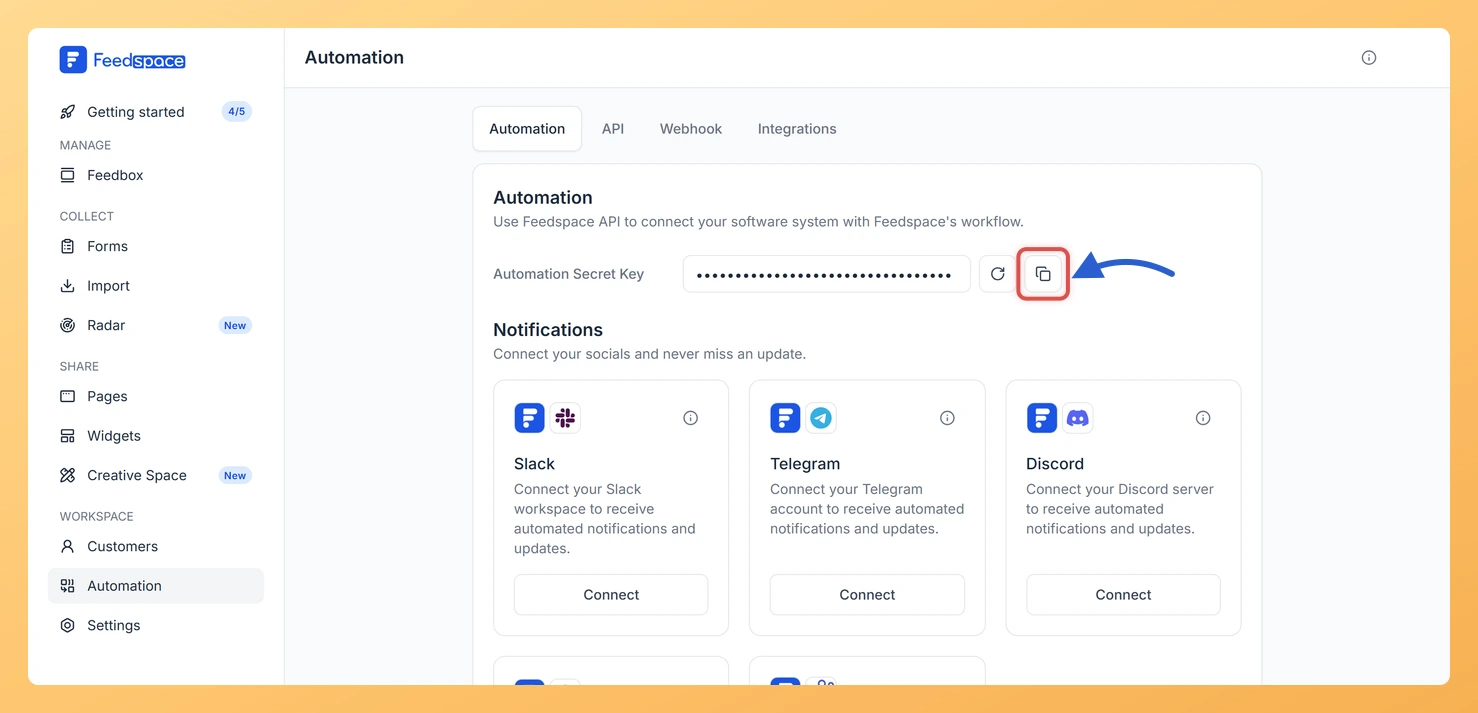
  3. Click the copy icon to the right of the Automation Secret Key field.
The copy button beside the masked Automation Secret Key on the Automation tab

Step 2: Add Feedspace as the Zap trigger

  1. Open Zapier and create a new Zap.
  2. For the trigger, choose Feedspace as the app and New Testimonial as the event.
  3. Connect Feedspace by entering the Automation Secret Key you just copied.
  4. Test the trigger to load a sample testimonial.

Step 3: Create the Airtable record

  1. Add an action step, choose Airtable as the app, and select the event that creates a record.
  2. Connect your Airtable account when Zapier asks, then choose the base and table for your testimonials.
  3. Map the testimonial fields you want to keep, such as the reviewer’s name, review text, and rating, to the matching columns in your table.
  4. Test the action and check that a new row appears in Airtable.

Step 4: Turn on the Zap

Publish the Zap. Every testimonial you collect from now on is added to your Airtable table.

What’s next

If your team also works in Notion, see how to send Feedspace testimonials to Notion with Zapier. To show your best reviews on your site, see which Feedspace widget is best for your website.

Common questions

Will my existing testimonials be copied into Airtable?

No. The Zap adds testimonials that arrive after it is turned on. Earlier testimonials stay in Feedspace and are not sent to Airtable.

What do I do if I regenerate my Automation Secret Key?

Copy the new key from the Automation tab and use it to reconnect your Feedspace account in Zapier, so the Zap keeps running with your current key.

You might also find helpful

What is Automation in Feedspace?

Overview Automation in Feedspace lets you connect your workspace with other tools and services. Using the Feedspace Automation Secret Key, API, and webhooks, you can send real-time notifications to apps like Slack, Telegram, WhatsApp, and Discord, back up testimonials to Google Drive or Dropbox, and push event data to any...

How Do I Automate Notion Notifications with Zapier?

Overview Feedspace connects to Notion through Zapier, letting you automatically submit testimonials to Feedspace whenever a new item is added to a Notion database. This removes manual data entry and keeps your testimonial collection in sync with your Notion workspace. Automation through Zapier is available on Professional and Business plans...

How Do I Automate Slack Notifications with Zapier?

Overview Feedspace integrates with Slack through Zapier, enabling you to send automated notifications directly to your Slack channels whenever a new testimonial is received. This ensures your team is instantly updated without manually checking Feedspace. Automation through Zapier is available on Professional and Business plans in Feedspace, and requires an...