
Feedspace Home Dashboard

How to Import Chrome Extension Reviews into Feedspace

Last updated on June 22, 2026

Overview

Chrome Extension reviews include user opinions on browser tools, add-ons, and features from the Chrome Web Store. Importing these reviews into Feedspace allows you to show them on your website or Wall of Love. Here’s a quick guide on how to import Chrome Extension reviews into Feedspace:

Steps to import reviews from Chrome Extension

Step 1: Log into Feedspace

Access your Feedspace account and log in using your credentials.

Step 2: Navigate to the import page

Next, Click on Import in the left sidebar to start the review import process.

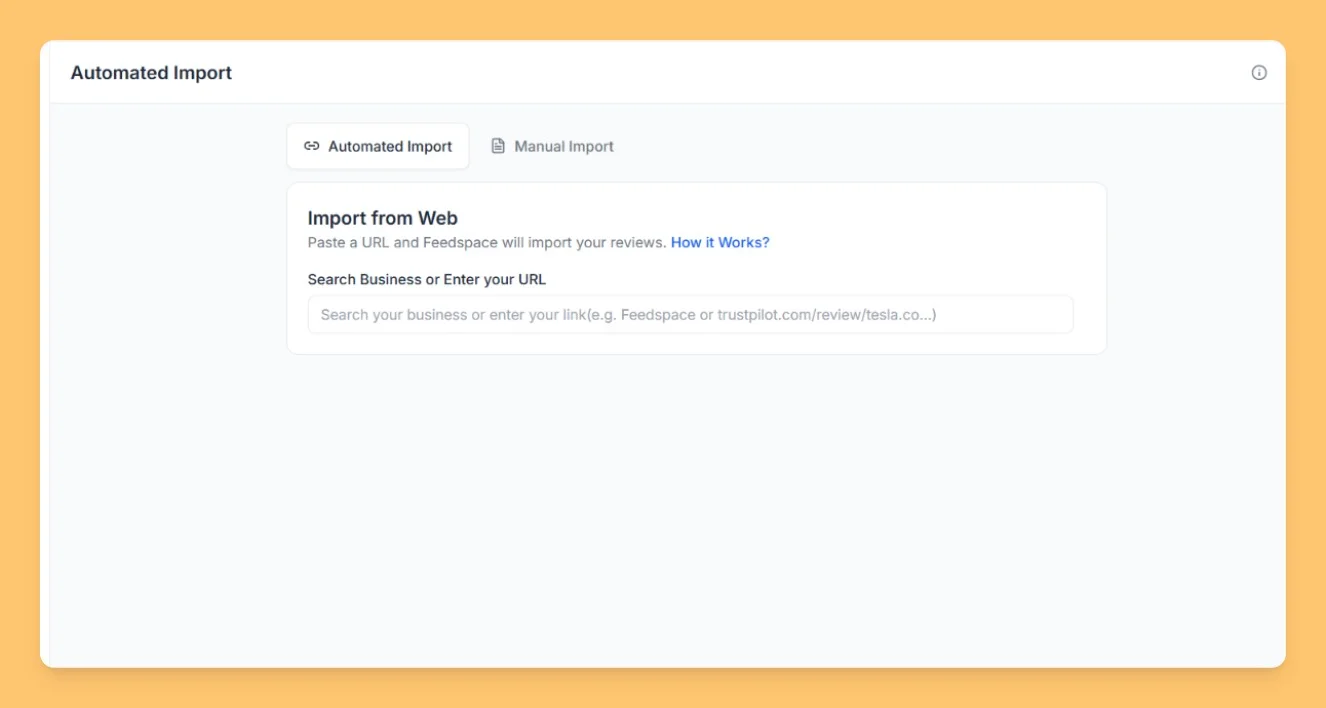
Step 3: Enter your Chrome Extension URL

Paste your Chrome Extension URL in the search input field to start importing your reviews.

Import Reviews in Feedspace

Step 4: Add the valid Chrome Extension link

Paste the valid link of your Chrome Extension from the Chrome Web Store into the provided text box.

Step 5: Import Chrome Extension reviews

After adding the link, click Fetch Reviews to pull the reviews from your Chrome Extension.

You might also find helpful

How to Install the Feedspace Chrome Extension

Overview The Feedspace Chrome Extension makes it easier to collect and manage reviews or testimonials directly from your browser. With just a click, you can capture customer feedback while browsing or working in different platforms, without switching tabs or logging into the Feedspace dashboard. You can install the extension from...

How Do I Import Reviews from Google Business into Feedspace?

Overview Feedspace can import reviews straight from your Google Business Profile. You find your listing by typing your business name or pasting its Google Maps link, then choose which reviews to bring in. A typical use: a dental clinic with a strong Google rating pulls its best patient reviews into...

How Do I Import Reviews from Google Play Store into Feedspace?

Overview Feedspace can import the reviews people leave on your Android app’s Google Play Store listing. You paste the app’s Play Store link, fetch its reviews, and choose which ones to bring into your workspace. A typical use: a fitness app team pulls its five-star Play Store reviews into Feedspace...