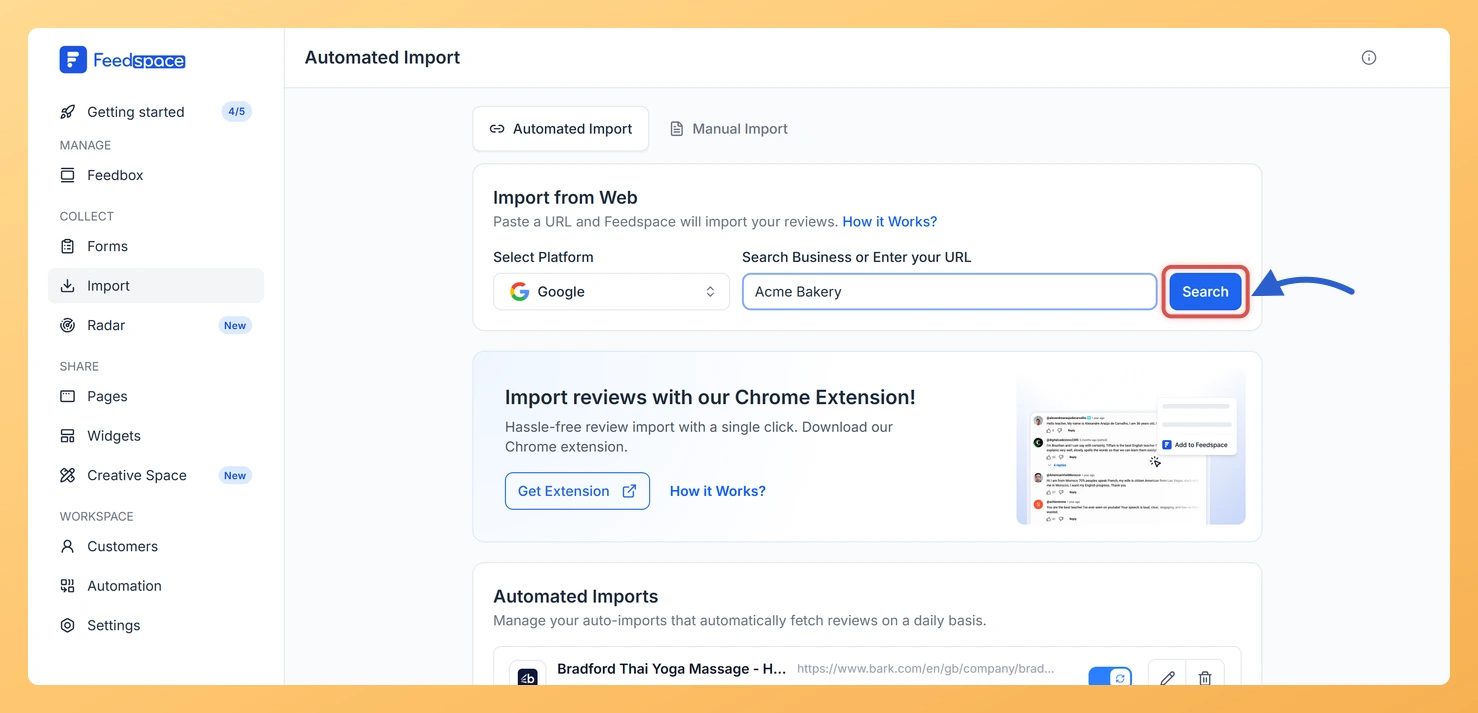
Feedspace can import reviews straight from your Google Business Profile. You find your listing by typing your business name or pasting its Google Maps link, then choose which reviews to bring in.
A typical use: a dental clinic with a strong Google rating pulls its best patient reviews into Feedspace and shows them in a widget on its booking page, so visitors see the same praise they would find on Google Maps without leaving the site.
In the left sidebar, click Import. The Automated Import tab opens by default.
Step 3: Search for your business
Type your business name into the input field, then click Search.
From the list of matching businesses, click the row for your listing. Each row shows the business name, address, star rating and review count, so you can pick the right location.
Click Fetch Reviews at the bottom of the list.
Step 4: Select and import reviews
Click each review you want to keep, or use Select All. If more reviews are available, click Load More below the list to add the next set. To tag the reviews with labels or translate them as they come in, click Customized Import in the footer bar first and choose your options (Auto Translate is a premium feature). Then click Import Review in the footer bar to add the selected reviews to your workspace.
If your business is not found
If a name search shows “No businesses found for your search”, paste your Google Business Profile or Google Maps link into the same input field instead. The link points Feedspace straight to your listing, which also helps when several businesses share a similar name.
If Feedspace still cannot find your listing, email support@feedspace.io with the profile link and the team will look into it.
What’s next
Your imported reviews now sit in your workspace. Show them on your site by adding them to a widget or a Wall of Love page, or read what to do after importing reviews.
Common questions
Can I import reviews from more than one Google location?
Yes. Each search imports one business at a time, so repeat the search and import for every location you want. All the imported reviews land in the same workspace, where you can manage them together.
How do I keep new Google reviews coming in automatically?
After you fetch reviews, look for the banner above the review list and click Setup Auto Import. Choose a rating filter, labels and a translation language if you want them, then click Setup Auto-Sync. If your plan does not include auto-sync, an upgrade prompt opens instead.
Can I see the newest reviews first before choosing which to import?
Yes. Use the sort dropdown above the review list and pick Newest. The other options are Most Relevant, Highest Rated and Lowest Rated.
You might also find helpful
How Do I Import Reviews from Google Play Store into Feedspace?
Overview Feedspace can import the reviews people leave on your Android app’s Google Play Store listing. You paste the app’s Play Store link, fetch its reviews, and choose which ones to bring into your workspace. A typical use: a fitness app team pulls its five-star Play Store reviews into Feedspace...
How to Import Chrome Extension Reviews into Feedspace
Overview Chrome Extension reviews include user opinions on browser tools, add-ons, and features from the Chrome Web Store. Importing these reviews into Feedspace allows you to show them on your website or Wall of Love. Here’s a quick guide on how to import Chrome Extension reviews into Feedspace: Steps to...
How to Import Reviews from LinkedIn Posts
Overview The Feedspace Chrome Extension makes it easy to capture testimonials from LinkedIn posts directly into your Feedspace workspace. Perfect for preserving praise, posts, or comments from LinkedIn without copying manually. Step 1 – Open the LinkedIn Post Go to the LinkedIn post you want to import as a testimonial or...