
Feedspace Home Dashboard

How to Import Facebook Comments into Feedspace

Last updated on September 22, 2026

Overview

If someone left a valuable comment on a Facebook post that you want to showcase as a testimonial, you can import that single comment directly into Feedspace. This lets you turn authentic social proof from Facebook conversations into reviews you can display on your website or Wall of Love.

Steps to import a Facebook comment

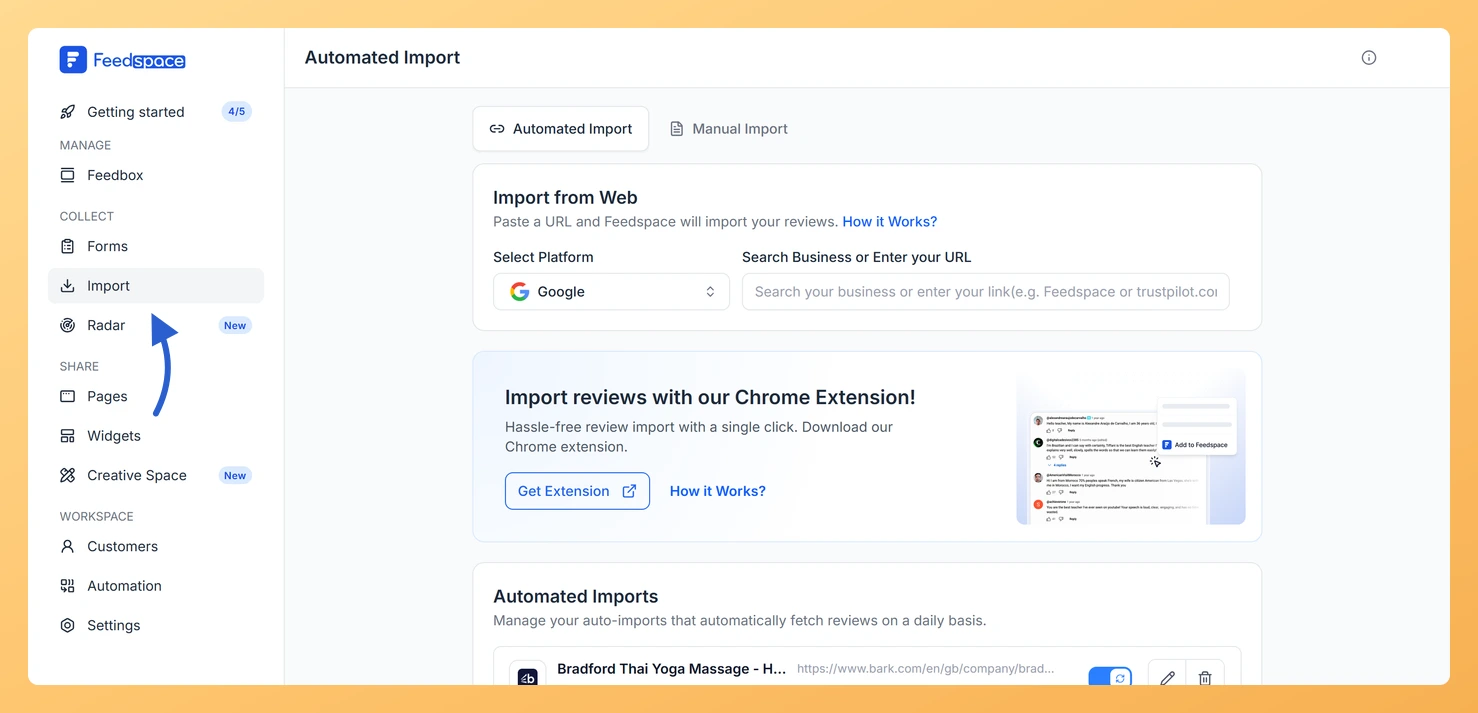
The Import link in the Feedspace sidebar
  1. Log in to your Feedspace dashboard and click Import in the left sidebar.
  2. Copy the URL of the Facebook comment you want to import. A Facebook comment link includes a comment_id parameter in the URL. Example: https://www.facebook.com/username/posts/123456?comment_id=789012
  3. Paste the comment link into the URL input field on the Automated Import screen.
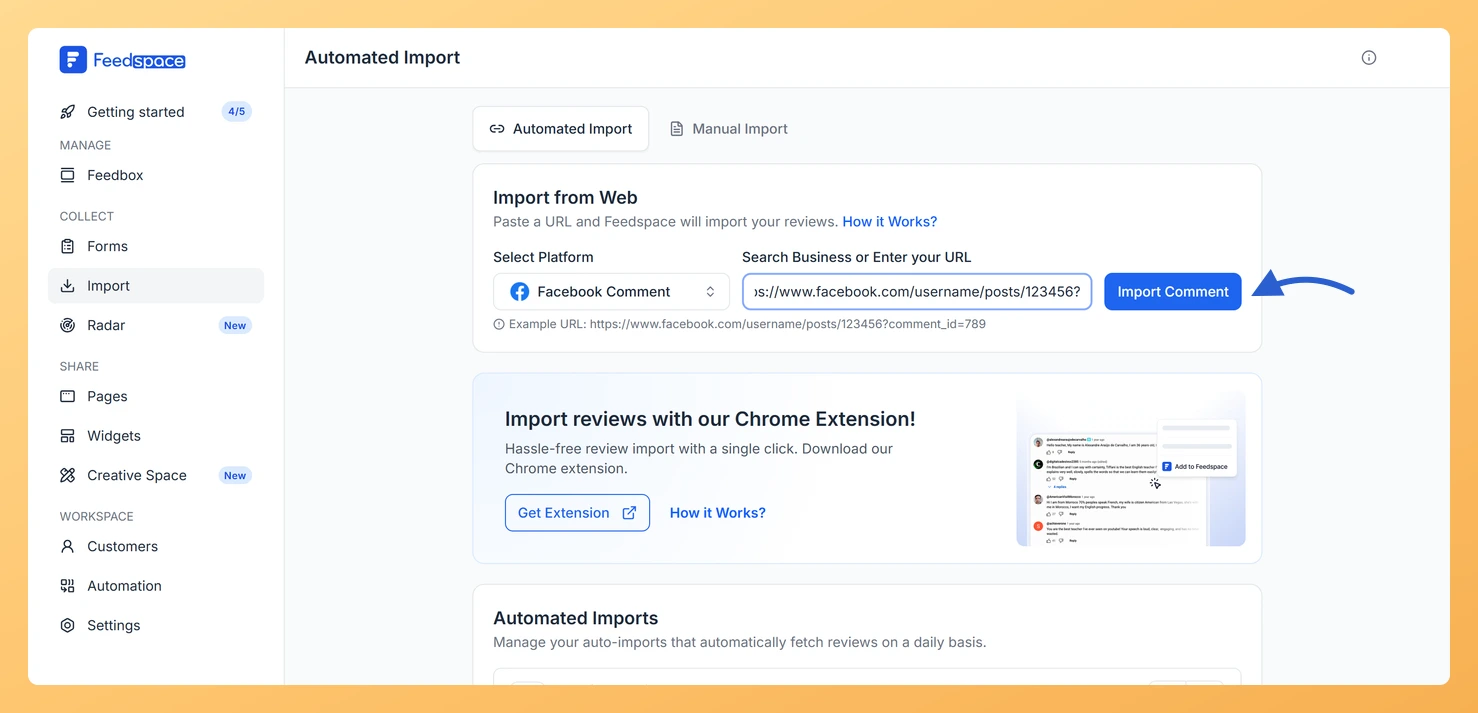
  4. Feedspace recognises it as a Facebook Comment link and shows an Import Comment button.
  5. Click Import Comment.
  6. The comment imports immediately and appears in your Feedbox.
The Import Comment button after pasting a Facebook comment link

Tips

  • Facebook comment links are different from post links. A comment link includes comment_id= in the URL. If you paste a regular post link instead, Feedspace will import the post itself, not individual comments.
  • This feature imports one comment at a time. To import multiple comments from the same post, copy and paste each comment’s individual link separately.
  • After importing, you can edit the comment text, change the date, or add a star rating in Feedbox.

What’s next

After importing your Facebook comment, you can choose a widget to display it on your website, or add it to a Wall of Love page.

Common questions

How do I find the URL for a specific Facebook comment?

On Facebook, click the timestamp or three-dot menu on the comment you want, then select “Copy link” or “Copy link to comment”. The copied URL will include the comment_id parameter.

Can I import all comments from a Facebook post at once?

No, this feature imports one comment at a time. Each comment needs its own link. If you want to import the entire post, use a regular Facebook post link instead.

What happens if I paste a post link instead of a comment link?

Feedspace will detect it as a post and show an Import Post button instead of Import Comments. The import will bring in the post content, not individual comments.

You might also find helpful

How to Import Facebook Posts into Feedspace

Overview With Feedspace, you can import customer feedback, testimonials, or brand mentions directly from Facebook posts. This allows you to highlight authentic social proof and display it beautifully in your widgets, pages, or Wall of Love. Steps to import reviews from Facebook posts Step 1: Log into Feedspace Begin by...

How to Import Facebook Reviews into Feedspace

Overview You can easily import customer reviews from your Facebook business page into Feedspace. This allows you to display genuine client feedback directly on your website, widgets, or Wall of Love, helping build trust and social proof for your brand. Steps to import reviews from Facebook Step 1: Log into...

How Do I Import Instagram Posts into Feedspace?

Overview Feedspace lets you import posts and reels from Instagram and display them as testimonials on your website. You can use this to showcase real customer mentions, product posts, and brand stories without asking customers to submit anything manually. For example, if a customer posts a reel showing your product...