
Feedspace Home Dashboard

How to Duplicate Reviews

Last updated on June 17, 2026

Overview

Duplicating reviews in Feedspace allows you to quickly create a copy of an existing review.
This feature is useful when you want to reuse or modify a testimonial for different widgets or pages without rewriting it manually.

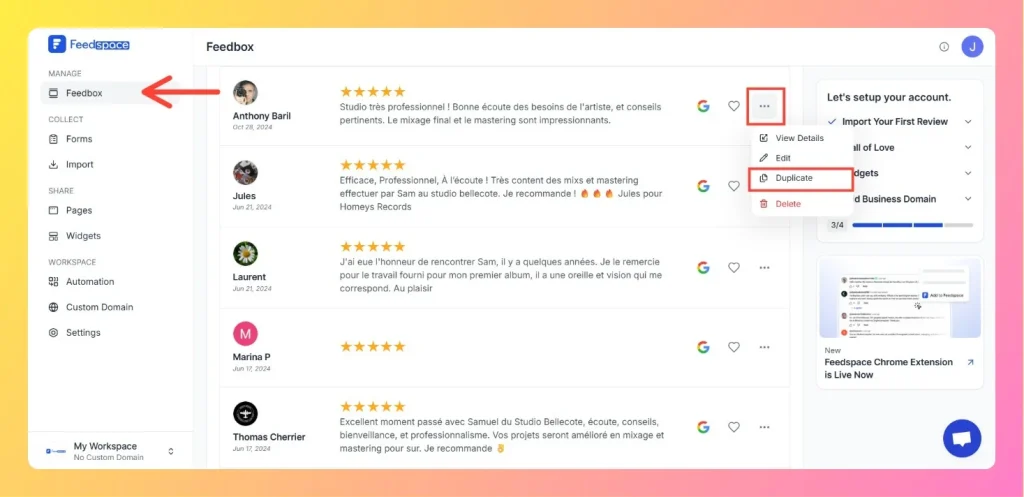
Step 1 Go to Feedbox

  • Log in to your Feedspace account.
  • From the left sidebar, click on Feedbox under the Manage section.
  • Here you’ll see a list of all your collected and imported reviews.

Step 2 Open Review Options

  • Find the review you want to duplicate.
  • Click on the three-dot (⋯) menu icon next to that review.
  • A dropdown menu will appear with several options.

Select Duplicate From Review Option

Step 3 Select “Duplicate”

  • From the dropdown menu, click on Duplicate.
  • Feedspace will instantly create a copy of the selected review, keeping all its content, rating, and details intact.

Step 4 Edit the Duplicated Review (Optional)

  • The duplicated review will appear in your Feedbox list.
  • You can edit it by clicking the three-dot menu → Edit, allowing you to:
  • Modify reviewer details
  • Update text or rating
  • Adjust the review date or image

Step 5 Save and Use the Review

  • Once edited, click Save.
  • You can now use this duplicated review in:
  • Widgets
  • Wall of Love

You might also find helpful

How to Export Reviews from Feedspace

Overview Feedspace allows you to export all your reviews both form-submitted and imported ones directly from the Feedbox.You can easily download them as an Excel file to share, analyze, or back up your testimonials. Step 1 Go to Feedbox Log in to your Feedspace account. From the left sidebar, click...

How to Use Filters in Feedspace

Overview Feedspace provides advanced filtering options so you can quickly find and manage the reviews that matter most. Steps 1 Go to Feedbox Navigate to the Feedbox section in your Feedspace dashboard. Click on Filters: On the top-right corner, click the Filters button to open filtering options. Step 2 Apply...

How to Perform Bulk Operations in Feedspace

Overview Managing multiple reviews one by one can be time-consuming. Feedspace makes it easy to take actions on several reviews at once with the Bulk Operation feature. Step 1 Go to Feedbox Open the Feedbox from the left sidebar to view all your reviews. Step 2 Select Reviews To take...