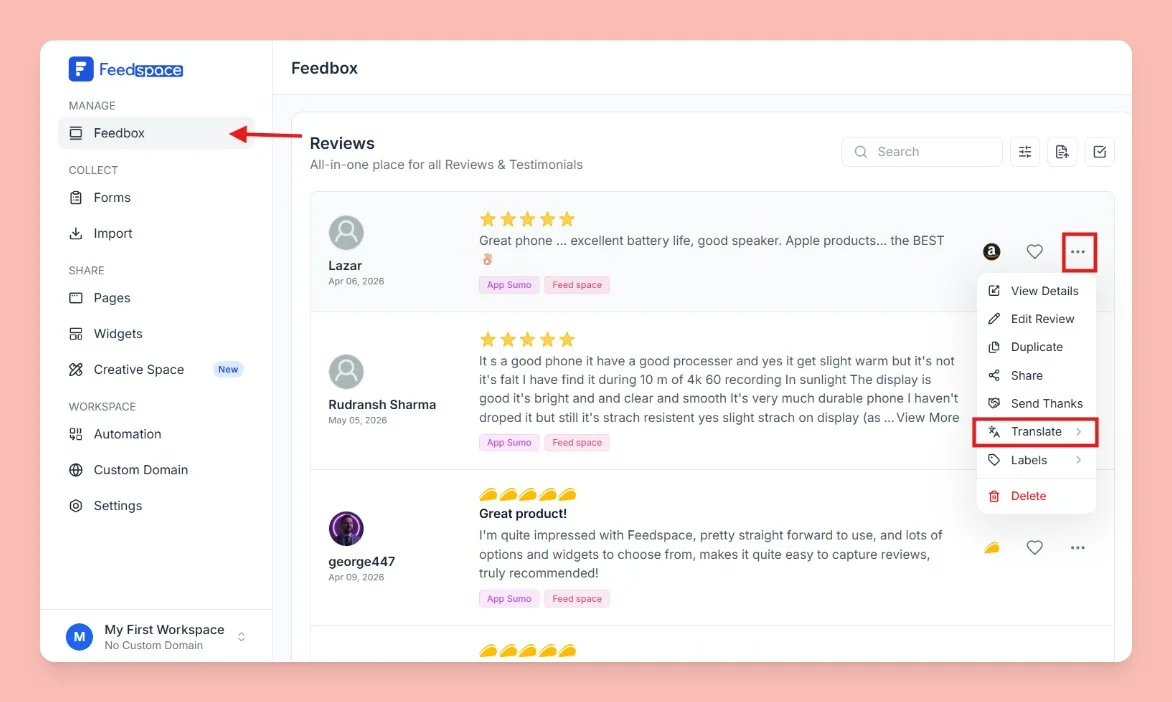
Feedspace lets you translate any review into multiple languages directly from the Feedbox. This helps you display testimonials in your audience’s language and showcase reviews from international customers to a wider audience.
Here, you’ll see the list of all reviews collected or imported into your Feedspace account.
Step 2 Open Review Options
Find the review you want to translate.
Click on the three dots (⋮) menu on the right-hand side of the review.
Step 3 Select Translate
From the dropdown, hover over (or tap) Translate.
A language picker submenu will open with the list of supported languages.
Step 4 Choose a Language
Browse or search the language list to find the language you want to translate the review into.
Click the language to start translation.
Step 5 Wait for Translation to Complete
Feedspace will automatically translate the review text into your selected language.
A short loading indicator will appear while the translation is being generated.
Step 6 View the Translated Review
Once translation is complete, a new translated copy of the review appears in your Feedbox list.
Open the translated review and you’ll see a translation pill showing the original language it was translated from.
Click the pill to jump back to the original review anytime.
Step 7 Translate Into Additional Languages (Optional)
You can repeat the same steps to translate the review into additional languages.
Each translated version is saved as its own review in your Feedbox, so you can keep as many language copies as you need.
Why Translate Reviews?
Reach a Global Audience: Showcase your reviews in the languages your visitors speak.
Increase Trust: Multilingual testimonials build credibility with international customers.
Save Time: No need for manual translation Feedspace handles it for you in seconds.
That’s it! Your review is now available in your chosen language inside Feedspace.
You might also find helpful
How to Edit a Review in Feedspace
Overview Feedspace lets you edit the details of imported or collected reviews. This is helpful when you want to update reviewer info, correct details, or add missing fields like company name, designation, or email before you showcase the review. Step 1: Go to Feedbox Step 2: Open review options Step...
How to Perform Bulk Operations in Feedspace
Overview Managing multiple reviews one by one can be time-consuming. Feedspace makes it easy to take actions on several reviews at once with the Bulk Operation feature. Step 1 Go to Feedbox Step 2 Select Reviews Step 3 Choose Bulk Action Once reviews are selected, a batch action panel appears...
How to Use Filters in Feedspace
Overview Feedspace provides advanced filtering options so you can quickly find and manage the reviews that matter most. Step 1: Go to Feedbox Step 2 Apply Filters You can filter reviews using the following categories: Filters Review Based On Type Of Content