
Feedspace Home Dashboard

How to Add Social Redirection in Review Forms

Last updated on October 30, 2025

Overview

Feedspace allows you to collect reviews directly on third-party platforms such as Google, Facebook, Trustpilot, G2, and more by adding social redirection buttons to your review forms.
When users click on a platform button, they’re redirected to the selected site where they can post their review — with their feedback automatically copied to the clipboard for convenience.

Step 1 – Open the Form Settings

  • Log in to your Feedspace account.
  • Go to the Forms section from the left sidebar.
  • Select the form where you want to enable social redirection and click on Thank You at the top.

Step 2 – Enable Social Redirection

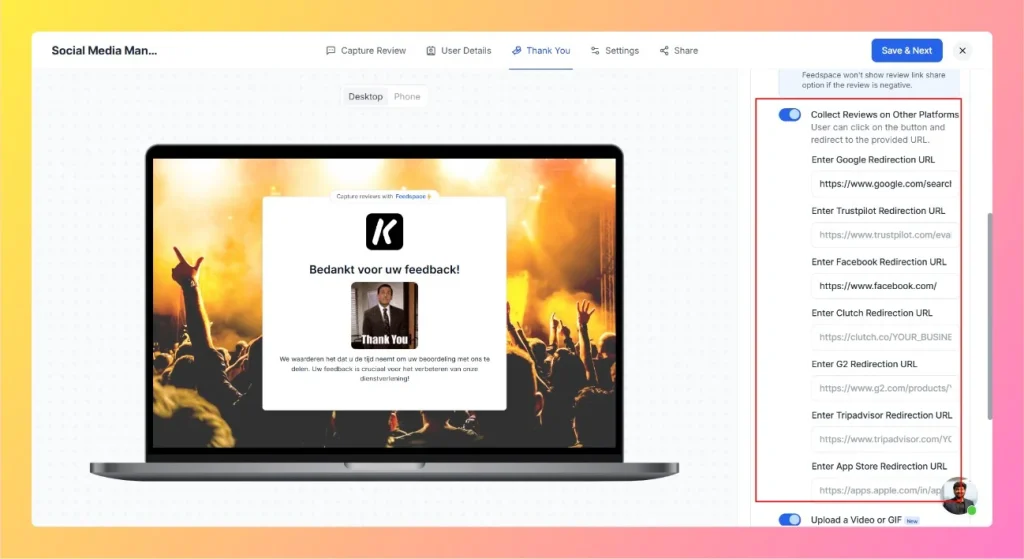
  • Scroll down to find the Collect Reviews on Other Platforms section.
  • Toggle the switch ON to activate the redirection option.
  • This will display a list of popular review platforms.

Note: Feedspace won’t show review link share option if the review is negative.

Enable Collect Reviews on Other Platforms

Step 3 – Add Platform URLs

Paste your business profile or review page URLs in the respective fields:

  • Enter Google Redirection URL – e.g., https://www.google.com/search?q=yourbusiness&ludocid=...
  • Enter Trustpilot Redirection URL – e.g., https://www.trustpilot.com/review/yourbusiness.com
  • Enter Facebook Redirection URL – e.g., https://www.facebook.com/yourpage/reviews/
  • Enter Clutch Redirection URL – e.g., https://clutch.co/profile/yourcompany
  • Enter G2 Redirection URL – e.g., https://www.g2.com/products/your-product/reviews
  • Enter Tripadvisor Redirection URL – e.g., https://www.tripadvisor.com/YourBusiness
  • Enter App Store Redirection URL – e.g., https://apps.apple.com/in/app/yourapp/id123456789

You can add one or multiple platform links depending on where you want users to leave reviews.

Step 4 – Save and Preview

  • Once you’ve added all URLs, click Save & Share at the top-right corner.
  • Preview your form — it will now display Review us on Google, Review us on Facebook, and other enabled platform buttons.

Step 5 – How It Works for Users

When a user clicks on one of the buttons:

  • They are redirected to the selected review platform.
  • Their review text is automatically copied to their clipboard.
  • They can easily paste it on the platform and submit.

Tips

  • Add only verified business URLs to avoid redirection issues.
  • Keep your platform links updated for the best user experience.
  • You can enable or disable this feature anytime from the Form Settings page.

You might also find helpful

How to Change the Language of Forms

Overview Feedspace allows you to automatically translate your Review Forms into multiple languages.This feature helps you reach a global audience by displaying the form in the user’s preferred language — such as English, French, German, Hindi, Dutch, and more. Step 1 – Open the Form Settings Step 2 – Find...

How to Set Text Alignment Right-to-Left for Review Form

Overview If your review form needs to support right-to-left (RTL) languages such as Arabic or Hebrew, you can easily adjust the text alignment using Custom CSS in Feedspace.This ensures that all form elements — including labels, placeholders, and input fields — align properly for RTL reading flow. Step 1 –...

How to Export Reviews from Feedspace

Overview Feedspace allows you to export all your reviews — both form-submitted and imported ones — directly from the Feedbox.You can easily download them as an Excel file to share, analyze, or back up your testimonials. Step 1 – Go to Feedbox Step 2 – Open Export Reviews Step 3...