
Feedspace Home Dashboard

How to Change the Language of Forms

Last updated on October 30, 2025

Overview

Feedspace allows you to automatically translate your Review Forms into multiple languages.
This feature helps you reach a global audience by displaying the form in the user’s preferred language — such as English, French, German, Hindi, Dutch, and more.

Step 1 – Open the Form Settings

  • Log in to your Feedspace account.
  • Go to the Forms section from the left sidebar.
  • Select the form you want to translate and open the Settings tab at the top.

Step 2 – Find Language Customization

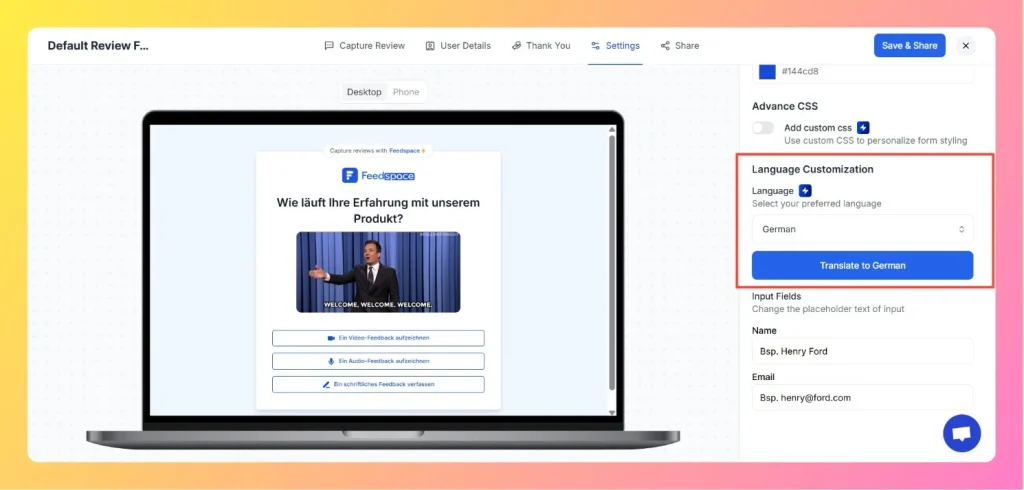
  • On the right-hand side, scroll down to the Language Customization section.
  • You’ll see an option labeled Language – Select your preferred language.
Select Language From Dropdown

Step 3 – Select a Language

Click the dropdown menu under Select Language. You’ll see a list of available languages such as:

  • English
  • French
  • German
  • Hindi
  • Dutch
  • Indonesian
  • and more…

Choose the language you want to apply to your form.

Step 4 – Translate the Form

  • After selecting your preferred language, click the Translate button (e.g., “Translate to French” or “Translate to German”).
  • A pop-up will appear saying “Hang tight! Translating form for you…”
  • Wait a few seconds while Feedspace automatically translates all form text, labels, and buttons.

Step 5 – Save and Preview

  • Once the translation is complete, click Save & Share at the top-right corner.
  • Preview your form to verify that all text has been updated to the selected language.

Step 6 – Publish the Translated Form

  • Copy the embed code or link for your translated form and share it with your users.
  • Your review form will now appear in the chosen language across devices.

Tips

  • You can change the language anytime by revisiting the Settings → Language section.
  • The translation applies automatically to the entire form, including all questions and labels.
  • For multilingual campaigns, you can duplicate your form and assign each version a different language.

You might also find helpful

How to Export Reviews from Feedspace

Overview Feedspace allows you to export all your reviews — both form-submitted and imported ones — directly from the Feedbox.You can easily download them as an Excel file to share, analyze, or back up your testimonials. Step 1 – Go to Feedbox Step 2 – Open Export Reviews Step 3...

How to Set Text Alignment Right-to-Left for Review Form

Overview If your review form needs to support right-to-left (RTL) languages such as Arabic or Hebrew, you can easily adjust the text alignment using Custom CSS in Feedspace.This ensures that all form elements — including labels, placeholders, and input fields — align properly for RTL reading flow. Step 1 –...

How to Duplicate Reviews

Overview Duplicating reviews in Feedspace allows you to quickly create a copy of an existing review.This feature is useful when you want to reuse or modify a testimonial for different widgets or pages without rewriting it manually. Step 1 – Go to Feedbox Step 2 – Open Review Options Step...