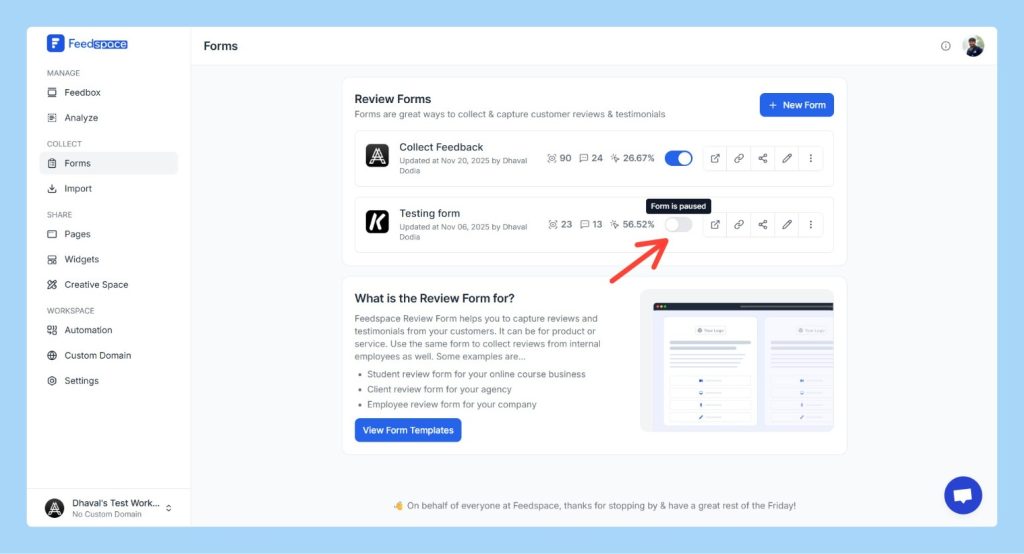
The Pause Form feature in Feedspace allows you to temporarily halt submissions on your Review Form. This can be helpful when you need to stop receiving reviews for a while without deleting the form.
Step 1 – Log in to Your Feedspace Account
If you haven’t already, log in to your Feedspace account by entering your credentials at Feedspace Login.
Step 2 – Select Your Workspace
Choose the workspace where your form is located.
Step 3 – Navigate to the Forms Section
From the left panel, click on Forms, then find the form you want to pause in your list.
Step 4 – Toggle the Form Status
Each form will have a toggle switch next to its name.
When the toggle is ON, the form is active.
When the toggle is OFF, the form is paused.
Step 5 – Pause the Form
Click the toggle switch to turn it OFF. A confirmation pop-up will appear asking if you’re sure you want to pause the form.
Step 6 – Confirm the Action
In the confirmation pop-up, click Yes, Pause Form. Once confirmed, the form will be paused, and users will no longer be able to submit reviews until the form is reactivated.
What Happens When You Pause the Form?
No Submissions: Pausing the form will prevent users from submitting reviews until the form is reactivated.
Reactivation: Reactivate the form anytime by toggling the switch back to ON.
Need Help?
If you need further assistance or a more detailed walkthrough, the Feedspace team is ready to help. For a personalized demo, book a session with one of our experts today!
You might also find helpful
How to Add Social Redirection in Review Forms
Overview Feedspace allows you to collect reviews directly on third-party platforms such as Google, Facebook, Trustpilot, G2, and more by adding social redirection buttons to your review forms.When users click on a platform button, they’re redirected to the selected site where they can post their review — with their feedback...
How to Create a Text Testimonial Form in Feedspace
Follow these steps to quickly set up a text testimonial form in Feedspace: 1. Open the Forms Section 2. Create a New Form Click Create New Form. You’ll get two options: If you choose AI, simply describe your form (e.g., “Make video and text review form for my online tutoring...
How to Create a Video Feedback Form in Feedspace
Overview Creating a video feed form in Feedspace allows you to collect impactful, visual feedback from your audience. Ideal for video testimonials, interviews, or in-depth responses, this feature helps you gain authentic insights. This guide walks you through building and customizing your video feed form with ease. Steps to create...