If you collected testimonials with Trust, you can move them into Feedspace by uploading the export file Trust gives you. Feedspace reads the Trust file as it is, so there are no columns to rename and nothing to copy by hand. Names, star ratings, dates, text testimonials and video testimonials all come across.
Most people do this to keep showing the same testimonials on their website after switching. Once the testimonials are in Feedspace, you can put them on a widget or a Wall of Love page and swap out the Trust widget on your site.
Trust does not give you a public Wall of Love link to paste, so this migration uses the export file instead of a link. If your website already shows your Trust testimonials, you can also import them from that page, as described further down.
Before you start
Trust exports one brand at a time. If you have more than one brand in Trust, export each brand separately and import each file into its own Feedspace workspace.
Switch to the workspace you want the testimonials in before you upload. The upload step names the workspace they are added to.
Steps to migrate from Trust
Step 1: Export your testimonials from Trust
Log in to Trust and go to Testimonials.
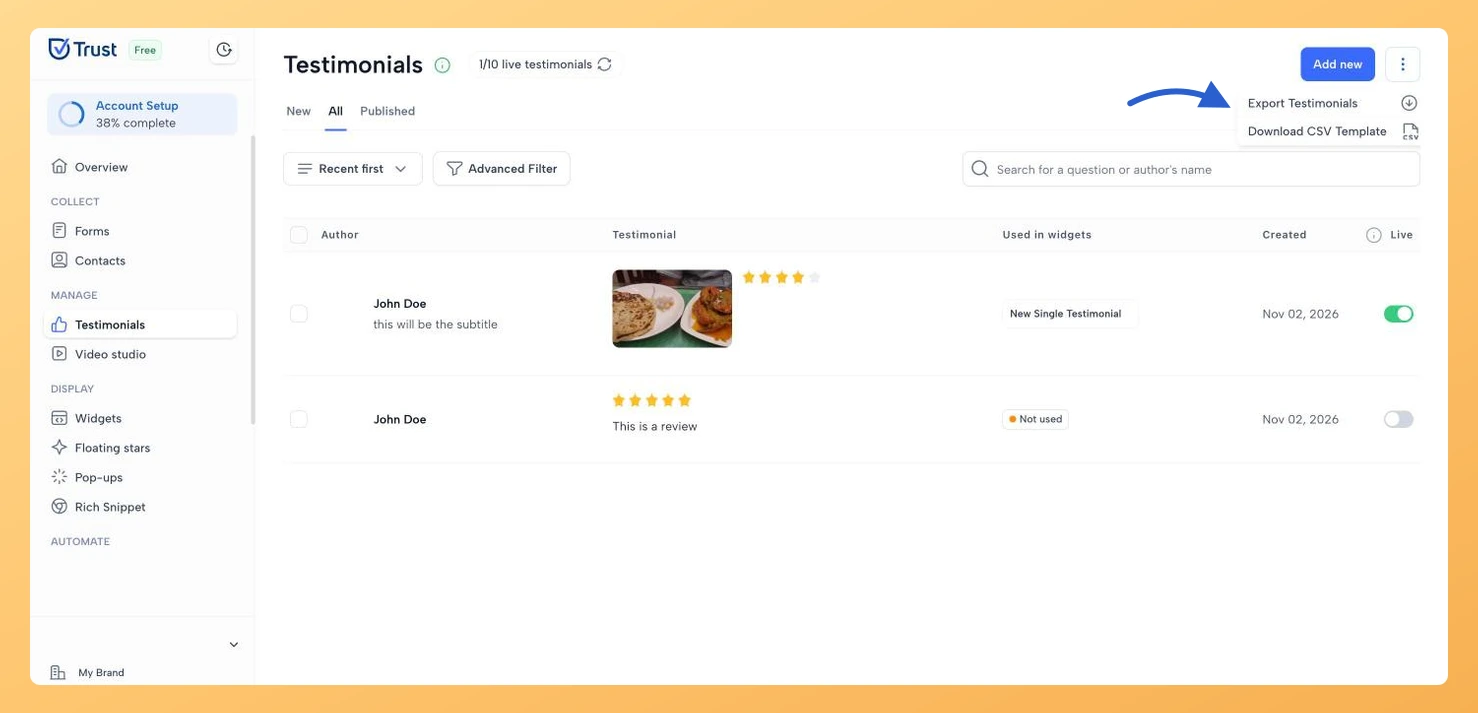
Click the three-dot menu at the top right, next to Add new, and choose Export Testimonials. A file called testimonials.csv downloads to your computer.
Keep the file exactly as it downloaded. You don’t need to open it or change anything in it.
If the export option is not where you expect it, check Trust’s own help pages for its current location.
Step 2: Open the Trust import page in Feedspace
The Migrate Reviews tab shows while a workspace has fewer than 2 reviews. If your workspace has 2 or more, skip the clicks below and open the Trust import page directly.
Log in to your Feedspace account and click Import in the left sidebar.
Click the Migrate Reviews tab.
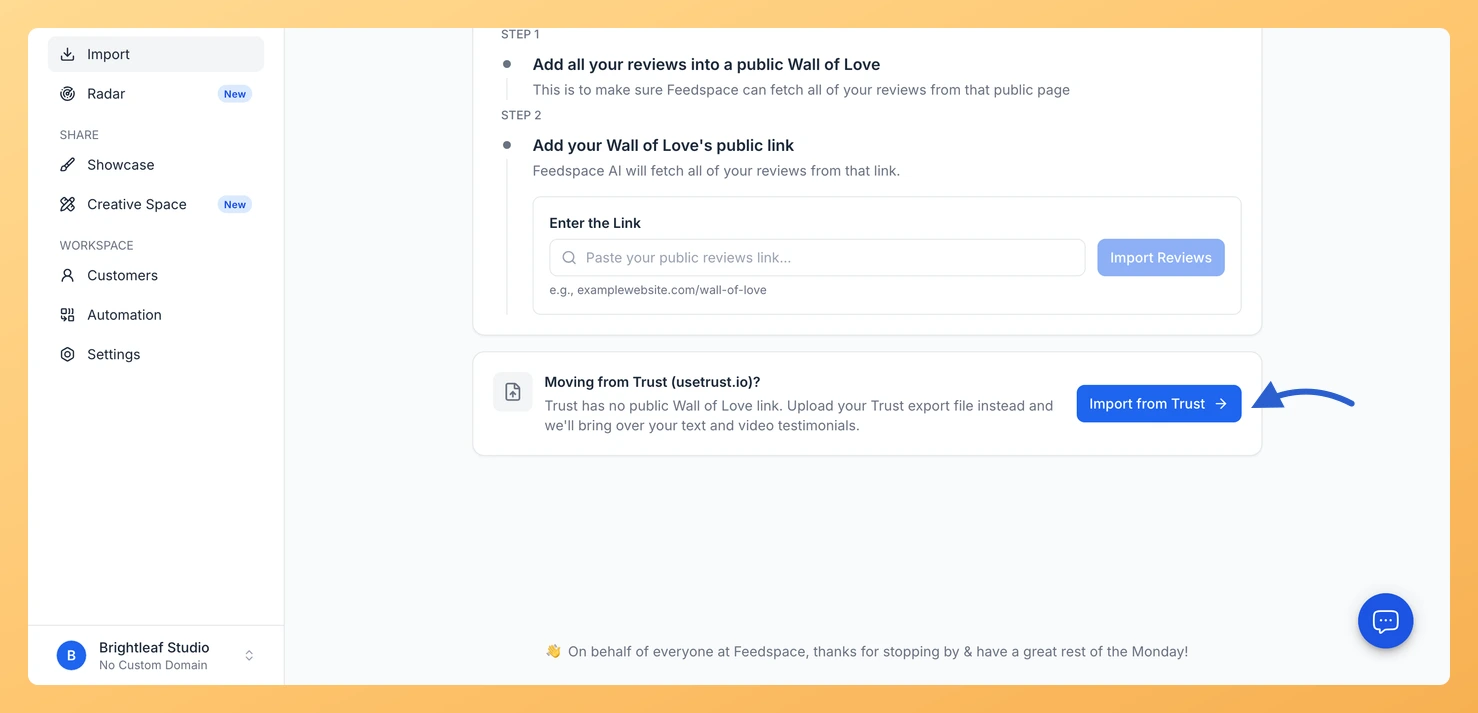
Below the link form, find the Moving from Trust (usetrust.io)? card and click Import from Trust. The Trust import page opens.
Step 3: Upload the Trust file
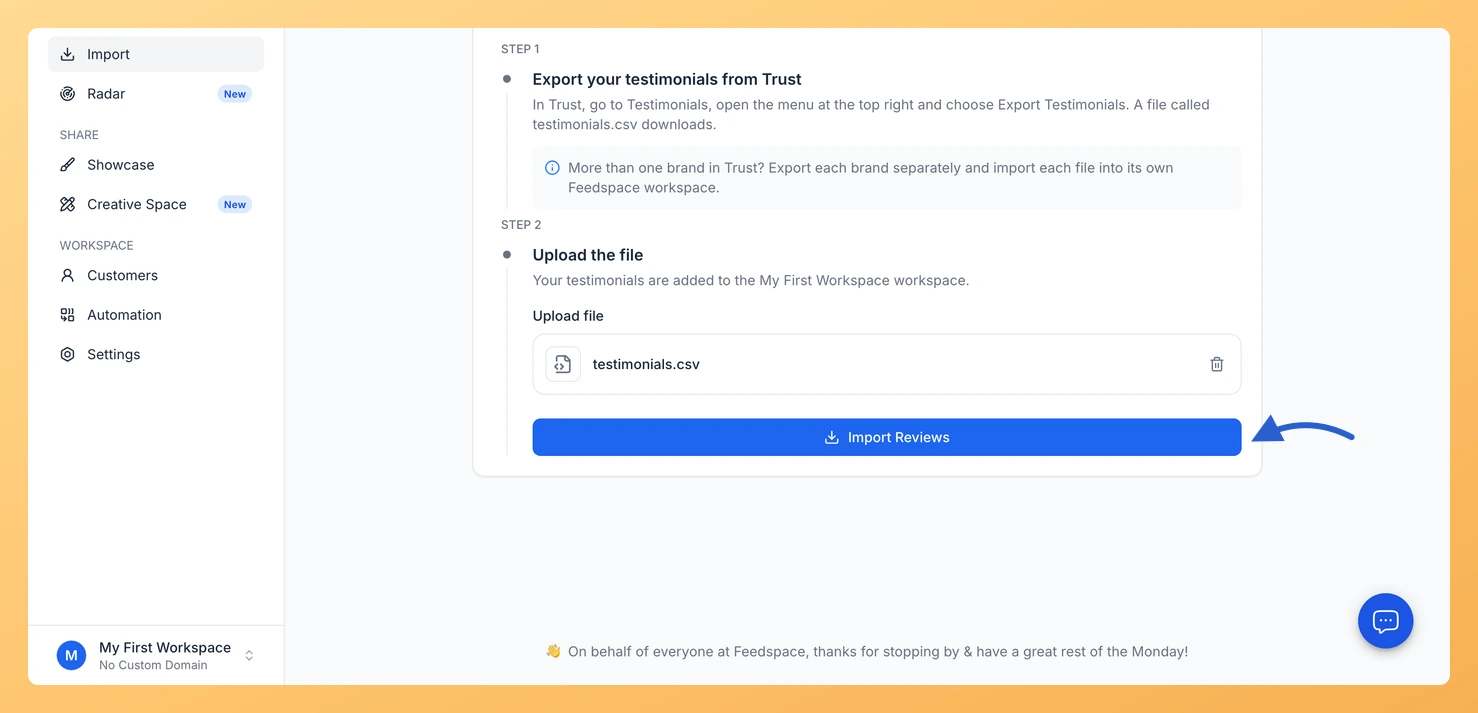
Drag testimonials.csv onto the drop zone, or click browse and pick the file from your computer.
Click Import Reviews.
Step 4: Check what was imported
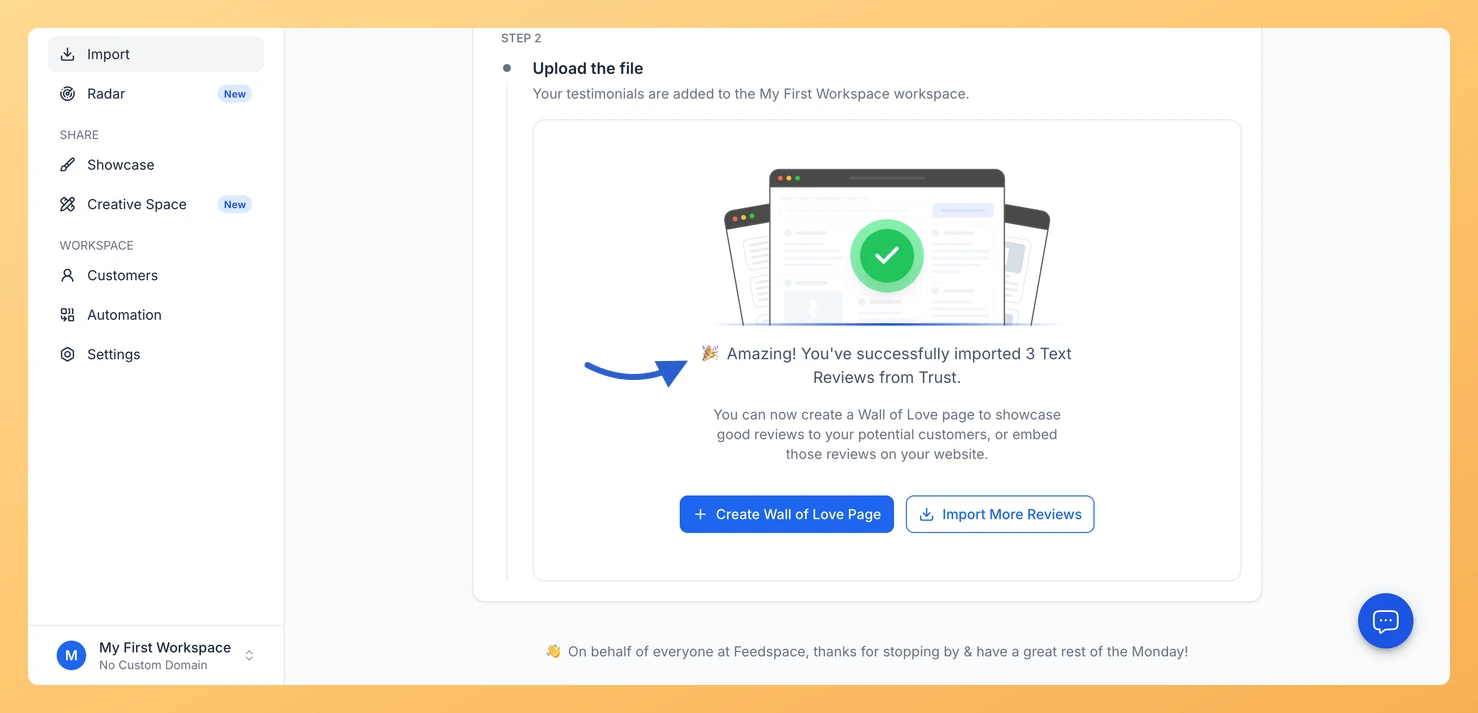
When the import finishes straight away, the success screen shows how many testimonials were imported from Trust. Click Create Wall of Love Page to start displaying them. To import another brand, switch to that brand’s workspace and open the Trust import page again.
When the file has video testimonials or more than 200 testimonials, Feedspace finishes the import in the background and copies each video into your account. The screen tells you the import is running and which address gets an email when it is done, so you can close the page. Click View reviews to open Feedbox, where the testimonials appear as they finish.
If anything was left out, the success screen tells you how many testimonials were skipped and why, and lists the photo or video links it left out.
Import from your website instead
If a page on your website shows your Trust testimonials, you can import the testimonials shown on that page.
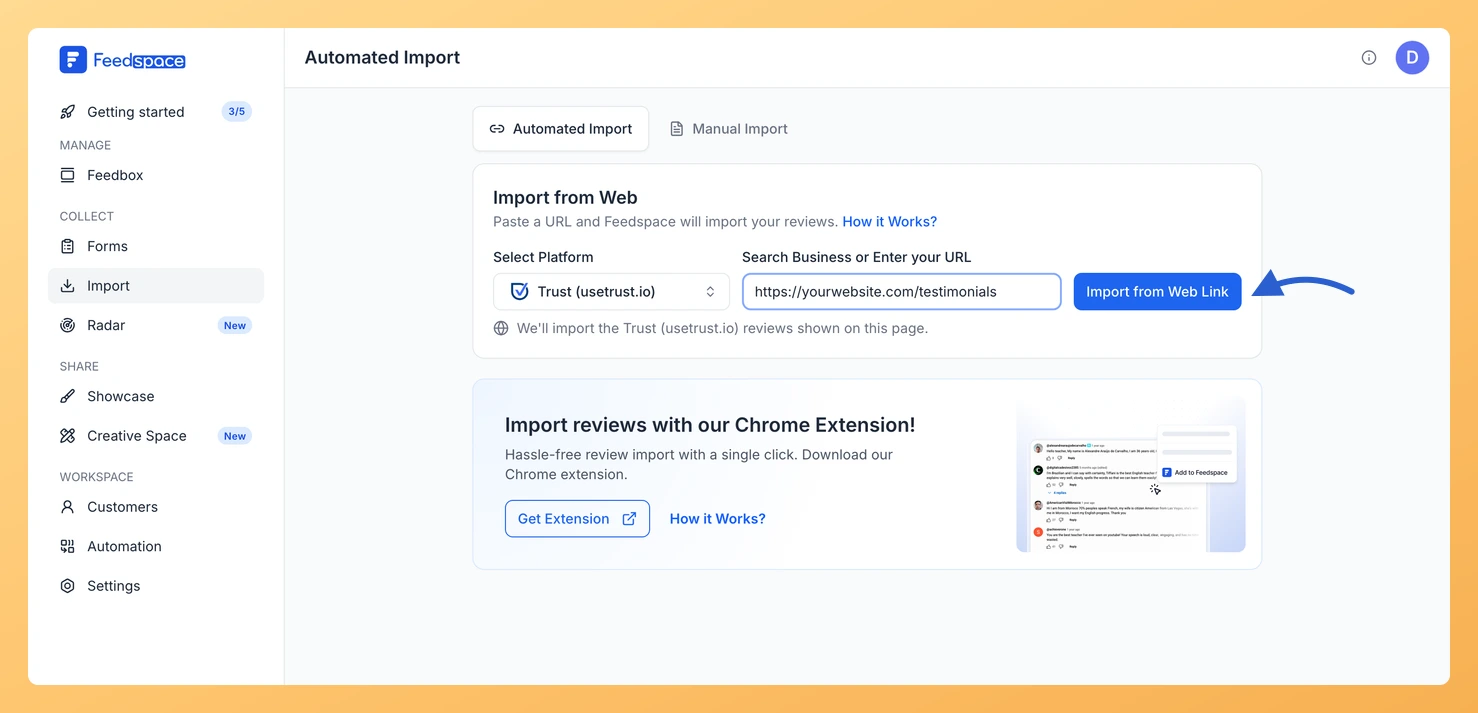
Click Import in the left sidebar. The Automated Import tab opens.
Under Select Platform, choose Trust (usetrust.io).
In Search Business or Enter your URL, paste the link to the page on your website that shows your Trust testimonials, for example https://yourwebsite.com/testimonials.
Click Import from Web Link.
This brings in the testimonials that page displays. If it does not find them, or to bring over every testimonial in your Trust account including the ones that are not on your website, use the export file.
What does Feedspace bring over from the Trust file?
Each testimonial’s name, job title, company, email, photo, star rating, date, text and video, plus LinkedIn and X profile links when Trust has them. Testimonials that are not published in Trust come across too. Trust’s export does not include tags, answers to form questions or which platform a review was imported from, so those are not part of the import.
Why were some of my Trust testimonials not imported?
A testimonial with no text and no video has nothing to import, so it is skipped. A video or photo whose link no longer works in Trust cannot be copied: the testimonial is imported without it, and it is skipped only when that video was its only content. The success screen shows how many testimonials were skipped and lists the photo or video links it left out.
What does “This file is not a Trust export” mean?
The Trust import page takes the file that Trust’s Export Testimonials option downloads. Upload that file without changing its columns. To import a spreadsheet you put together yourself, use Bulk Import with the Feedspace template instead.
You might also find helpful
What is Review Migration in Feedspace?
Overview Review Migration in Feedspace lets you import your existing customer reviews and testimonials from other platforms into your Feedspace workspace. Instead of starting from scratch, you can bring all your valuable feedback from platforms like Senja, Testimonial.to, Famewall, Shoutout, and others directly into Feedspace. This ensures your Wall of...
How to Bulk Import Reviews in Feedspace
Overview If you have a stack of reviews saved in a spreadsheet, Feedspace lets you add them all in one go with Bulk Import. You fill in a downloadable template with your review data, then upload that one file instead of typing each review into a form. This is the...
How to Import Reviews from Web Link in Feedspace
Overview Feedspace allows you to quickly import reviews directly from a public web link. This feature is useful if you want to pull reviews from an existing webpage without manually adding them one by one. Step 1: Go to import from web link Log in to your Feedspace Account. From...