The Floating Cards widget keeps a small review card visible at the bottom of your site, on the left, center or right, while visitors browse. Since that card sits on top of whatever content is behind it, a border helps it read as a separate element instead of blending into the page.
Turn on Show Review Card Border in the Widget Color Customization section of the Design tab, then use the Border Color field that appears to pick the outline color. Shops with busy product pages often use a darker border so the card stays easy to spot.
How to add a border to review cards on your Floating Cards widget
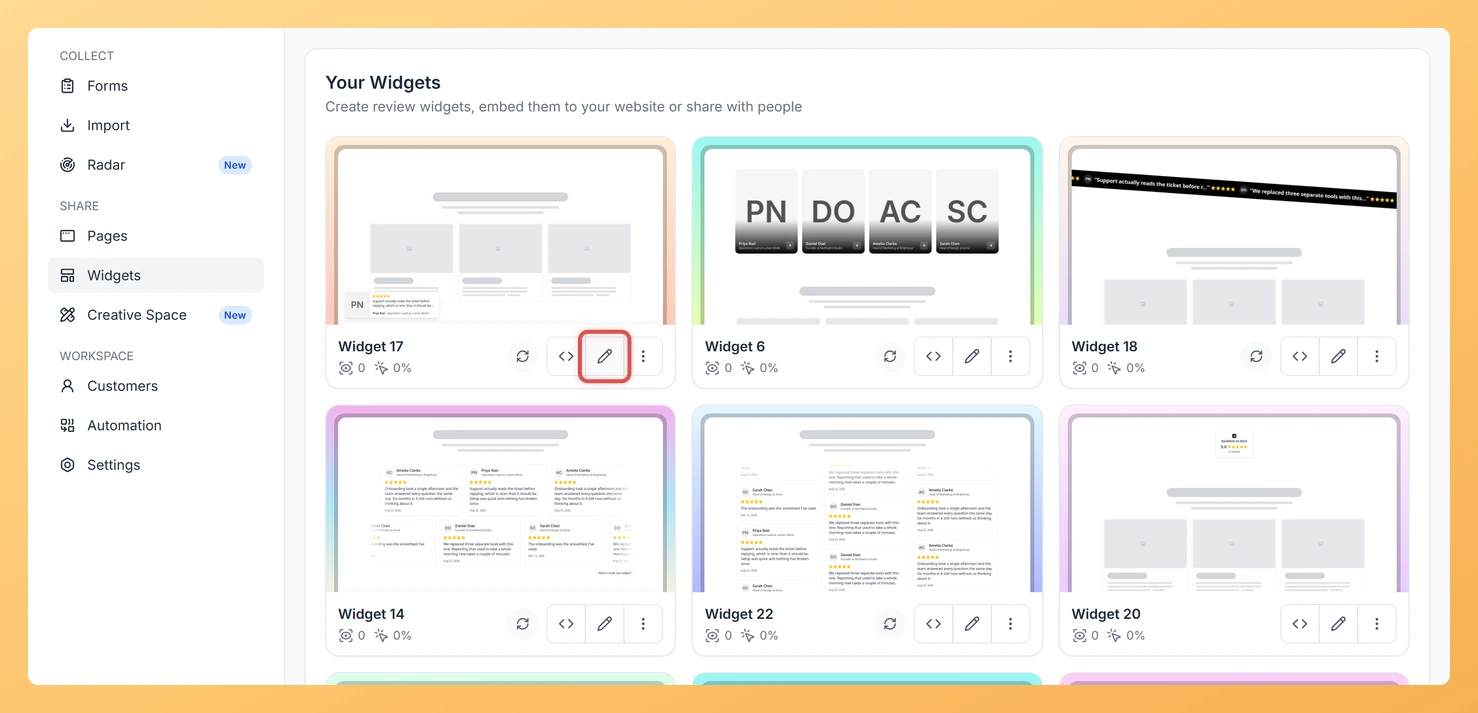
Step 1: Click Widgets in the sidebar
From your Feedspace dashboard, click Widgets in the left sidebar to see your widgets.
Step 2: Open the Floating Cards widget
On the Floating Cards widget card, click the Edit (pencil) icon. The widget editor opens.
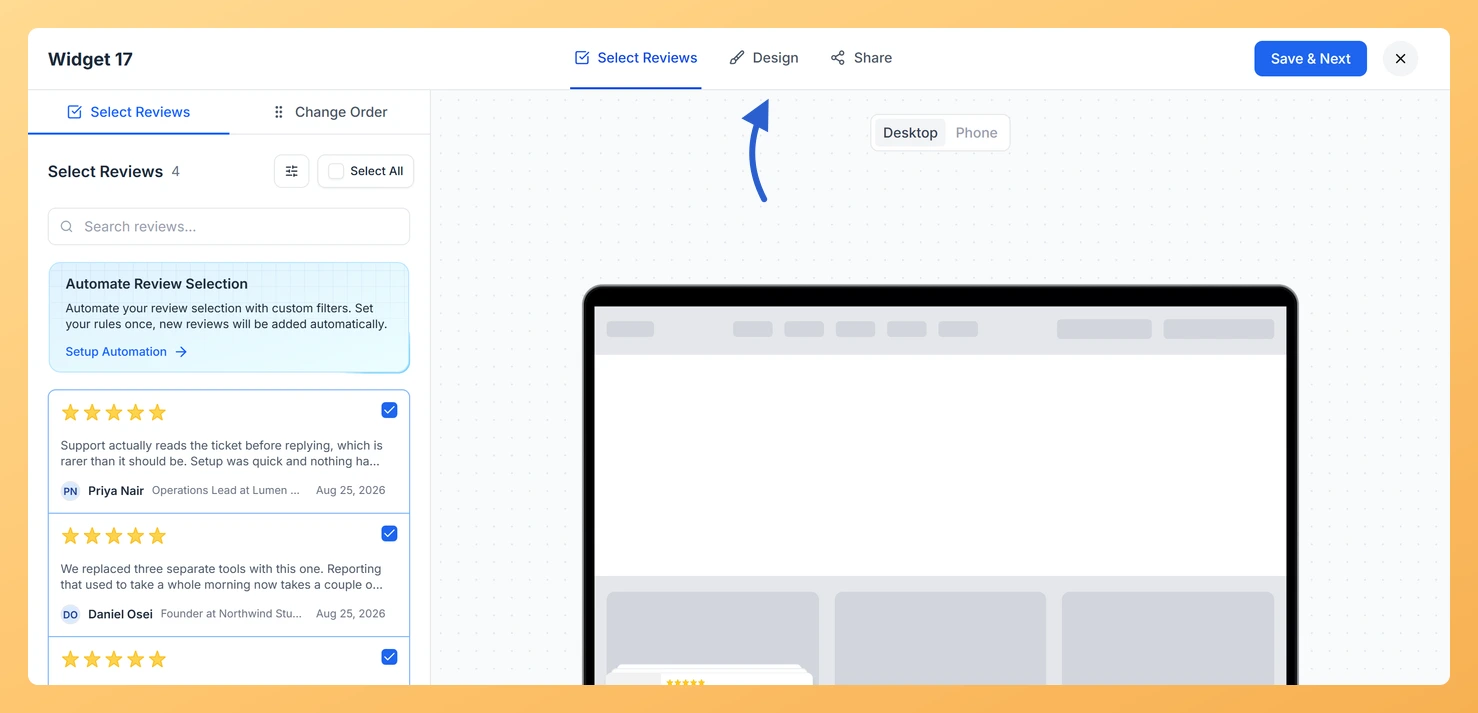
Step 3: Go to Design
Click the Design tab at the top of the editor.
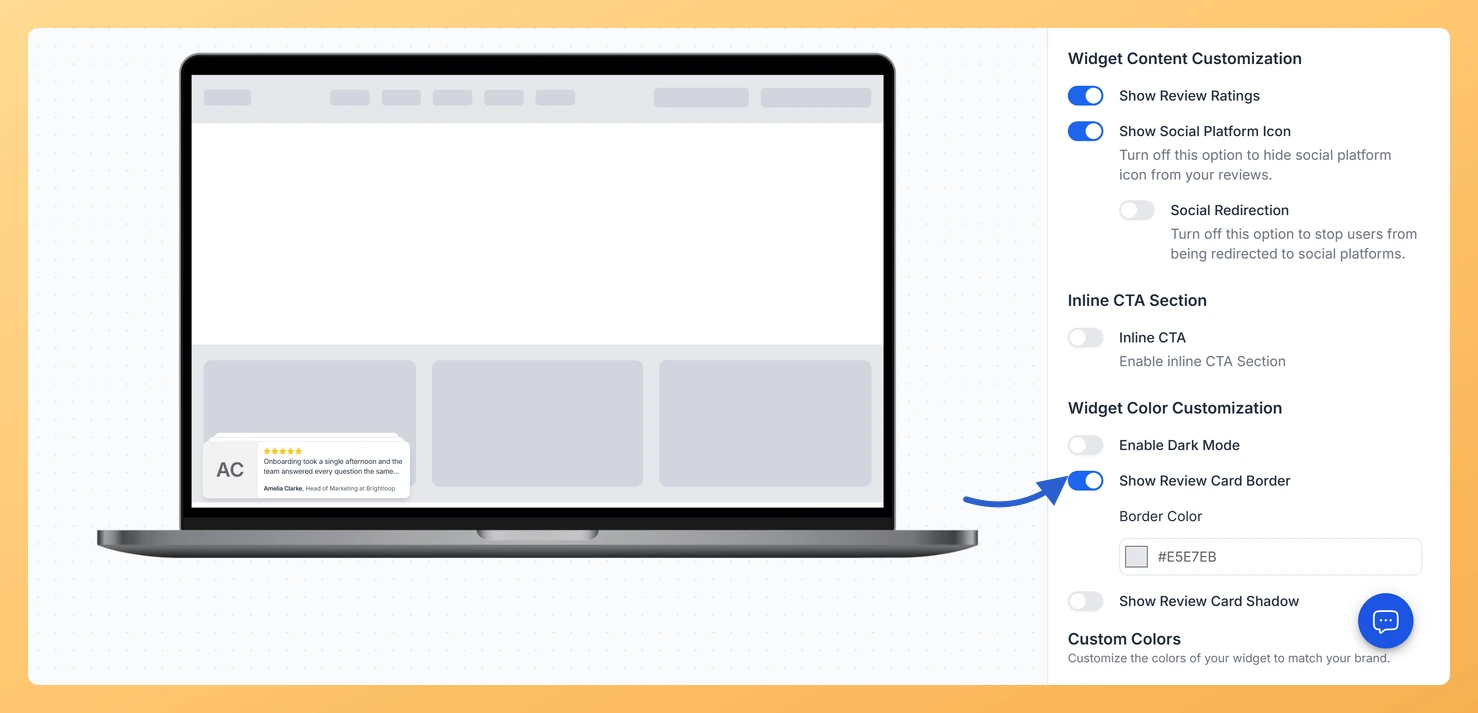
Step 4: Move to Widget Color Customization
Scroll through the panel on the right until you see Widget Color Customization.
Step 5: Turn on Show Review Card Border
Switch on Show Review Card Border. A Border Color field shows up directly below.
Step 6: Choose the border color
Use the Border Color swatch to pick a color, or paste a hex code into the field.
Step 7: Save
Click Save & Next. The card on your site picks up the border on its own, so there is nothing to re-embed.
Choose where the card sits with Widget Position under Layout Design on the same tab.
Common questions
Why did the border option disappear?
Enable Dark Mode hides the border, shadow and custom color controls while it is on. Switch it off and Show Review Card Border is back.
Can I use a border and a shadow together?
Yes. Show Review Card Border and Show Review Card Shadow are separate toggles, so the card can have both.
You might also find helpful
How Do I Add a Shadow to Review Cards on My Floating Cards Widget in Feedspace?
Overview Floating Cards shows a single review card near the bottom of your site while people scroll. A soft shadow under that card makes it look raised above the page, so it catches the eye without covering more of your content. The Show Review Card Shadow toggle lives in Widget...
How to Create a Floating Cards Widget in Feedspace
Overview The Floating Cards widget in Feedspace displays your reviews in stack-like cards that float over your website layout. You can position them on the left, center, or right side of the screen. This widget is perfect for showing continuous feedback without interrupting the visitor’s browsing experience. How to access...
How Do I Customize the Design of My Widget in Feedspace?
Overview Feedspace widgets come with a powerful Design tab that lets you tailor every visual aspect of your widget. From card colors and fonts to dark mode and call-to-action buttons, you can fully customize the look to match your website’s brand without writing any code. How to Customize the Widget...