Feedspace Home Dashboard

How Do I Add an Inline CTA to My Company Logo Slider Widget in Feedspace?

Last updated on June 12, 2026

Overview

The Company Logo Slider widget displays a sliding row of company logos drawn from your reviewer profiles, helping visitors instantly recognise the brands that trust your product. Because the widget is built around visual brand recognition rather than detailed review text, it creates a strong first impression but can leave visitors without a clear next action to take.

The Inline CTA design option addresses this directly. When enabled, it inserts a call-to-action card into the slider alongside the logos. You can configure the card with a heading, body text, a labelled button, button colour, card background colour, and a card border, so the CTA blends with your brand while standing out enough to prompt a click. The result is a single widget that builds trust through recognisable logos and immediately channels that trust toward a conversion goal such as starting a free trial, booking a demo, or collecting more reviews.

How to Add an Inline CTA to Your Company Logo Slider Widget

Step 1: Open the Widgets Section

Log in to your Feedspace account. In the left-hand navigation, click Widgets to open the Widgets dashboard. You will see a list of all widgets you have created.

Step 2: Edit Your Company Logo Slider Widget

Find the Company Logo Slider widget you want to update. Click the Edit icon or the widget name to open the widget editor. If you have not created a Company Logo Slider widget yet, click Create Widget and select the Company Logo Slider type before continuing.

Step 3: Go to the Design Tab

Inside the widget editor, click the Design tab at the top of the editor panel. This tab contains all visual and layout settings for the widget, including colour, spacing, and the Inline CTA option.

Step 4: Enable the Inline CTA Toggle

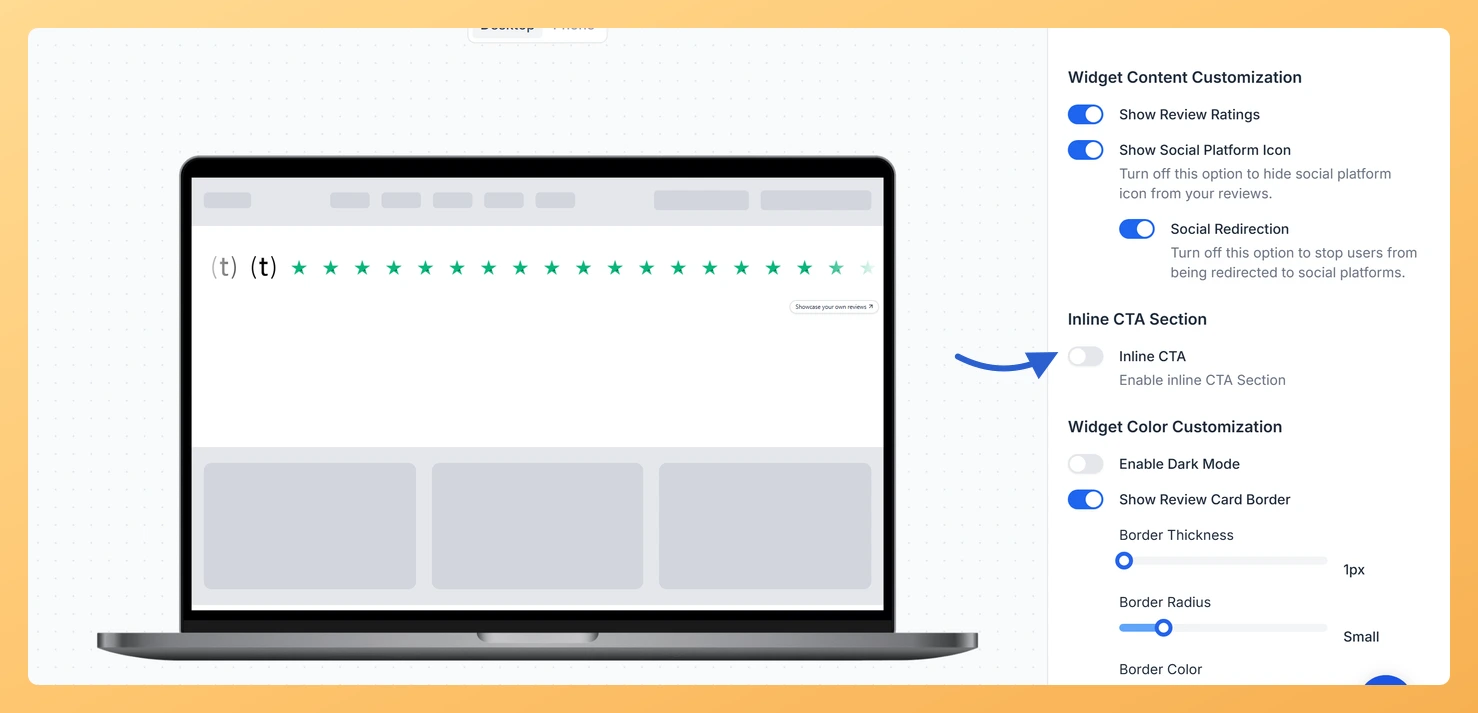
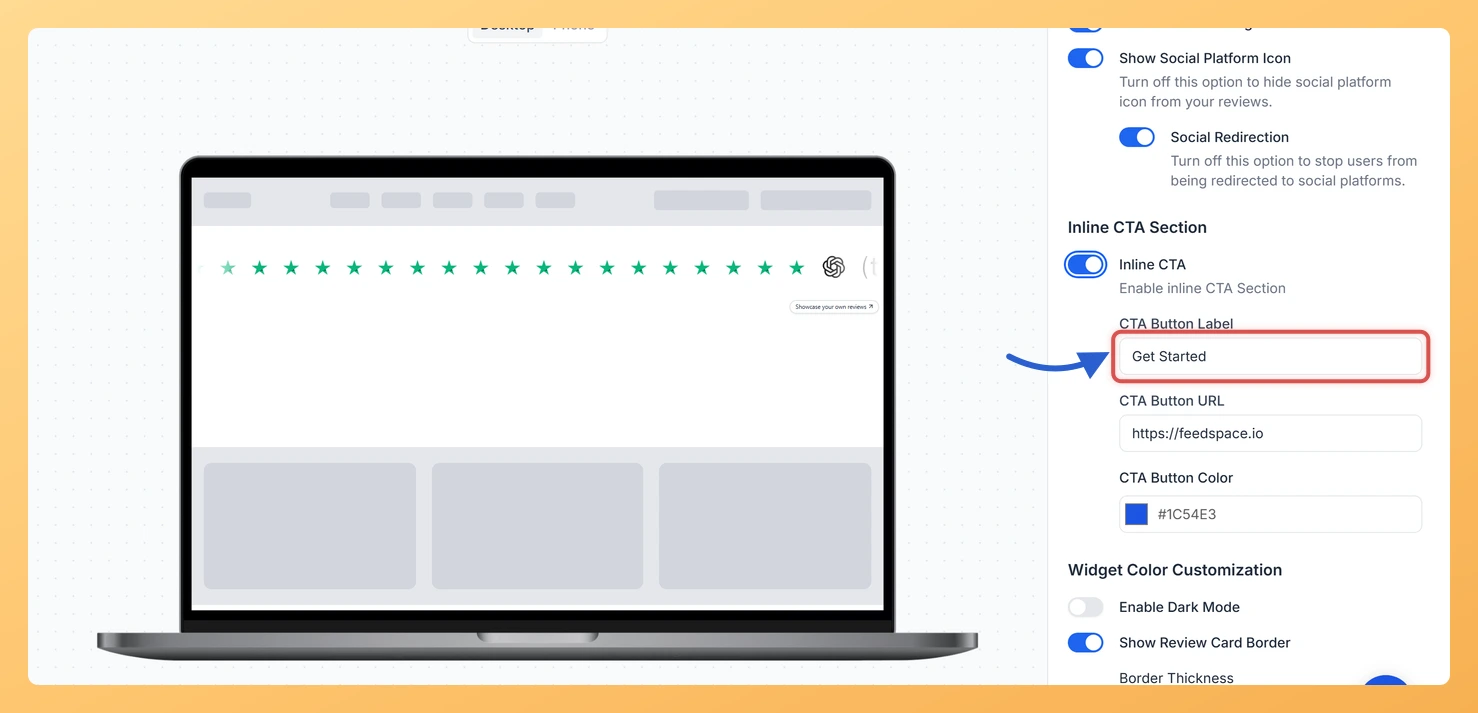
Scroll down in the Design tab until you find the Inline CTA section. Click the toggle to enable it. The toggle turns on the CTA card and reveals the configuration fields below it.

Step 5: Configure the CTA Card Fields

Fill in the fields that appear after enabling the toggle. Each field controls a specific part of the CTA card:

  • CTA Heading Text: The bold title at the top of the card, such as “Ready to get started?”
  • CTA Body Text: A short supporting sentence that gives the visitor context or a reason to click.
  • CTA Button Label: The text shown on the button, such as “Start Free Trial” or “Book a Demo”.
  • CTA Button URL: The destination URL the button links to when clicked.
  • CTA Button Color: The background colour of the button. Choose a colour that contrasts with the card background.
  • CTA Card Background: The background colour of the entire CTA card.
  • CTA Card Border: An optional border around the card to help it stand out from the logo tiles.

Step 6: Save and Preview the Widget

Once you have filled in all the fields, click Save to apply your changes. Use the widget preview to confirm that the CTA card appears correctly within the sliding row of logos. If the layout does not look right, return to the Design tab and adjust the card background or button colour to improve contrast and readability.

What You Can Do Next

  • Adjust the overall colour scheme and font settings of your Company Logo Slider widget in the Design tab to ensure the CTA card matches your brand identity.
  • Copy the updated widget embed code and paste it into your website’s landing page or pricing page to put the logo slider with inline CTA in front of high-intent visitors.
  • Test different CTA button labels and URLs to identify which call to action drives the most clicks from visitors who have just seen your social proof logos.
  • Create additional Company Logo Slider widgets with different CTA configurations for different pages, such as a “Book a Demo” CTA on the homepage and a “Start Free Trial” CTA on the pricing page.

You might also find helpful

How Do I Customize the Design of My Widget in Feedspace?

Overview Feedspace widgets come with a powerful Design tab that lets you tailor every visual aspect of your widget. From card colors and fonts to dark mode and call-to-action buttons, you can fully customize the look to match your website’s brand without writing any code. How to Customize the Widget...

How to Create a Company Logo Slider Widget in Feedspace

Overview Feedspace’s Company Logo Slider widget displays your clients’ or partners’ logos in a smooth, continuously scrolling strip. It’s the ideal “as seen on” or “trusted by” social proof bar for your homepage or landing page: no review text needed, just recognizable brand logos. Step 1: Log in to Feedspace...

How Do I Customize the Design of My Widget in Feedspace?

Overview Feedspace widgets come with a powerful Design tab that lets you tailor every visual aspect of your widget. From card colors and fonts to dark mode and call-to-action buttons, you can fully customize the look to match your website’s brand without writing any code. How to Customize the Widget...