The Review Content Customization settings on a Wall of Love page control what appears on each review card, including the date, star rating, social platform icon, and whether long reviews are shortened. The Page Color Customization section adds the review card border and the Load More button below the reviews.
Use these toggles to keep your page on brand and easy to scan, for example hiding dates on evergreen testimonials or turning on the Load More button so a long page loads quickly for visitors.
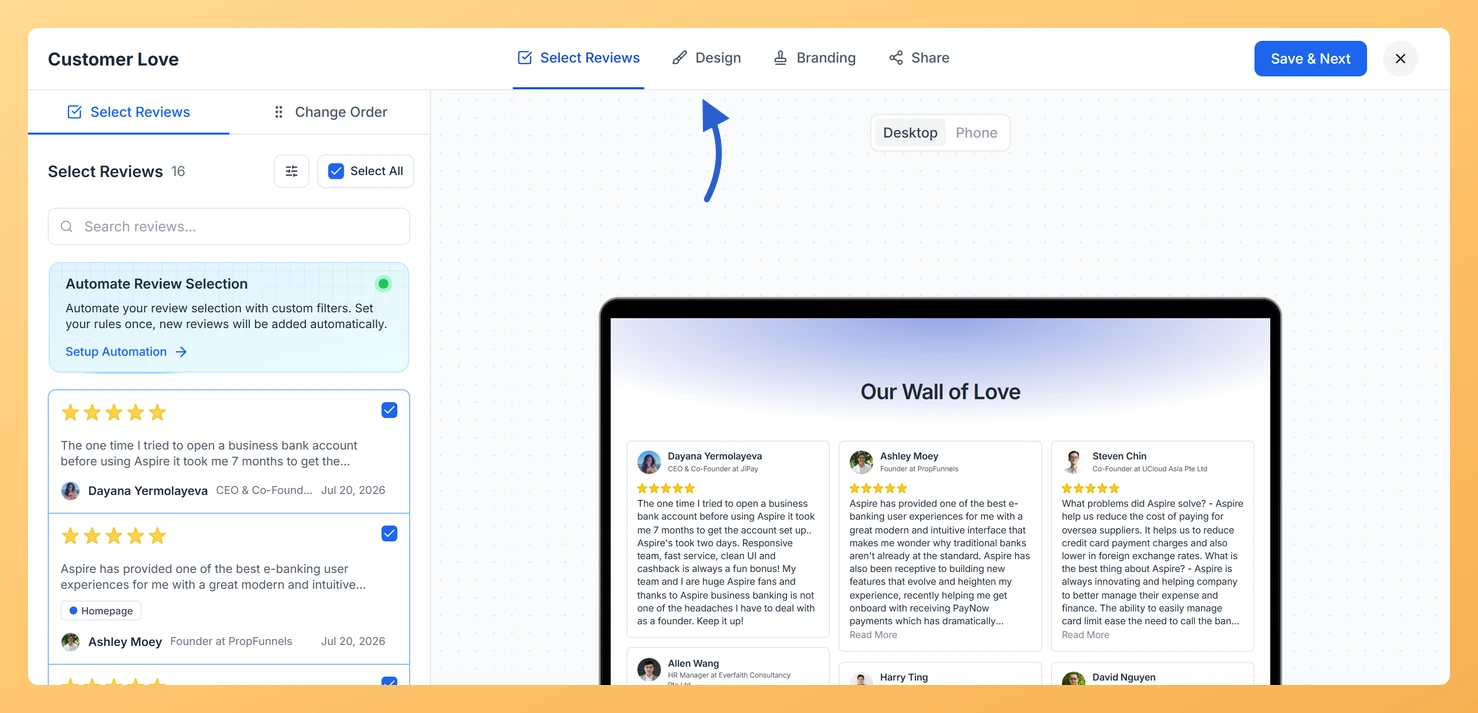
Go to Pages from the left sidebar and click the pencil (edit) icon on your Wall of Love page card to open the editor. The editor opens on the Select Reviews tab.
Click the Design tab and scroll down the right panel to the Review Content Customization section.
Step 2: Toggle review dates
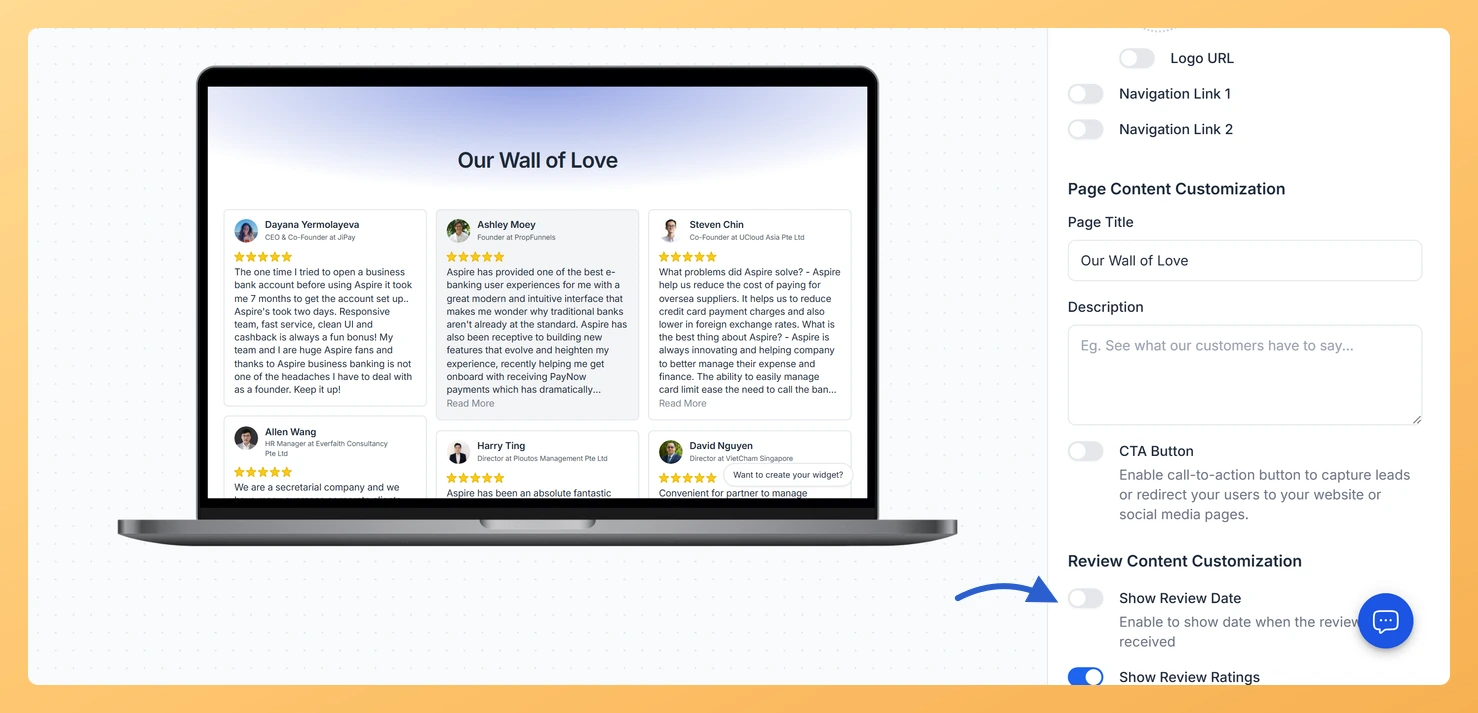
Use the Show Review Date toggle to control whether the date a review was submitted appears on each card. Showing dates signals that your reviews are recent. Hiding them keeps the card layout cleaner when the date is not relevant.
Step 3: Toggle star ratings
Toggle Show Review Ratings on to display the star rating on each review card. Toggle it off if your reviews are not star-rated or if you prefer a cleaner layout without the rating icons. The star color can be adjusted in the color settings further down the panel.
Step 4: Shorten long reviews
Enable Shorten Long Reviews to truncate lengthy review text with a “read more” link. This keeps all review cards a consistent height and makes the page easier to scan. Visitors can still read the full review by clicking the link.
Step 5: Show or hide social platform icons
Toggle Show Platform Icon on to display the social network or source icon on each review card, for example the LinkedIn or Google icon for imported reviews. You can also enable Social Redirection so clicking the icon takes visitors to the reviewer’s original profile page.
Step 6: Add review card borders
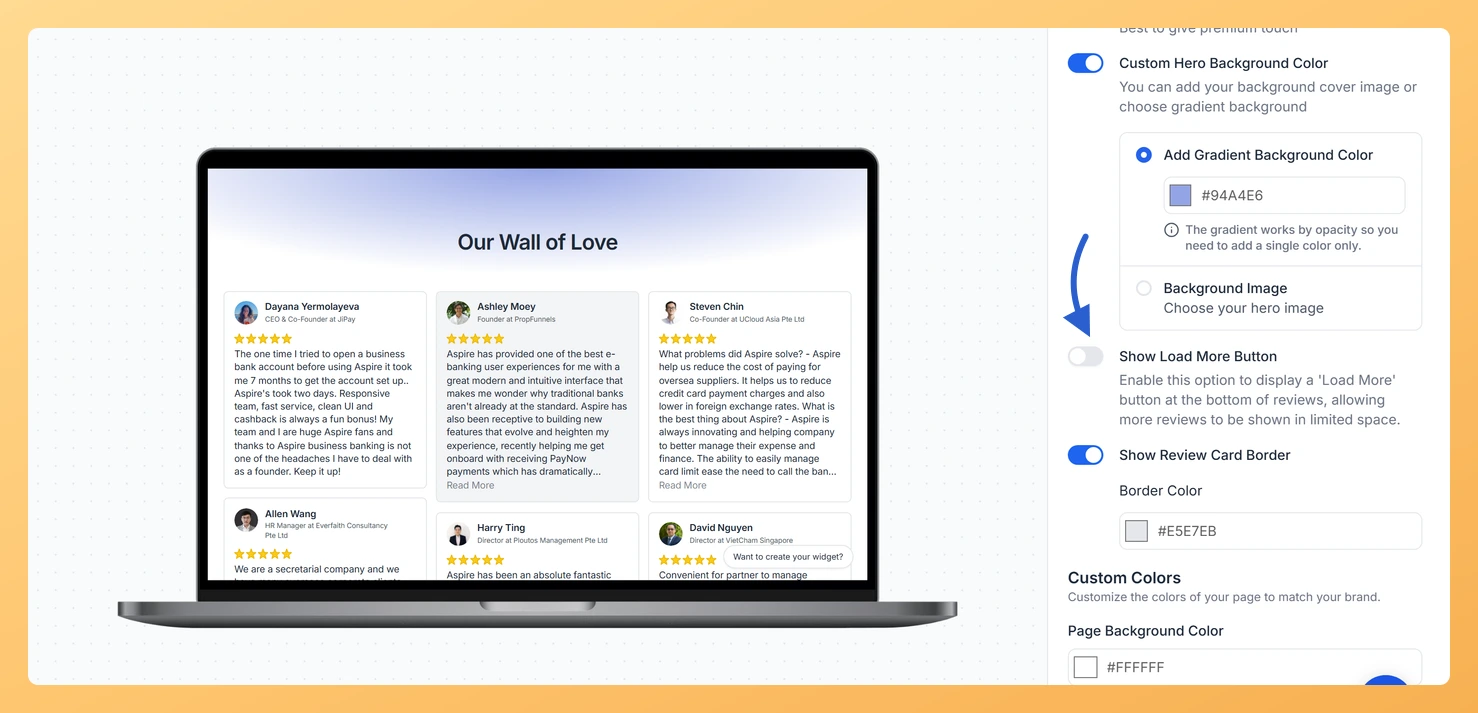
Toggle Show Review Card Border on to add a visible border around each review card. A border color picker appears so you can choose the color that fits your design.
Step 7: Configure the Load More button
Toggle Show Load More Button on to show a button at the bottom of the page that loads additional reviews when clicked. You can customize the button’s background color, border color, and text color using the three color pickers in this section.
Step 8: Save your settings
Click Save and Next to apply your display settings. Use the live preview on the left to check how the changes look on both desktop and mobile before publishing.
What’s next
Reduce visual clutter by hiding dates and ratings when they are not the focus of your page.
Keep cards uniform in height by truncating long reviews, making the grid look tidy and professional.
Add social platform icons to build credibility by showing visitors where each review originally came from.
Control how many reviews load at once with the Load More button to keep initial page load fast.
Common questions
Which review details can I show or hide on the page?
The Review Content Customization section of the Design tab gives you four toggles that control what appears on each review card: Show Review Date, Show Review Ratings, Shorten Long Reviews, and Show Platform Icon. These let you turn the submission date, the star rating, long-text truncation, and the source platform icon on or off. The reviewer’s name and the review text itself always stay on the card, since they are the core of each review.
Do display setting changes apply to reviews I add later?
Yes. These toggles set how every review card renders on the page, so any review you select later follows the same display settings without needing to be configured again.
You might also find helpful
How to Create a Wall of Love Page in Feedspace
Steps to Create a Page Log into Feedspace Sign in with your account credentials. Go to Pages From the left sidebar, click Pages. Create Page Click Create Page. This opens the creation screen with some reviews auto-selected in the space. Select Reviews Go to the Select Review page and choose...
How Do I Customize the Background of My Wall of Love Page?
Steps to customize the background Step 1: Open the Design tab Step 2: Choose a background type Select how the background behind your reviews will look: Step 3: Customize card and text colors Scroll down to find individual color pickers for each part of the page. Click any swatch to...
How Do I Add an Inline CTA to My Wall of Love Page?
Overview An inline CTA is a call-to-action card that appears within the review grid on your Wall of Love page. Instead of placing a single button at the top, inline CTAs appear between reviews so visitors see your offer while they are actively reading testimonials, at the moment their trust...