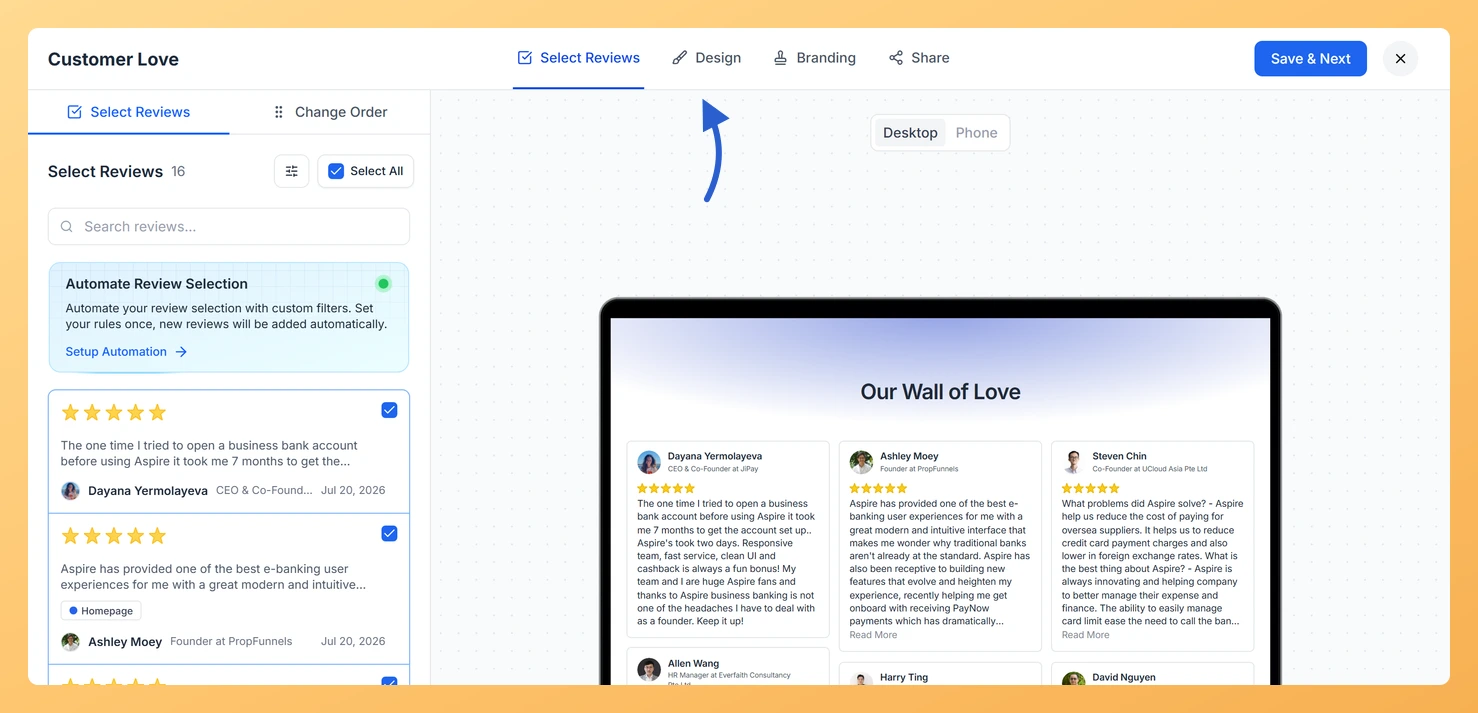
Go to Pages and open your Wall of Love page in the editor.
Click the Design tab.
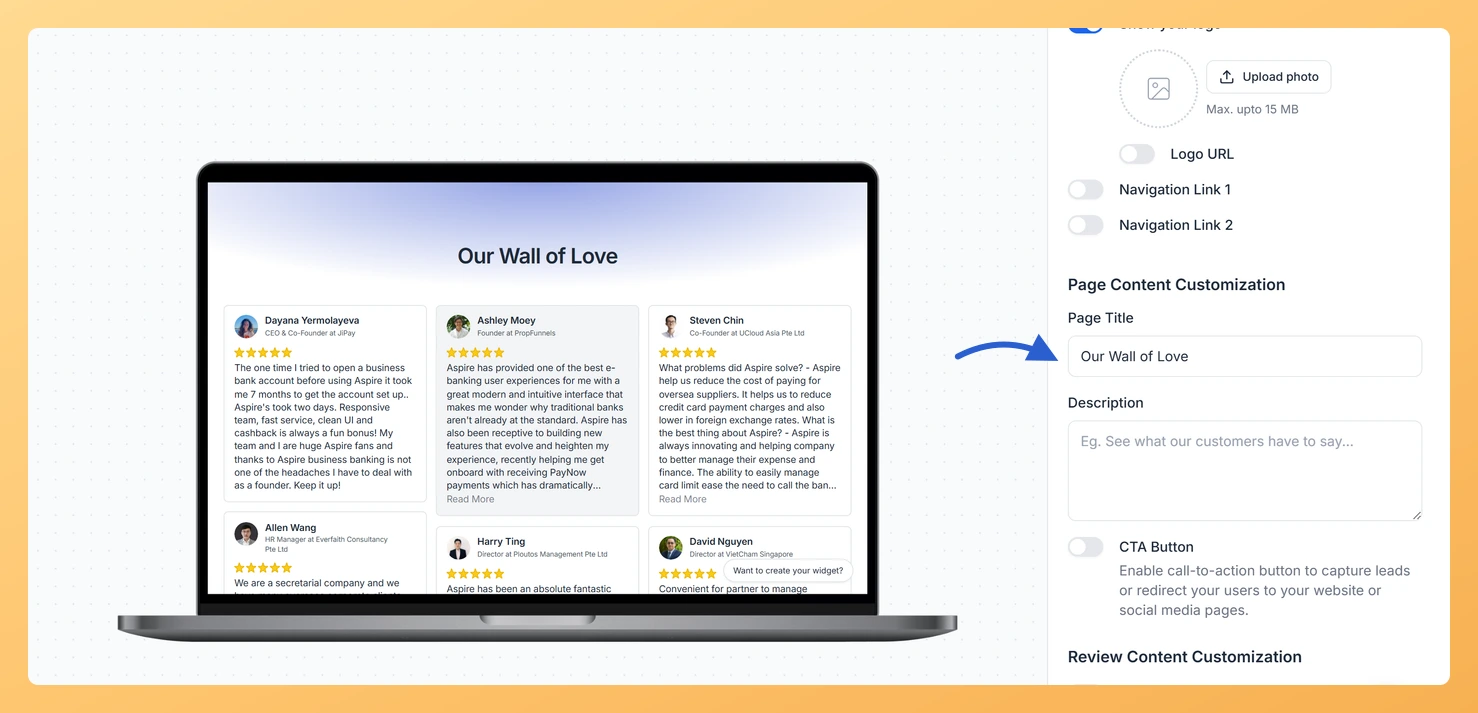
Scroll down the right panel past the navigation options to find the page content fields.
Step 2: Set the Page Title
The Page Title field is required. This text appears as the main heading at the top of your Wall of Love page, usually the first thing visitors read. Keep it concise and focused on what visitors will find on the page, for example “Our Customers Love Us” or “What People Are Saying.”
Step 3: Add a description
The Description field sits below the title and gives you space to add context or a supporting message. Use it to explain what the reviews are about or reinforce your value proposition in one or two sentences.
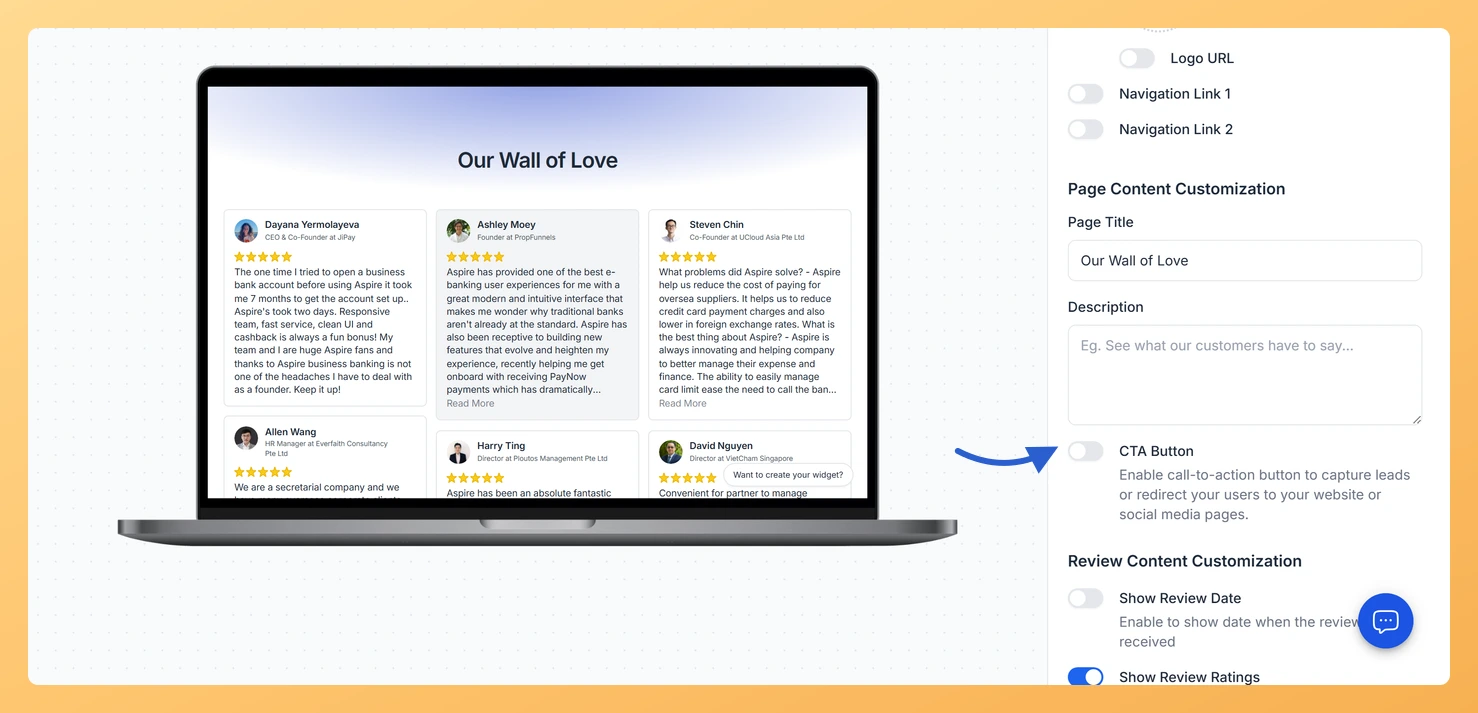
Step 4: Turn on CTA Button
Toggle CTA Button on.
Enter the Button Label, the text shown on the button such as “Try for Free” or “Get Started.”
Enter the Button URL, the page visitors are taken to when they click the button.
Use the Button Text Color picker to set a color that contrasts well with the button background.
Step 5: Show the CTA in the header bar
Enable Show CTA in Navigation to display the CTA button in the page header as well as in the hero section. This keeps the button visible to visitors as they scroll through the reviews.
Step 6: Save your changes
Click Save & Next to apply the content settings. Check the live preview on the left to confirm the title, subtitle, and button look exactly as you want them.
What’s next
Write a compelling headline that immediately tells visitors why the page matters to them.
Use the subtitle to add context, such as naming the product or service the reviews are about.
Drive direct sign-ups or purchases with a CTA button placed right above your best testimonials.
Keep the CTA visible in the navigation bar so it stays accessible no matter how far visitors scroll.
Common questions
Is the Page Title required?
Yes. It is the one field on this tab you cannot leave empty, and saving is blocked until it has a value. The description underneath is optional.
You might also find helpful
How to Create a Wall of Love Page in Feedspace
Steps to Create a Page Log into Feedspace Sign in with your account credentials. Go to Pages From the left sidebar, click Pages. Create Page Click Create Page. This opens the creation screen with some reviews auto-selected in the space. Select Reviews Go to the Select Review page and choose...
How Do I Customize the Navigation on My Wall of Love Page?
Steps to customize the navigation Step 1: Open the Design tab Step 2: Add your logo Step 3: Set a Logo URL Enable the Logo URL toggle and enter the URL you want the logo to link to, such as your homepage. When a visitor clicks the logo on your...
How Do I Add an Inline CTA to My Wall of Love Page?
Overview An inline CTA is a call-to-action card that appears within the review grid on your Wall of Love page. Instead of placing a single button at the top, inline CTAs appear between reviews so visitors see your offer while they are actively reading testimonials, at the moment their trust...