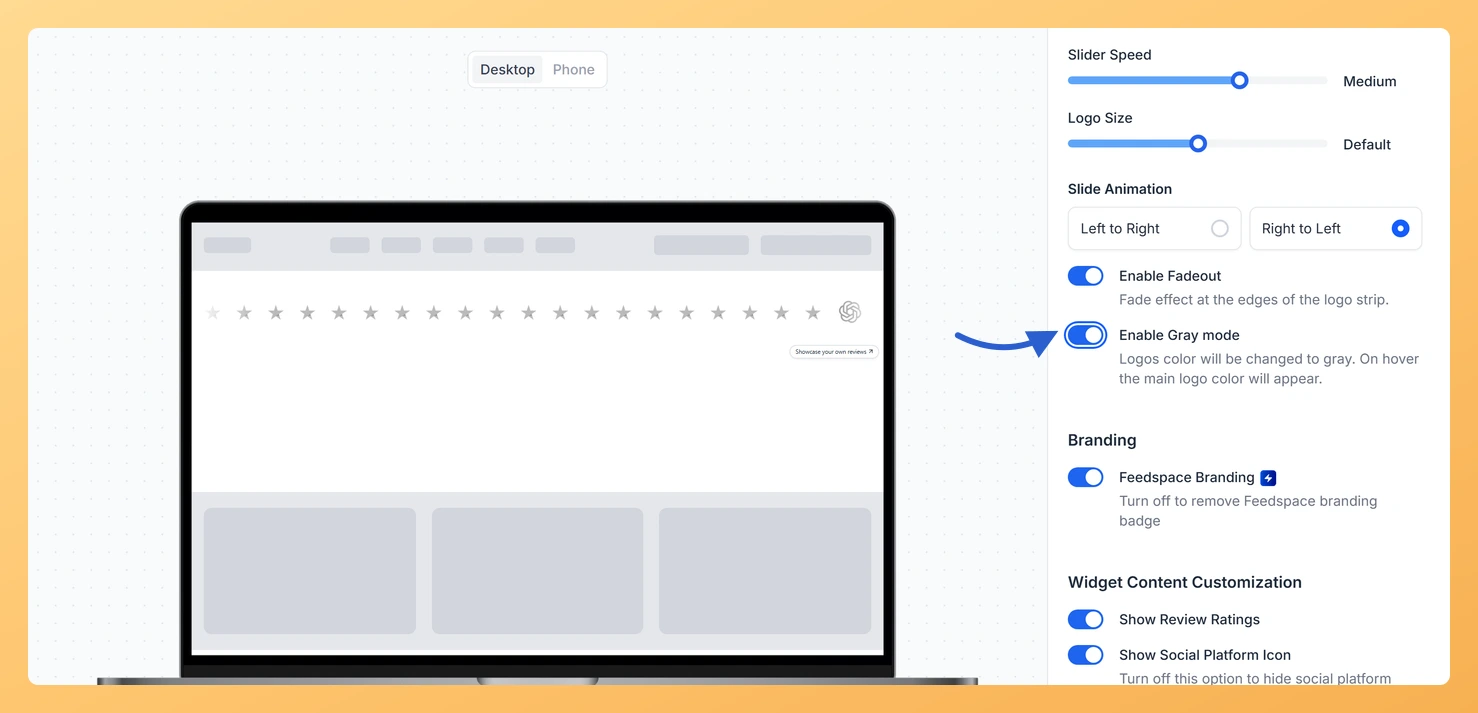
Overview
The Company Logo Slider widget displays a continuously scrolling row of company logos pulled from your reviewers’ profiles, giving visitors an instant visual signal of the recognisable brands that trust your product. Because the slider is a purely visual element, how those logos look at rest matters as much as the logos themselves.
Gray Mode is a layout design option exclusive to the Company Logo Slider widget. When enabled, every logo in the strip renders in grayscale by default. As a visitor hovers over any individual logo, it transitions to full color. This creates a clean, uniform appearance across the slider regardless of how varied the original logo colors are, keeping the visual weight balanced and professional. The optional Enable Fadeout toggle works alongside Gray Mode to add a soft fade at the left and right edges of the logo strip, blending the scrolling row smoothly into the surrounding page background.
How to Enable Grayscale Mode for Your Company Logo Slider Widget
Step 1: Open the Widgets Section
Log in to your Feedspace account and navigate to the Widgets section from the left-hand sidebar. You will see a list of all the widgets you have created for your workspace.
Step 2: Edit Your Company Logo Slider Widget
Locate the Company Logo Slider widget you want to update and click the Edit button next to it. This opens the widget editor where you can adjust both content and design settings.
Step 3: Go to the Design Tab
Inside the widget editor, click the Design tab at the top of the settings panel. This tab contains all layout and appearance controls specific to the Company Logo Slider widget.
Step 4: Find the Layout Design Section
Scroll down within the Design tab until you reach the Layout Design section. This section contains display controls that affect the overall appearance of the logo strip, including the Gray Mode and Fadeout options.
Step 5: Enable the Gray Mode Toggle
Click the Enable Gray Mode toggle to turn it on. Once enabled, all company logos in the slider will display in grayscale at rest and switch to their original full color when a visitor hovers over them. You can preview this behavior immediately in the live preview panel on the right side of the editor.
Step 6: Optionally Enable the Fadeout Toggle
If you also want a soft fade at the left and right edges of the scrolling logo strip, click the Enable Fadeout toggle to turn it on. This adds a gradient effect at both ends of the strip, giving the logos a smooth visual transition into the page background. You can enable this toggle independently of Gray Mode, or use both together.
Step 7: Save Your Changes
Once you are satisfied with your settings, click the Save button to apply the changes. Your Company Logo Slider widget will now display logos in grayscale mode wherever it is embedded on your site.
What You Can Do Next
- Adjust the logo size in your Company Logo Slider widget to fine-tune how large each brand logo appears in the grayscale strip.
- Change the scroll speed of your Company Logo Slider widget so the grayscale logos move at a pace that suits your page layout.
- Copy the embed code for your updated Company Logo Slider widget and paste it into your website or landing page to publish the new grayscale look.
- Explore other design options in the Design tab, such as background color and spacing, to make your Company Logo Slider widget match your brand style.
You might also find helpful
How Do I Adjust the Logo Size on My Company Logo Slider Widget in Feedspace?
Overview The Company Logo Slider widget displays a continuously scrolling row of company logos pulled from your reviewer profiles, giving visitors instant visual proof of the brands that trust your product. The Logo Size option in the Layout Design section controls how large each logo appears inside that sliding row....
How to Create a Company Logo Slider Widget in Feedspace
Overview Feedspace’s Company Logo Slider widget displays your clients’ or partners’ logos in a smooth, continuously scrolling strip. It’s the ideal “as seen on” or “trusted by” social proof bar for your homepage or landing page: no review text needed, just recognizable brand logos. Step 1: Log in to Feedspace...
How Do I Customize the Design of My Widget in Feedspace?
Overview Feedspace widgets come with a powerful Design tab that lets you tailor every visual aspect of your widget. From card colors and fonts to dark mode and call-to-action buttons, you can fully customize the look to match your website’s brand without writing any code. How to Customize the Widget...