The Cross Slider widget moves short review snippets along a slanted strip across the page. The strip and the review cards each have their own color fields, so you can style them independently.
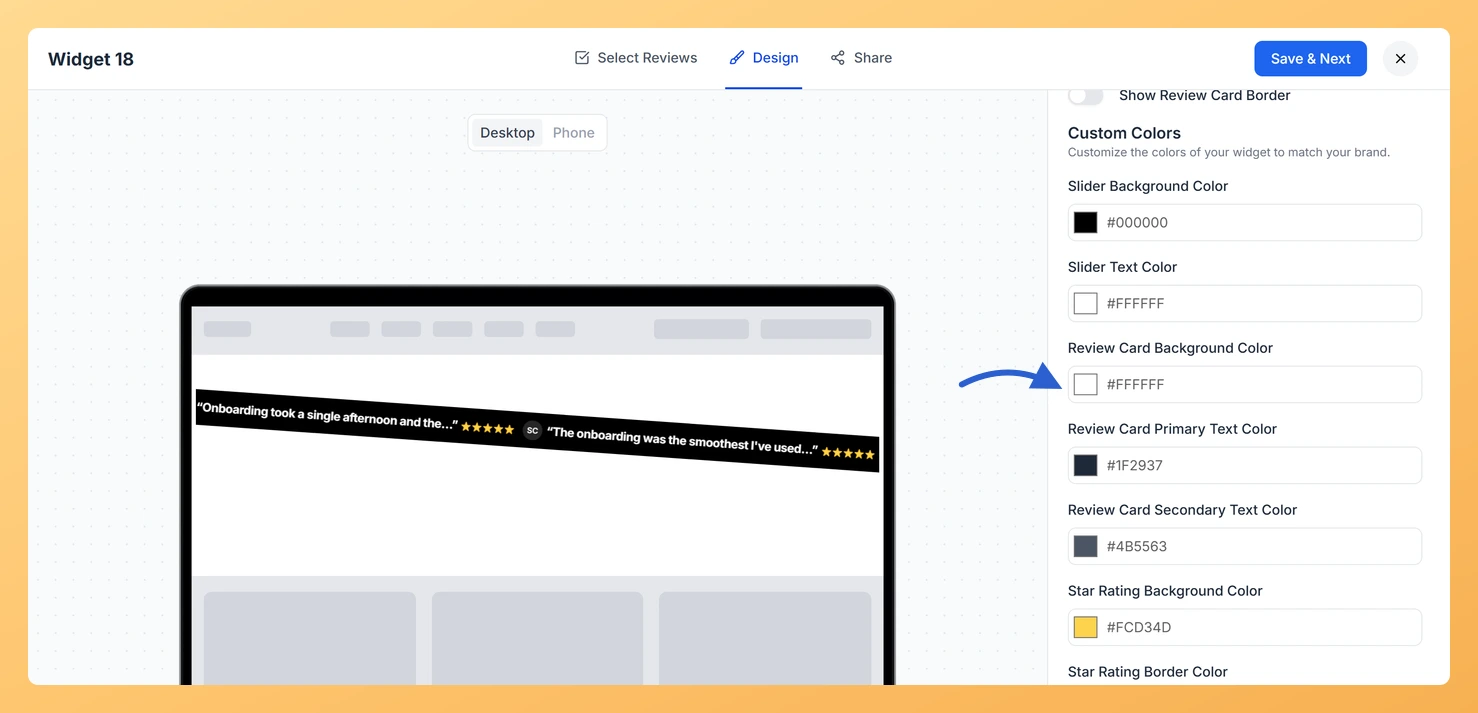
For this widget the field is called Review Card Background Color and it sits in the Custom Colors group, just after Slider Background Color and Slider Text Color.
How to change the card background color on your Cross Slider widget
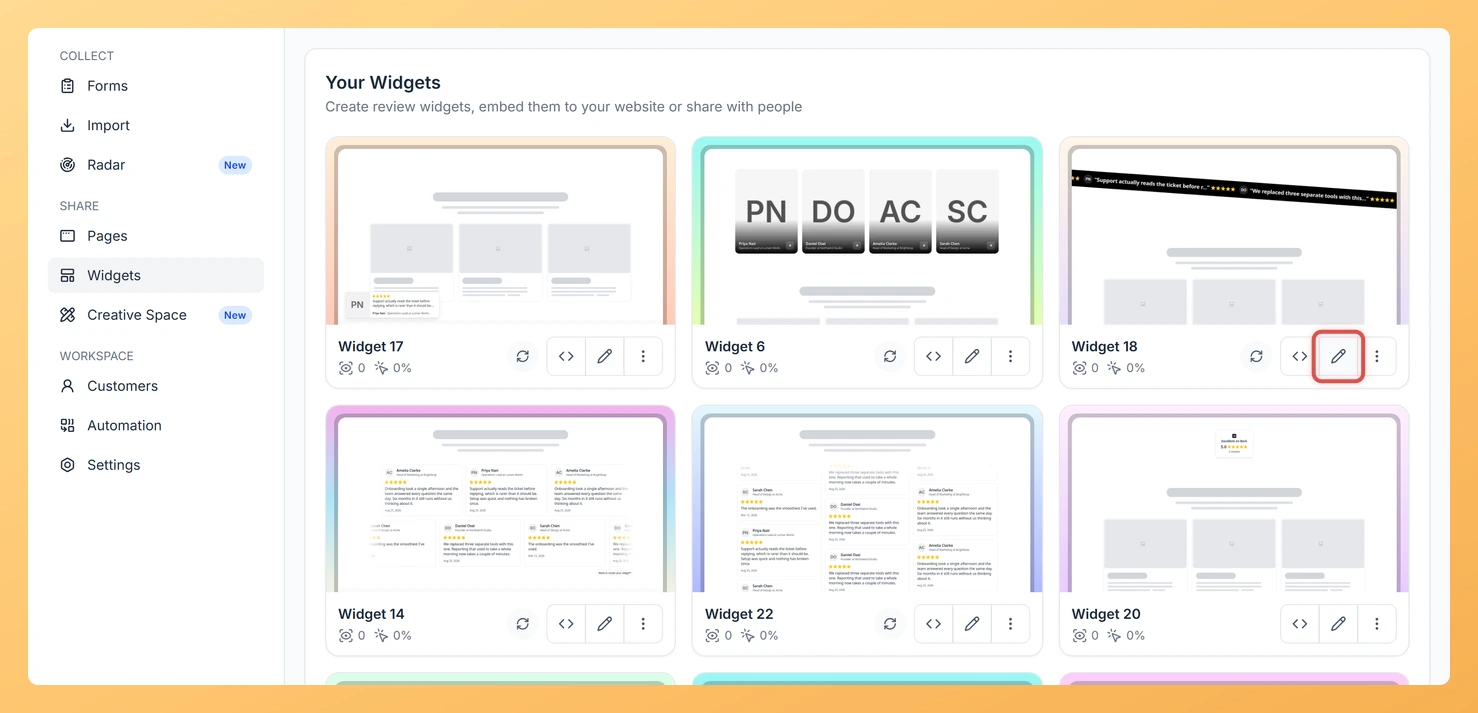
Step 1: Go to Widgets
In Feedspace, choose Widgets from the sidebar on the left.
Step 2: Open the Cross Slider widget
Select the Edit (pencil) icon on your Cross Slider widget card.
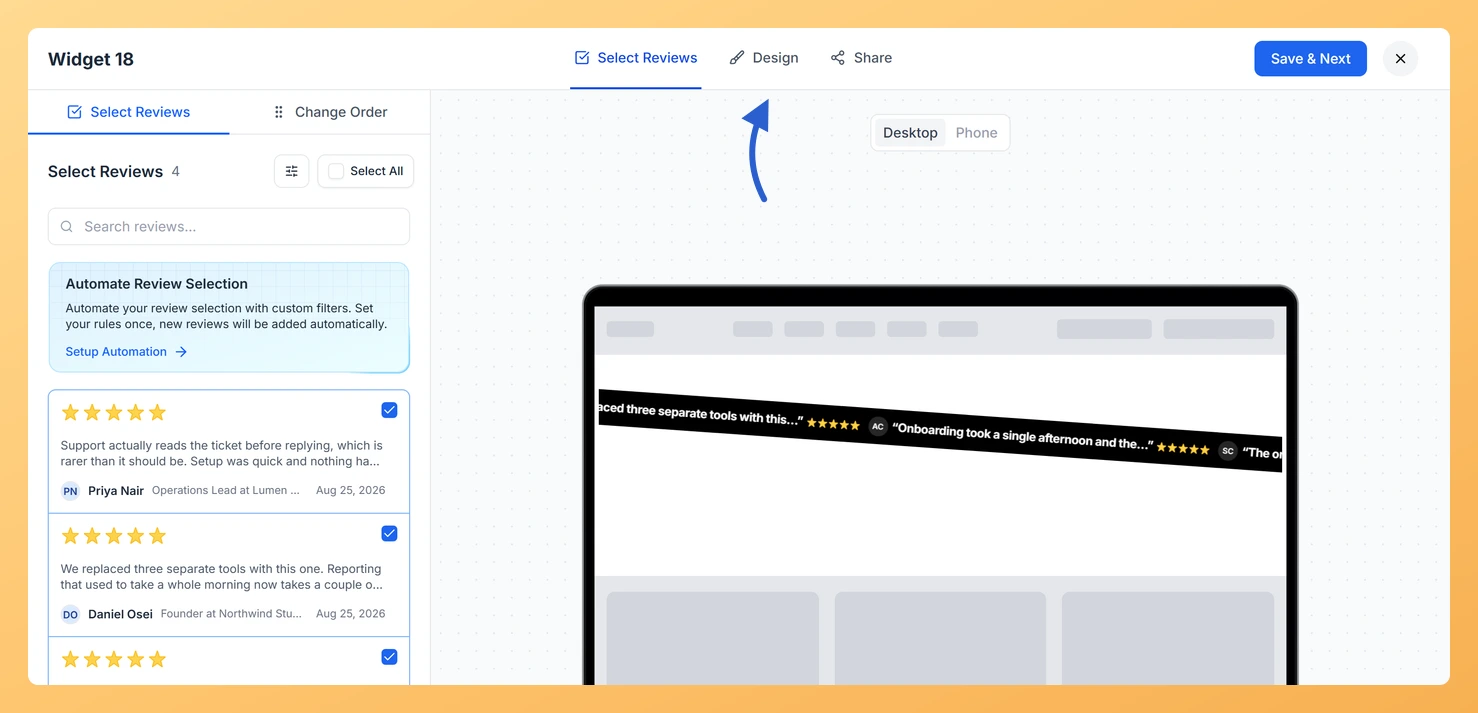
Step 3: Switch to Design
Click the Design tab.
Step 4: Find Custom Colors
Scroll to Widget Color Customization and down to the Custom Colors group.
Step 5: Set Review Card Background Color
Click the Review Card Background Color swatch to choose a color, or enter a hex code.
Step 6: Save the widget
Click Save & Next. The widget on your site updates by itself.
Set Slider Background Color in the same group to recolor the strip itself.
Common questions
What is the difference between Slider Background Color and Review Card Background Color?
Slider Background Color colors the slanted strip, and Review Card Background Color colors the review cards. They are separate fields, so changing one leaves the other as it was.
You might also find helpful
How Do I Change the Text Color on My Cross Slider Widget in Feedspace?
Overview The Cross Slider widget runs short review snippets along a slanted strip that slides across your page. Its colors come in two groups: one for the strip and one for the review cards, so you can style each separately. For the review cards, set Review Card Primary Text Color...
How to Create a Cross Slider Widget in Feedspace
Overview Feedspace’s Cross Slider widget displays your reviews in a dynamic cross-scrolling layout: with rows of cards moving in opposite directions simultaneously. This creates a visually striking testimonial section that immediately draws the eye. Step 1: Log in to Feedspace Go to your Feedspace Dashboard and log in using your...
How Do I Customize the Design of My Widget in Feedspace?
Overview Feedspace widgets come with a powerful Design tab that lets you tailor every visual aspect of your widget. From card colors and fonts to dark mode and call-to-action buttons, you can fully customize the look to match your website’s brand without writing any code. How to Customize the Widget...