The Avatar Card Carousel widget shows each review as a tall card led by the reviewer’s photo or initials, with the cards sliding sideways across your page. Star ratings are one of the first things visitors notice, so coloring them to match your brand pulls the whole widget together.
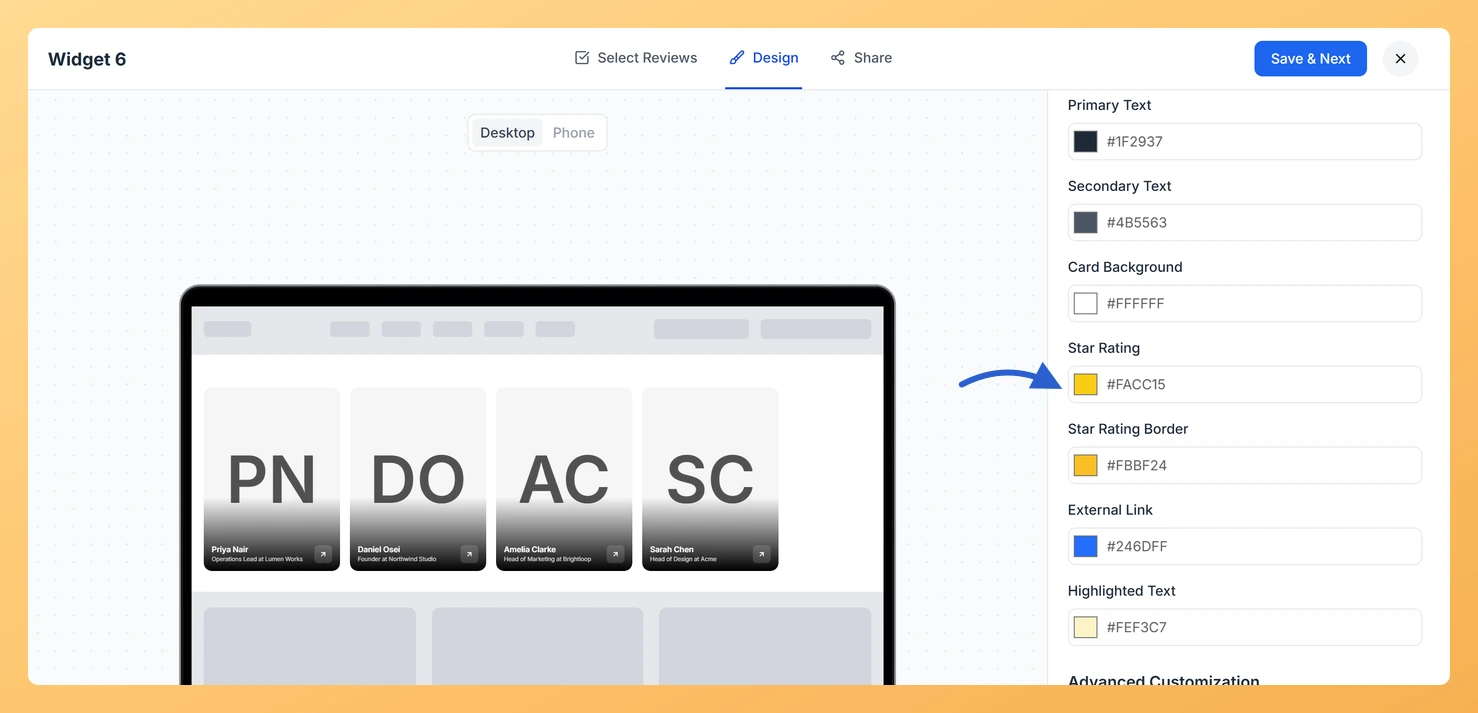
Two fields in the Custom Colors group control the stars: Star Rating sets the star fill and Star Rating Border sets the outline around each star.
How to change the star rating color on your Avatar Card Carousel widget
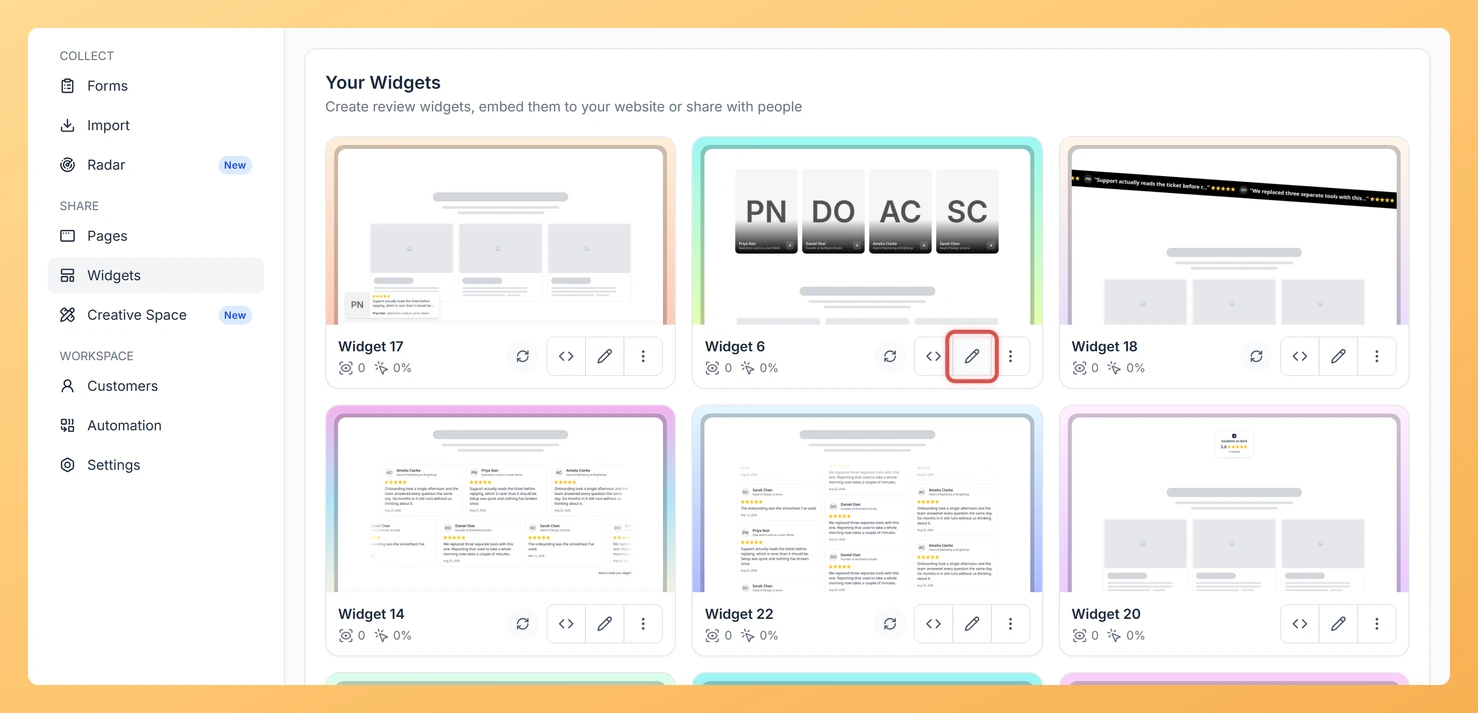
Step 1: Find your widgets
In Feedspace, choose Widgets from the left-hand sidebar.
Step 2: Open the editor
Locate the Avatar Card Carousel widget and use the Edit (pencil) icon on its card.
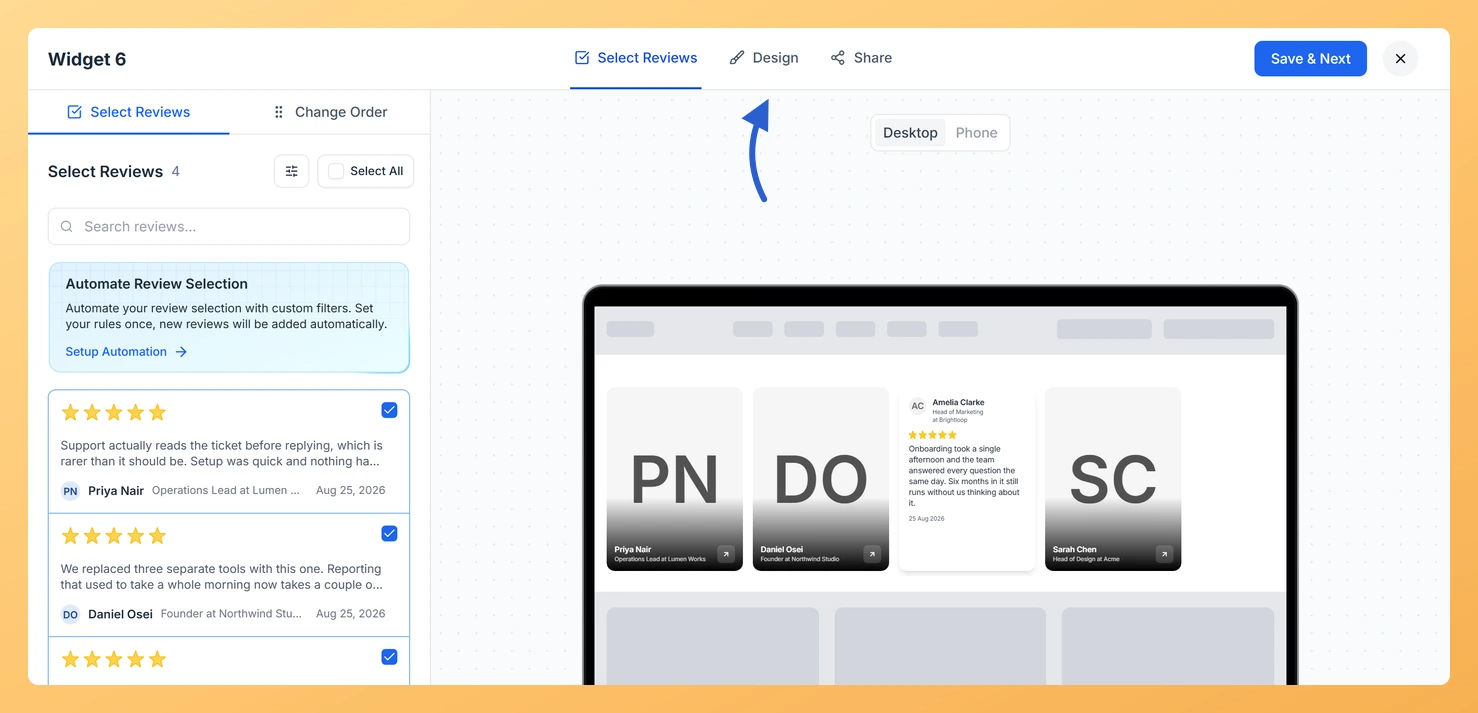
Step 3: Select Design
At the top of the editor, select Design.
Step 4: Find Custom Colors
Scroll down through Widget Color Customization to the Custom Colors group.
Step 5: Set Star Rating
Click the Star Rating swatch and choose the fill color for the stars, or enter a hex code.
Step 6: Set Star Rating Border
Use Star Rating Border to color the outline of each star.
Step 7: Save the widget
Press Save & Next to save. Your embedded widget shows the update the next time the page loads.
The Custom Colors group is hidden while Enable Dark Mode is on. Turn dark mode off to choose your own star colors.
You might also find helpful
How Do I Show or Hide Star Ratings on My Avatar Card Carousel Widget in Feedspace?
Overview The Avatar Card Carousel widget slides tall review cards across your page, each one led by the reviewer’s photo or initials. Star ratings give visitors a quick read on each review, though on a page that already carries a rating summary they can start to feel repeated. The Show...
How to Create an Avatar Card Carousel Widget in Feedspace
Overview Feedspace’s Avatar Card Carousel widget combines the sliding motion of a carousel with prominent reviewer profile pictures. Each card highlights the reviewer’s avatar alongside their testimonial, making your social proof feel more personal and trustworthy. Step 1: Log in to Feedspace Go to your Feedspace Dashboard and log in...
How Do I Customize the Design of My Widget in Feedspace?
Overview Feedspace widgets come with a powerful Design tab that lets you tailor every visual aspect of your widget. From card colors and fonts to dark mode and call-to-action buttons, you can fully customize the look to match your website’s brand without writing any code. How to Customize the Widget...